IMPORTANT! Before you set this up your Branch Owner must send an email to help@ravebuild.co.nz requesting our team to turn this functionality on for you. Then we can help you turn on the Branch Setting First
Note: This documentation is only temporary until the Rave Build MCP Integration is available on the various AI Agent Marketplace Webpages (like ChatGPT Marketplace).
Setting this up now will require additional work to undo this change when the Marketplace app has been approved for public use.
What is MCP
Model Context Protocol (MCP) is a standard that allows an AI Agent (like ChatGPT or Claude) to connect to a third-party system (like Rave Build). This is similar to an API but is designed specifically for AI agents.
Data Safety
When using “free” AI agents, the data returned from Rave to answer your prompts may be stored and used for training purposes by the vendor (like Anthropic or Open AI). It is best to read their policy around data retention and use paid business subscriptions - which tend to have policies around not storing your data. There is little to no harm in having your data used for training purposes, but still probably something you should be aware of before using “free” agents.
What data is available?
We cannot give the AI agent “everything” as it will get confused. We have also only published a limited amount of data for the beta testing phase so that we can make sure everything we do provide works as expected and can be refined to something useful.
Once connected, ask your agent “What tools are available in Rave Build?” and it will give you a summary of what it can do. This will change over time so you might want to ask this after any release to see if there is anything new there that you can now access.
Permissions / data access
The AI agent will not be able to access any data that you do not already have access to with your user via the Rave Build website. It may have access to tools which can be used to fetch data that is not available to you - but those tools will fail with an error if you do not have permission to use them, or they will only return the data that you have access to if you have restricted access.
Before you start – chose your agent
To use AI with Rave Build, you need to sign-up with a supported AI agent:
- OpenAI ChatGPT (recommended) (free accounts available)
- Anthropic Claude (free accounts available)
- SpaceX/xAI Grok (free accounts available, poor user support)
- Microsoft Copilot (no free accounts, complicated and poor usability)
- Google Gemini (currently only for code/developer use)
OpenAI ChatGPT is recommended as it is generally quite fast and has a wide ecosystem, including web/mobile/desktop apps, and is generally very easy to use. Their free tier will give you a decent amount of access before requiring you to move to a paid subscription.
Anthropic Claude is a good model but is more focused on technical users so may have less use for your staff compared to ChatGPT. This would be the best alternative if you do not want to use ChatGPT.
SpaceX/xAI Grok has very good and low-priced models - but has poor customer support.
Microsoft Copilot uses Claude or ChatGPT models behind the scenes, but it has a sub-par user experience and can be unnecessarily complicated to configure. Use this only if you really want to keep everything in Microsoft and have experience setting up Microsoft services.
Google Gemini Web AI Agent does not currently support MCP – but their developer focused code AI agent does so is technically supported, but this not recommended for non-technical users.
Setting up ChatGPT
Assumption: you have already set up a ChatGPT account (free or on a subscription) and are signed in to the website via chatgpt.com – once setup via the website it should be available in desktop/mobile apps automatically.
Step 1. Enable developer mode
This lets you add MCP before it is available on the ChatGPT marketplace.
- Click your profile icon on the bottom left of your screen
- Click settings
- Click “Security and login”
- Enable “Developer mode” (at the bottom of the screen)
Step 2. Add a Plugin
- Click Plugins
- Select “Browse Plugins”
- Click the + on the top-right corner
Populate the form with some basic details as below:
- Name: Rave Build
- Connection: Server URL: https://pro.ravebuild.com/mcp
- Authentication: OAuth
Step 3: Sign-in to Rave
Once the plugin is created, you should be prompted to sign-in (as below)
Click this link then follow the sign-in process as normal
After sign-in, you will be prompted to Authorize Access for ChatGPT – you will need to decide if you want to grant Read-only access or Read and write access.
You can change this later by disconnecting + re-connecting ChatGPT from Rave.
Of note, ChatGPT will generally ask you to confirm before making any WRITE operations but it is still somewhat risky as ChatGPT can and will make mistakes unless given the correct instructions.
Select the relevant read/write mode then click APPROVE
This will take you back to ChatGPT (may take a few seconds)
Next, click the “Refresh” button next to the “Information” header
This should take a few seconds and will update the page with a long list of available “Developer mode” actions. After this, you can close the settings menu.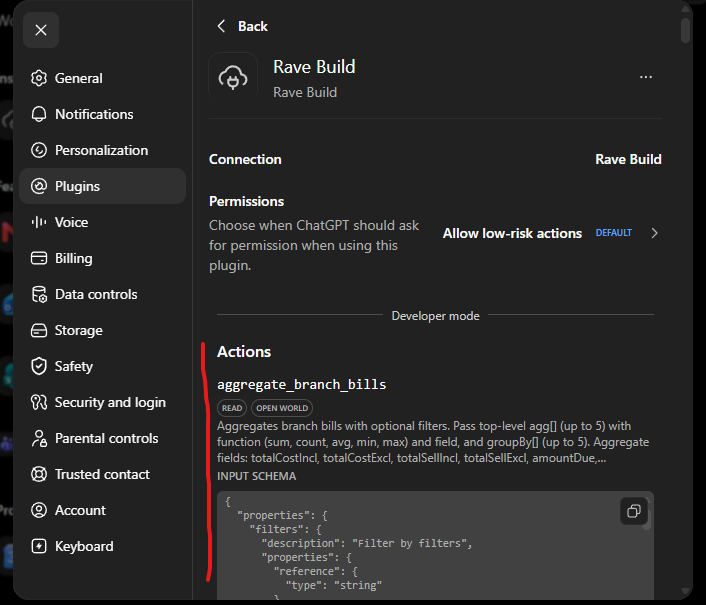
Step 4: Starting a chat
Click on the “New chat” icon from the top-left menu
To access Rave, you need to first let the AI agent know that you want to work with Rave Build. You can do this in many different ways - as long as you give it some sort of hint that you want to use Rave Build, otherwise it will need to figure it out for itself which may not work as expected.
For example:
- “What tools are available to Rave Build”
- “Can you give me a summary of Invoices using Rave Build”
- “I would like to use Rave Build for the following chat”
- “Using Rave Build, can you tell me who owes me the most money”
Once you have mentioned Rave Build, all subsequent messages in this chat should be smart enough to assume you are referring to Rave Build so you do not need to repeat the hint anywhere else.
Once you submit your first question it should verify that it can connect to your Rave Build account and you can continue chatting with it.
What kind of queries can I ask the Agent?
We support 4 kinds of queries:
- Data which can be found from a list like Projects List or Client Enquiries List, e.g. “How many Open Invoices are there” or “How many Enquiries are assigned to Bob”
- Data for a specific document, e.g. “Give me a summary of Invoice INV-1234”
- Aggregated data (sum, count, min, max, average) from a list, e.g. “Give me a summary of open Invoices created in 2026 grouped by customer”
- Write operations, e.g. “Create a Quote for Project 1234 to build a 10m fence for $1,000 including GST cost and $2,000 incl GST sell. Add some blurb to the scope of works about building a fence and painting it black and note in the exclusions that it does not cover any additional earth works that are unexpected like buried tree stumps or buried concrete and make it sound exciting with some emojis etc”
The best way to think of an AI agent is like having a phone call with an employee who is sitting at a Desk using Rave Build and talk with the AI like you would a real person. Avoid asking questions that a human would not understand.
You need to be specific to get the best results, but it should be smart enough to follow the context of your conversation. E.g. if you ask for details about project 1234 then you should be able to ask for a list of invoices for that project and not need to specify 1234 again.
Tips and tricks
- Try voice mode. This is helpful unless you want very specific details in which case typing may be more reliable.
- Write/Talk to the agent like a real person. Avoid giving it robotic instructions as it is trained on normal human conversation. E.g. “list invoices” vs “Can you list invoices created in 2026”
- Treat the agent like someone who doesn’t know your business but is amazing with Excel and has access to a spreadsheet with a bunch of data in it. They can look at that data and do amazing things with it, but it can’t read your mind.
- Look out for the agent trying to be too smart/helpful. It will do things like auto-pick account codes, categories/sub-categories and make decisions like which Project Id to use based on your previous conversations or the context of the prompt which may be incorrect. This is an easy trap to fall into when you get many successful interactions in a row and you let your guard down and just auto-approve everything it provides you. This is why Voice mode is quite good as it will tell you what it is doing verbally.
- Look out for the agent only giving you a subset of results. E.g. It might only return the first 100 results from a list instead of fetching all 142 records. Always check if it tells you it only fetched the first page of data or be specific and ask it to fetch all records. This usually happens if you give it a vague prompt or ask for something silly like “List invoices” which could output a vast amount of data so it just returns a limited amount to save you money.
- Connect other services like Gmail or Microsoft 365 so that you can do more things with your data. E.g. “Create a draft email in Outlook for the top 10 customers that owe me money for Invoices created in the last 6 months with details of how much money they owe me and the payment due date. Use a non-threatening tone but make sure it clearly states that payment is expected asap.
- Ask your agent for tips on what it can do for you with the Rave data instead of guessing what is possible, like creating Excel files with charts/graphs or making suggestions like which suppliers to pay first or which customers to chase up to help cashflow.
- Do not use an AI Agent as a replacement for the Rave Build web app. Ask it for things the web app cannot do or is hard to do in the app.
Was this article helpful?
That’s Great!
Thank you for your feedback
Sorry! We couldn't be helpful
Thank you for your feedback
Feedback sent
We appreciate your effort and will try to fix the article