The Rave Outlook Plug-in allows you to create emails in Microsoft Outlook and automatically sync them back to Rave. When composing an email, you can choose whether to link it to an Enquiry, a Project, or both, ensuring all project communication is stored in the correct location for your team to access.
Before you begin, ensure your Outlook account is connected to Rave by following our help article here.
For emails linked to Rave to appear correctly, both your Inbox (where received emails are stored) and your Sent Items folder must be synchronised with Rave. This ensures that all incoming and outgoing emails linked to enquiries and projects are visible within Rave.
Benefits
- Keep all project correspondence in one place.
- Reduce manual uploading of emails.
- Ensure your team has visibility of important communication.
- Link emails to the correct Project, Enquiry, or both.
- Continue working directly from Microsoft Outlook while keeping Rave up to date.
Tips
- Ensure you have selected the correct Project or Enquiry before sending the email.
- If an email is linked to both a Project and an Enquiry, it will be available in both locations within Rave.
- You must be signed in to your Rave account for the plug-in to synchronise emails successfully.
Creating the Plug in.
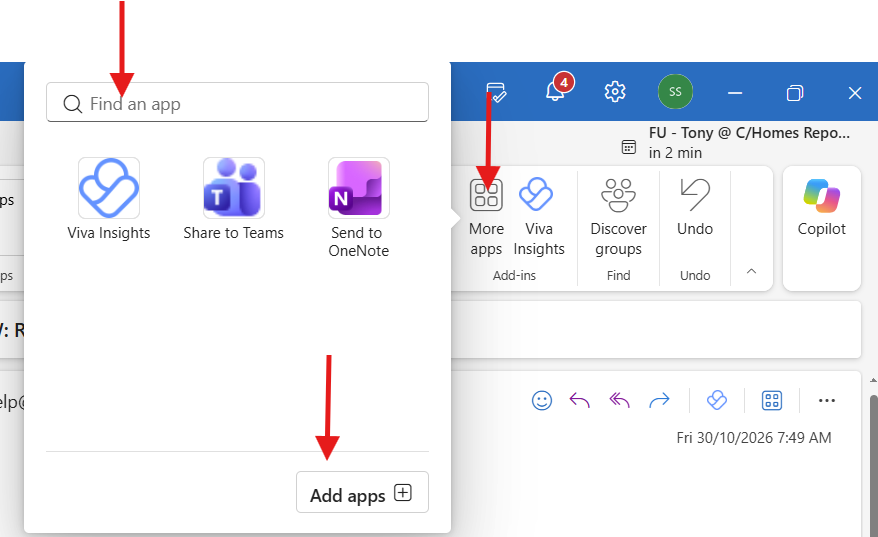
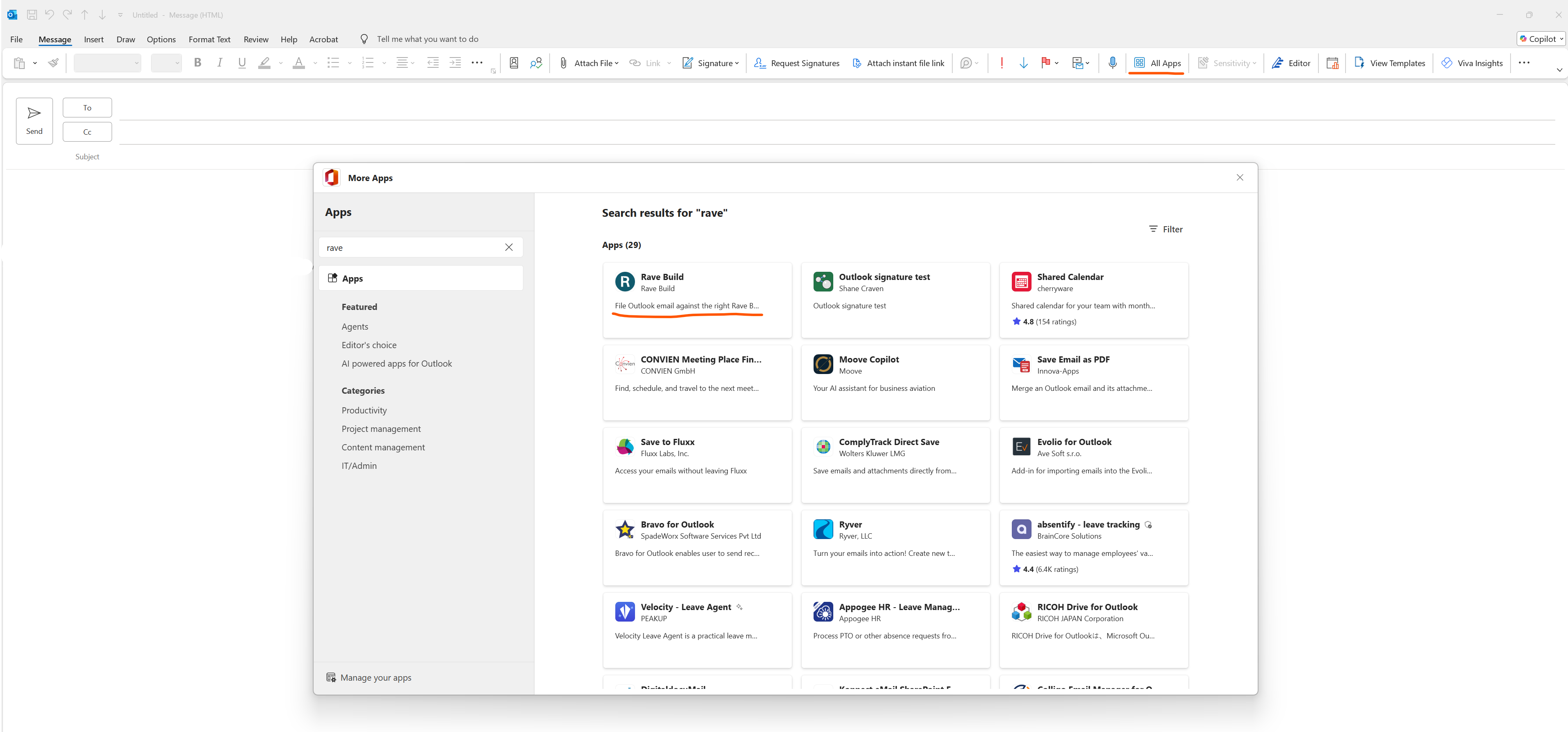
On your outlook home screen click on More Apps
Type in Rave and Add Apps
you will then see the Rave icon show on the connected apps screen
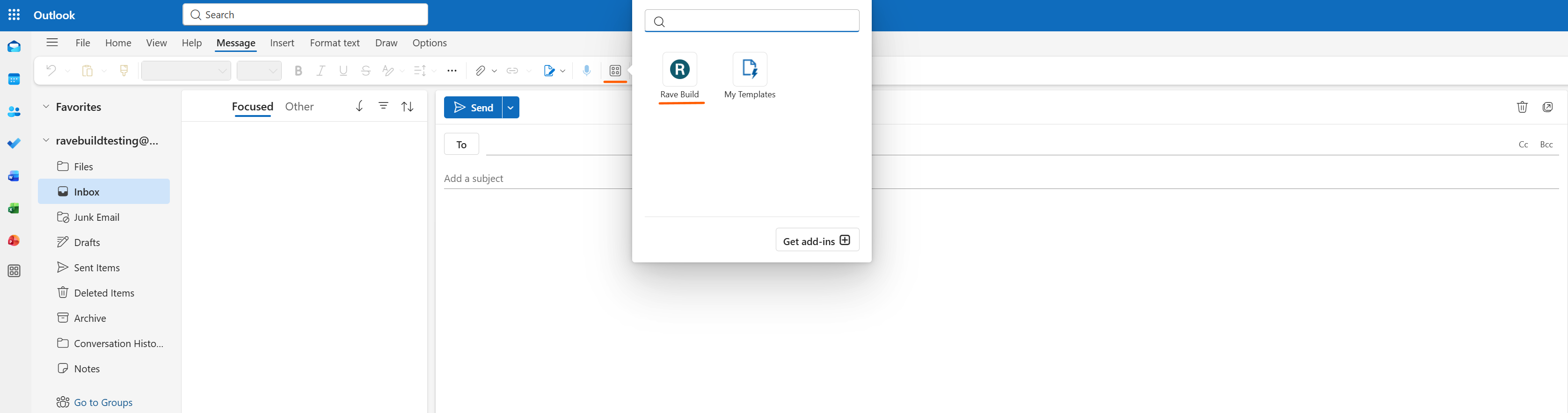
Creating an Email Using the Rave Outlook Plug-in
- Open Microsoft Outlook.
- Select New Email.
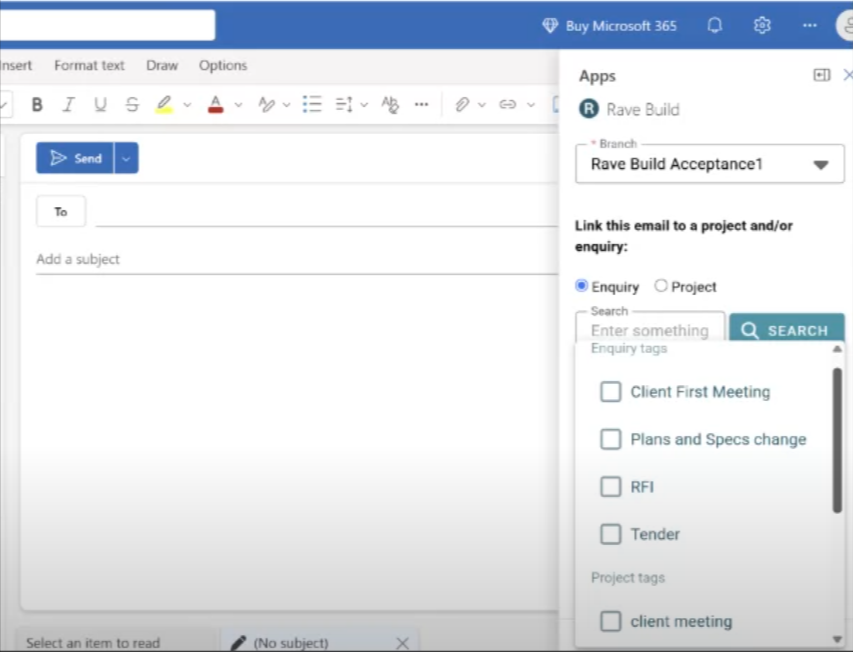
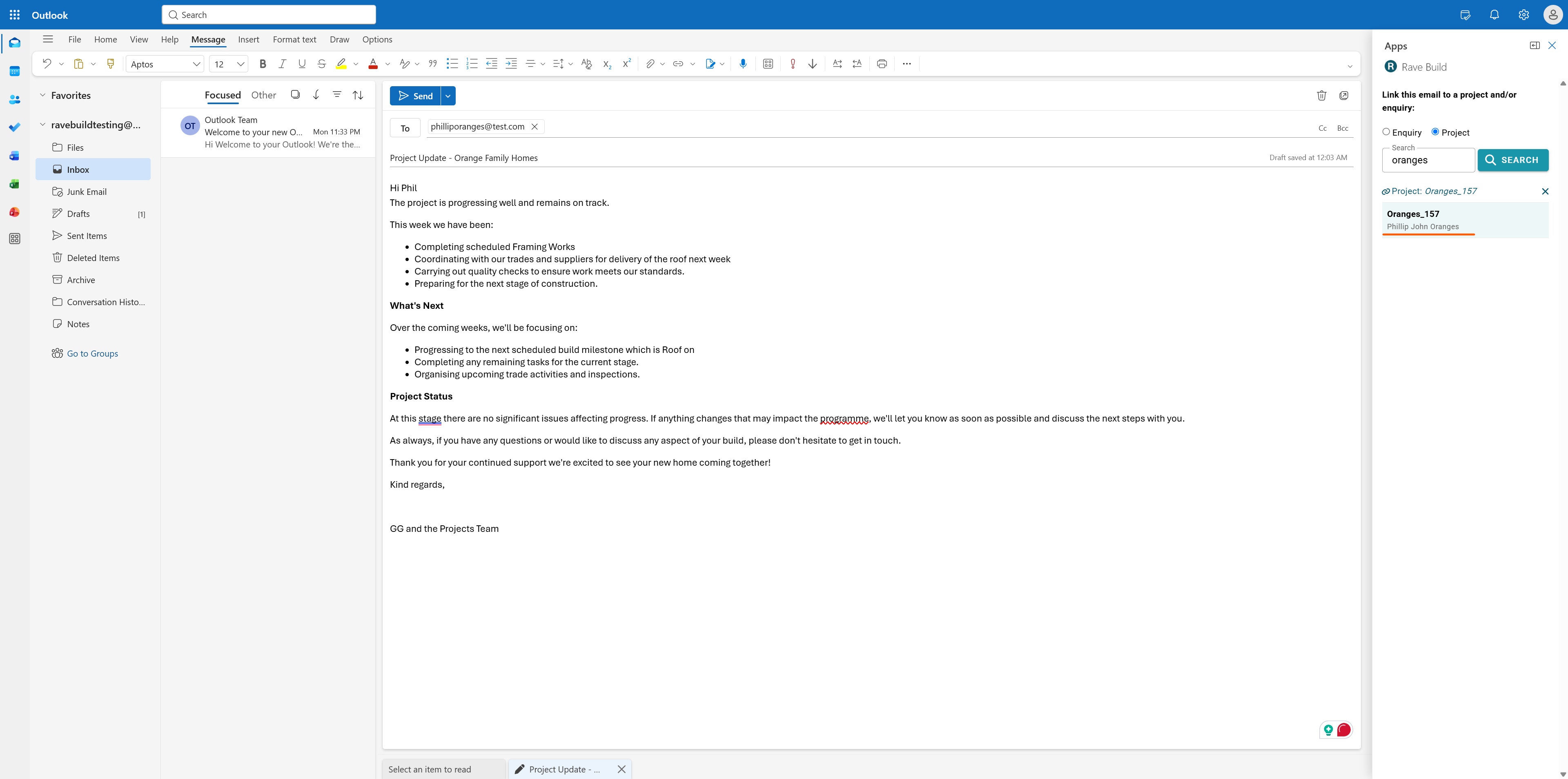
- Open the Rave add-in from the Outlook ribbon or Apps menu.
- If prompted, sign in to your Rave account.
- Use the search field to type in and locate the relevant Project or Enquiry.
- You need to search each toggle separately and click the ones you wish to link.
- An Enquiry or enquiries
- A Project or projects
- Both an Enquiry and a Project
- You can also add a mail Tag from the drop down if tags are enabled in Rave.
- Compose your email as normal.
- Click Send.
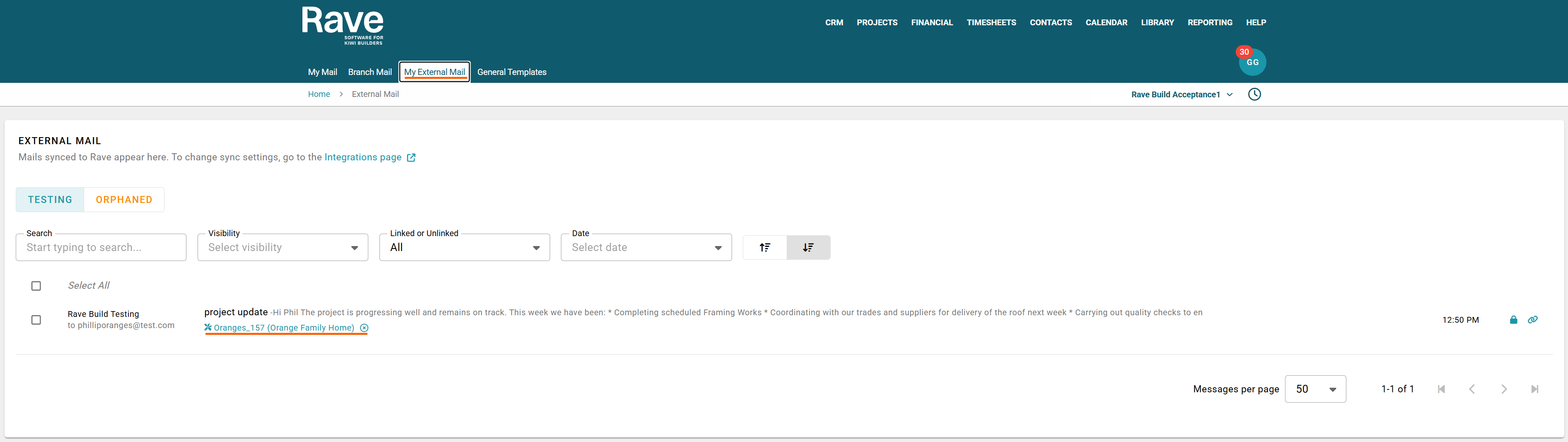
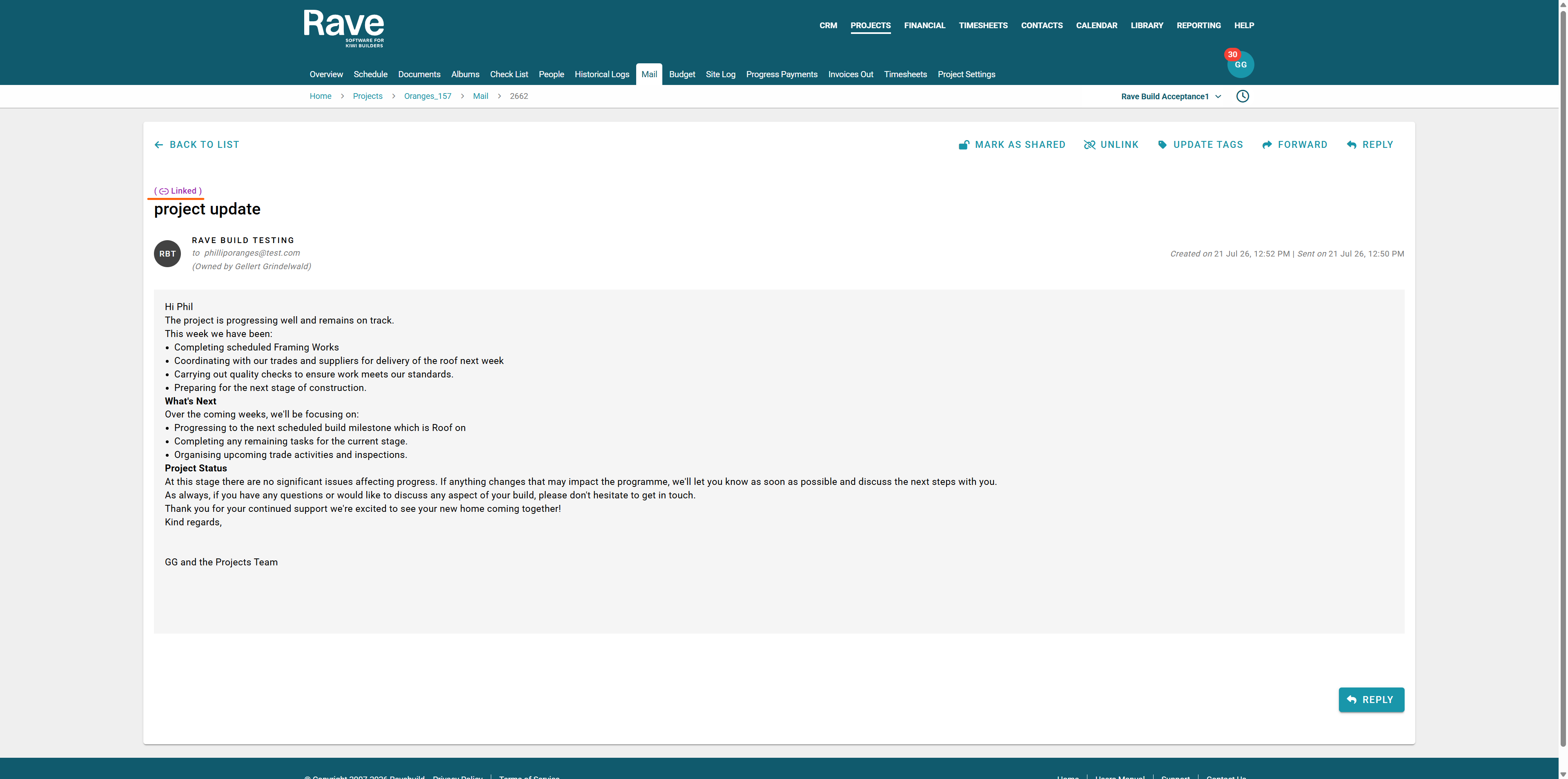
Once the email has been sent, it will automatically sync to the selected location(s) in Rave, allowing everyone with access to the project or enquiry to view the communication.
Please see the help article here for connecting your external mail to Rave to ensure a smooth syncing process


Replying to Mail
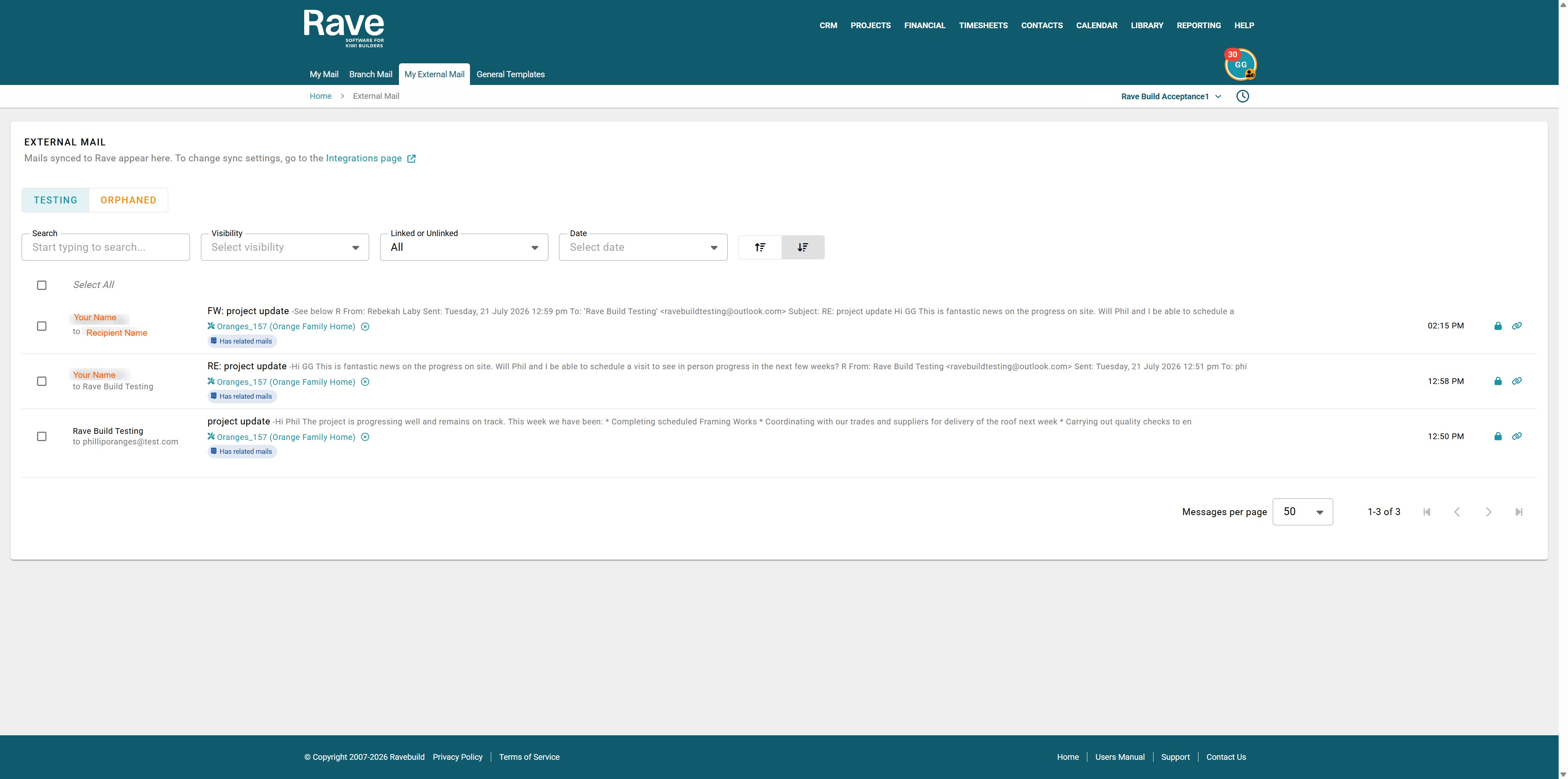
When you create an external (or internal) email, and the recipients respond, those conversations are automatically linked together in Rave and displayed with a “Has Related Mails” icon.
Once these emails are linked to a Project or Enquiry, you can open the latest email to view the full conversation thread, including each recipient’s replies.
As the thread grows, there will be more content to read. A search box has been added to help you quickly find specific content within those threads.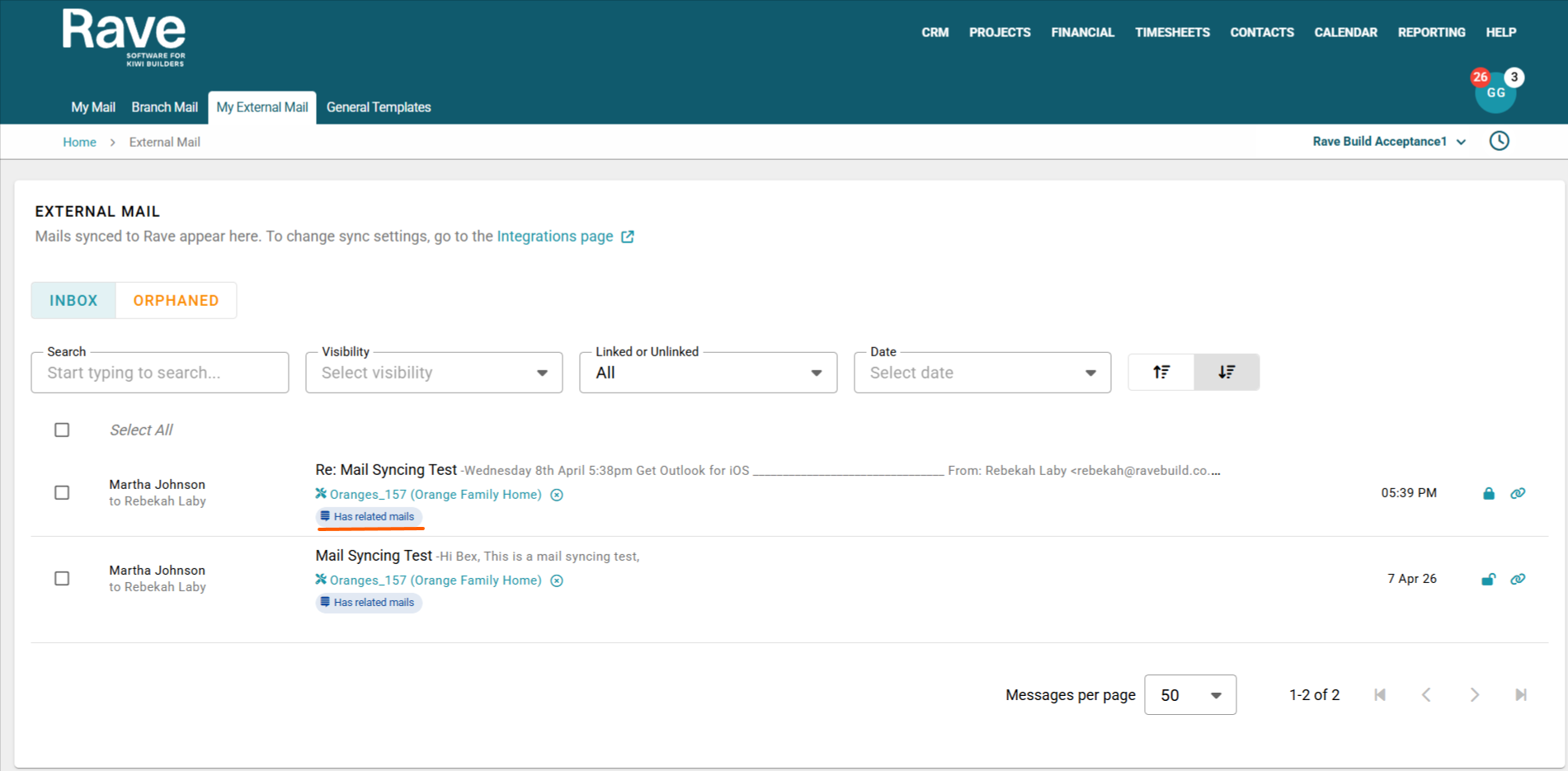
Forwarding Mail
You can forward mail both internally in Rave and externally from Outlook, and the mail chain will continue to grow. The new linked mail that has been forwarded on will display a Has Related Mail tag and will include the person or persons you have forwarded the mail to.
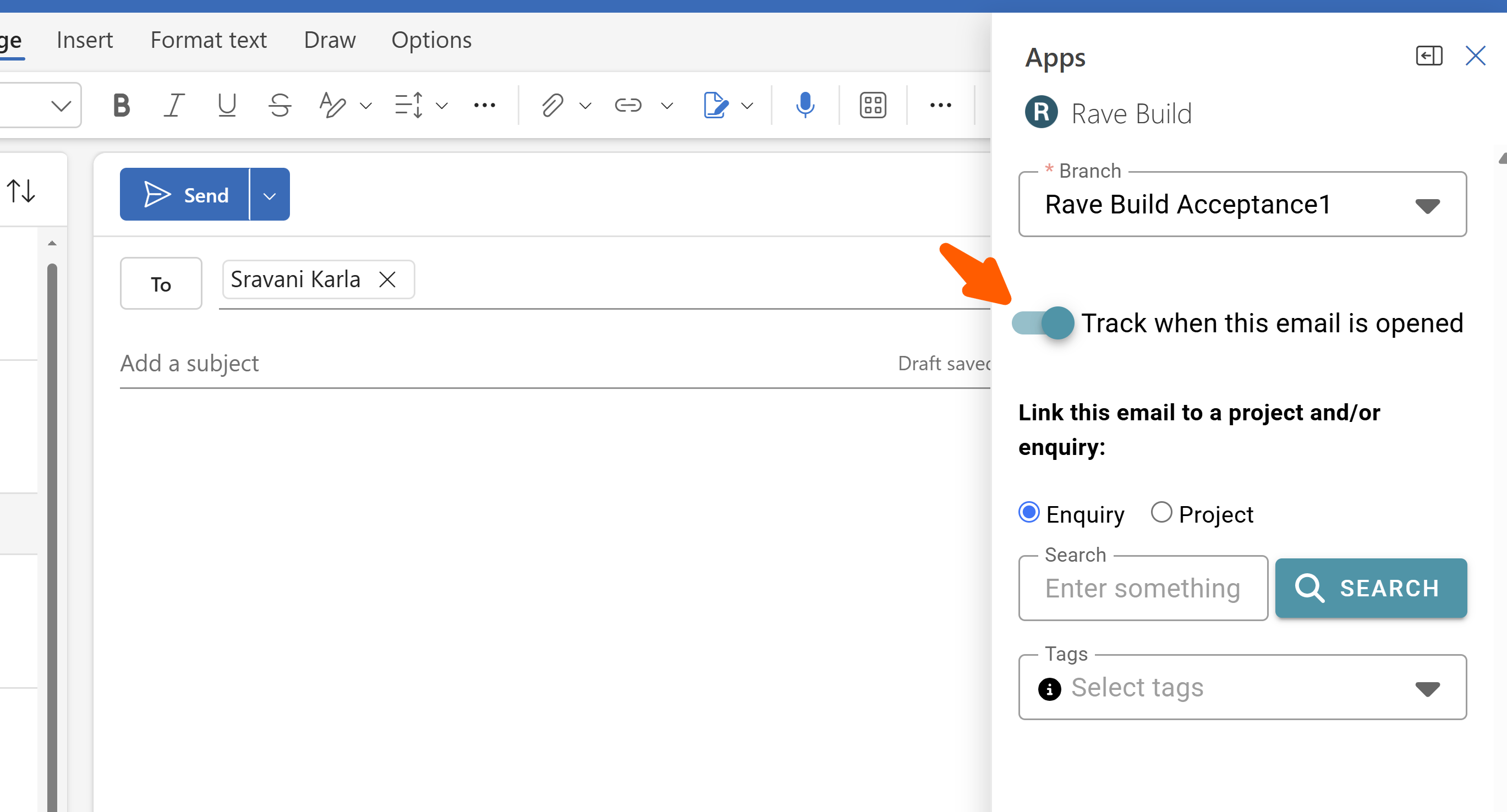
Track when mail is opened
You can enable the ability to track when the mail has been opened by using the below slider.
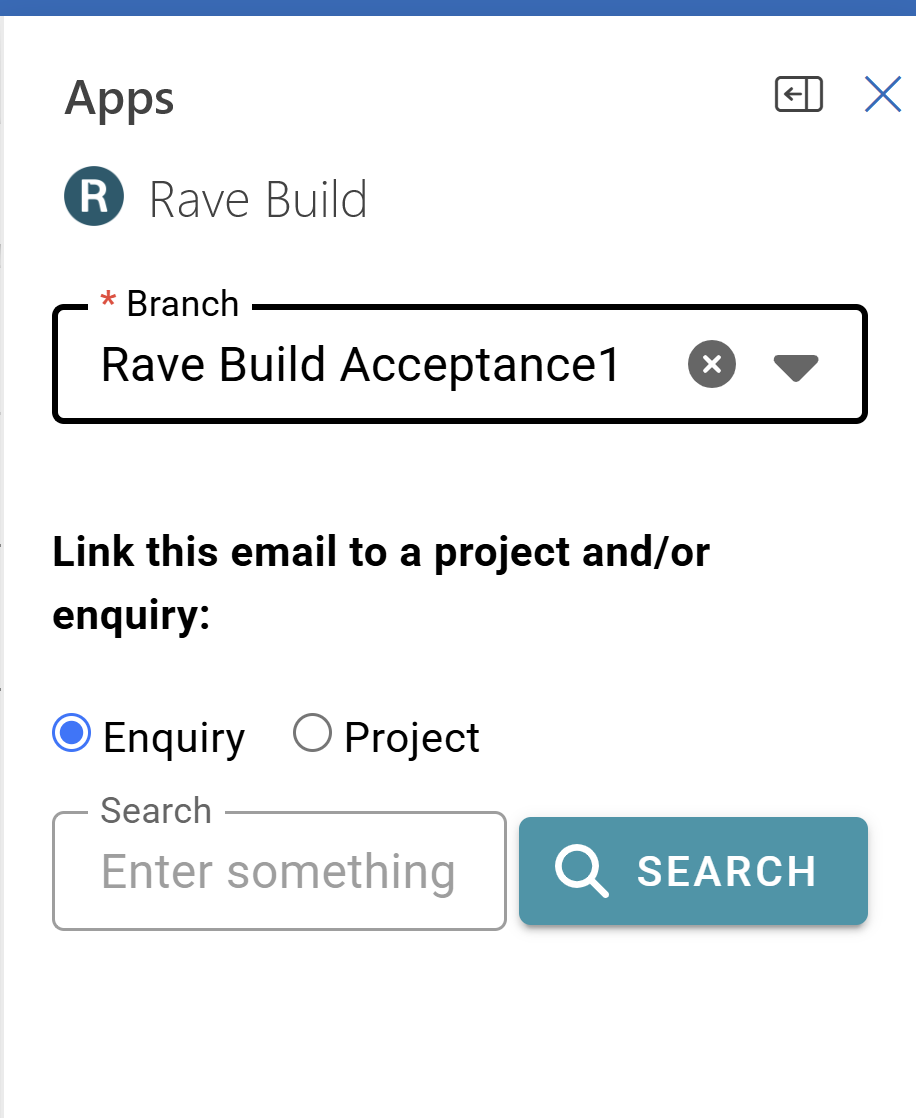
Multi Branch Users
If you have access to more than one Rave Branch you will see the Branch Selector to the top of the plug in. Select which branch this mail needs to syc with and the Enquiry and Project options will change to match that Branch.
Was this article helpful?
That’s Great!
Thank you for your feedback
Sorry! We couldn't be helpful
Thank you for your feedback
Feedback sent
We appreciate your effort and will try to fix the article