RAVE's Project Mail feature allows you to communicate with your projects' Project Manager at a project level similar to email. 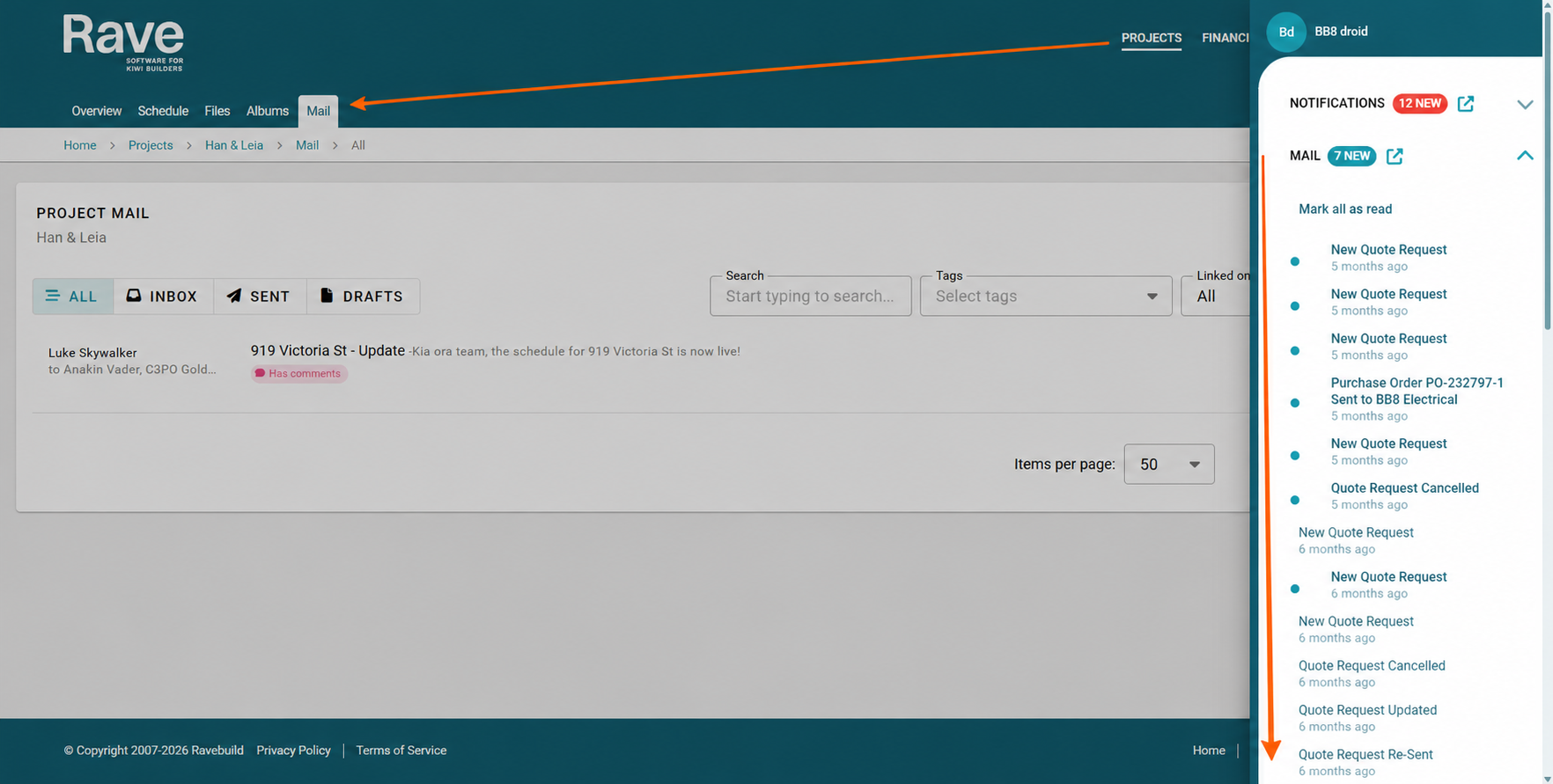
Mail Alerts
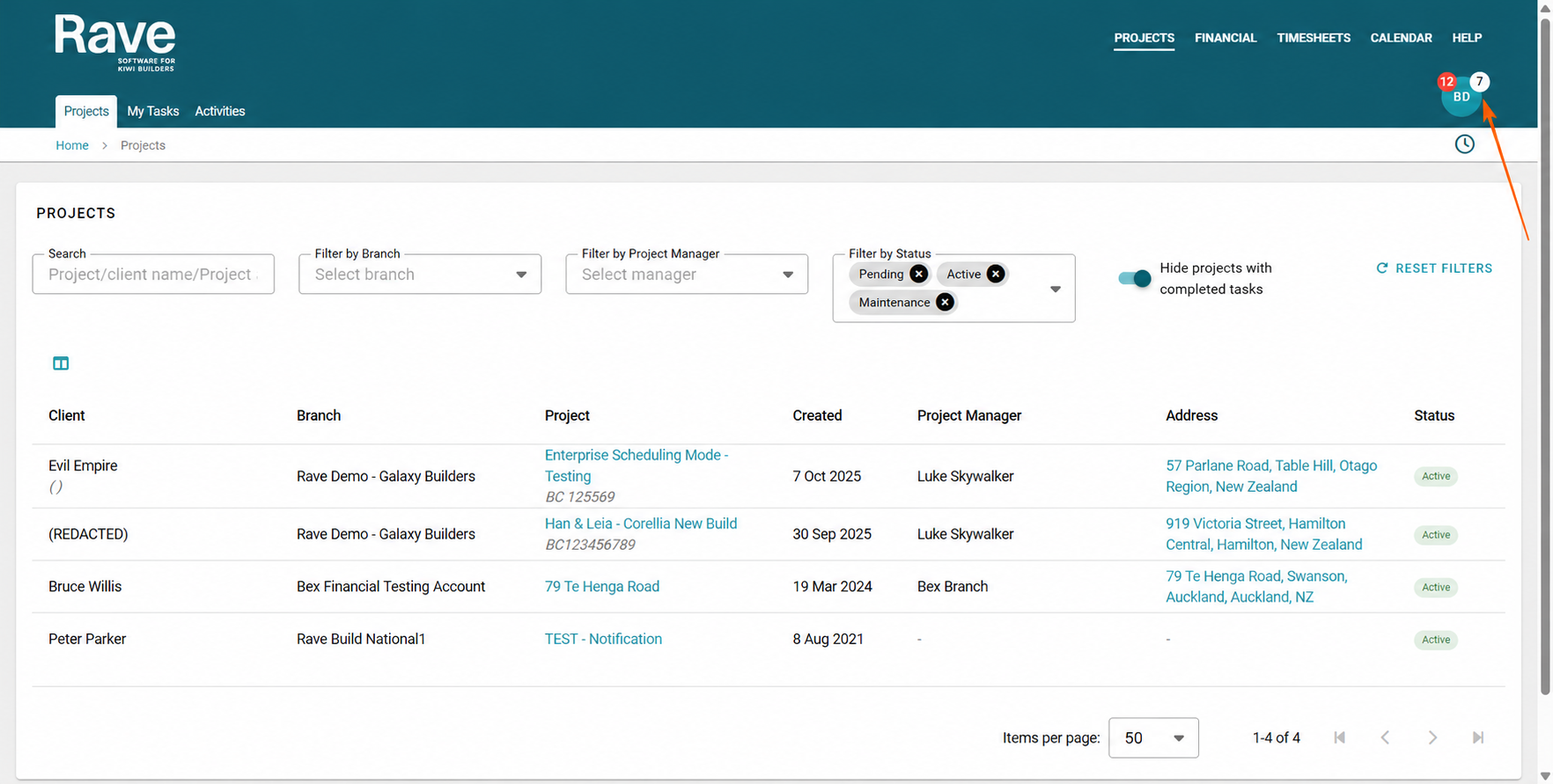
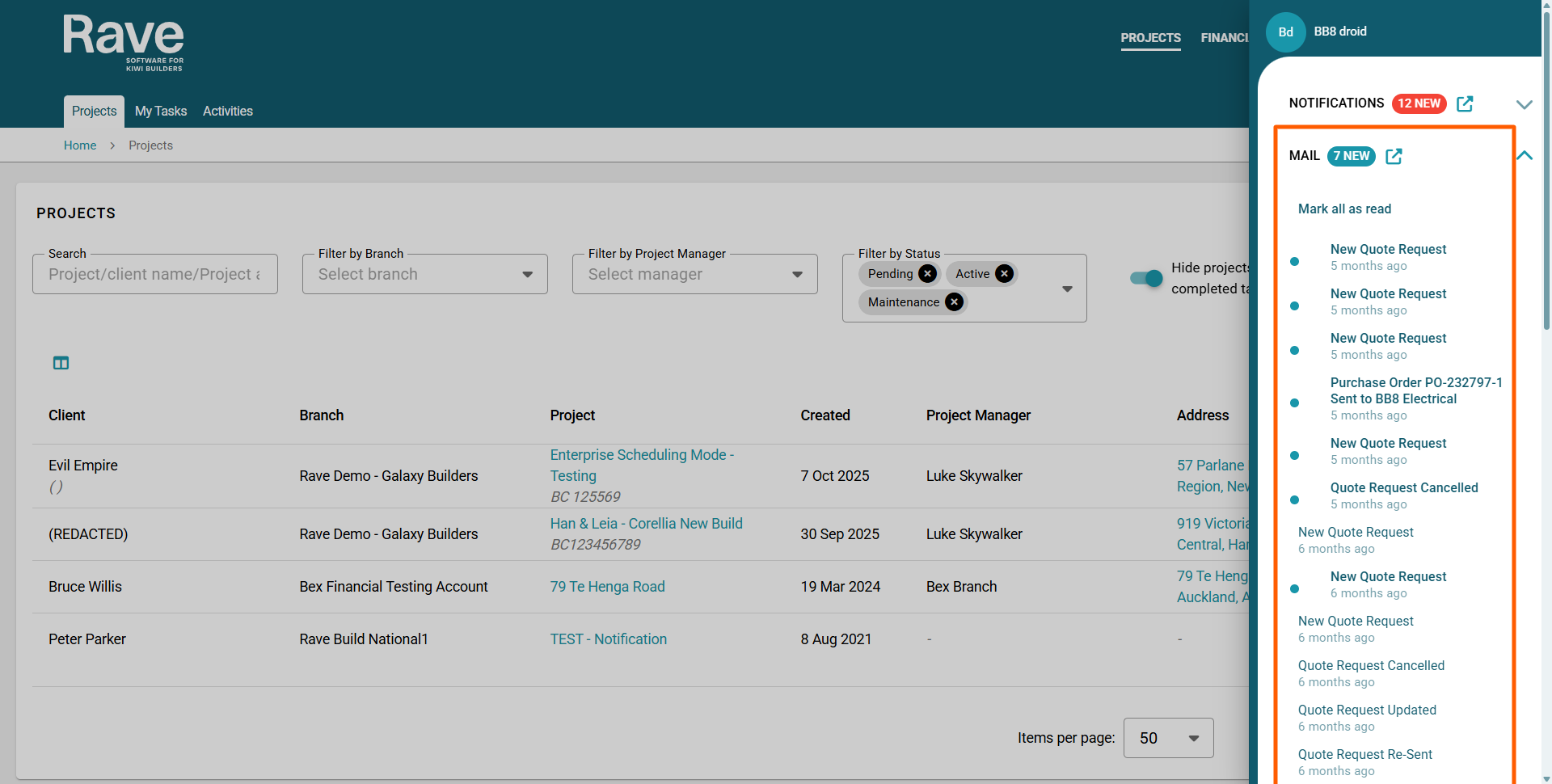
When you receive a new mail message in Rave, a white alert bubble appears in your profile dropdown showing the number of unread messages.
Click the bubble to view your messages. Unread messages appear in bold with a bullet point. Click a message to open it in the relevant project, or go to the project's Mail sub-tab to view all messages for that job.
The Project's Mail Folders
The project's Mail sub-tab displays all messages by default. Use the folder buttons to filter messages by Inbox, Sent or Drafts. Select All Messages to view messages from all three folders.
Sending a New Mail Item
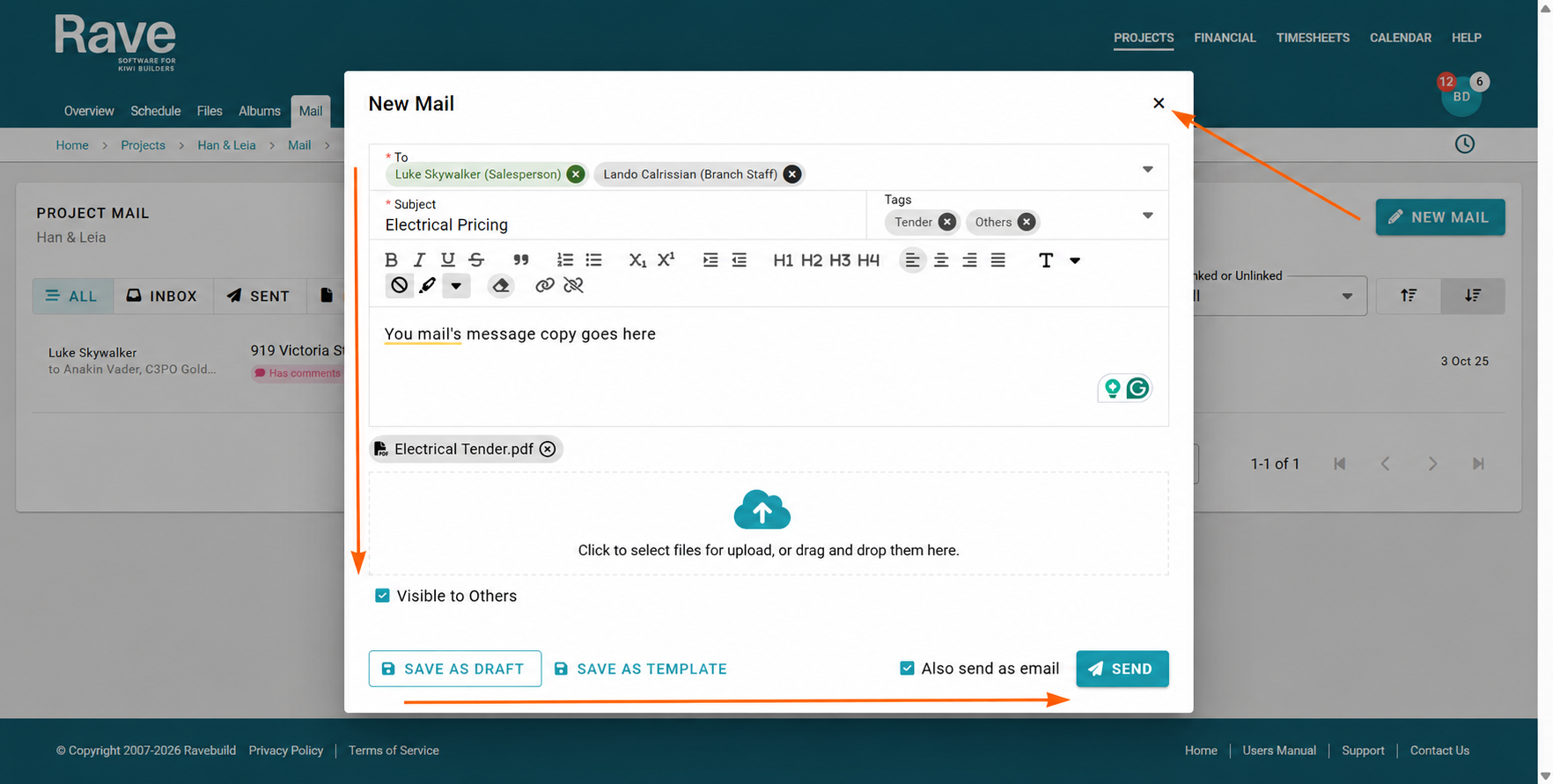
- Click New Mail to open the compose window.
- Select the recipients from the To: dropdown.
- Enter a subject and select a tag if required (usually left as None).
- Add your message in the body and format it as needed.
- Add any attachments using the cloud icon.
- Choose whether the mail should be visible to others.
- Choose to Send, Save as Draft to send later, or Save as Template to reuse in another project.
When sending, choose whether to send the message internally through Rave, as an external email, or both, as applicable. Click Send when ready.
Note: The Send button remains greyed out until all required fields are completed.
Saving a completed mail item as a new mail template for reuse in other projects.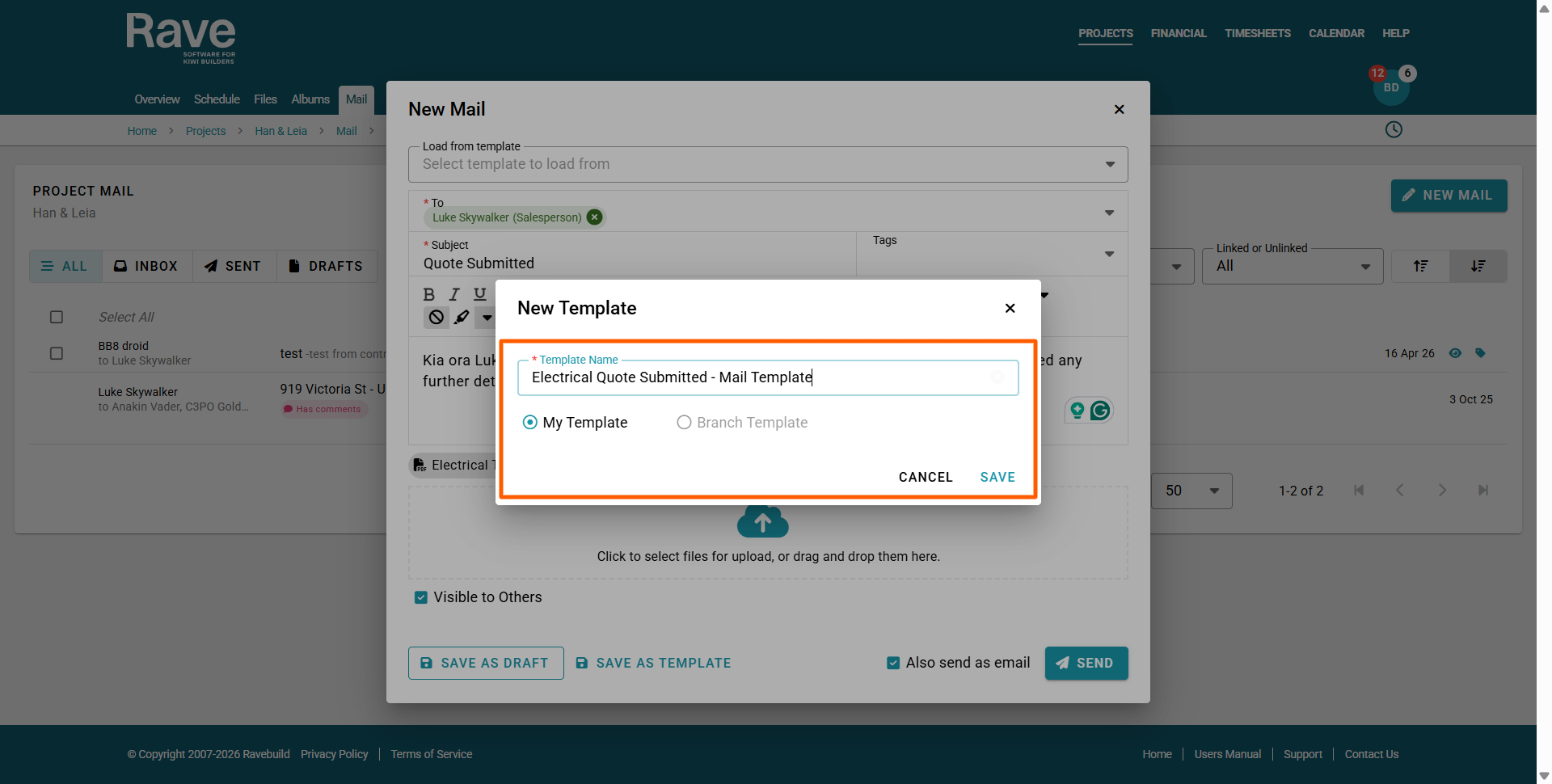
Sending a New Mail Item Using a Mail Template
Click New Mail to open the mail window.
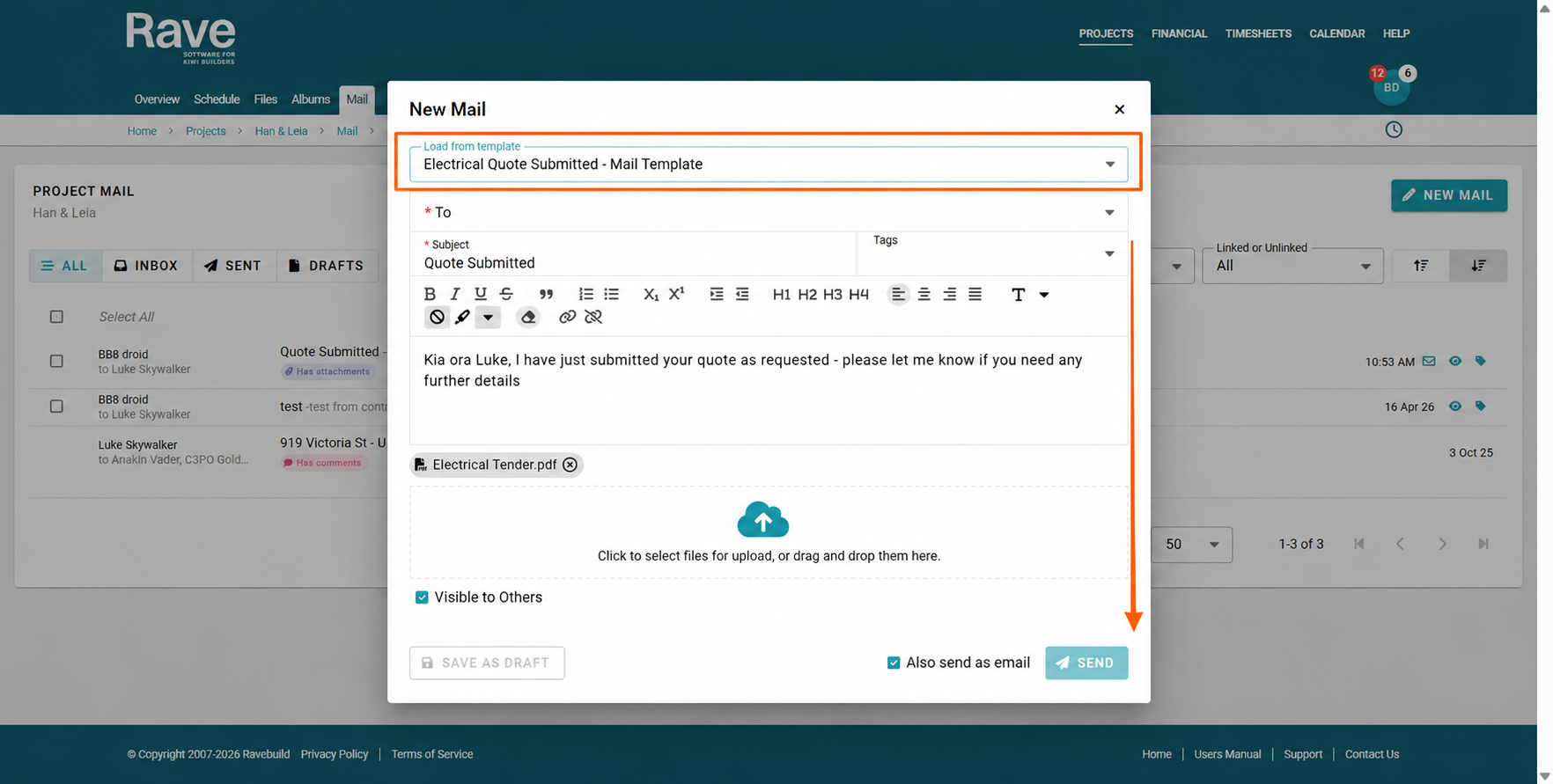
Select your template from the Load from template dropdown at the top.
Choose your recipients from the To: dropdown.
If required, edit the remaining fields:
Subject: Update the subject line.
Tags: Select a tag if needed (usually left as None).
Message: Edit and format the mail body.
Attachments: Add attachments using the cloud icon.
Visibility: Choose whether the mail is visible to others.
You can also save the mail as a draft to send later or save your changes as a new mail template for reuse in other projects.
Once all required fields are complete, choose whether to send the mail internally through Rave, as an external email, or both. Click Send when ready.
Replying to a Mail Message
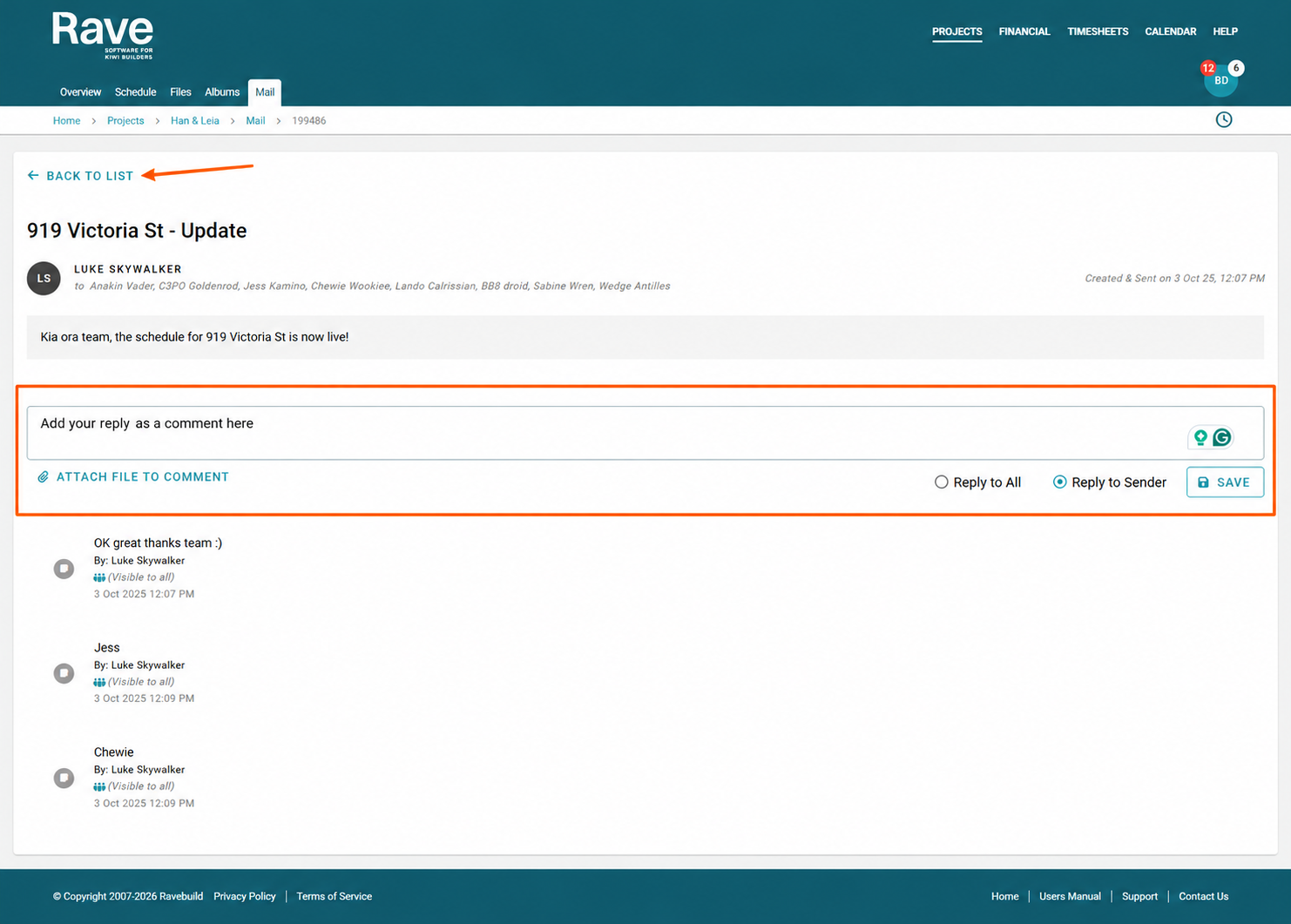
- Open the mail item you want to reply to and enter your comment.
- If required, attach files using Attach File to Comment.
- Choose whether to reply to the sender only or reply to all.
- Click Save to add your comment. Internal users will be notified that a comment has been added.
- Click Back to List to return to the project's Mail sub-tab.
Managing Mail Templates
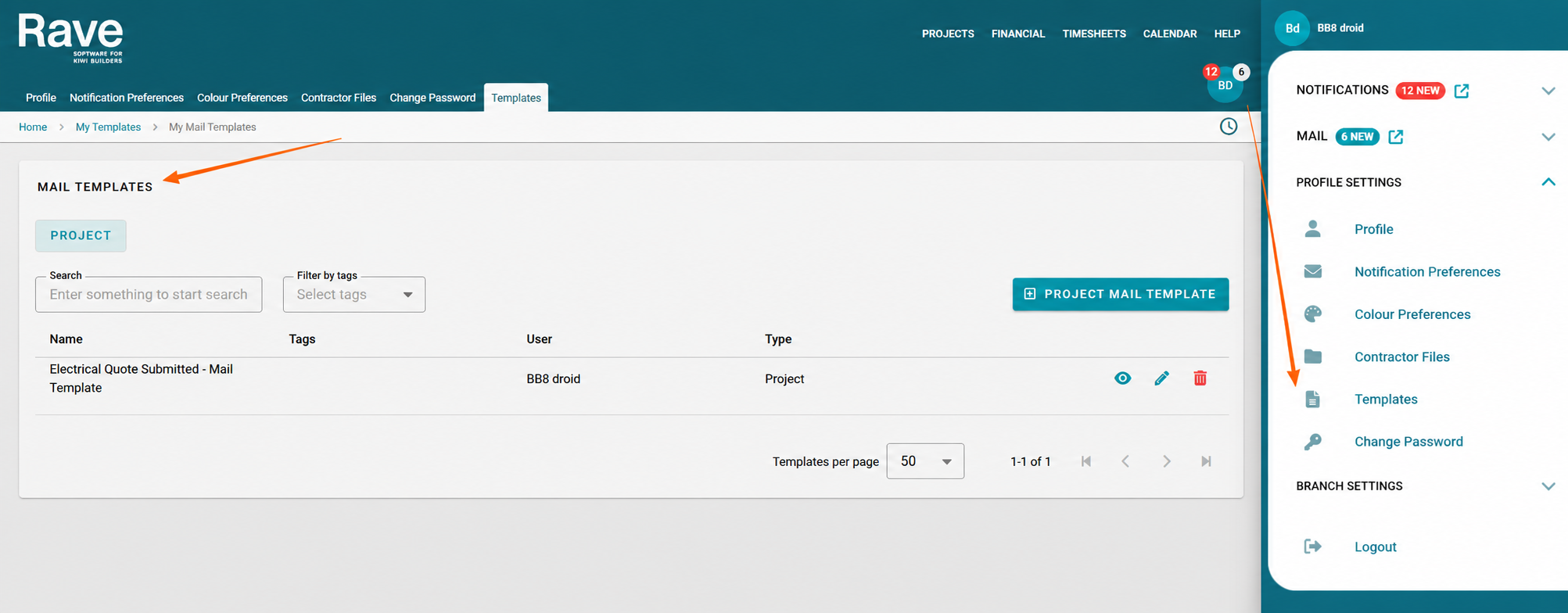
To view and manage your saved mail templates, click your profile dropdown (your initials in the top-right corner) and go to Profile Settings → Templates.
Use the action icons beside each template to:
- View – Click the eye icon.
- Edit – Click the pencil icon.
- Delete - Click the pencil icon.
Was this article helpful?
That’s Great!
Thank you for your feedback
Sorry! We couldn't be helpful
Thank you for your feedback
Feedback sent
We appreciate your effort and will try to fix the article