The Purchase Order sub-tab is where you create and manage all purchase orders for a project.
While there are several ways to create purchase orders in RAVE, the easiest method is to generate one directly from an accepted quote - to learn how to create a purchase order in this way, click here.
This article covers how to Create a Purchase Order From Scratch.
To learn how to Create Purchase Orders - Using a CSV File, click here.
You can access your Project’s financial workflows from either the Financial button or the Project button's Project list, clicking on the project’s reference number, and finally selecting the Budget sub-tab, then Purchase Orders.
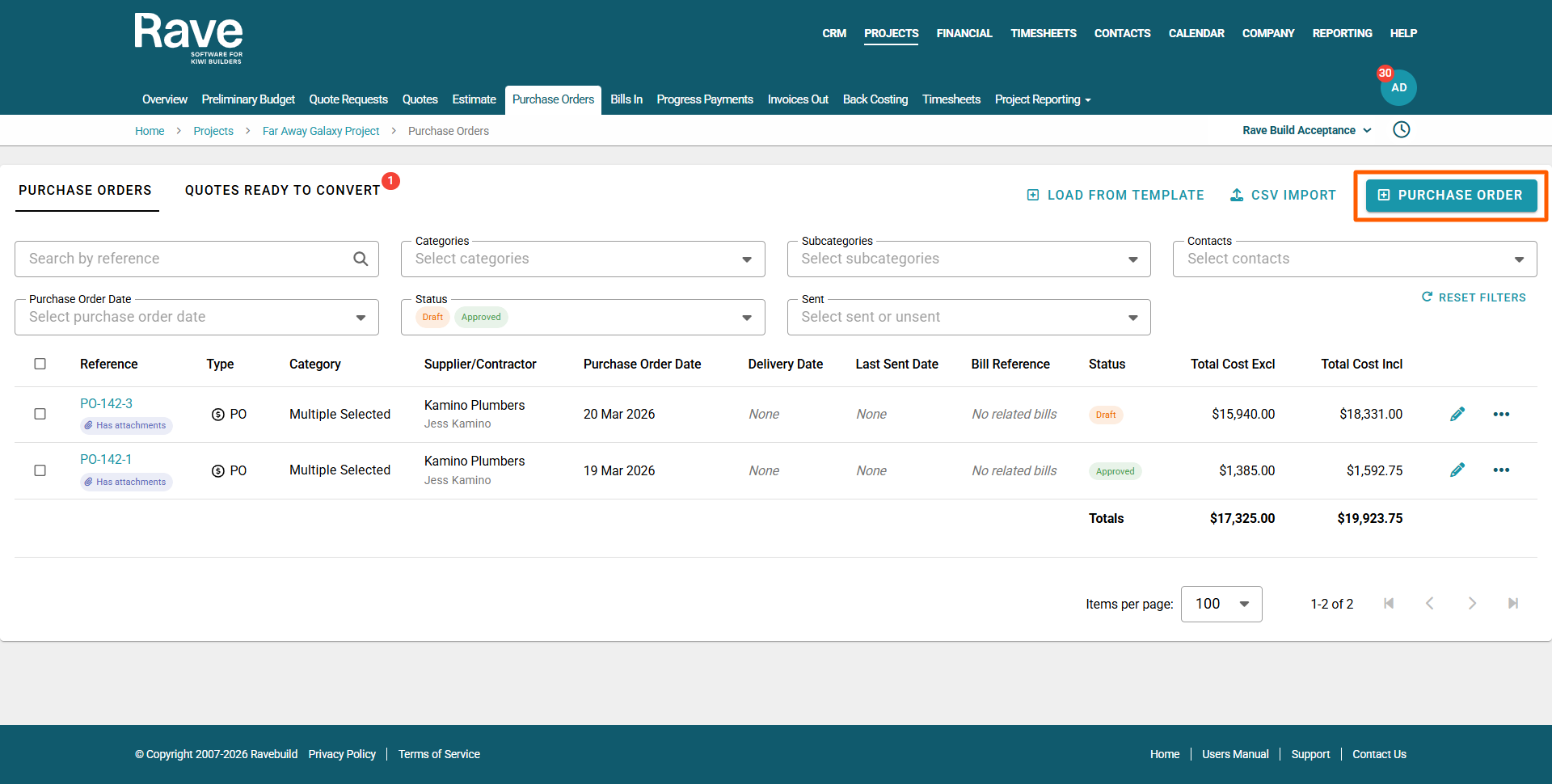
Adding contractors to a document who are not on the People tab
You can now add a contractor directly to any financial document, even if they are not already listed on the project’s People tab.
Simply select the contractor from the drop-down list and click Confirm to add them to the project. The contractor will not be notified when they are added.
This allows you to create financial documents against the contractor’s profile without needing to leave the financial document and add them through the People tab first.
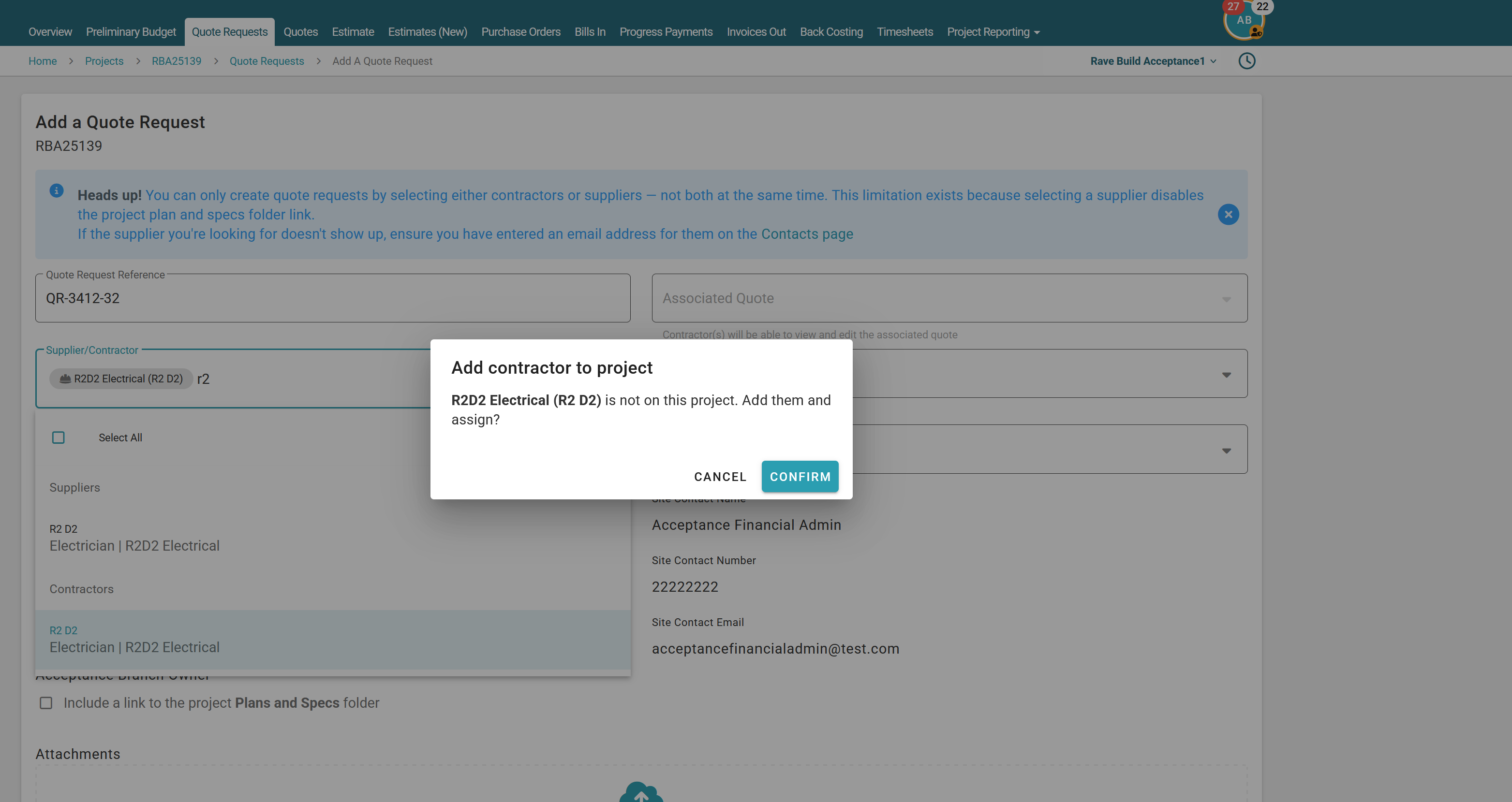
How to Create a New Purchase Order from Scratch
To manually create a purchase order in RAVE, go to your project's 'Budget', ‘Purchase Orders’ sub-tab, and click on the '+ Purchase Order' button, to the top right of your screen.
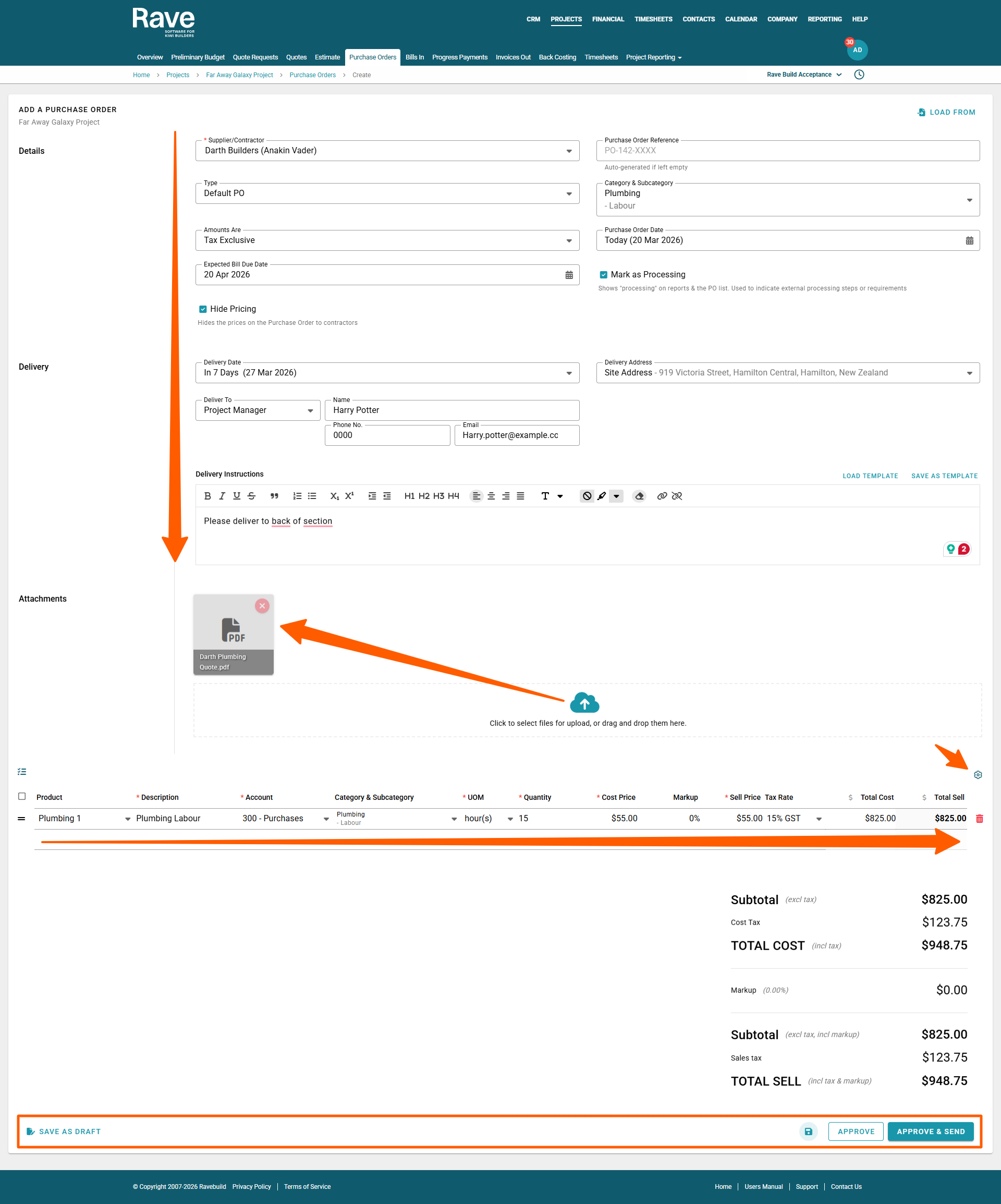
This will open a draft Add a Purchase Order screen, ready for you to fill in the supplier/contractor name, category and other form fields:
Mark as Processing
Hide Pricing - if you do not want the your contractor or supplier to see pricing
The Delivery Date, Address, To* and Delivery Instruction details
*The delivery 'To' options includes: Project Manager, Quantity Surveyor, Salesperson, Site Manager, Client, and Custom.The Attachments section allows you to add any documents you wish to send to the supplier (e.g. the supplier’s quote, specifications, or plans)
You can then fill in the line item details for your first product line, including:
- The Product Code or Description
- The Account Code
- The Unit of Measure
- The Quantity (increase or decrease)
- The Cost and Sell Pricing, and Markup
- And edit the Cost and Sell Tax Rates by clicking on the Tax Rate drop-down
Note: The Line Item Setting cogwheel to the top right of the Total Sell price, allows you to set your pricing from 2, 4 or 6 decimal places.You can add a new line by hovering below the last product line detail, clicking in that space, and filling in the line details
Once you have filled in all of your purchase orders' details, you can select
- Save Draft - saves the draft purchase order for review or editing later, before approval
- Save and Continue Editing - handy when loading a lot of line data, via the teal coloured disc icon
- Approve - saves the order for record keeping, and adds this to your 'back costing' report - but does not send it to the supplier.
- Approve & Send - sends to the supplier, and adds this to your 'back costing' page
- Save as Template - via the 3-dot drop-down to the top right of the screen, to load up for a future purchase order
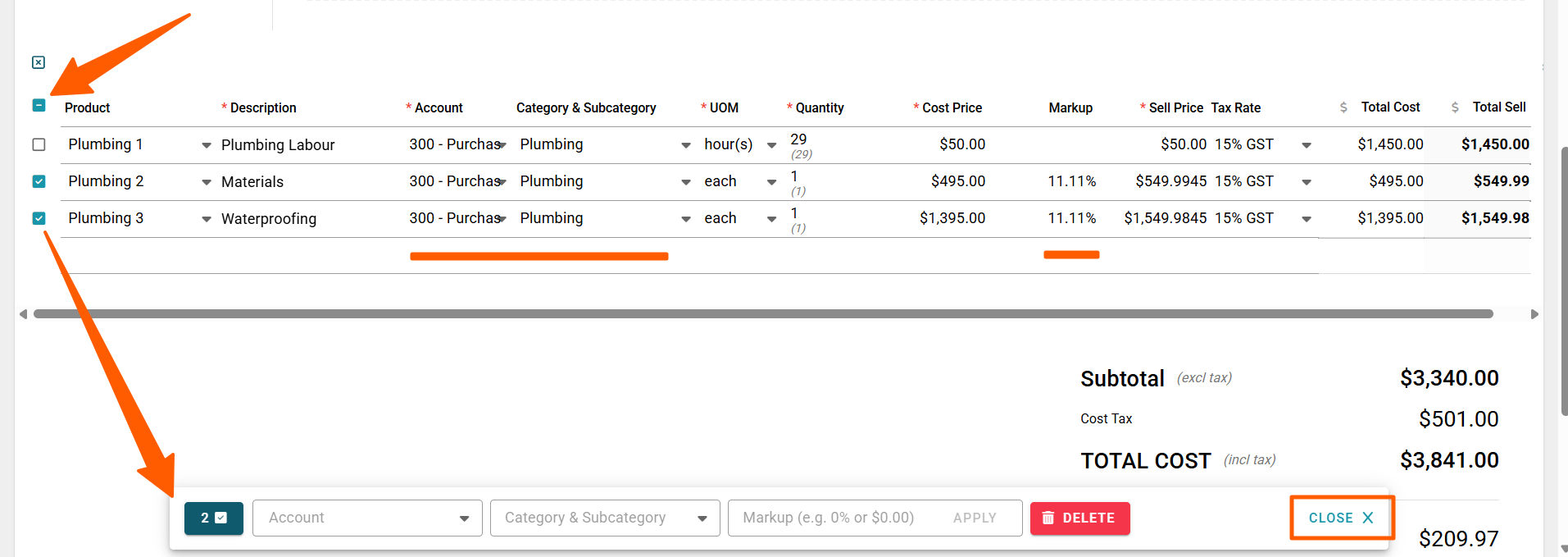
How to Bulk Manage your Chart of Accounts, Categories & Subcategories, and/or Markup
If you need to apply a Chart of Accounts, Category & Subcategory, and/or Markup to multiple lines, you can select the tick box header to the left of your product lines table, to select all lines and open a pop-up modal - which will appear at the bottom of your screen.
Then, untick the lines you do not need to update, and click the appropriate selection from the drop-down menus, or apply your markup % or $ value.
Once done, you can close the pop-up modal via the 'Close X' button.
Xero Integration Note:
While you can send your Purchase Orders to Xero (if your business uses Xero), it is not recommended. All financial reconciliation is completed within RAVE, so sending purchase orders to Xero only adds an unnecessary extra process and potential duplication.
Sending Purchase Orders via email
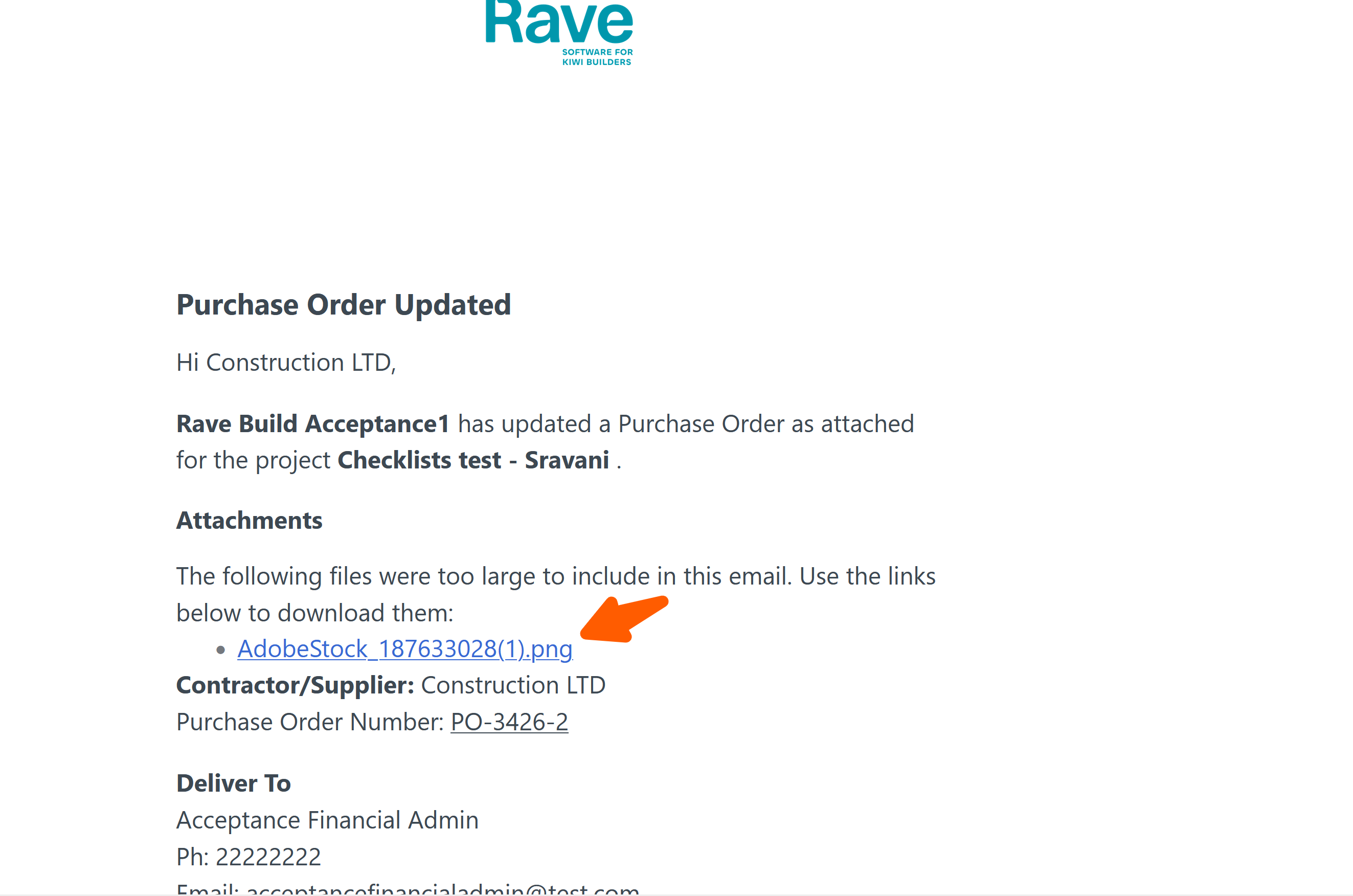
When sending purchase orders with attachments that are over 19mb Rave willconvert them to links on the Purchase Order email to prevent the email from being blocked from delivery. The recipient can click on the links to view/download the attachments.
Was this article helpful?
That’s Great!
Thank you for your feedback
Sorry! We couldn't be helpful
Thank you for your feedback
Feedback sent
We appreciate your effort and will try to fix the article