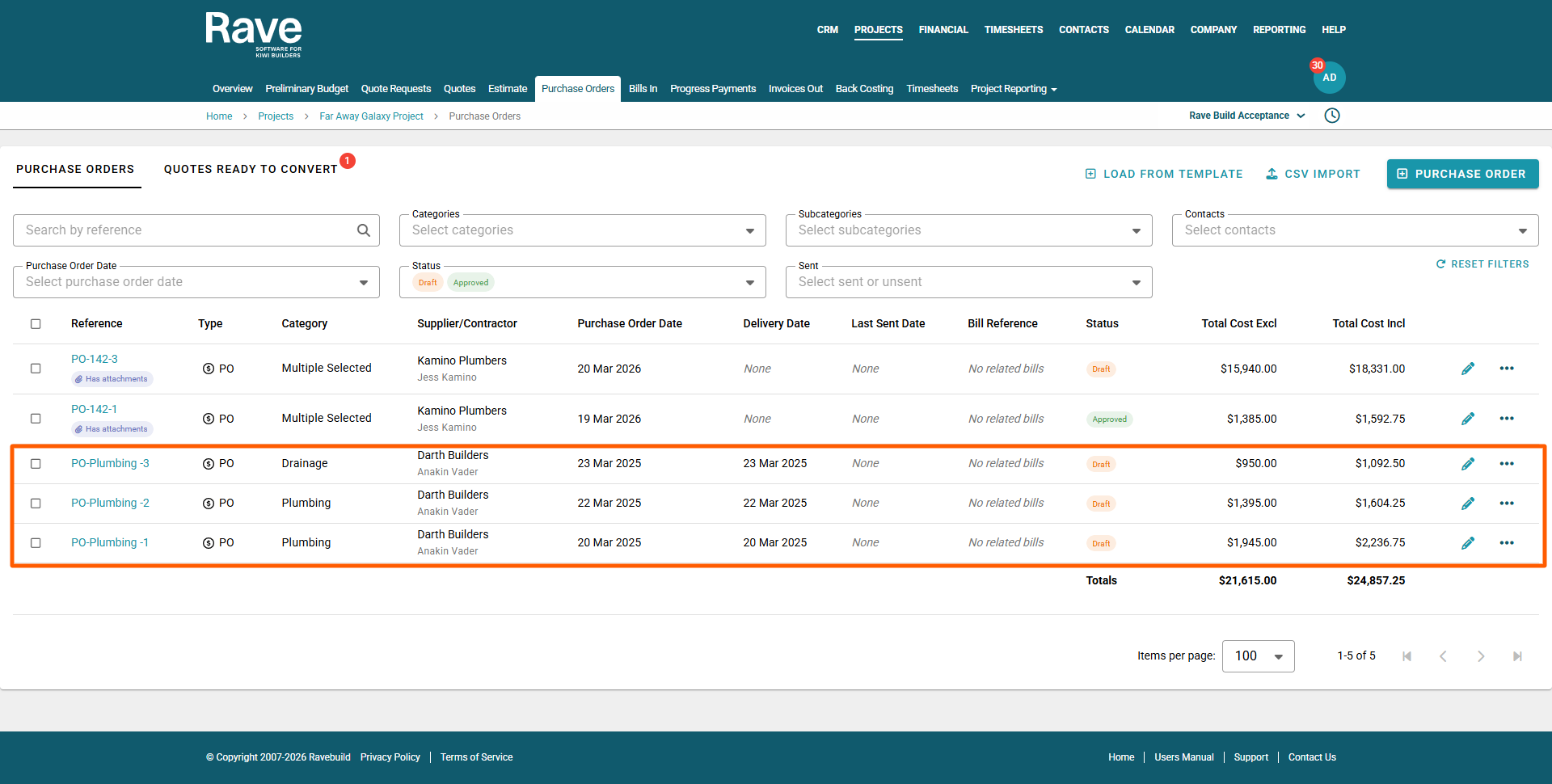
The Purchase Order sub-tab is where you create and manage all purchase orders for a project.
While there are several ways to create purchase orders in RAVE, the easiest method is to generate one directly from an accepted quote - To learn how to create a purchase order in this way, click here.
To learn how to Create a Purchase Order From Scratch, click here.
This article covers how to Create Purchase Orders - Using a CSV File.
You can access your Project’s financial workflows from either the Financial button or the Project button's Project list, clicking on the project’s reference number, and finally selecting the Budget sub-tab, then Purchase Orders.
How to Create a Purchase Order Using a CSV File Import
You can create new Purchase Orders in RAVE by importing data from a CSV file. This method is ideal when you have multiple purchase orders or large quantities of line items to upload at once.
Steps to Create a Purchase Order via CSV Import
Click on the project's Budget' ‘Purchase Orders’ sub-tab.
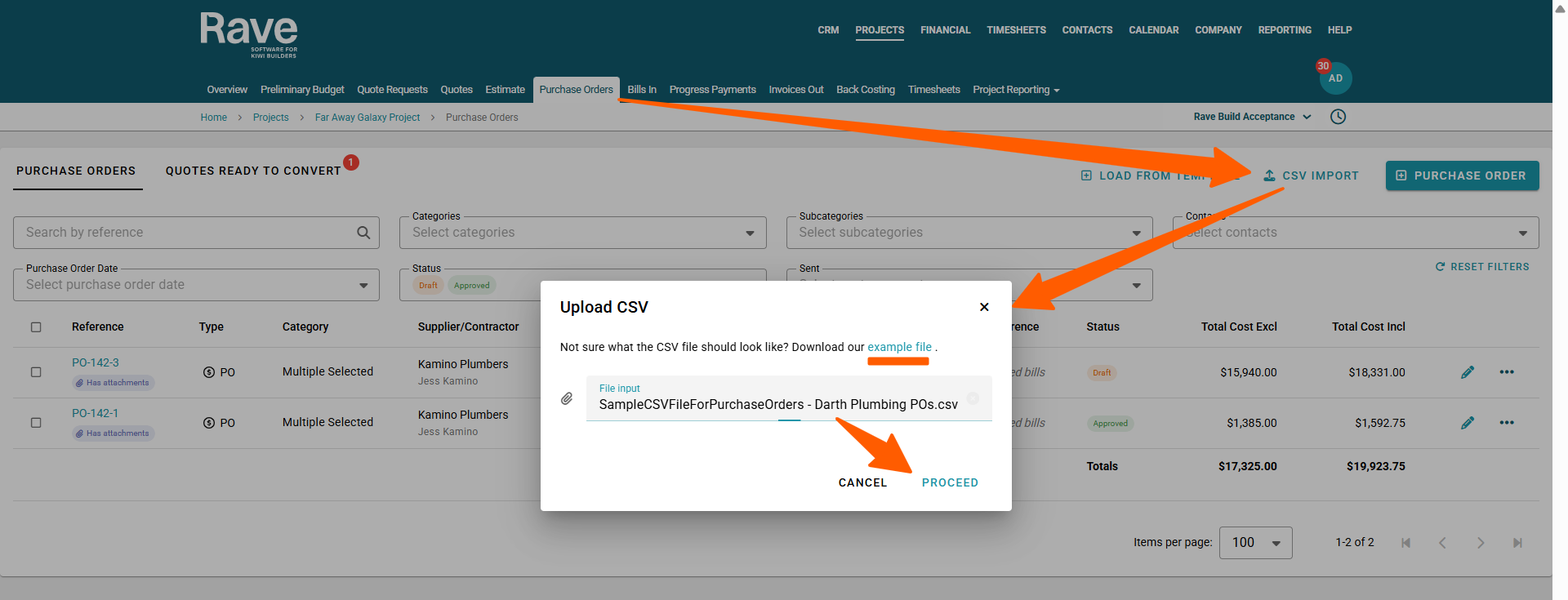
Click on the ‘CSV Import’ button.
Then via the Upload CSV pop-up, download our 'example file'
Preparing Your CSV File
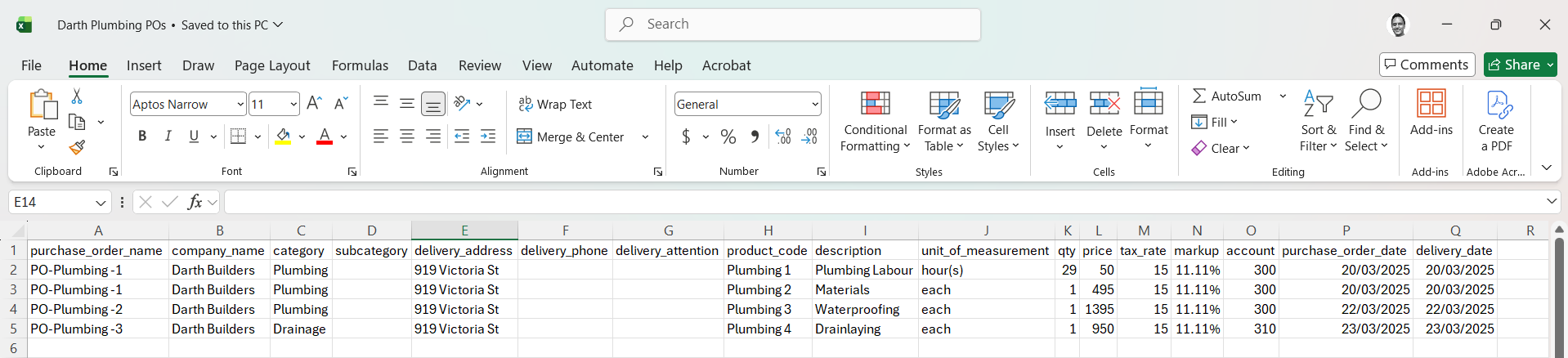
Use the example template to ensure your data is formatted correctly for a successful upload.
Copy and paste, or type your information into the appropriate (16) columns, then save your file as a new CSV.
Uploading Your CSV File
Once your CSV file is ready, click on the pop-up's 'File input' field to upload it or drag and drop it there
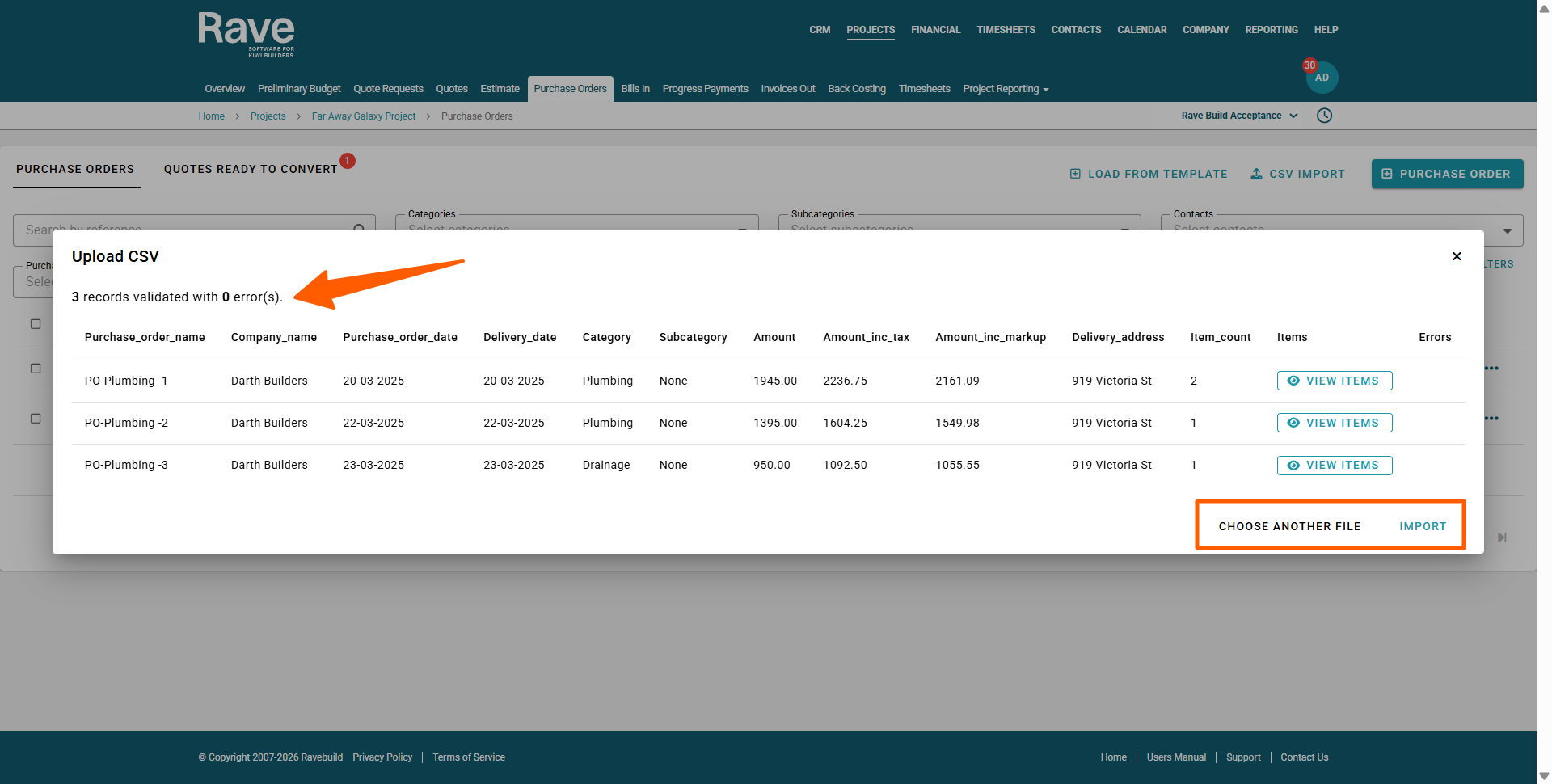
A Preview Purchase Order screen will appear, displaying your data and identifying any issues.
Checking and Fixing Errors
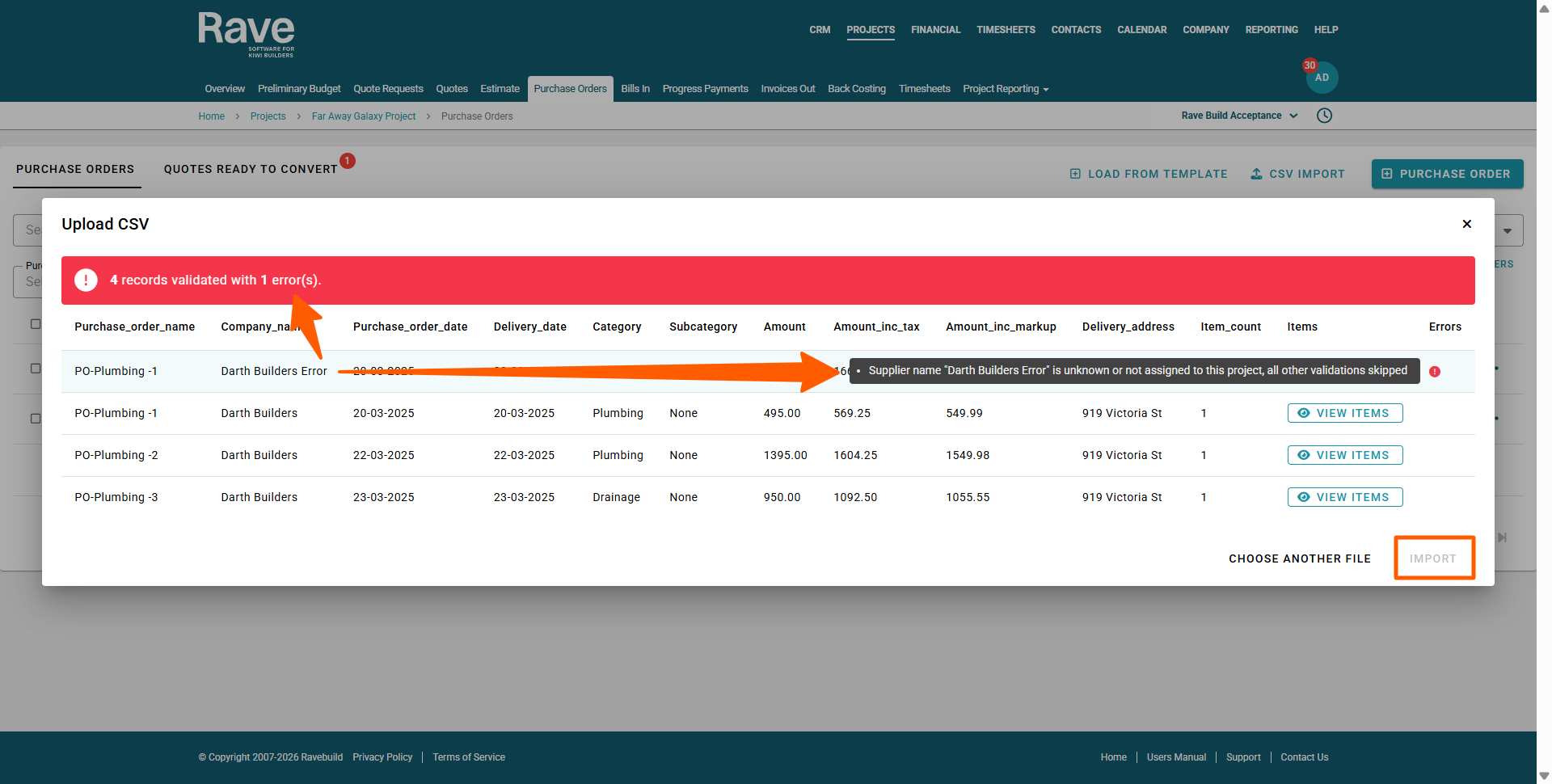
Any issues in your file will be flagged with a red icons to the right of each line.
Hover your mouse over an icon to view details of what needs to be corrected before re-uploading
Note: a Purchase Order CSV File with errors can not be imported - the 'Import' button will be greyed out.
Finalising the Import
If no errors are present, click ‘Import’ button at the bottom right of the screen.
Once imported, your individual purchase orders will appear in the system.
You can then continue to edit, review, or send these purchase orders as required.
Sending Purchase Orders via email
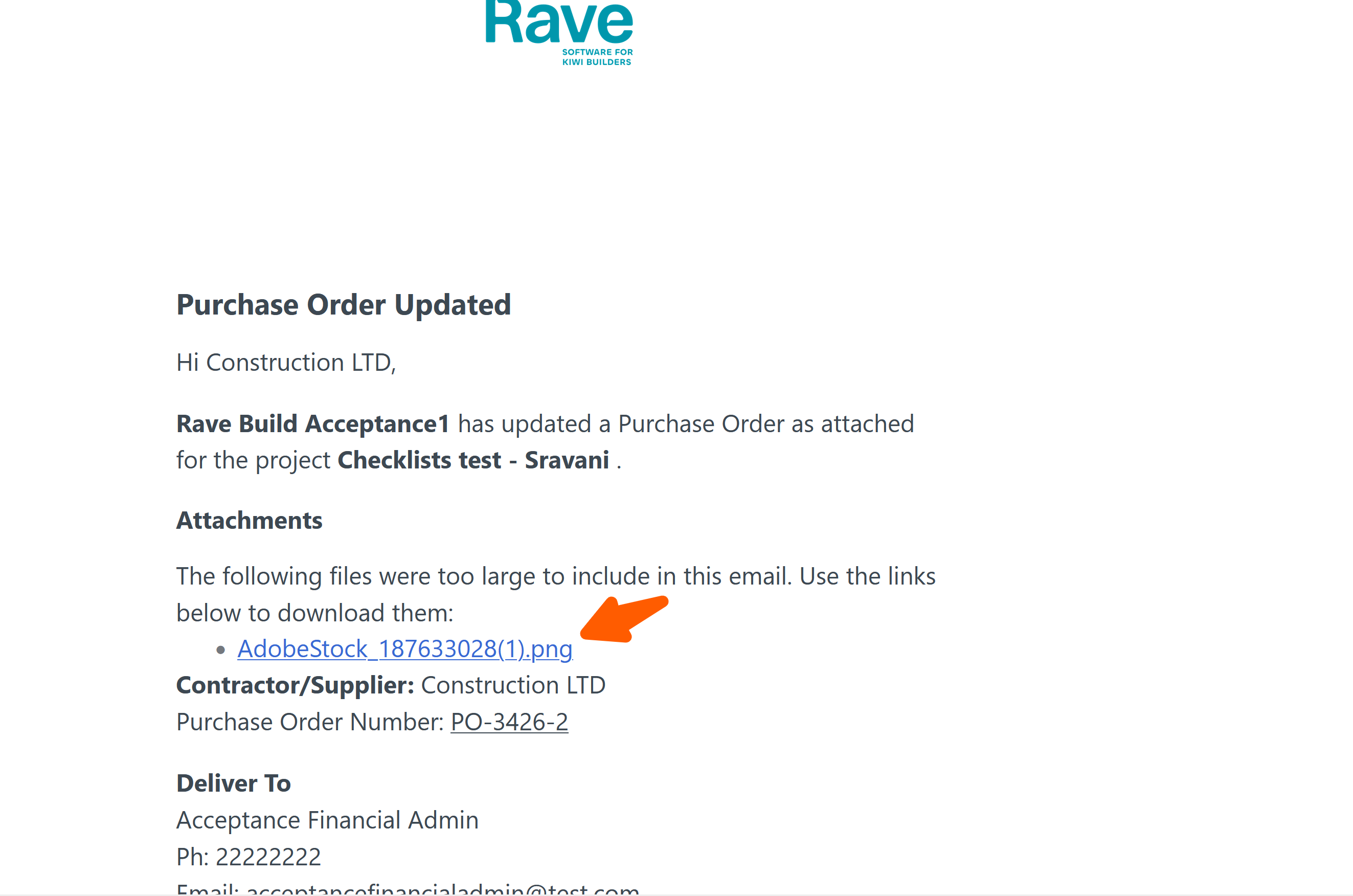
When sending purchase orders with attachments that are over 19mb Rave willconvert them to links on the Purchase Order email to prevent the email from being blocked from delivery. The recipient can click on the links to view/download the attachments.
Was this article helpful?
That’s Great!
Thank you for your feedback
Sorry! We couldn't be helpful
Thank you for your feedback
Feedback sent
We appreciate your effort and will try to fix the article