Previously, we explained the process of generating Quote Requests in detail. You can find that article here. This article explains how to update and resend a quote request.
You can access the quote request workflows via the Budget tab in the Project's Overview screen by clicking the Quote Requests subtab.
Managing a Sent Quote Request
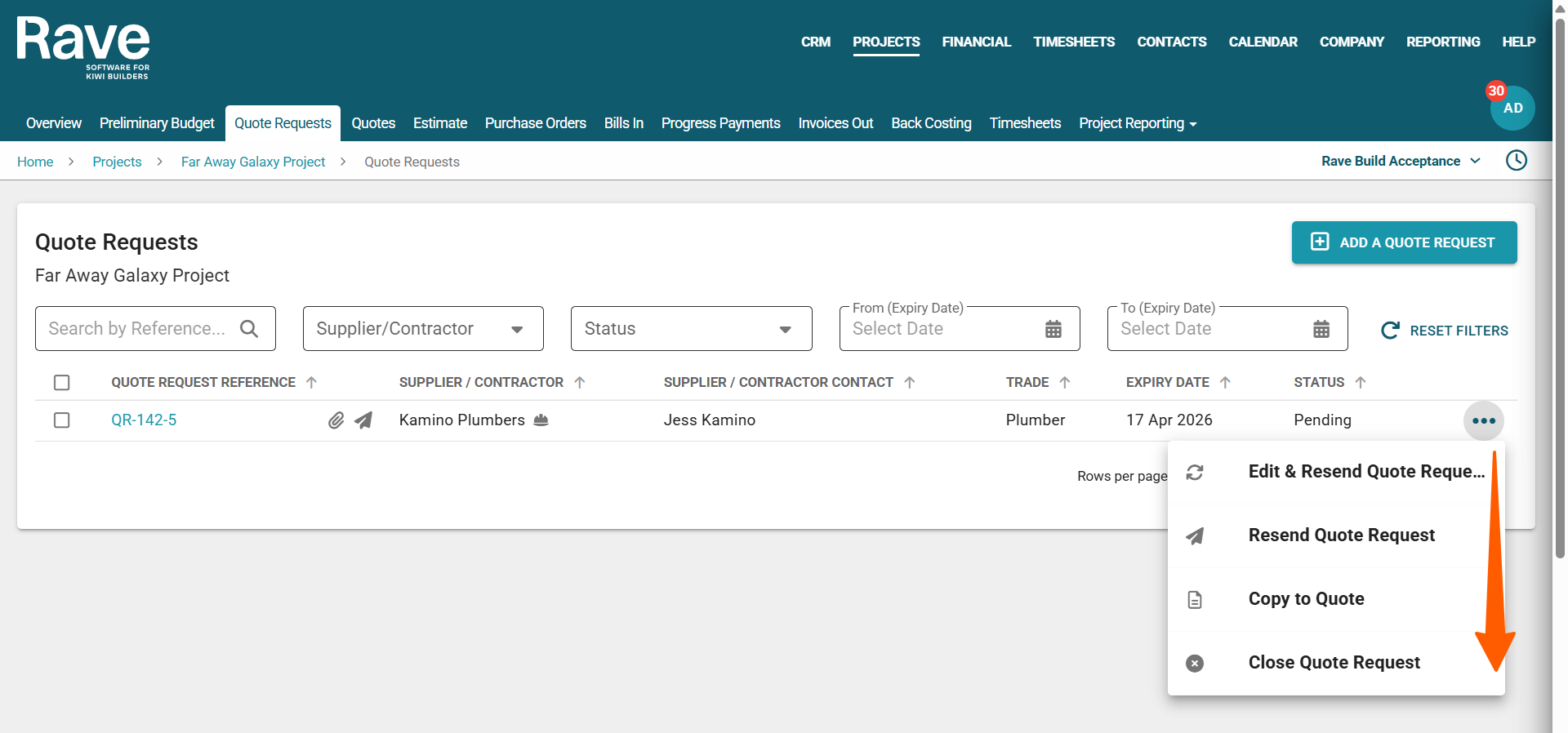
After sending a quote request, click the three-dot action menu next to it to access the following options:
Edit & Resend the Quote Request
If the original quote request needs updating and resending, click this button to update any information, including the due date if it's expired, then resend it to your supplier or Contractor.Resend the Quote Request
If the supplier/contractor didn’t receive or accidentally deleted the original request, you can resend it quickly without updating it here.Copy to Quote
Once you receive a quote, use this to manually load the quote pricing into your system so it will be linked to the original Quote RequestClose the Quote Request
Use this option if you no longer need a quote and want to mark the request as closed.
Edit and Resend the Quote Request
Selecting this option will reopen the quote request so you can make any necessary edits. You cannot change the supplier/contractor as it's linked to the original person you sent it to. You would need to close and recreate it to change this field. You can add/remove attachments, update the required date, change the category/subcategory, and add instructions. Once you are done editing, you can resend to the recipient (s), or you can just press save, which will update only in Rave.
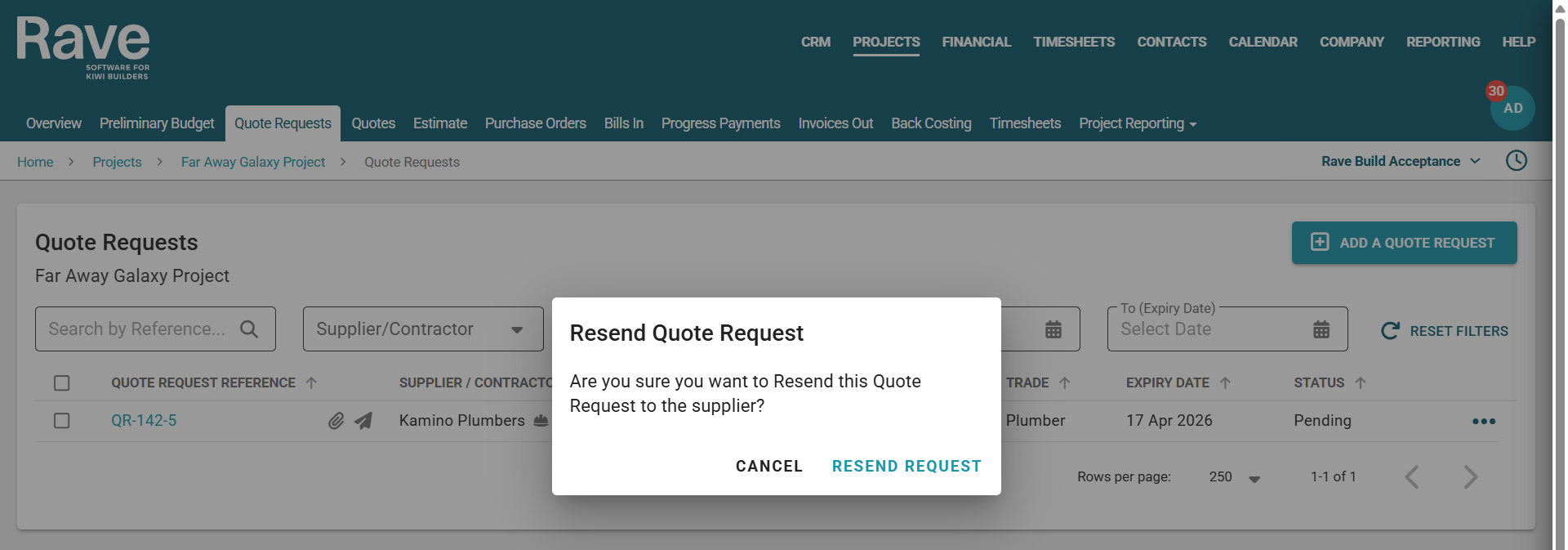
Resend a Quote Request
Selecting this option will pop up the resend option. You cannot make any changes here; it will just resend the original Quote Request. Pressing Resend Request will trigger an email to the contractor/supplier(s).
Copy to Quote
This option will open the create a quote model, allowing you to manually create a new quote based on the supplier/contractor's pricing. For more detailed instructions on creating a quote, click here. The only difference between creating a quote from scratch and using this option is that your new quote will have an associated Quote Request number, linking it to the original request.
Closing a Quote Request
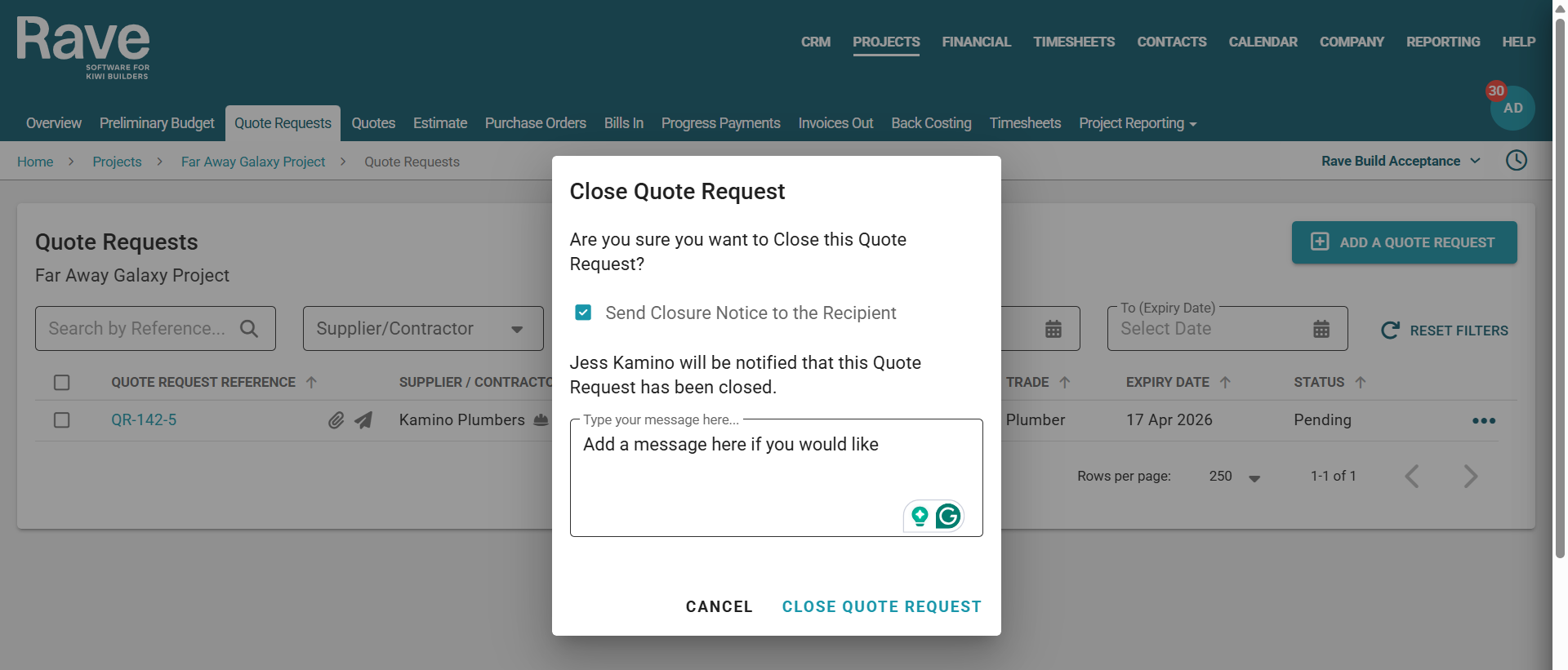
When you want to close a quote request that you are not going to use, or because you loaded a quote without linking it to the Quote Request, you have the option to notify the recipient (or not) of the cancellation, along with a free text box to add a message for them.
Select the 3-dot menu beside the Quote Request and select Close Quote Request. The model below will pop up for you to either notify the Recipient or not, and add a message.
Was this article helpful?
That’s Great!
Thank you for your feedback
Sorry! We couldn't be helpful
Thank you for your feedback
Feedback sent
We appreciate your effort and will try to fix the article