A quote or tender request is used to gather competitive pricing and evaluate suppliers’ ability to meet specific requirements. It ensures transparency, clear expectations, and provides a foundation for budgeting and contractual agreements. Getting accurate prices for quotes or variations is a breeze with our easy-to-use Quote Request feature.
You can access the quote request workflows via the Budget tab in the Project's Overview screen by clicking the Quote Requests subtab, then the Add a Quote Request button.
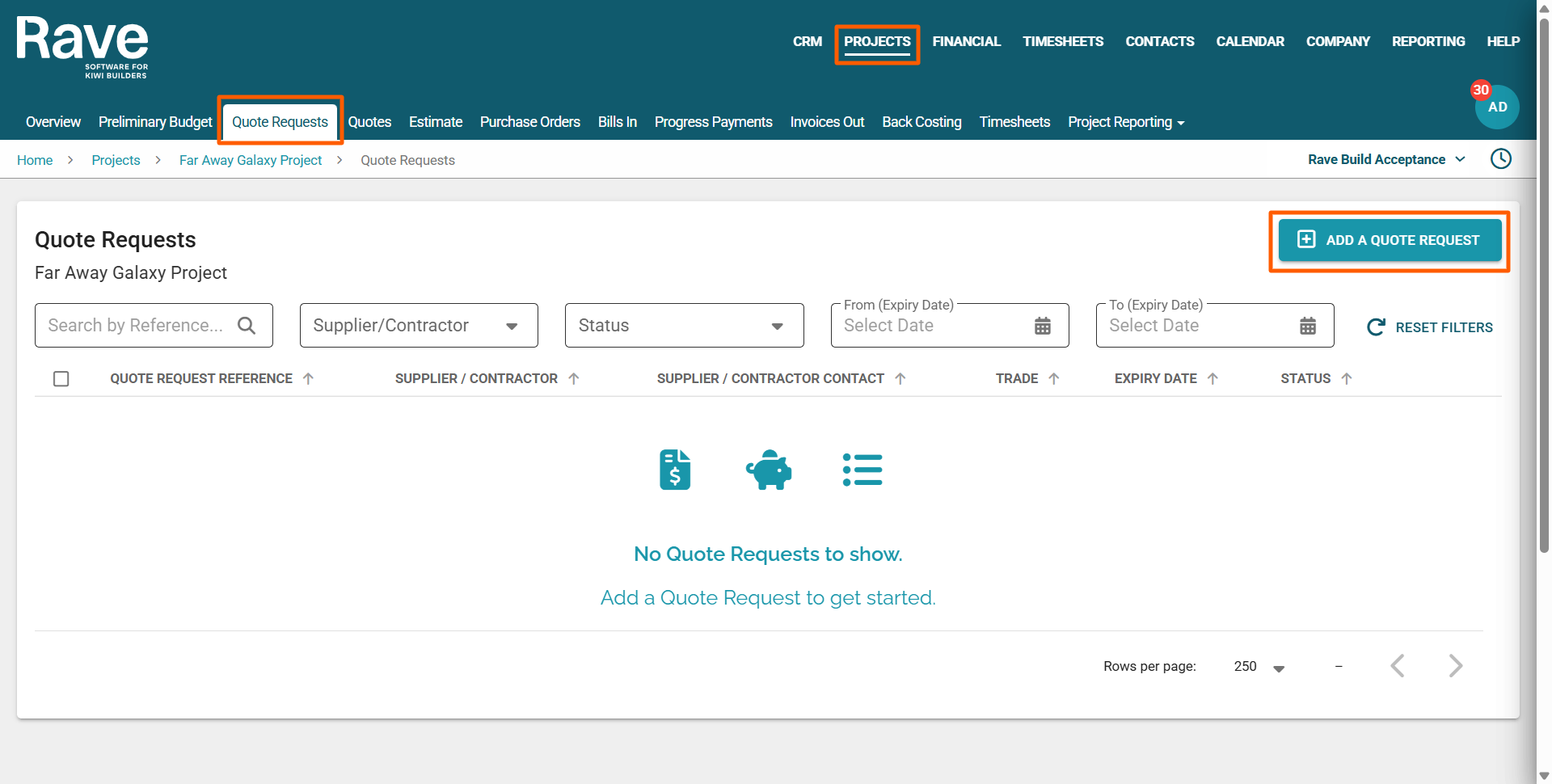
How to Create and Send a Quote Request
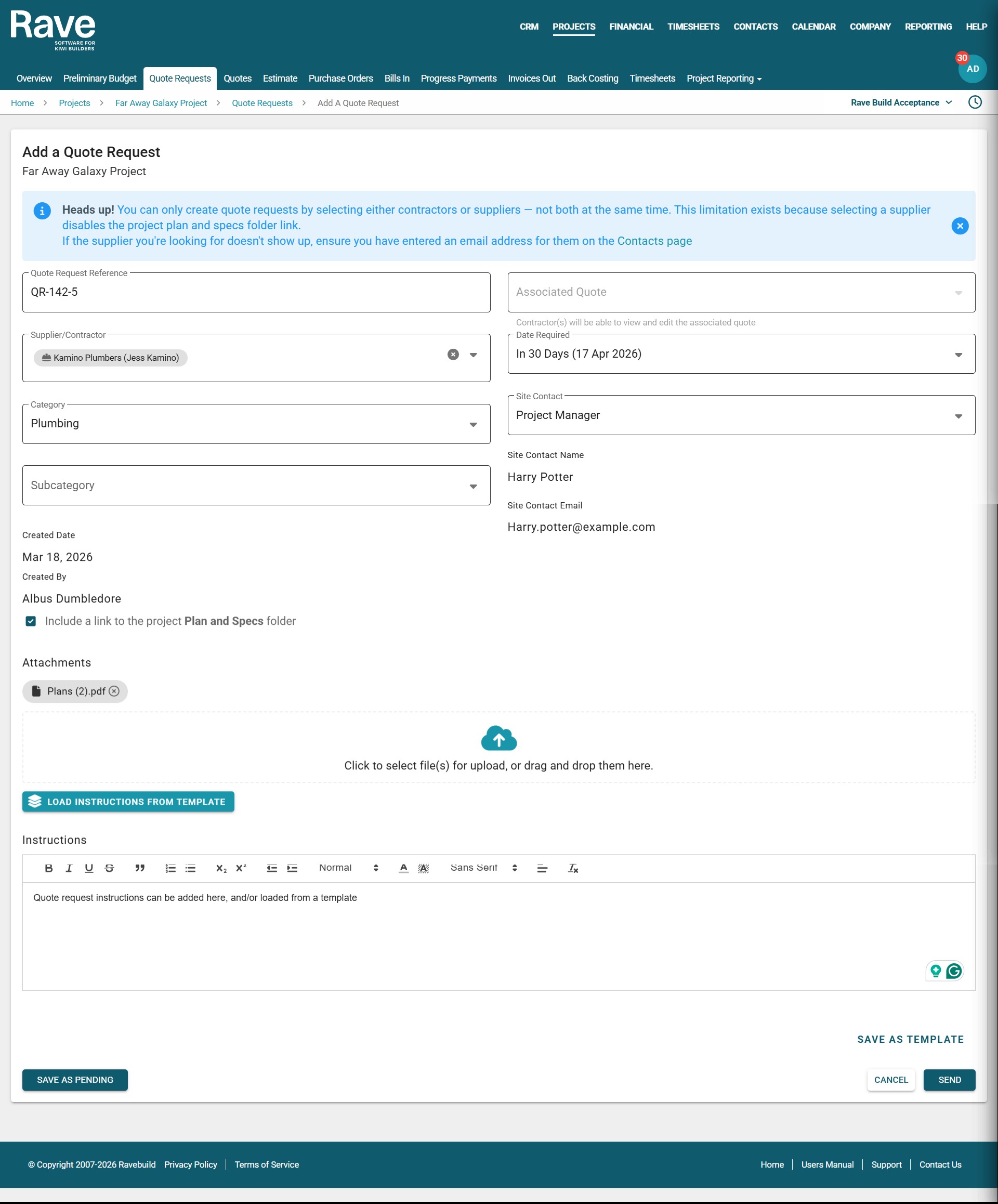
Clicking the Add a Quote Request button opens the Add a Quote Request form. Fill in the required fields, then save as Pending, Cancel or Send.
- Select a Supplier or Contractor
Choose the relevant Supplier (or a Contractor with a RAVE login who has already been added to the People tab of this project) from the Supplier/Contractor dropdown menu.
Note: You cannot select both Contractors and Suppliers together, as Suppliers cannot be linked to the plans and specs folder. You need to do them separately. They also cannot log in and manage their Quote Requests/Quotes. You can bulk-select all your contractors and send a single request with instructions for them, then send instructions in a second email to the suppliers.
Note: Hovering over the name of the Supplier/Contractor will tell you which version you picked. We also display a hard hat icon for a Contractor - contractors can log in and view Rave, and a stack of boxes for Suppliers - suppliers cannot log in to Rave.
- Set the Required Date
Use the Date Required field to select when you need the quote returned. - Choose a Category & Subcategory
From the Category and Subcategory dropdowns, select where this quote should be grouped. - Assign a Site Contact
Select the person the supplier/contractor should contact with any questions via the Site Contact dropdown — this could be the Quantity Surveyor if selected on the project, the Project Manager, Client, Tenant, or you can free type in an alternative contact.
If contact details are available, the name and email will populate automatically. - Created By
Your name, as the person currently logged in to Rave, will be automatically entered in the Created By field.
Note: Replies to the Quote Request email will be sent to you (if you have a valid notification email set up). If not, replies will default to your branch's ‘Reply-to’ financial email. - Link to Plans & Specs (optional)
This is only for contractors who have access to the project. You can tick ‘Include a link to the project’s Plans and Specs folder’. - Attach Files (optional)
To include documents, photos, or other files, click the Attachments (cloud icon). This will open your computer’s file browser, allowing you to select the relevant files up to 20MB in total file size. For example, if you're sending a quote request to a Supplier without RAVE access, you could attach the project plans for reference. - Add a Message or Instructions
Enter a message or any instructions, including copied and pasted images, in the Instructions field.
Note: You can format the text using the available options.
- Load Instructions from Template/Save as Template
- If this is a commonly used message, or instruction, click the Save as Template button to the bottom right to use it again later.
- To load an existing message template, click the Load Instructions from Template button to the top left. - Send the Quote Request
Once all required fields are completed, click Send to forward your quote request.
NOTE: If you need to stop partway through your quote request, just click on the ‘Save as Pending’ button to the bottom left of the screen to save your work and come back later.
How to Create a Quote Request Message Template
Rave allows you to create reusable message templates to simplify your quoting process. This is especially useful when you need different messages for Suppliers and Contractors. For example:
A Supplier template might say:
“I’ve attached the plans & specs for you to quote on. Please reply/email your pricing back to me as soon as possible.”A Contractor template might say:
“I’ve given you access to the project’s ‘Plans & Specs’ folder for you to quote on. Please reply/email your pricing back to me as soon as possible.”
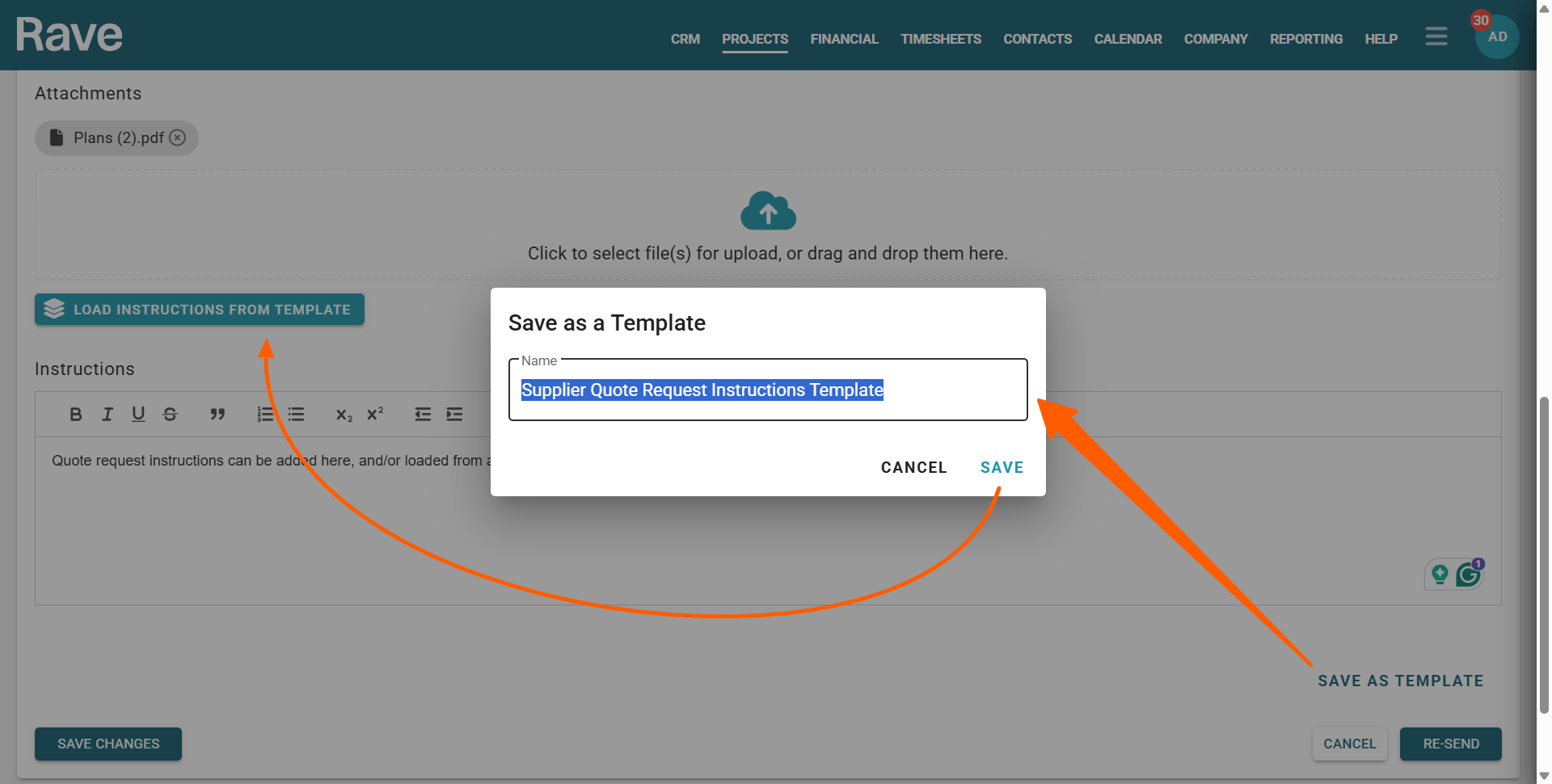
Once you have written your Quote Request Information, including instructions, you can:
Click the Save as Template button (lower right corner of the message box).
Give your template a clear name (e.g. Supplier Quote Request Instructions Template).
Click SAVE to store the template for future use.
How to Load an Existing Quote Request Message Template
To reuse a previously saved message for your quote request, follow these steps:
- Scroll down to the Messages section of the Add a Quote Request form
- Click the Load Instructions from Template button in the upper left corner of the Messages section
- Choose your template from the list, then click Load.
You can then update the text and use the formatting tools to make any final adjustments before sending
What Happens After You Send a Quote Request
As soon as you send a Quote Request, the Supplier(s) or Contractor(s) will be notified by email.
Any files attached to the request will be included in that email.
Rave automatically updates the Status of your Contractor Quote Request based on activity:
Pending – Request has been sent but not yet viewed by your contractor
Viewed – A Contractor has opened the quote request in their RAVE system
Quoted – A Contractor has submitted their quote via RAVE.
For Suppliers without RAVE Access
Suppliers who don’t have a RAVE login can still return their quotes by replying directly to the email you sent.
They can attach their quote to the reply, and you can then upload it manually into RAVE.
Managing a Sent Quote Request
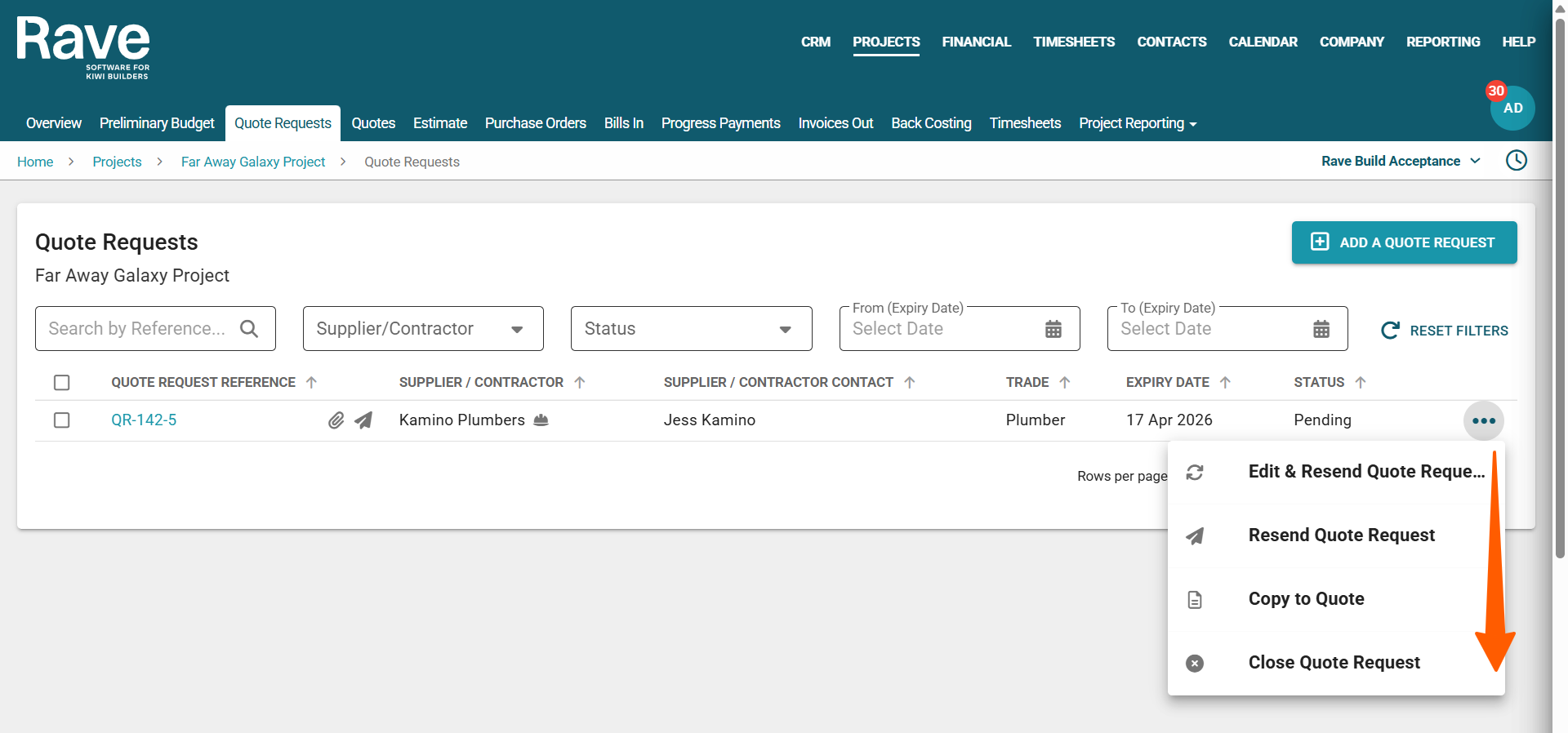
After sending a quote request, click the three-dot action menu next to it to access the following options:
Edit & Resend the Quote Request
If the original quote request needs updating and resending, click this button to update any information, including the due date if it's expired, then resend it to your supplier or Contractor.Resend the Quote Request
If the supplier/contractor didn’t receive the original request or accidentally deleted it, you can resend it quickly without updating it here.Copy to Quote
Once you receive a quote, use this to manually load the quote pricing into your system so it will be linked to the original Quote RequestClose the Quote Request
Use this option if you no longer need a quote and want to mark the request as closed.
Edit and Resend the Quote Request
Selecting this option will reopen the quote request so you can make any necessary edits. You cannot change the supplier/contractor as it's linked to the original person you sent it to. You would need to close and reopen it to change this field. You can add/remove attachments, update the required date, change the category/sub-category, and add instructions. Once you are done editing, you can pre-Re-Send to send it to the recipient (s), or you can just push save, which will update only in Rave.
Resend a Quote Request
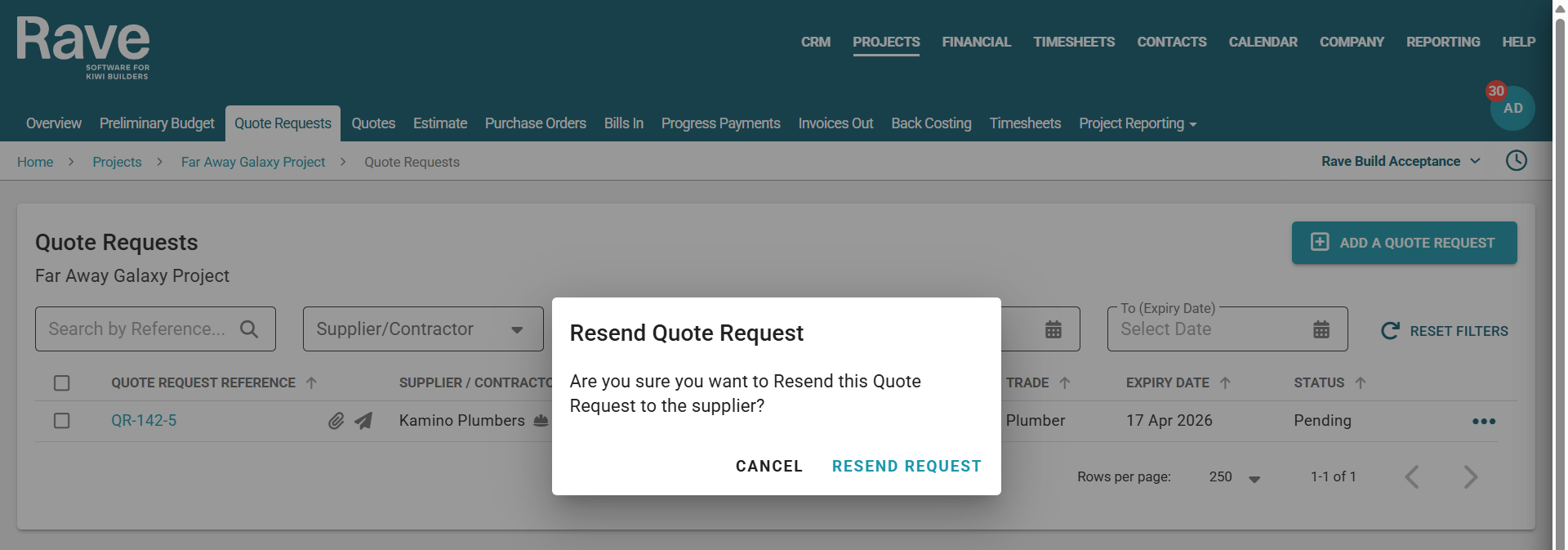
Selecting this option will pop up the resend option. You cannot make any changes here; it will just resend the original Quote Request. Pressing Resend Request will trigger the email to the contractor/supplier (s).
Copy to Quote
This option will open the create a quote model, allowing you to manually create a new quote based on the supplier/contractor pricing they provided. For more detailed instructions on creating a quote, click here. The only difference between creating a quote from scratch and using this option is that your new quote will have an associated Quote Request number, linking it to the original request.
Closing a Quote Request
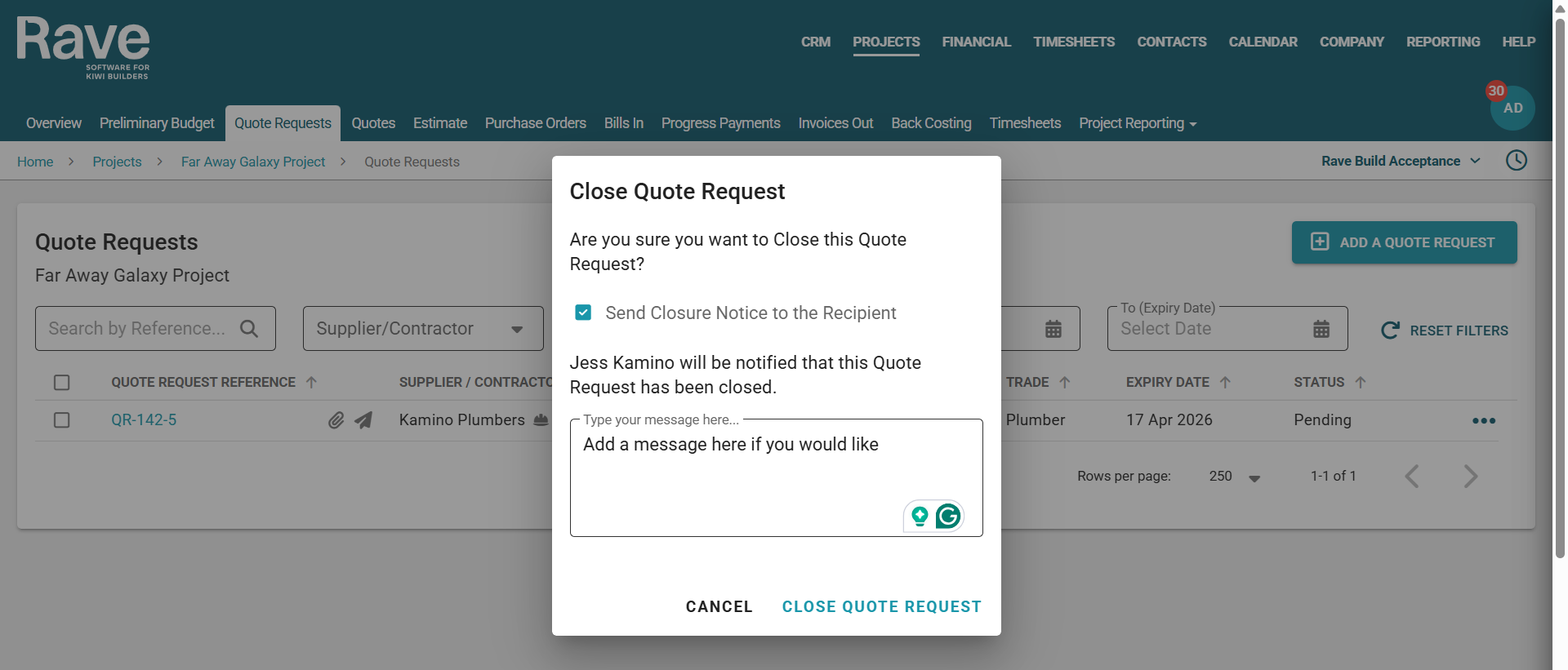
When you want to close a quote request that you are not going to use, or because you loaded a quote without linking it to the Quote Request, you have the option to notify the recipient (or not) of the cancellation, along with a free text box to add a message for them.
Select the 3-dot ellipse beside the Quote Request and select Close Quote Request. The model below will pop up for you to either notify the Recipient or not, and add a message.
Was this article helpful?
That’s Great!
Thank you for your feedback
Sorry! We couldn't be helpful
Thank you for your feedback
Feedback sent
We appreciate your effort and will try to fix the article