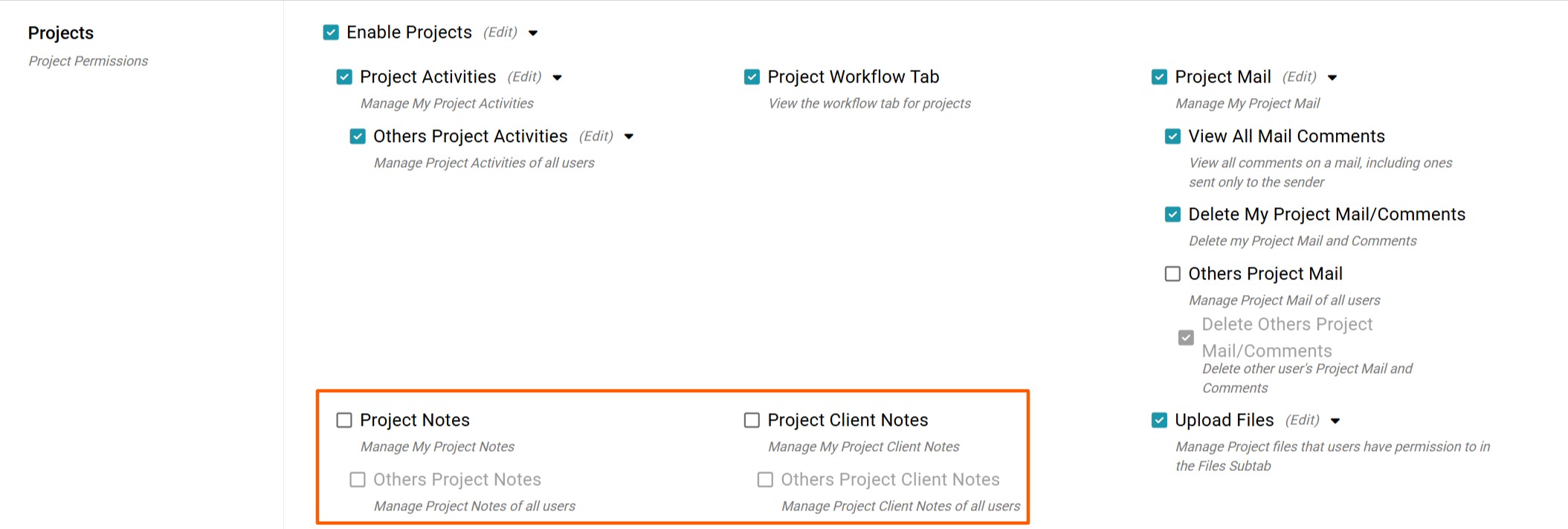
With the Manage My Projet Client Note permission you can add Project Client notes to your Projects via the Project Overview. We also have a separate Others Project Client Notes permission allowing you to either view only or edit other users Project Client notes in your Branch.
Adding a Project Client Note
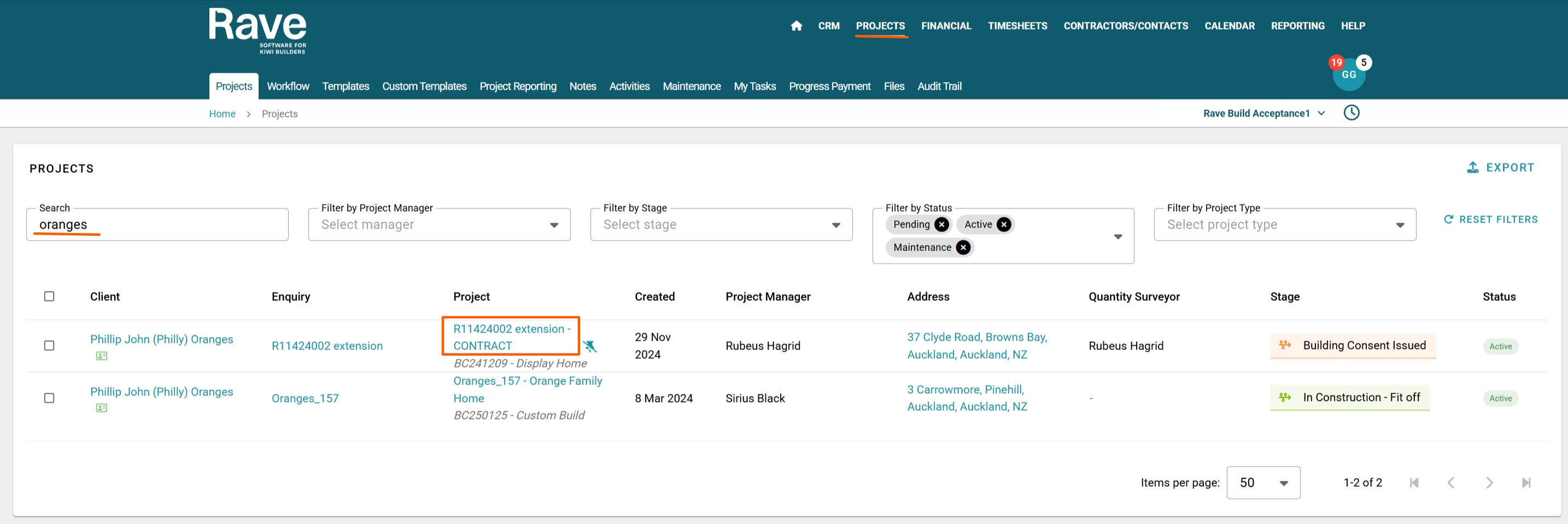
Click on the Project tab then type in the search bar or select the project you wish to add a note to.
Select the Project via the blue hyperlink then once on the Project Overview screen select the
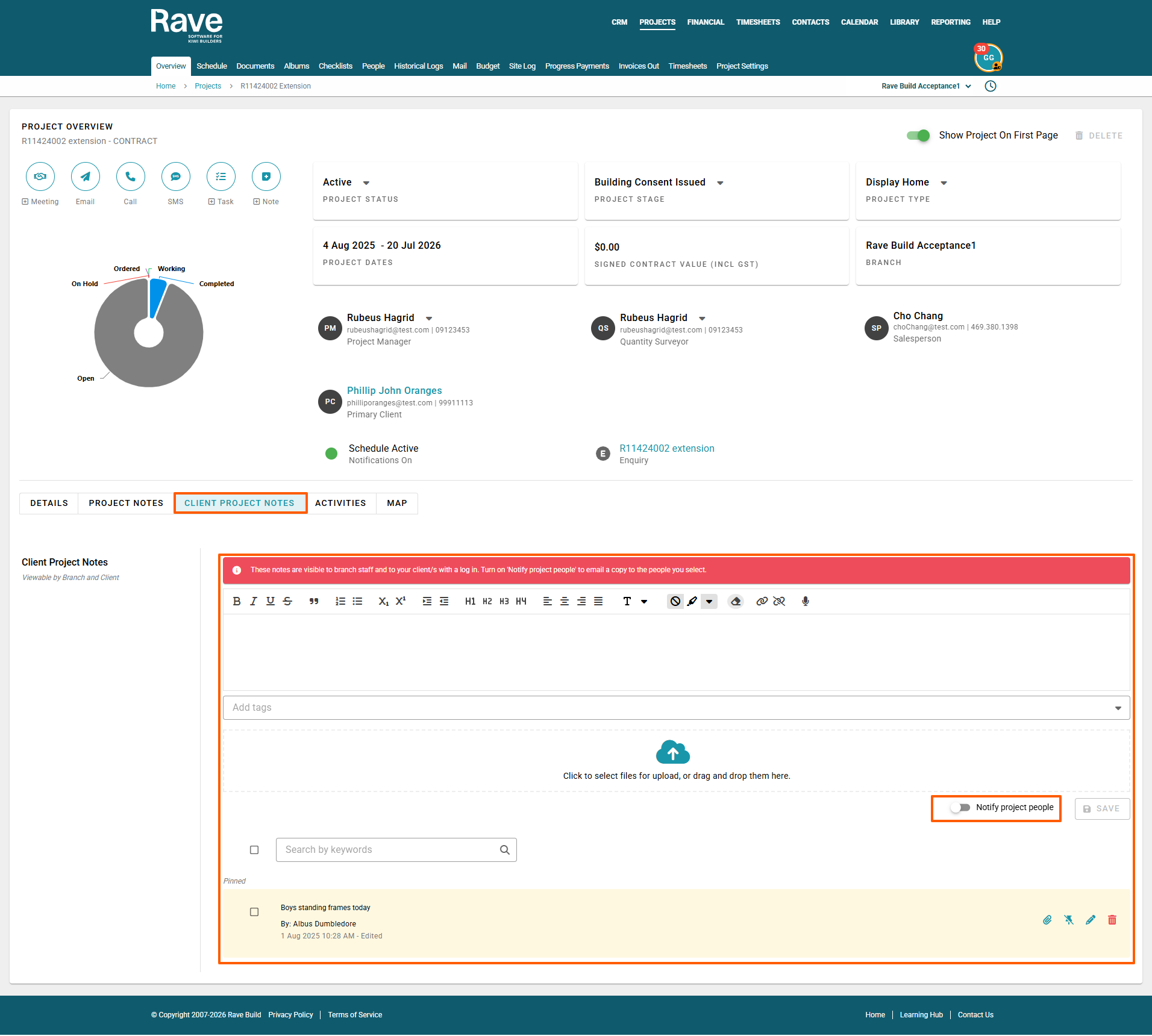
Project Clients Notes tab which sits beside the Project Notes tab.
Adding a Project Client Note is simple. Type the content you wish to add into the text box.
If required, drag and drop the attachment/s or click the cloud icon to load from your device, choose to add a tag or multiple tags to the note making searching for it later on easier.
You can enable Notify Project People if you would like to notify specific people about the new note. Once enabled, a Notify dropdown will appear, allowing you to select one or multiple people to notify. Only people with access to the relevant Project Client Notes will be available to select.
Then click Save.
Once the note has saved it will appear below with options to:
Paperclip - Open the attachment icon to add another attachment to your note
Drawing Pin - Pin the note to the top of the list
Pencil - With permission you can edit the note
Trash Can - With permission you can delete the note
You can use the Search box to Keyword search notes in this project for specfic information.
You can also use the bulk select box to update existing note tags or add tags to notes that have none.
Note: These notes are visible to all branch staff who have access to the Project. Clients also have access to these notes and can be selected to receive an email notification. Contractors do not have access to Project Client Notes.
Previewing Attachments
If you have loaded an image file you can click on the file name to preview the file in rave. Once you have previewed you can click the 3 dots to download or with permission delete the attachment.
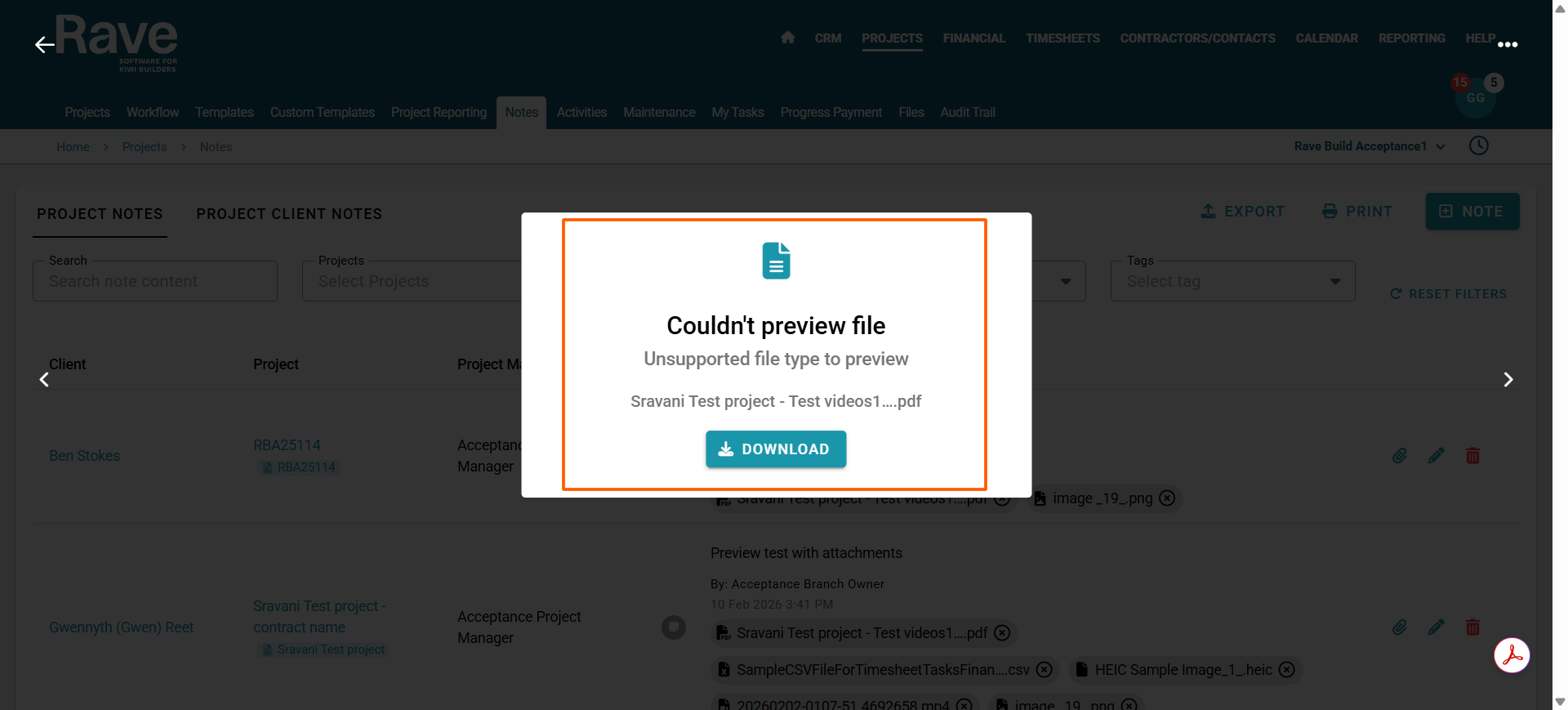
If the attachment is a PDF, Excel, Word or other file type that does not support preview you will be able to choose to download only.
You can view all your Client Project Notes via the Branch Notes Section. To learn more about this feature click here for the help article.
Was this article helpful?
That’s Great!
Thank you for your feedback
Sorry! We couldn't be helpful
Thank you for your feedback
Feedback sent
We appreciate your effort and will try to fix the article