Rave's Project Notes tab is where we group and display all Branch Project Notes and Client Project Notes for your entire business. It is also a great way to view, add, export or print all notes with filters for certain keywords, client names, enquiry references or dates.
Note: Project Notes are internal only unless Contractors have been given access through the relevant Contractor settings. Client Project Notes are visible to the client. When adding a note, you can choose which applicable users you would like to notify.
Branch Project Notes
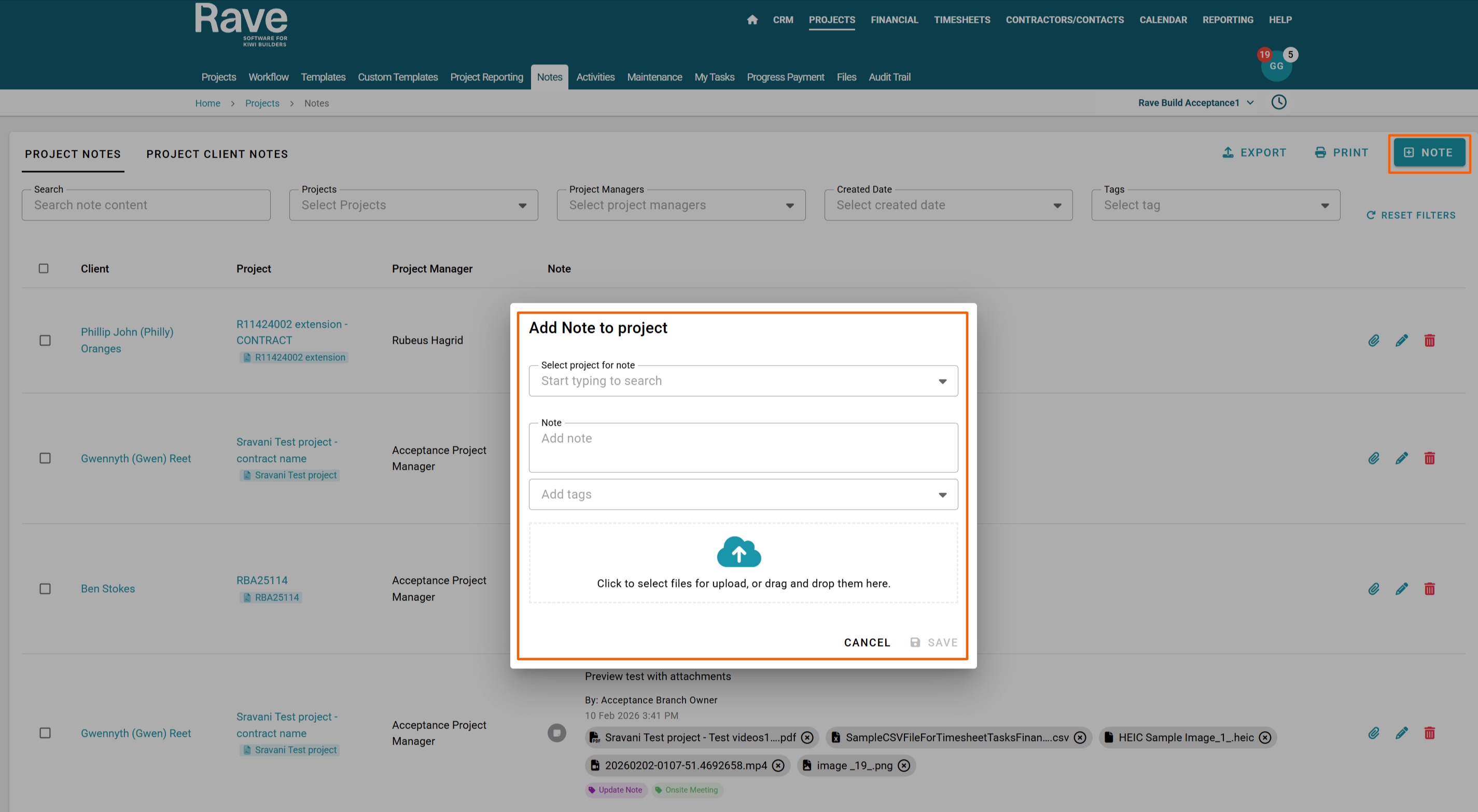
Click on the Projects tab then select Notes here you can choose either the Project Notes tab or the Project Client Notes Tab. Click the '+ Note' button. This will open an 'Add Note menu asking you to select which Project you want to add the note for.
Select the relevant information, type in your note, select your tag/s if required and add any attachments.
Once you are finished Select Save and your note will appear in the list.
The process is the same for both Project and Client Project Notes.
Searching and Filtering Notes
You can search and filter notes by:
Note content
Project Name/ID
Project Manager
Date created
Tag/s
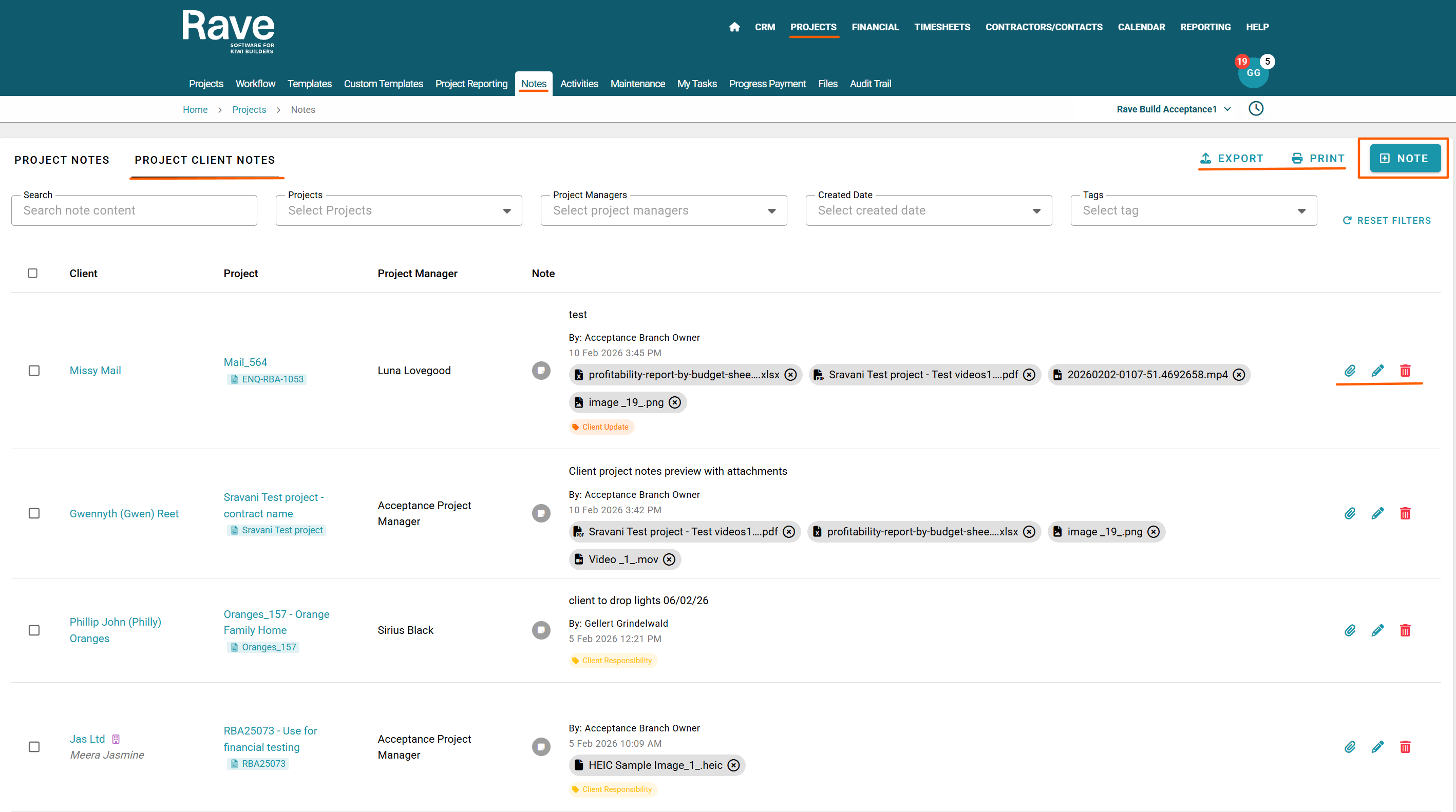
- When adding a new note, the Project drop-down menu will show all of the projects in your branch that are available for you to add a new note to.
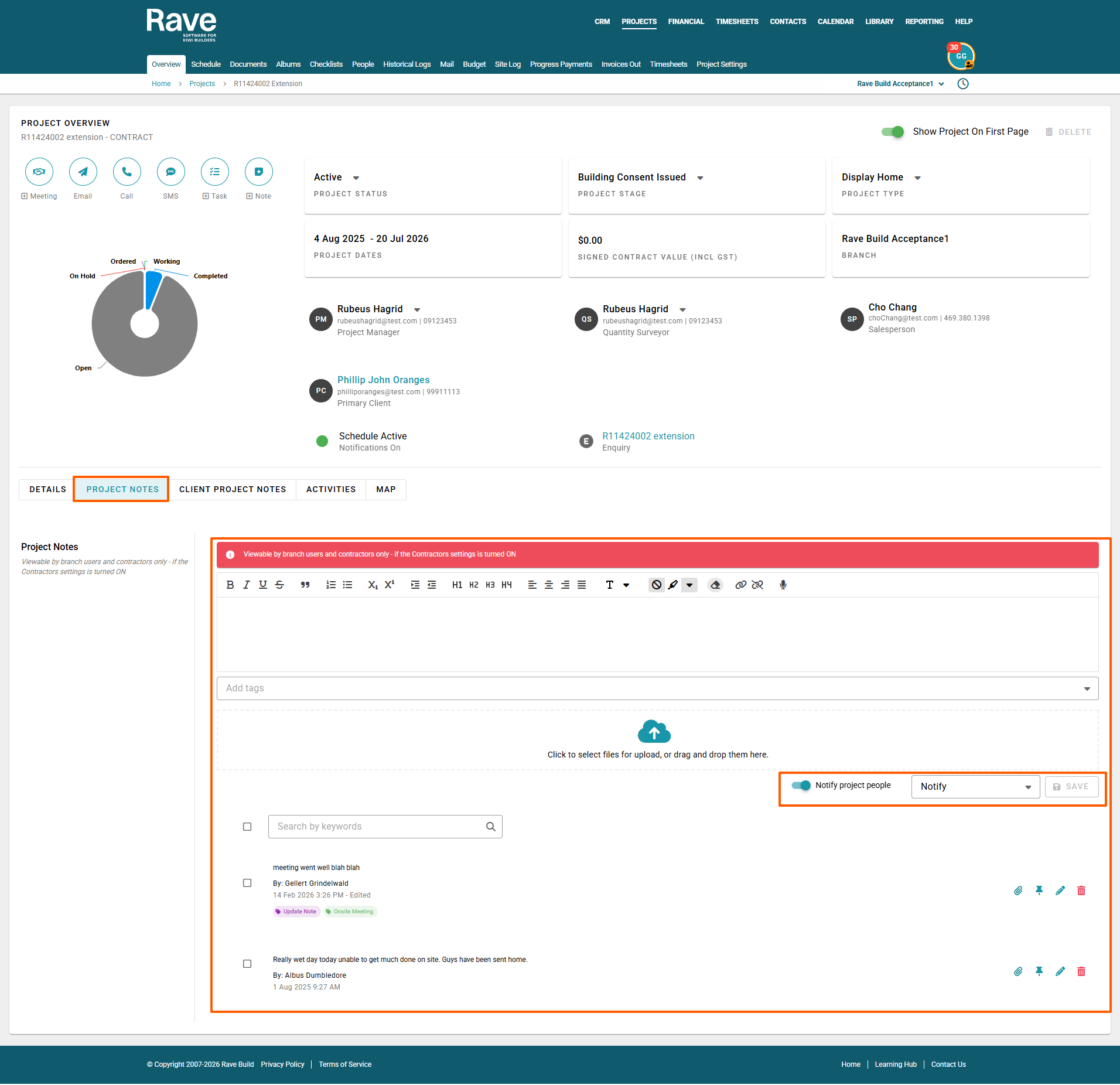
Adding Project Notes Within a Project
You can also add notes directly from an individual project.
- Click on Projects.
- Use the Project Search to locate the relevant project.
- Click on the blue Project link.
- This will open the Project Profile.
- Add your Project Note within the project.
You can enable Notify Project People if you would like to notify specific people about the new note. Once enabled, a Notify dropdown will appear, allowing you to select one or multiple people to notify. Only people with access to the relevant notes will be available to select.
Any note added from the Project Profile will also appear on the Branch Project Notes page, ensuring all project notes remain visible and accessible at branch level.
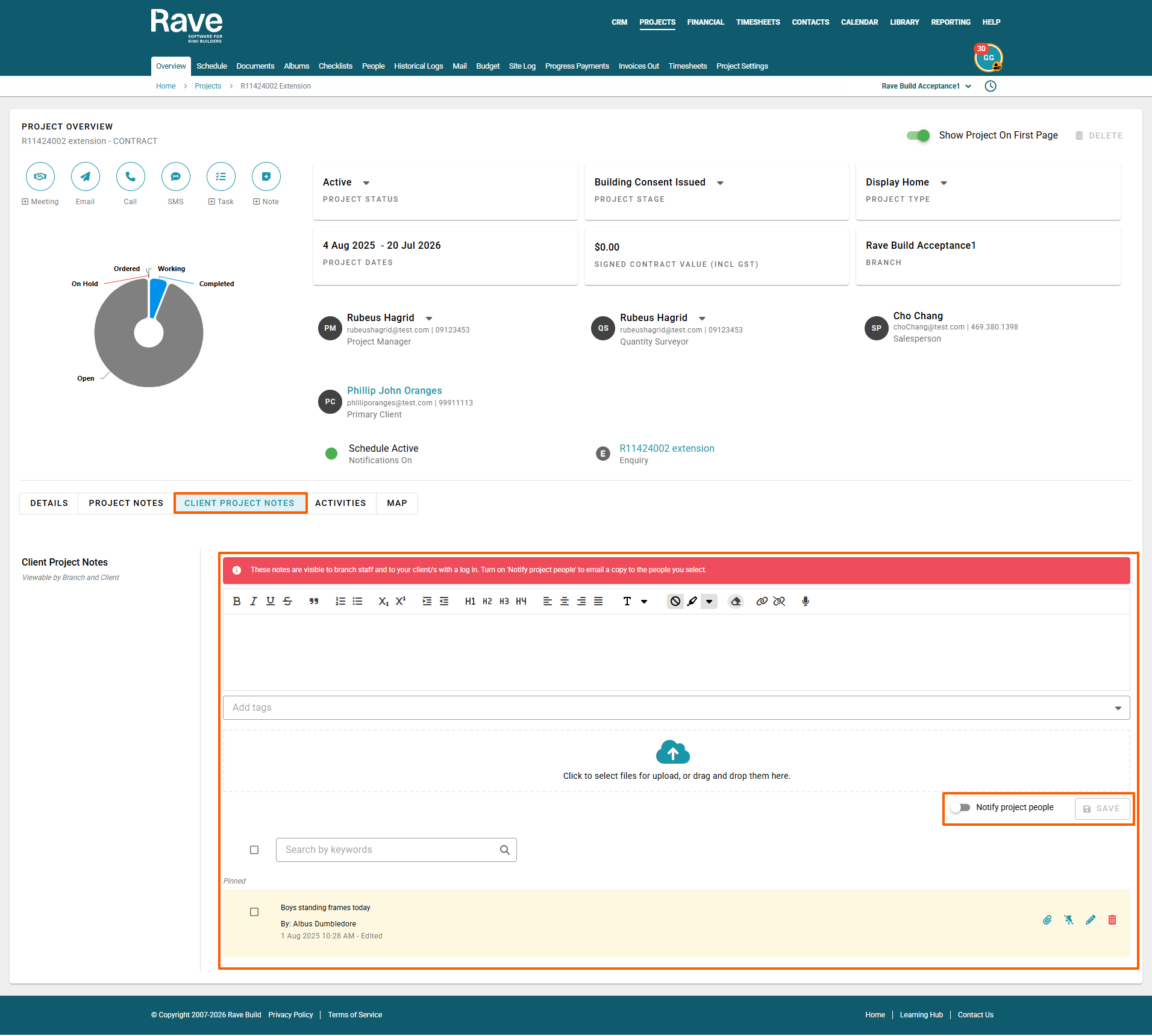
Adding Project Client Notes Within a Project
You can also add Project Client Notes directly from within an individual project.
- Click on Projects.
- Use the Project Search to locate the relevant project.
- Click on the blue Project link.
- This will open the Project Profile.
- Add your Project Client Note within the project.
You can enable Notify Project People if you would like to notify specific people about the new note. Once enabled, a Notify dropdown will appear, allowing you to select one or multiple people to notify. Only people with access to the relevant notes will be available to select.
Any note added from the Project Profile will also appear on the Branch Project Client Notes page, ensuring all client-related project notes remain visible and accessible at branch level.
Previewing Attachments
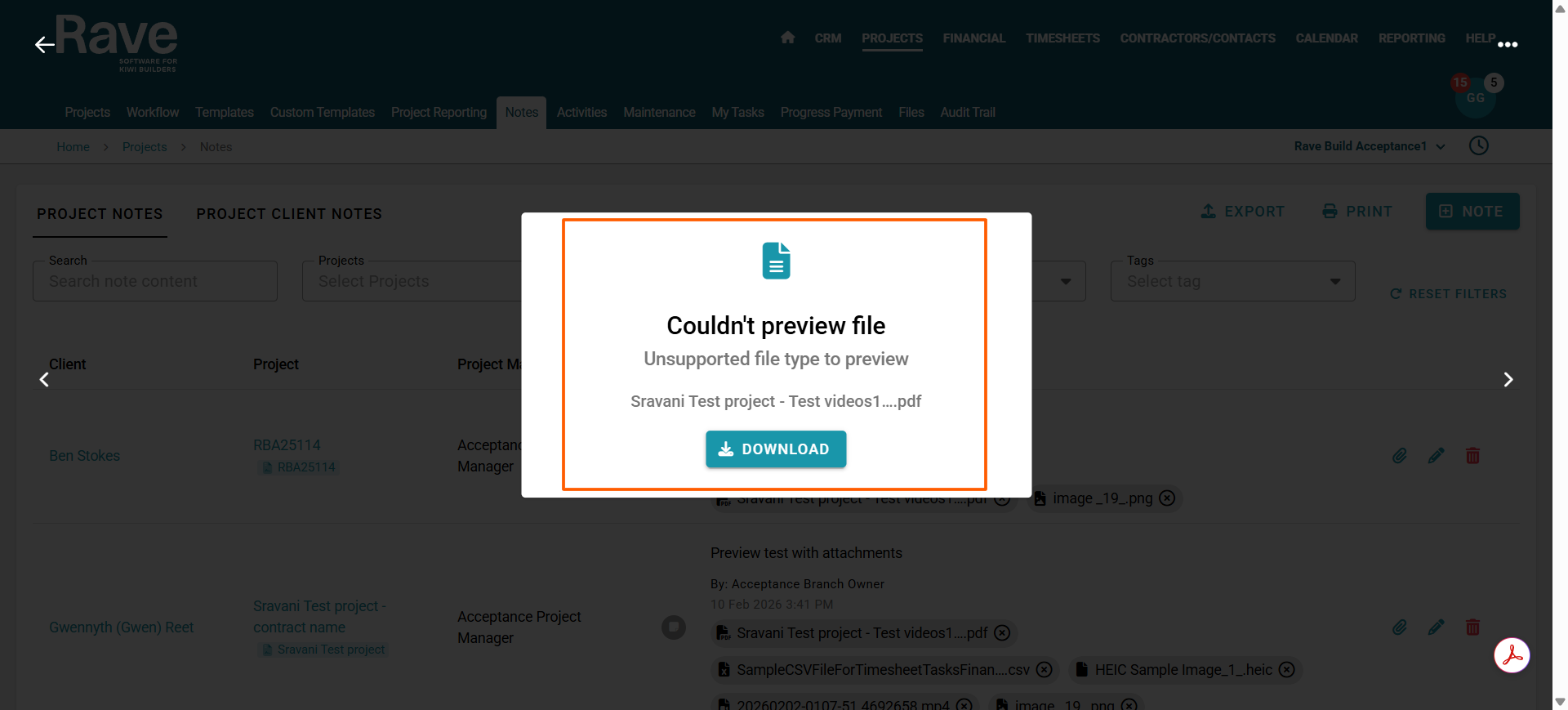
If you have loaded an image file, you can click the file name to preview it in Rave. Once you have previewed, you can click the 3 dots to download or, with permission, delete the attachment.
If the attachment is a PDF, Excel, Word or other file type that does not support preview, you will be able to choose to download only.
Printing notes
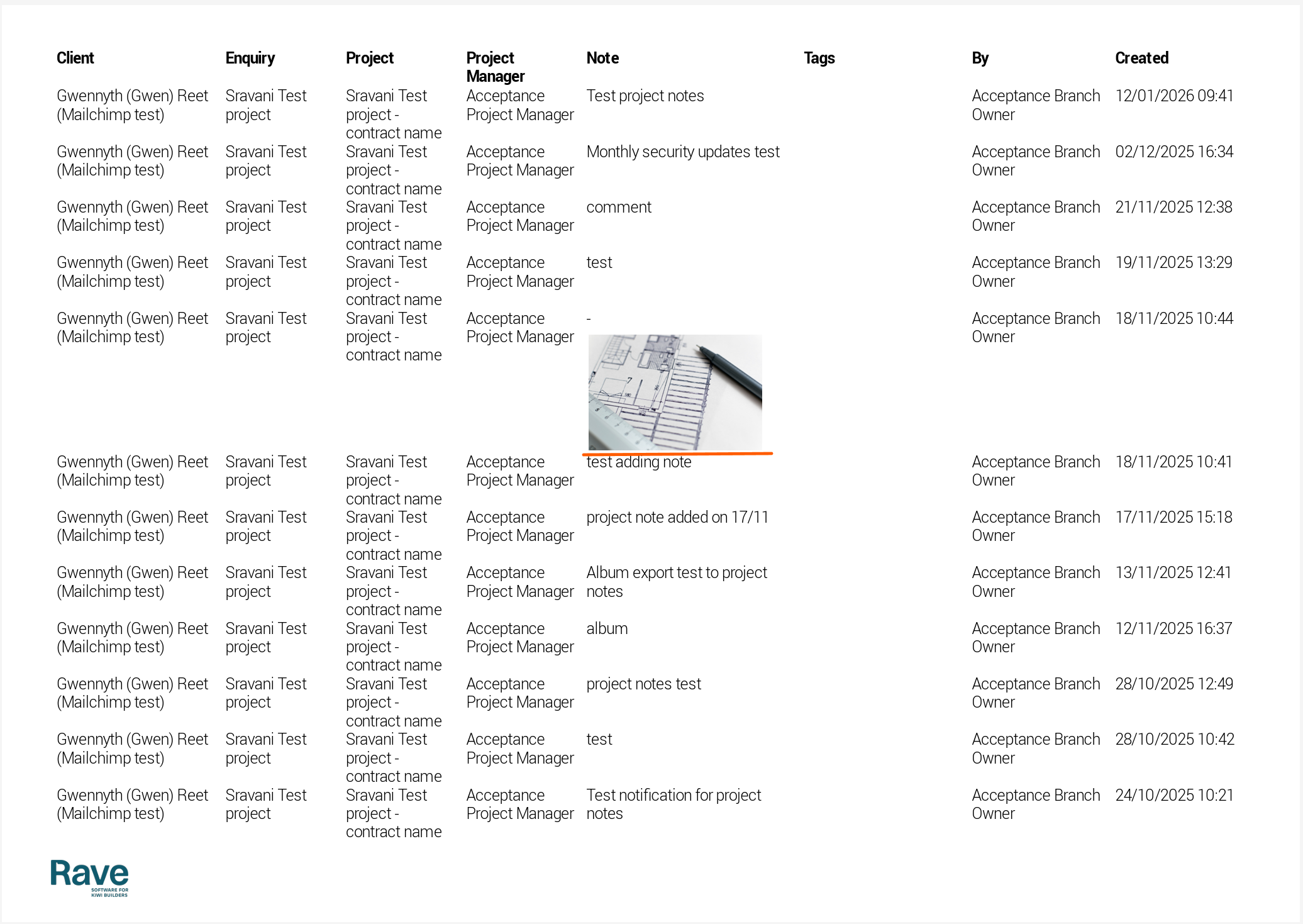
When you press the Print icon at the top of the notes page, you will be able to print the notes to PDF as you see on screen.
Where there are image files attached to the note, they will print as small images on the PDF. Other attachment types will not print only image files.
Was this article helpful?
That’s Great!
Thank you for your feedback
Sorry! We couldn't be helpful
Thank you for your feedback
Feedback sent
We appreciate your effort and will try to fix the article