If you are looking for the help article on downloading album items to ZIP files, click here.
You can now export to PDF images from albums within an enquiry.
To export items from a single album, click into the album you wish to download from.
Check the green arrow on only the items you want to include in the export.
Next, select the export to button from the bulk select bar.
A confirmation box will appear asking you to select how many images per page you wish to display, if you wish to include the image name and details on the export as well as giving the export a name.
Then the select destination box allows you to choose:
Download (this will provide the images in PDF format downloaded to your device)
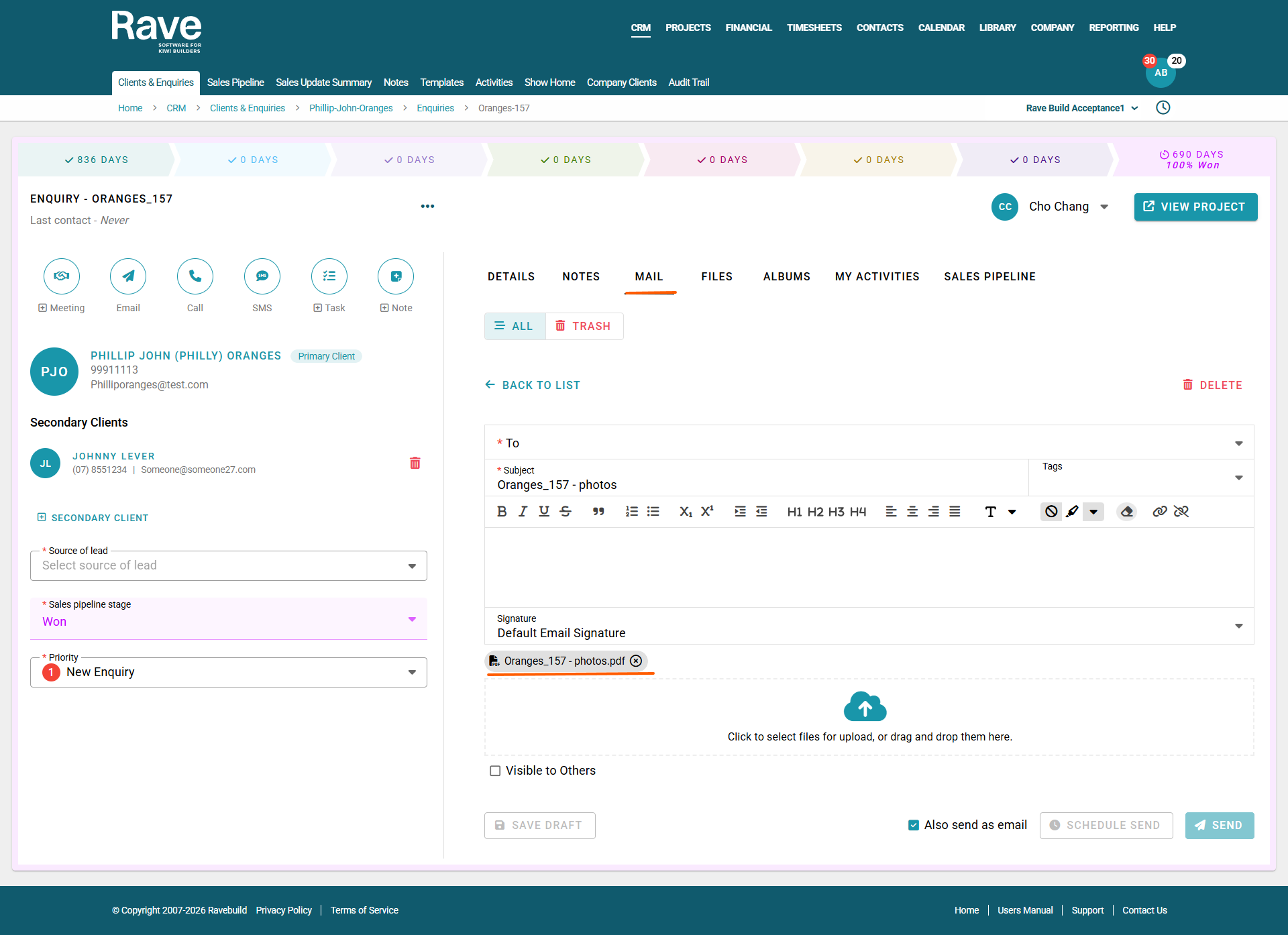
Enquiry Mail (this will attach the images in PDF format to a draft mail inside Rave CRM
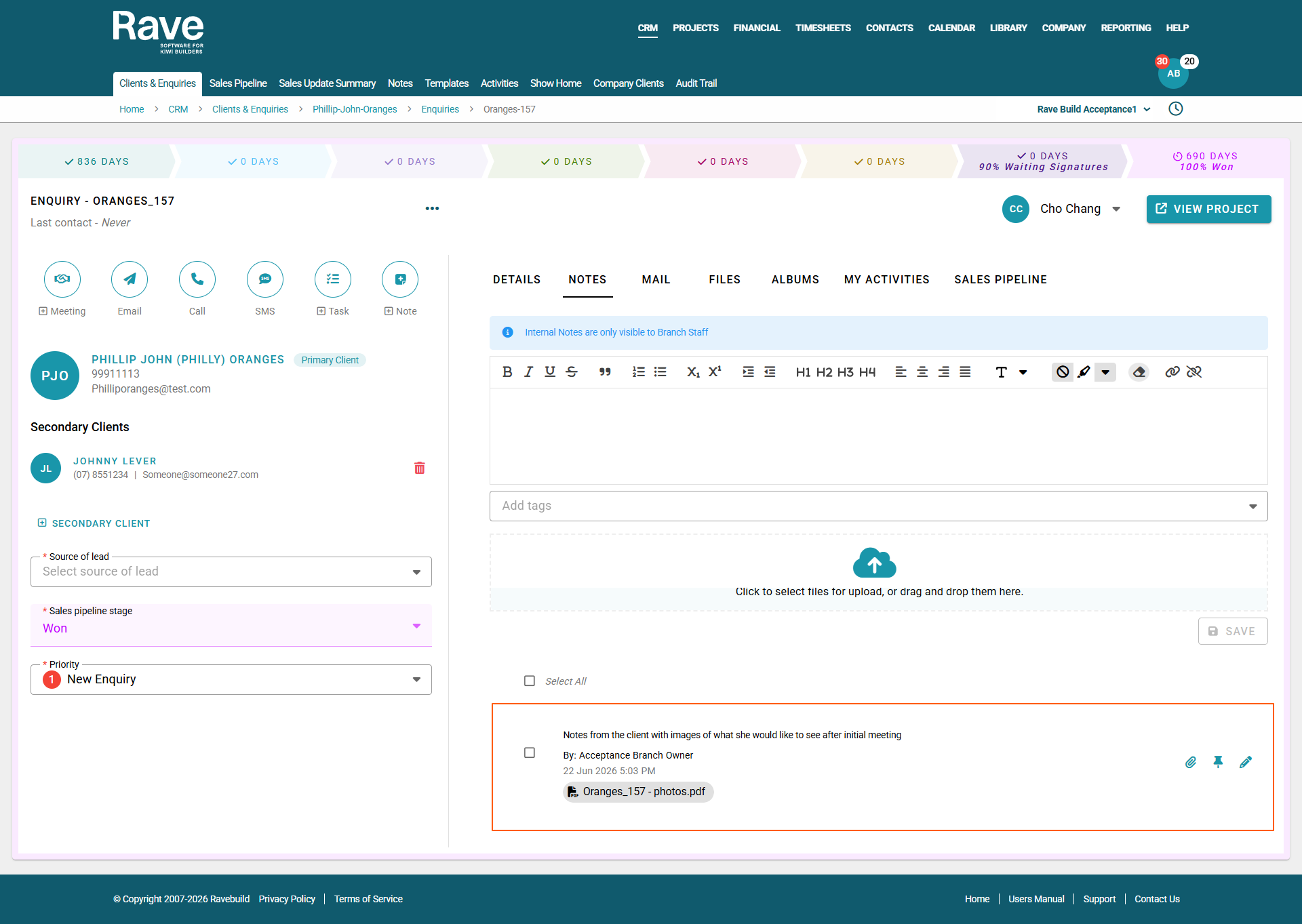
Enquiry Note (this will attach the images in PDF format to an enquiry note in Rave CRM)
Click Export to proceed
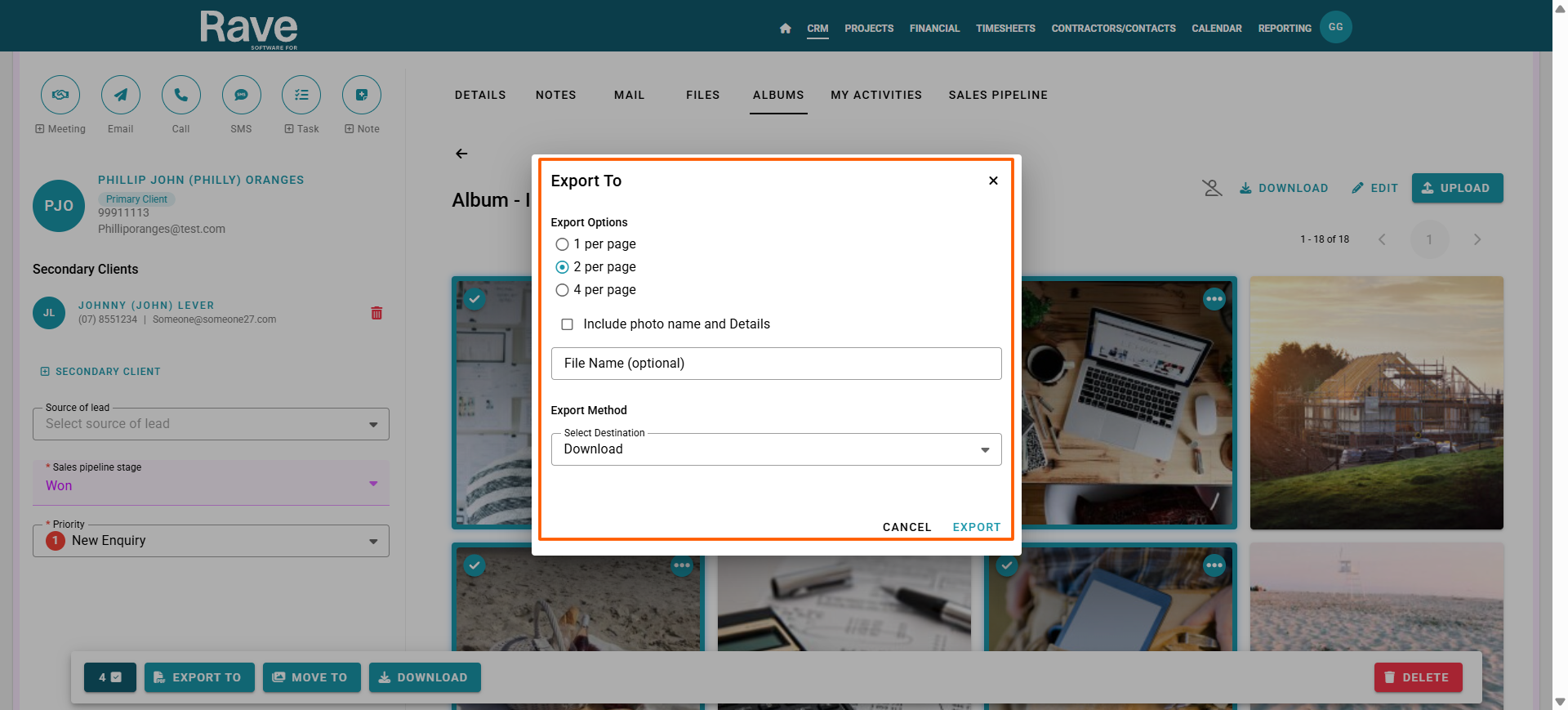
Export to: Download Chosen
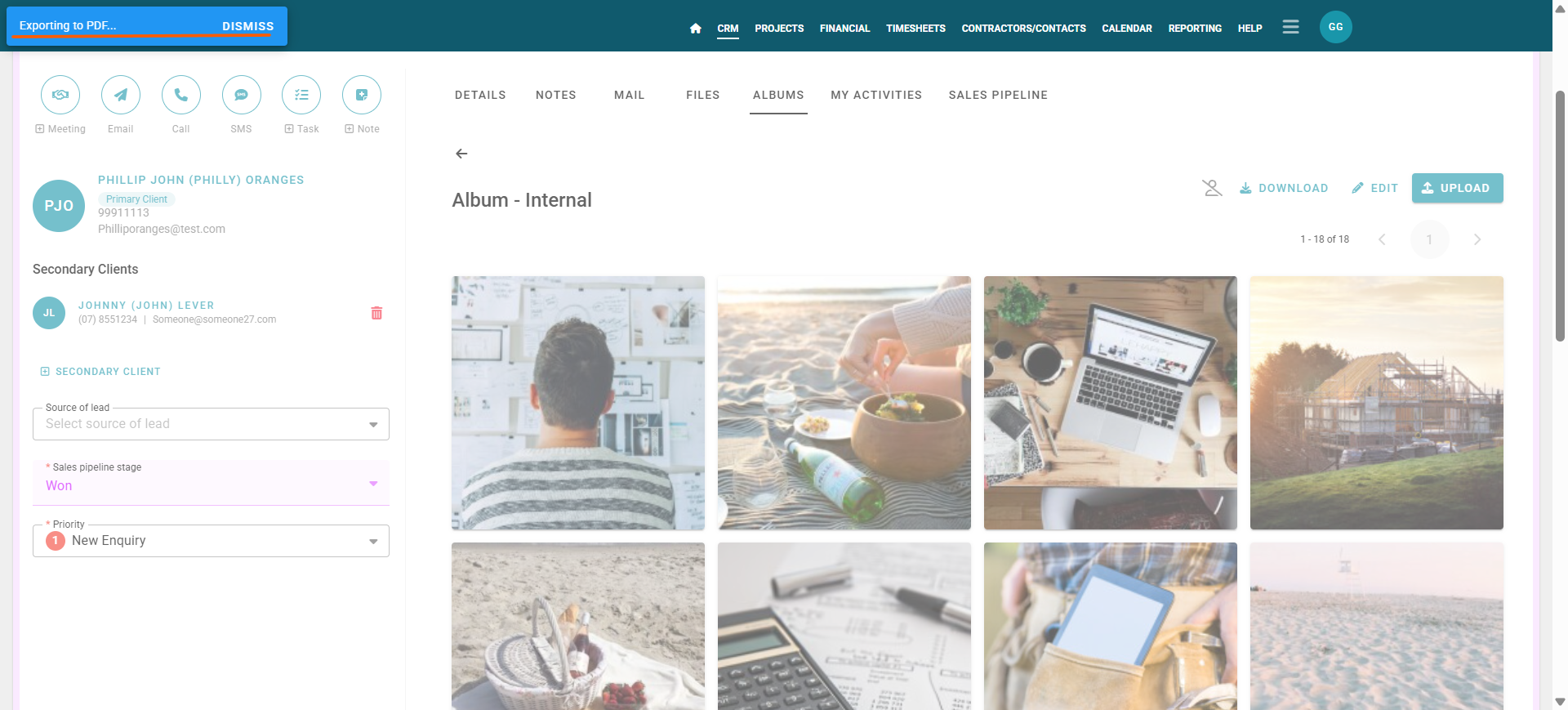
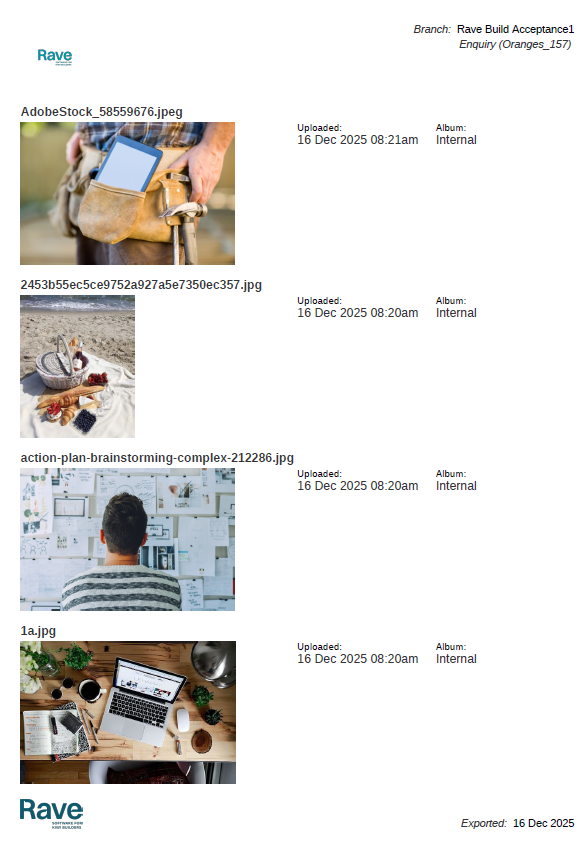
Export to Mail chosen
Export to Enquiry Note chosen
Was this article helpful?
That’s Great!
Thank you for your feedback
Sorry! We couldn't be helpful
Thank you for your feedback
Feedback sent
We appreciate your effort and will try to fix the article