To access CRM Album you need to have Enable Albums checked and then to select from the albums options below depending on your preferences.
Add/Edit Delete my items - Ability to upload, edit and delete my items
Manage all deleted items - Allow a user to view, restore or permanently delete items deleted by any user.
Manage my deleted items - Allow a user to view, restore or permanently delete items they deleted
Add/Edit/Delete Albums - Ability to create, edit and delete albums and their permissions
Edit/Delete all items - Ability to edit and delete items assigned to anyone (including bulk moving/deleting items)
Move Albums - Ability to move an album (and all items within it) to a different project

The Albums Tab
This tab stores photos and videos up to 1GB in size.
With the correct permission you can upload create a new album by selecting the + Album icon.
This will pop up a model for you to crate the album name and choose if the client has visibility and upload access.
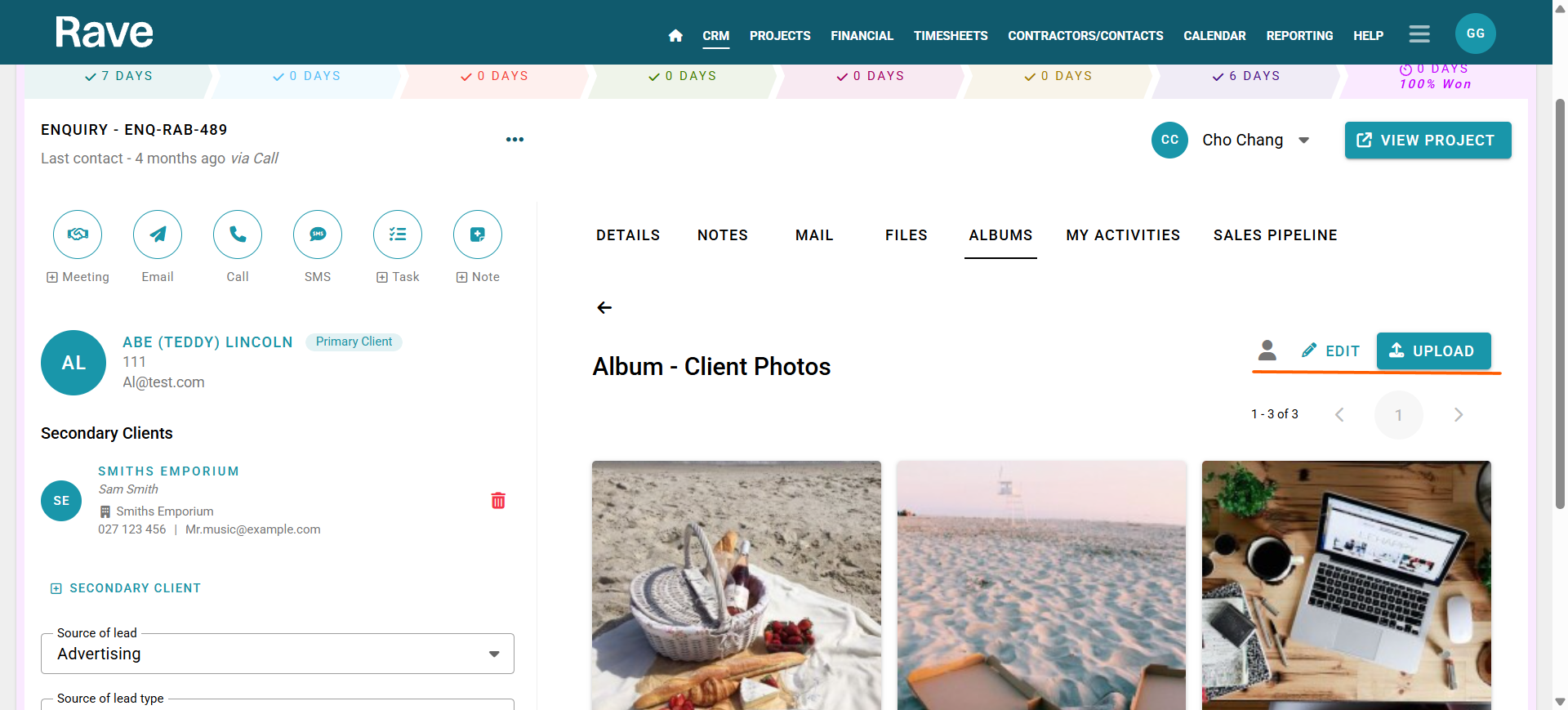
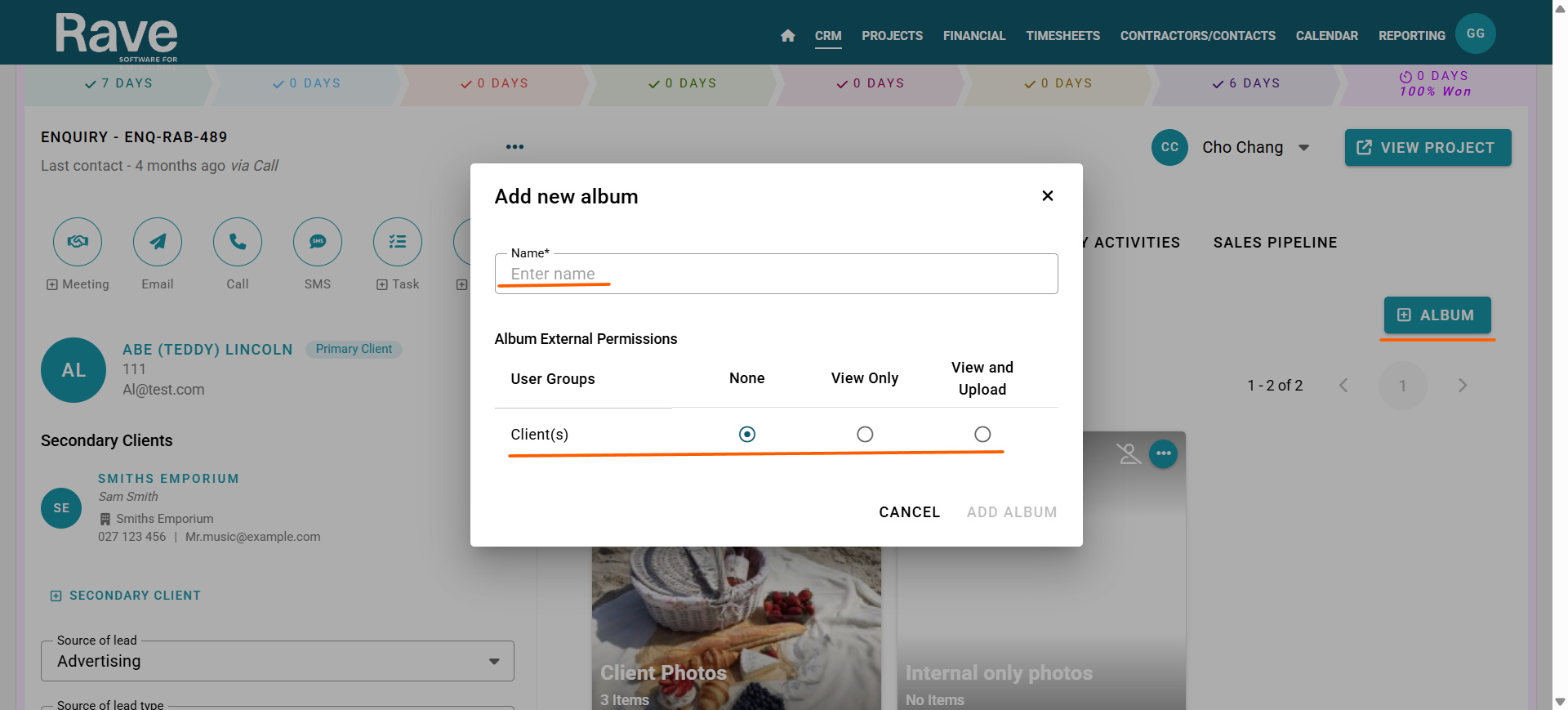 Once the album is created you can click into the album and start uploading items.
You can upload 50 photos or videos at a time into any albums by clicking on the Album and clicking the Upload button.
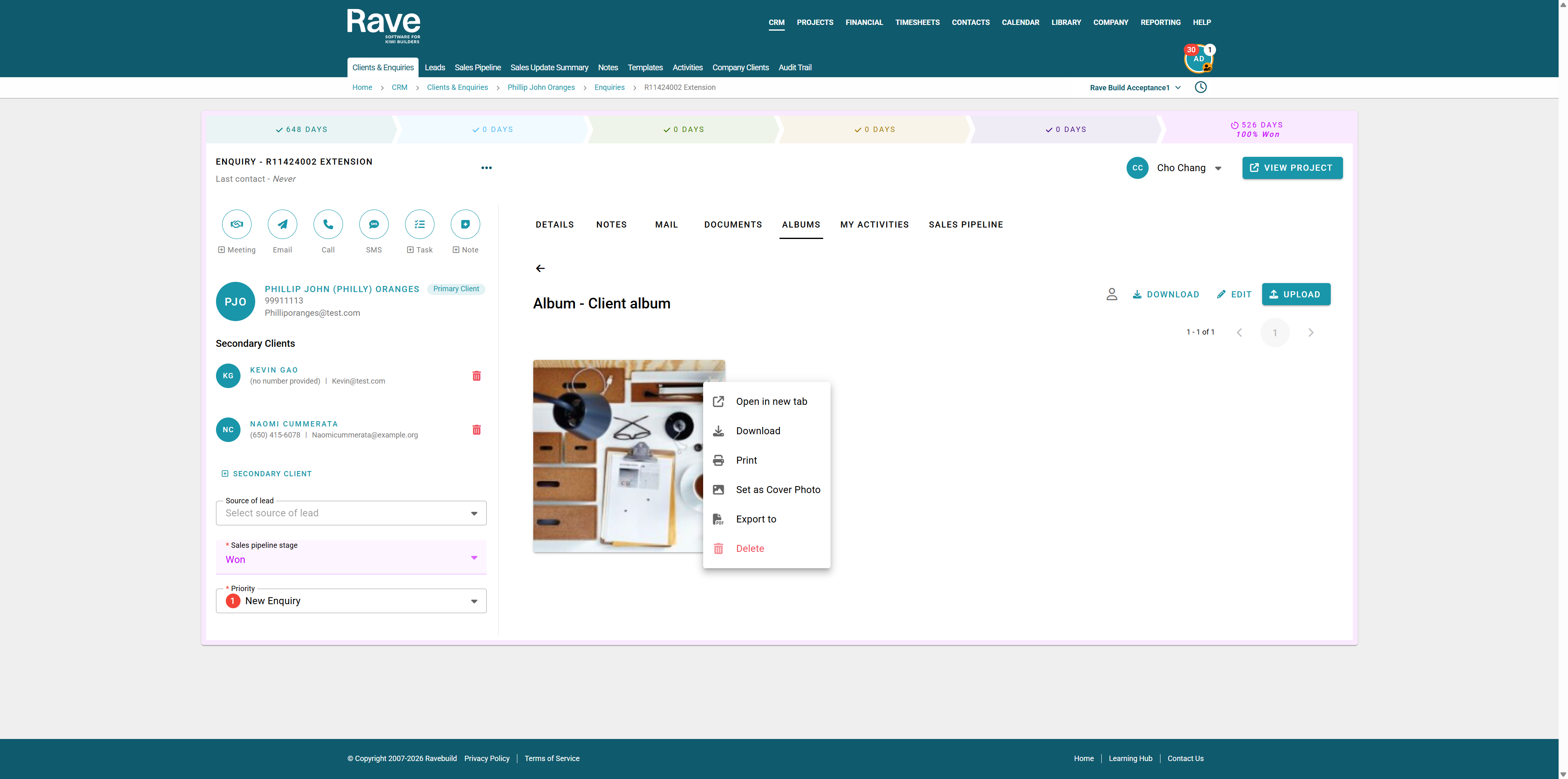
Each album item has a 3 dot elipsis which allows you to
- Open the image/video in a new tab
- download
- Set as cover photo (image only)
- export to
- Delete (with permission
Export Album Items
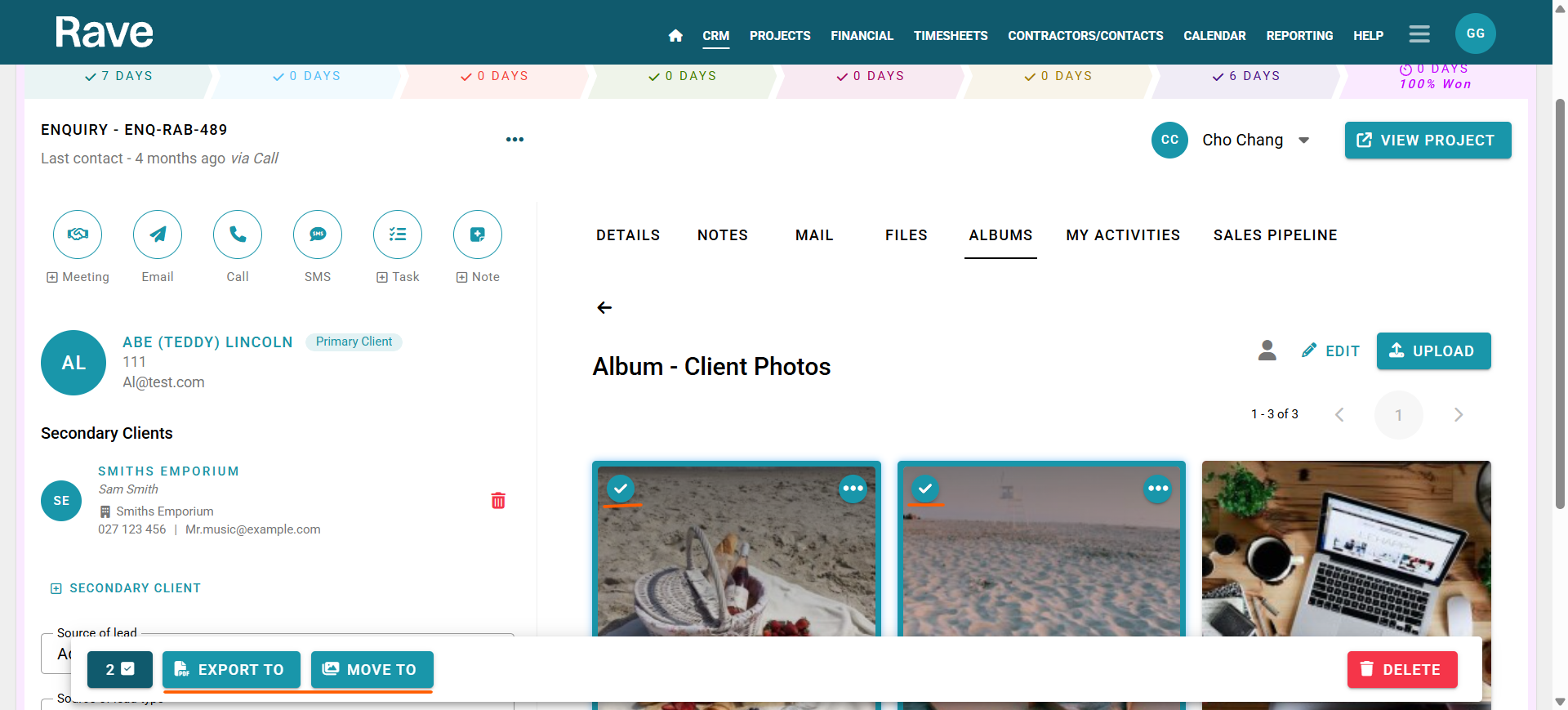
To select items to export, click the icon with a check mark inside a circle.
Once the first image is selected, you can click anywhere on the other images to select them in bulk.
Selecting a single or multi-image image(s) will bring up a bulk action bar at the bottom of the screen. Select the Export To option.
This option allows you to choose how many photos per page you want to export, name the export, and select an export method:
Download (this will provide the images in PDF format downloaded to your device,
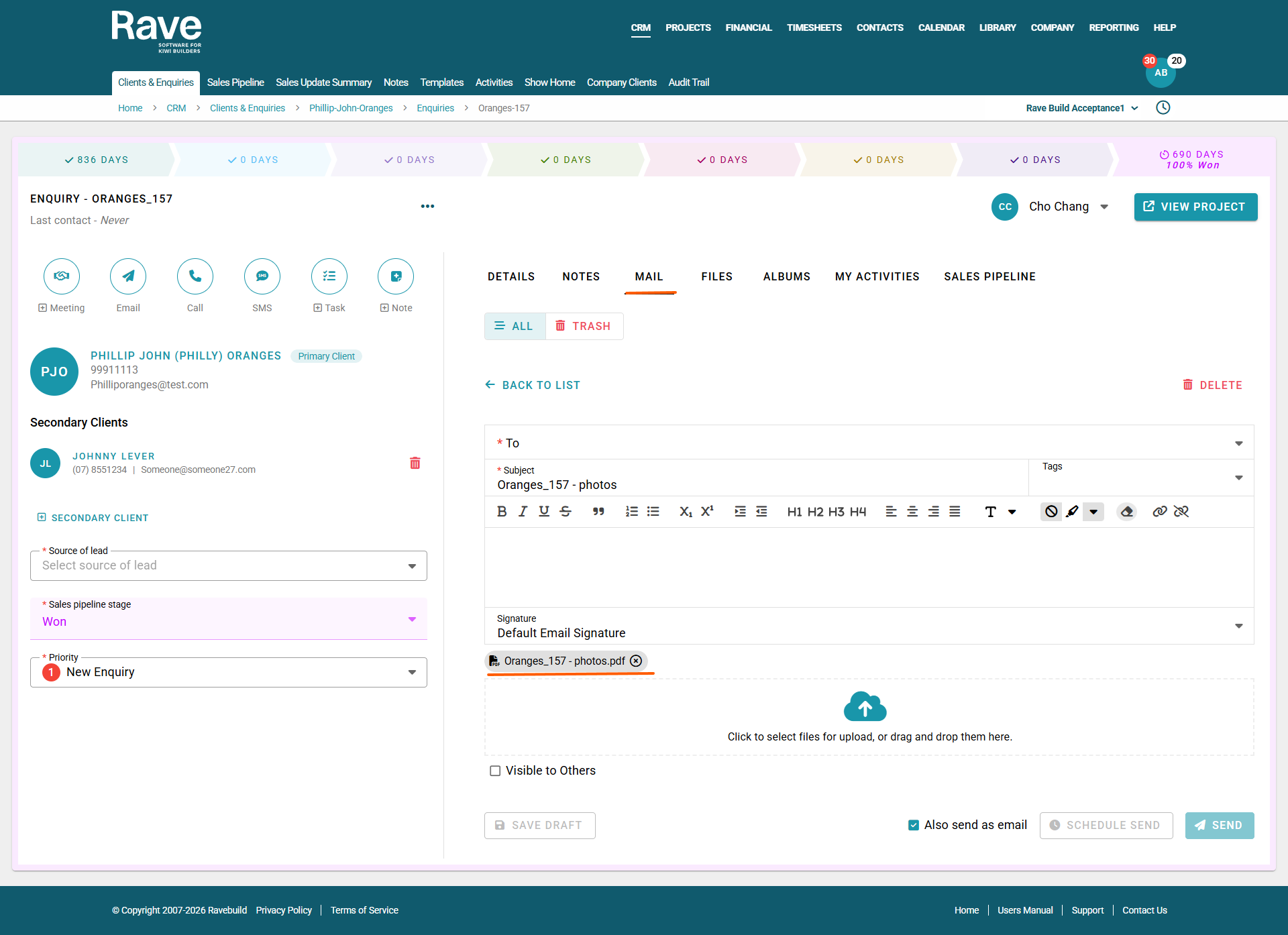
Enquiry Mail (this will attach the images in PDF format to a draft mail inside Rave CRM
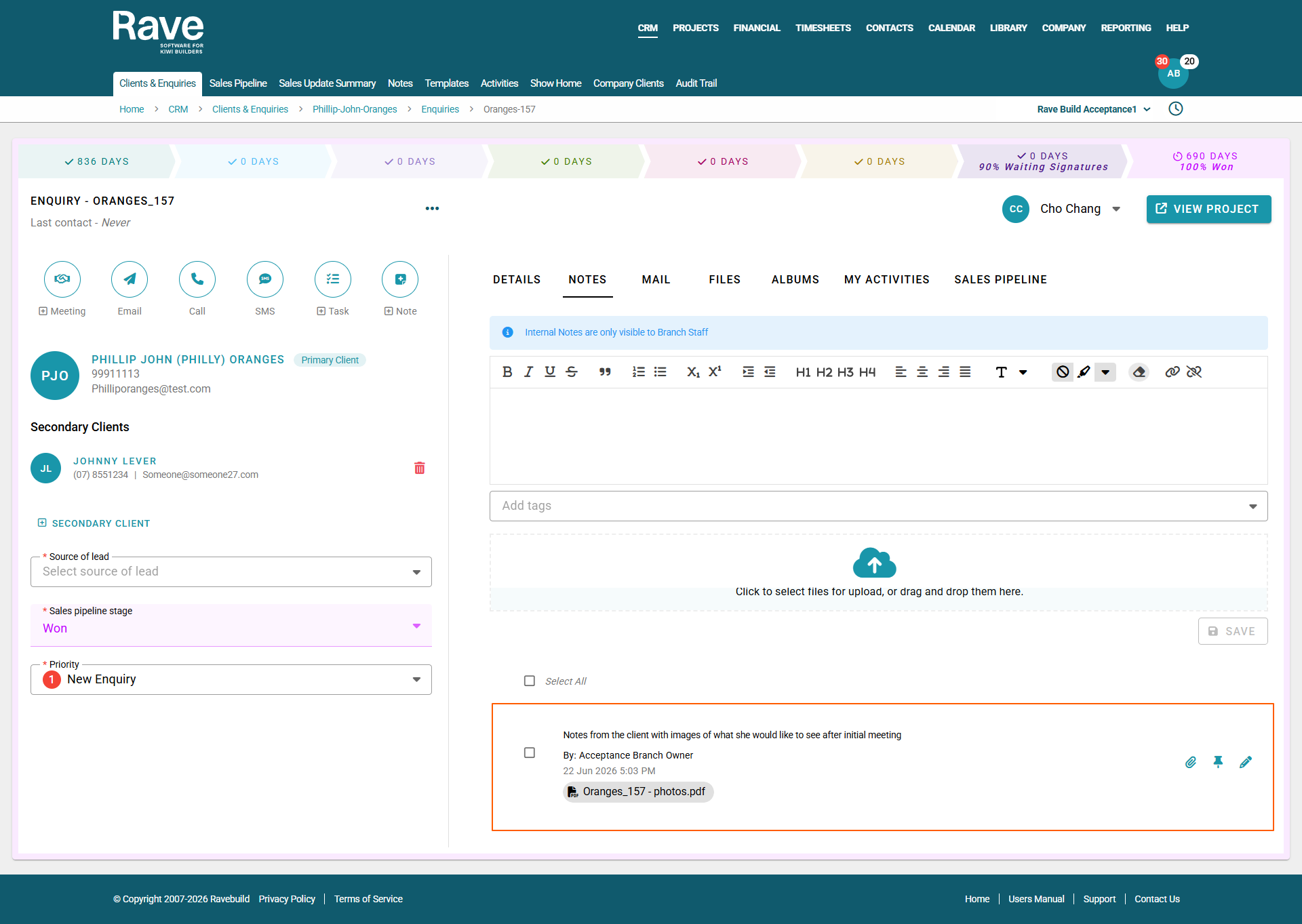
Enquiry Note (this will attach the images in PDF format to an enquiry note in Rave CRM)
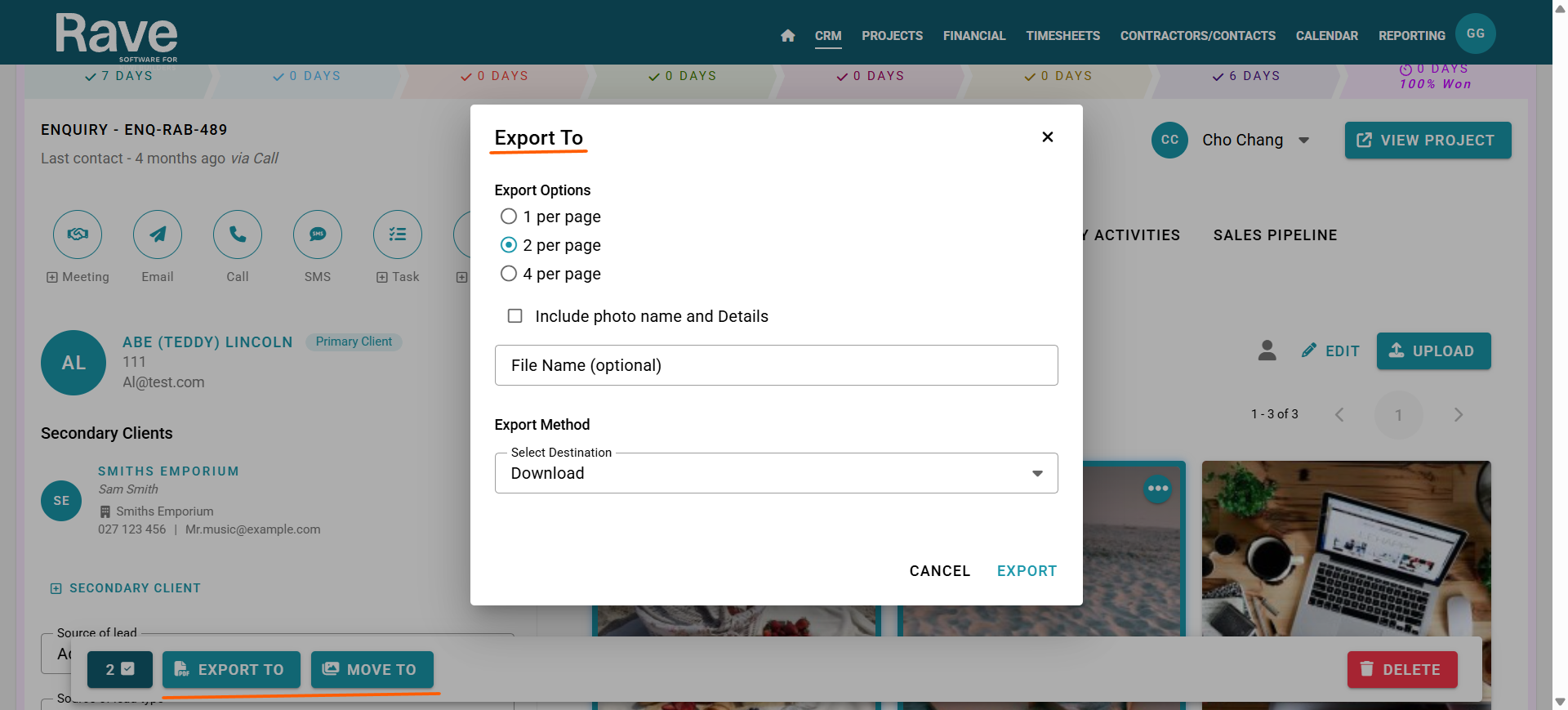
Export to: Download Chosen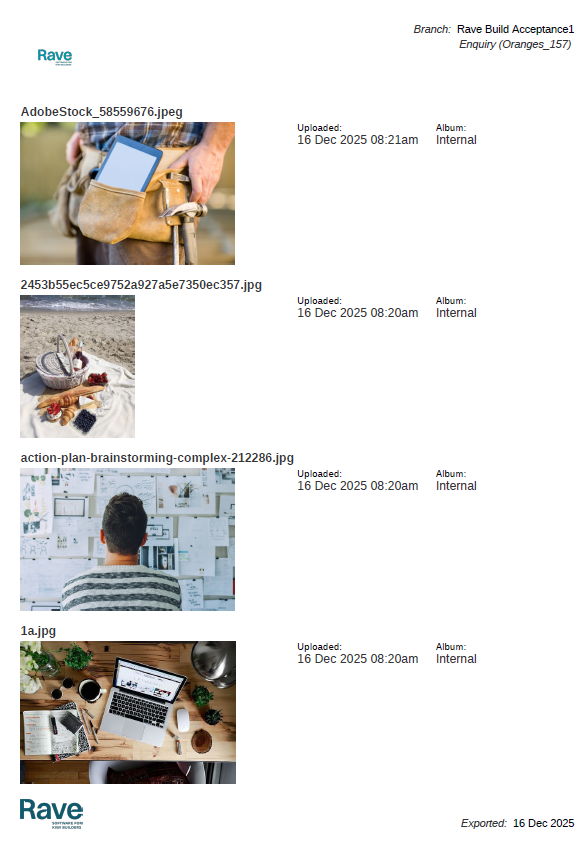
Export to Mail chosen
Export to Enquiry Note chosen
Moving Items
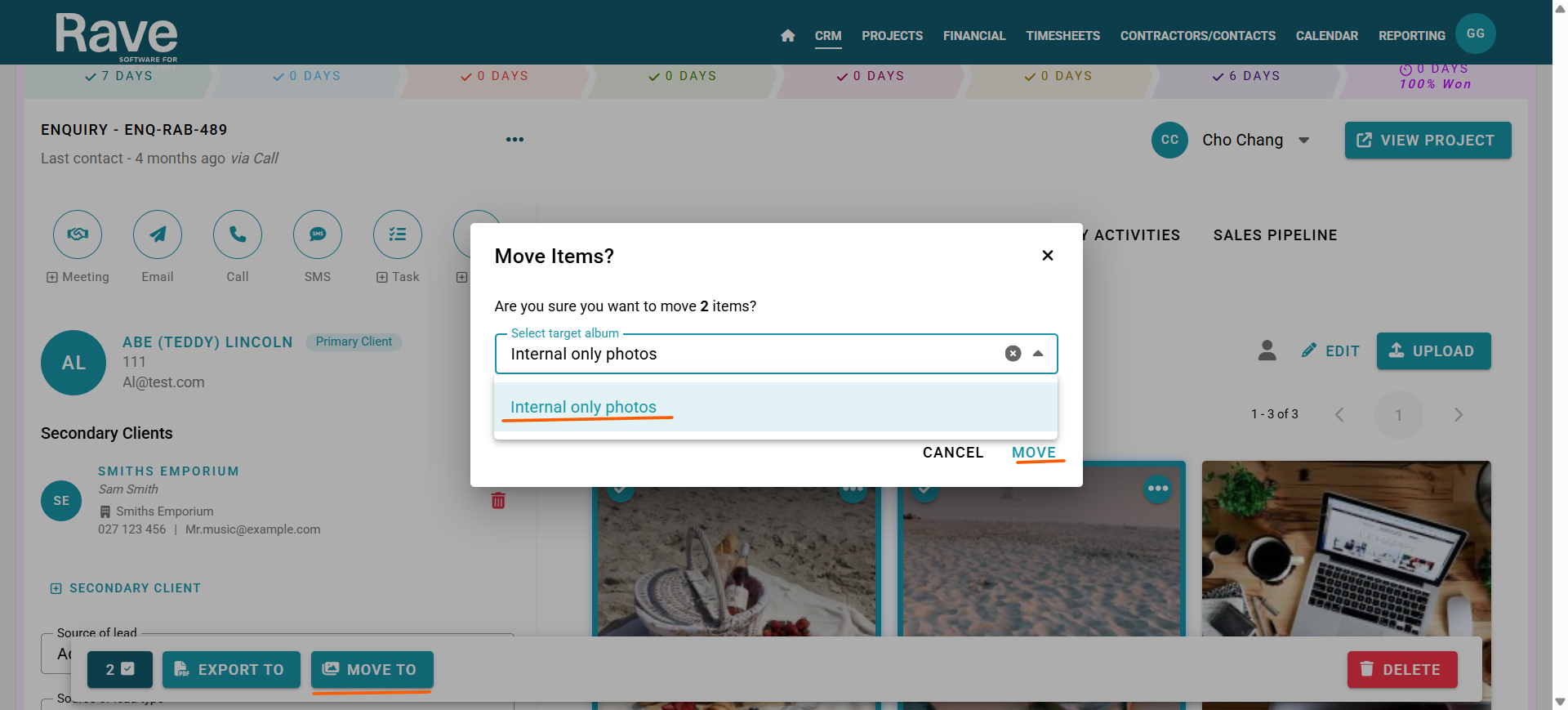
You can also bulk-select items within an album and move them to another album within the same enquiry.
A pop-up will ask you to choose the the new album you want to move the images to.
Timeline View
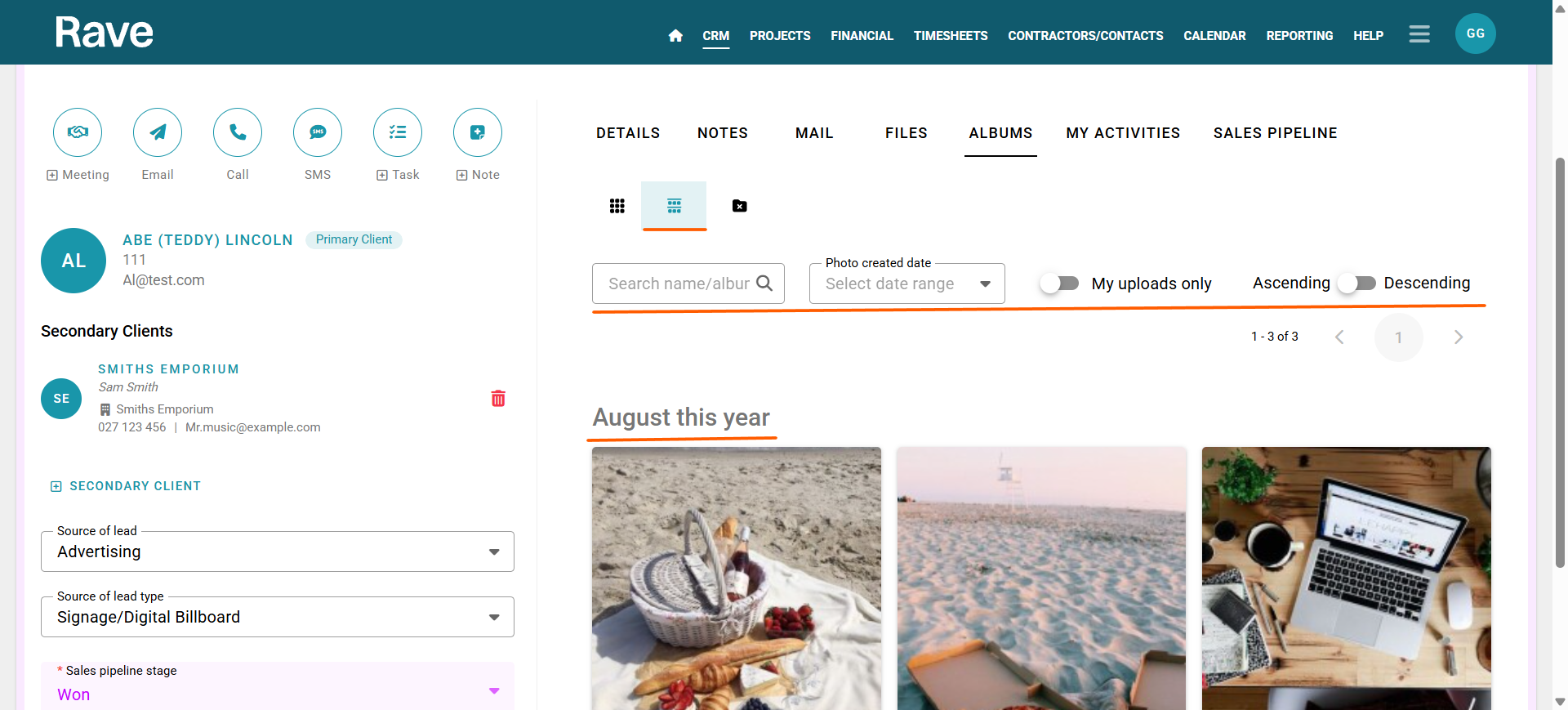
The second Albums sub-tab is called Timeline. This is where you can search for an album name, item name, or description to find any image or video that exists in this enquiry that you have access to.
You can select a date range to view all images loaded to all albums in that time (that you have access to) or view only your uploads via the My Uploads only toggle.
You can change the ascending or descending view to show the oldest or newest first, depending on your requirements.
We will show all images and the timeline they were loaded to this enquiry.
The Albums / Trash Tab
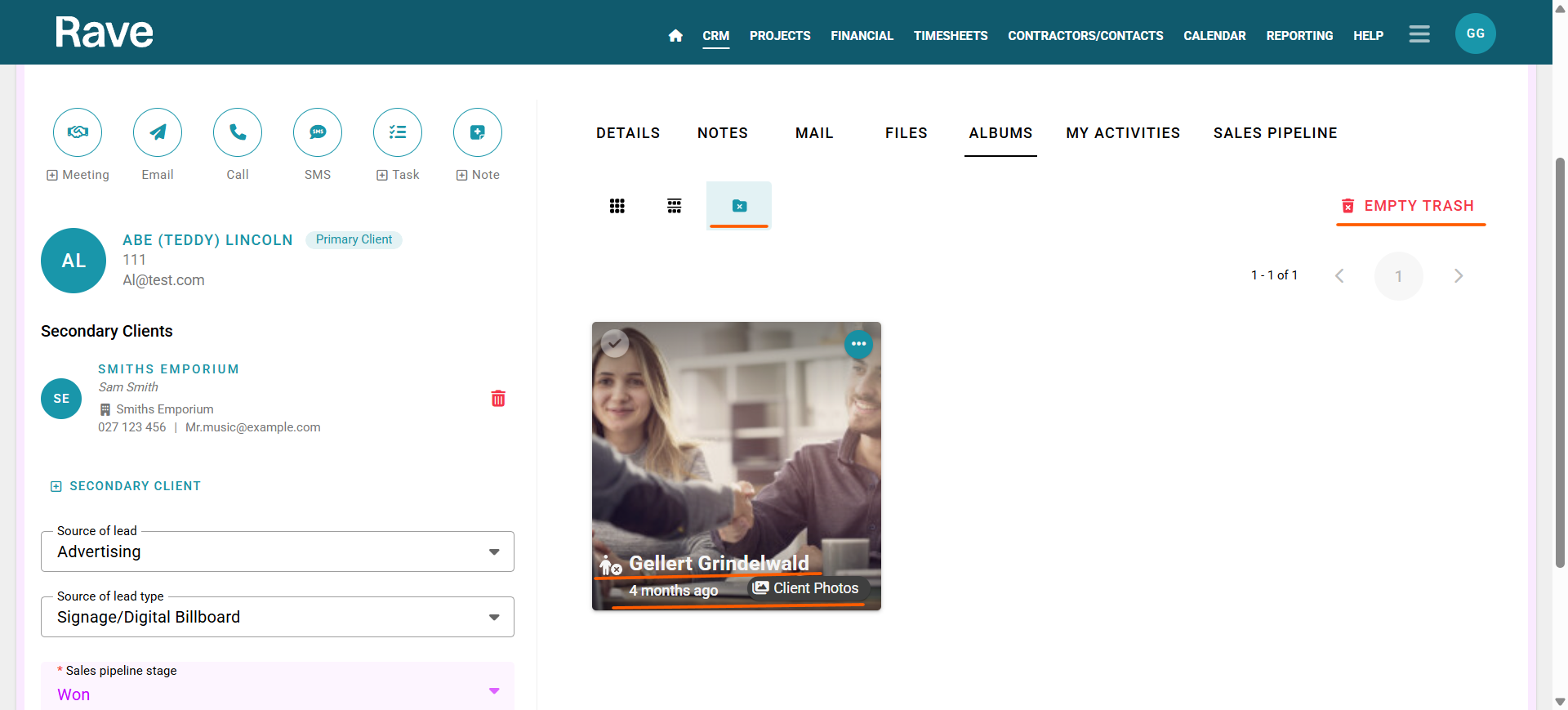
The third Albums sub-tab is the Trash folder. Those with permission to delete items and or albums will find these items in the Trash folder.
- If you have permission to delete only your own items, you will only see your own deleted items.
- If you have permission to delete ALL, then you will see every item deleted, regardless of who deleted it.
Hovering over items in Trash, you will see an icon of a person with an X. This will tell you which user deleted that item.
The three-dot action dropdown will also allow you (with permission) to restore an item that was deleted by yourself or another user or to delete it permanently.
You can bulk select items to Permanently Delete, which will delete them forever - we cannot undo this action.
Was this article helpful?
That’s Great!
Thank you for your feedback
Sorry! We couldn't be helpful
Thank you for your feedback
Feedback sent
We appreciate your effort and will try to fix the article