The following is the recorded version of the help article outlined below.
The Projects tab is where you go to see all the Projects your Building company has added you to.
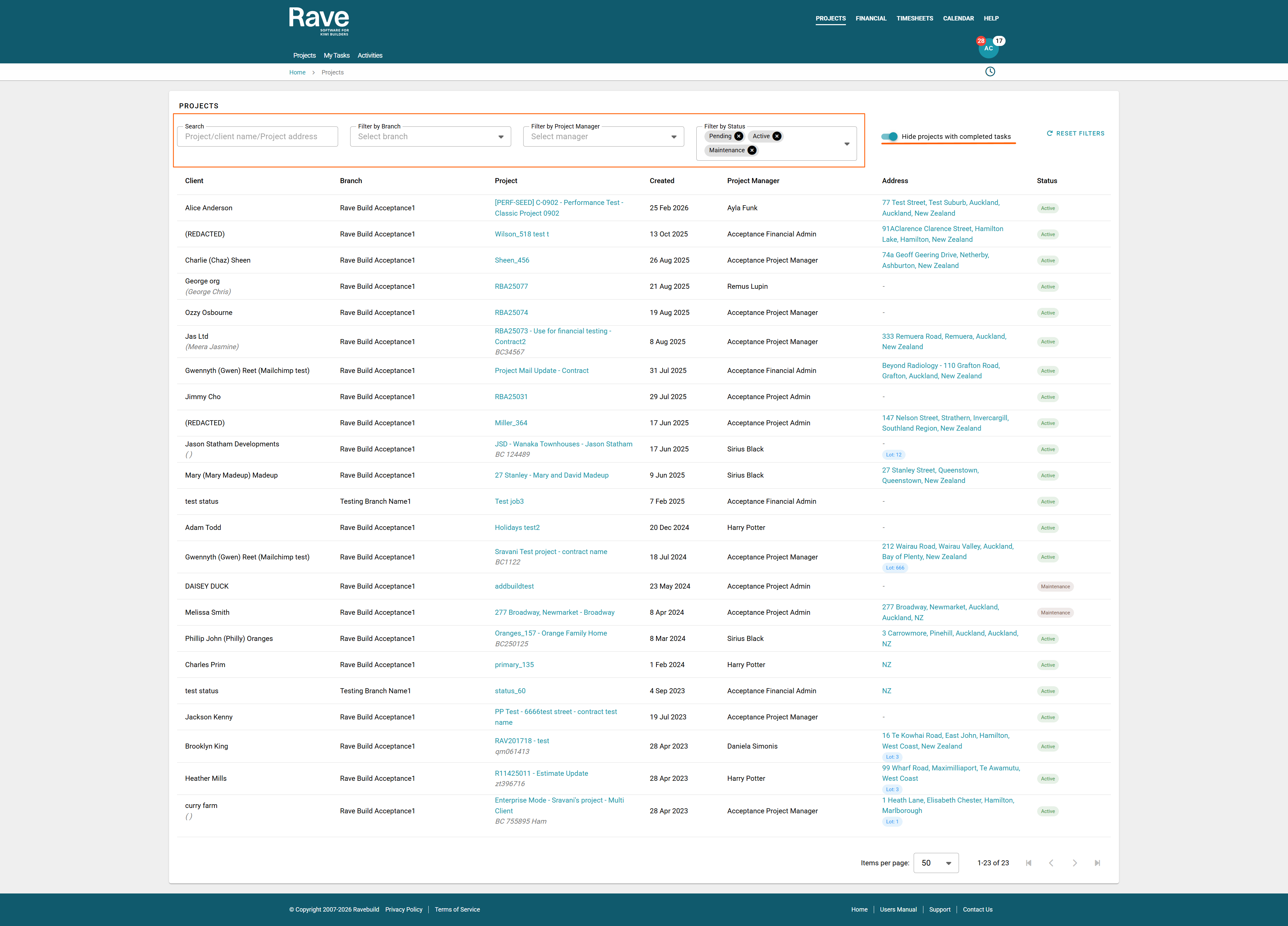
This tab has searchable fields to look up a specific Project, Client name if not redacted, or Project Address.
You can also filter by Branch (the Building Company Name), the specific Project Manager, or the project status.
The slider Hide projects with completed tasks will remove projects where you have completed all your scheduled tasks, but the project is still open. This reduces the number of projects visible to you. Sliding it off will show all projects regardless of schedule status.
By clicking on the Project Reference, you will be taken to the Project Overview.
NOTE: If you see a redacted title in the client name field, this means your building company has chosen to redact the client information from being shared. You can still proceed using Rave, you just don't have access to the client name, phone or email or other information.
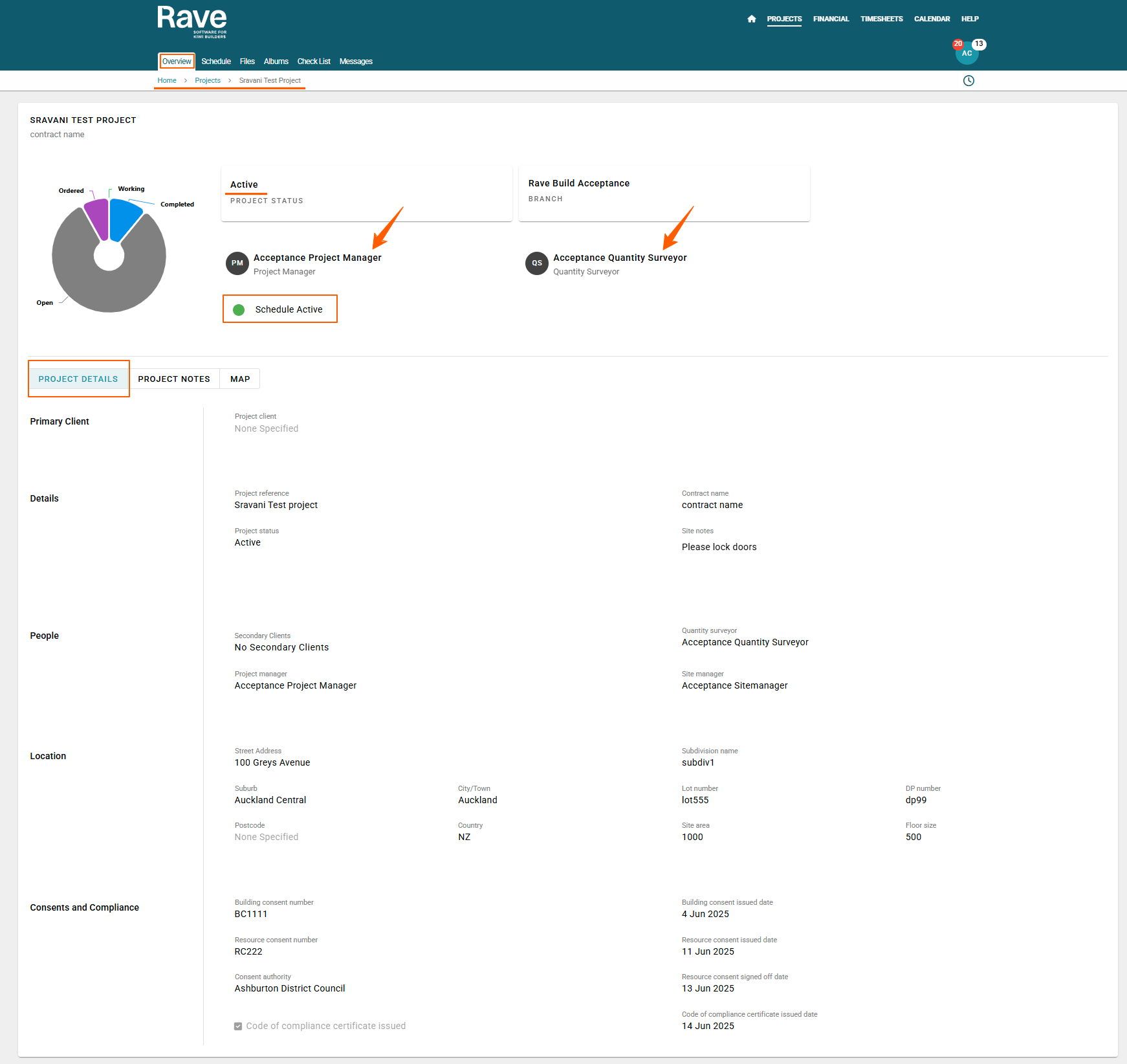
The Project Overview Page gives you all the information that you need. Where the Schedule is at, who the Project Manager and Quantity Surveyor are (if loaded on the Builders side). You will see project Notes and a location Map to where the site is. If the Schedule is active, you will see how far through the schedule you are.
Project Notes could contain information that is important to know. I.e: lockbox numbers, information on pets, children, shift workers, tenants etc. If you cannot see project notes, it is because this setting is turned off on the Builders side of Rave.
Was this article helpful?
That’s Great!
Thank you for your feedback
Sorry! We couldn't be helpful
Thank you for your feedback
Feedback sent
We appreciate your effort and will try to fix the article