Sometimes suppliers may only provide part of an order. When this happens, instead of cancelling and reissuing the purchase order, you can simply remove those line items from a purchase order and update it instead.
Note: You cannot cancel/delete a line on a PO when any bills have been attached to it.
Furthermore, if the purchase order is in an approved state, you can cancel a line; if a purchase order is in a draft state, you can delete it. This article will focus on deleting a line from a draft purchase order.
How to Cancel/Delete Lines from a Purchase Order via the Bulk Select check box
You can easily cancel/delete lines from a purchase order by:
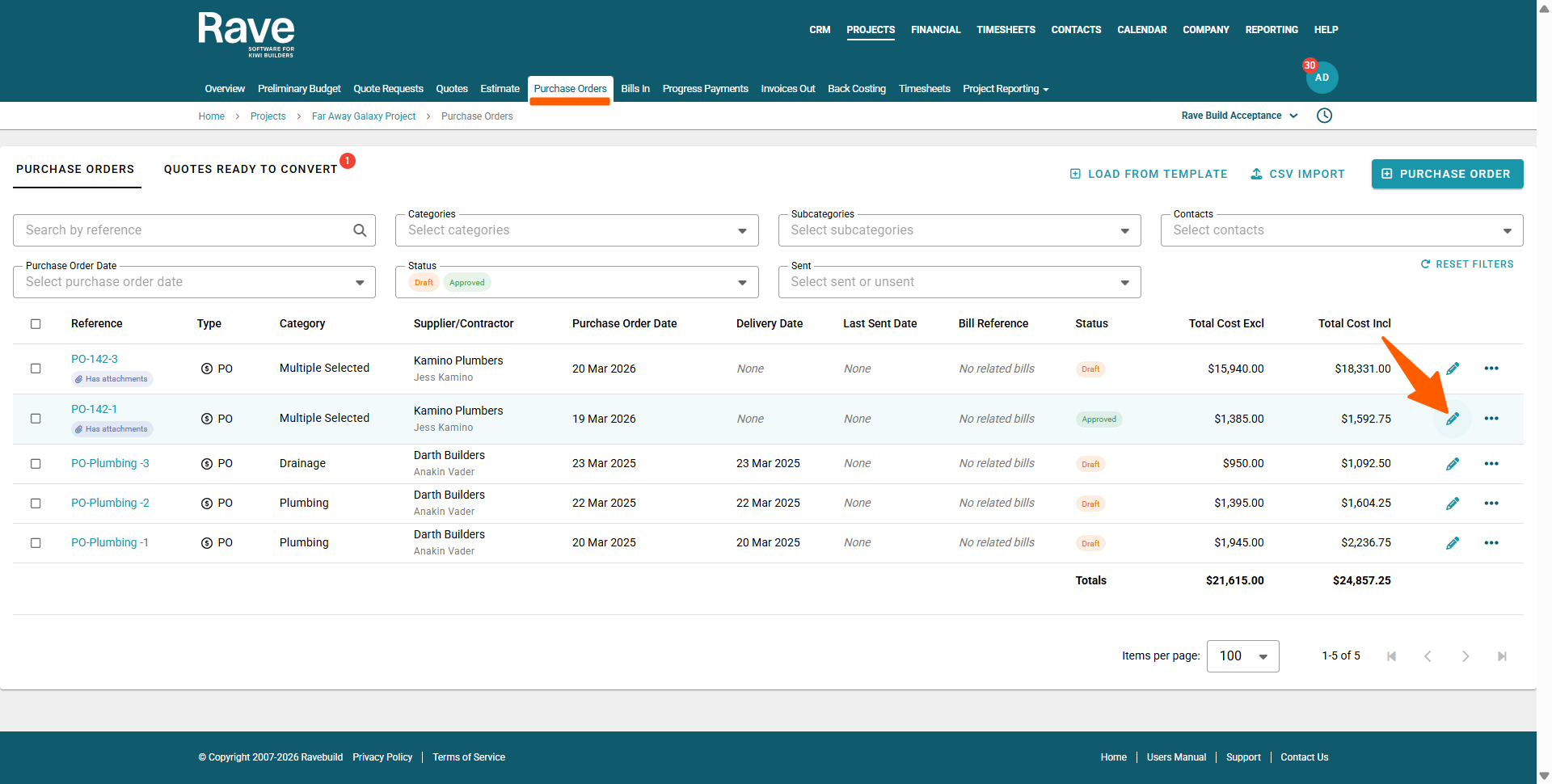
1. Going to the Projects Budget's 'Purchase Orders' sub-tab.
2. Clicking on the purchase order's edit pencil icon - to the far right of the purchase order.
This will open the purchase order ready to edit.
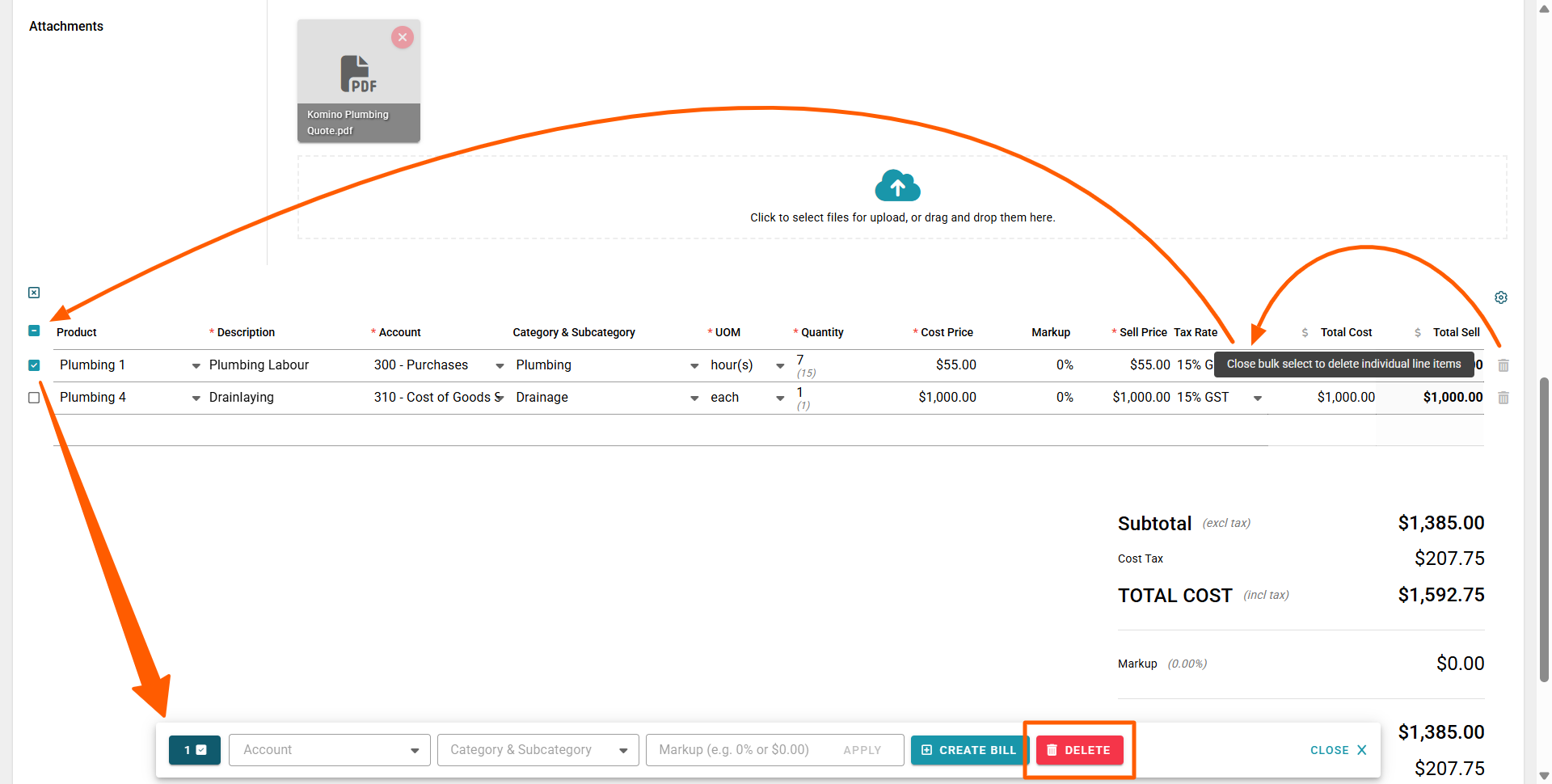
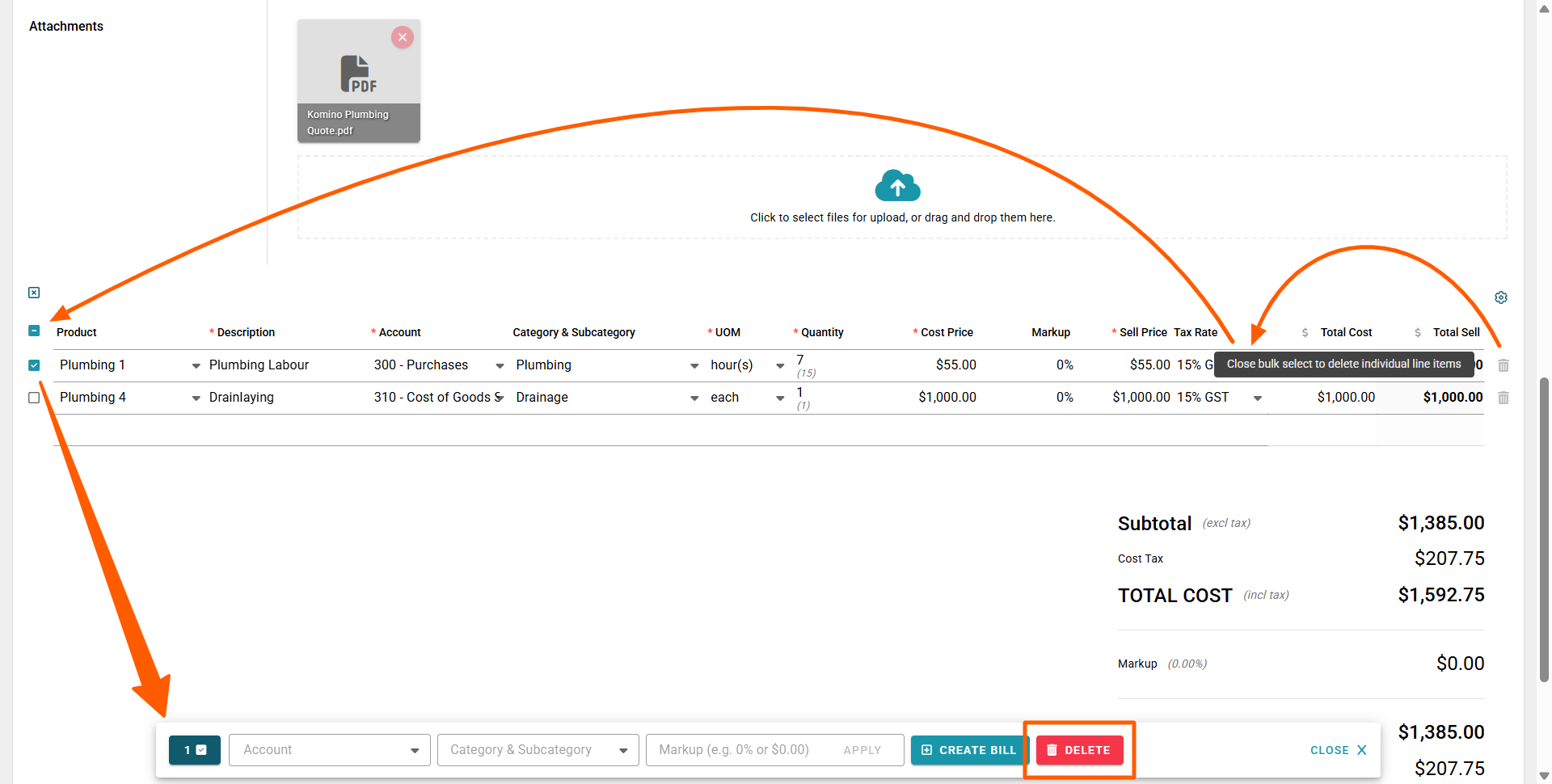
3. Scroll down to the inventory line section, and click on the Bulk Select checkbox header, to the left of the inventory line headers - this will select all inventory lines, and open the floating modal displaying the number of lines selected (to the left), with a red Delete button to the right.
4. Uncheck the lines that don't need to be deleted, and click the floating modal's red delete button.
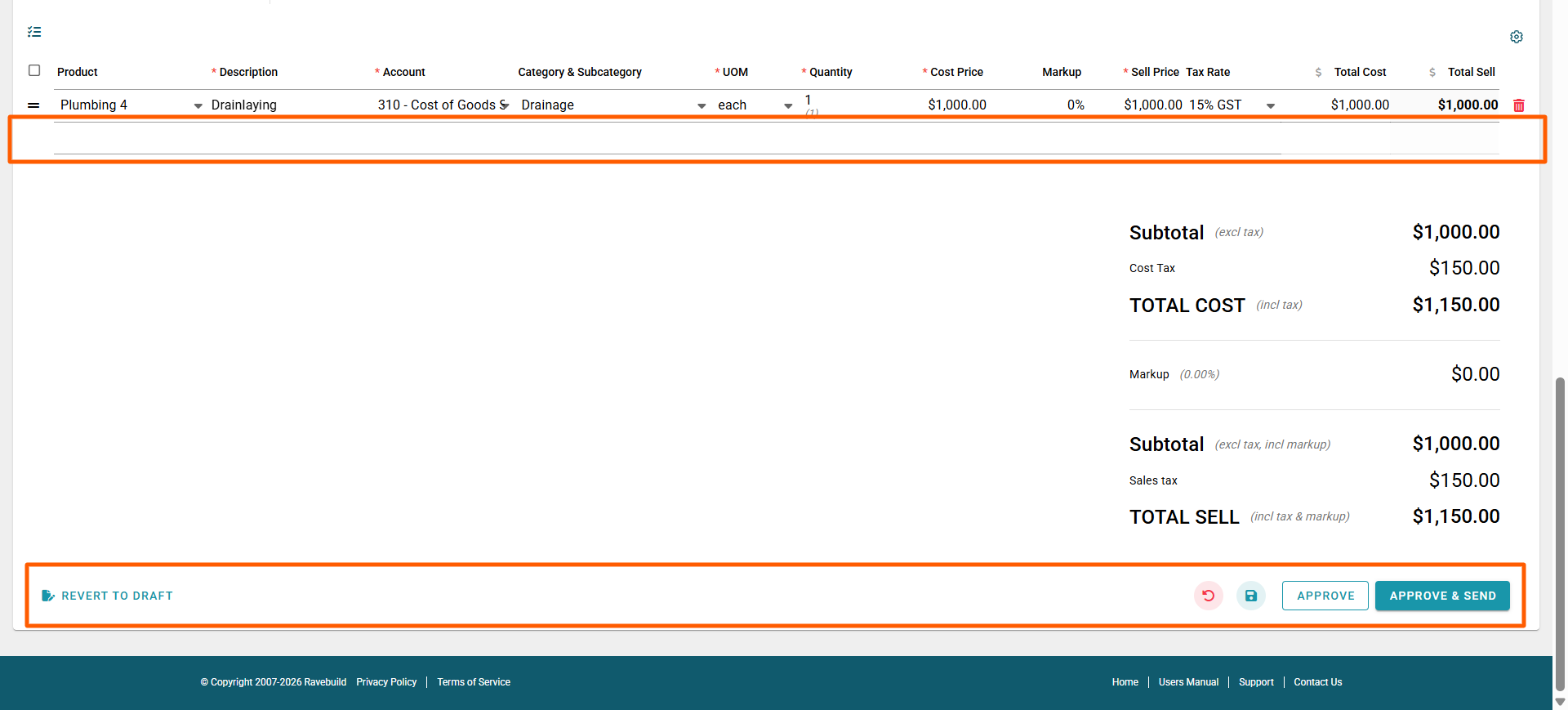
This will delete the line, and you can now select:
- Revert to Draft - changes the approved purchase order back to a draft state - for review or further editing, before approval
- Discard Changes - to cancel the changes you have just made
- Save and Continue Editing - via the teal coloured disc icon
- Approve - saves the order for record keeping, and updates your 'back costing' report - but does not send the update to the supplier.
- Approve & Send - sends to the supplier, and updates the details on your 'back costing' page
Approving & Sending the Line Cancellation to your Supplier
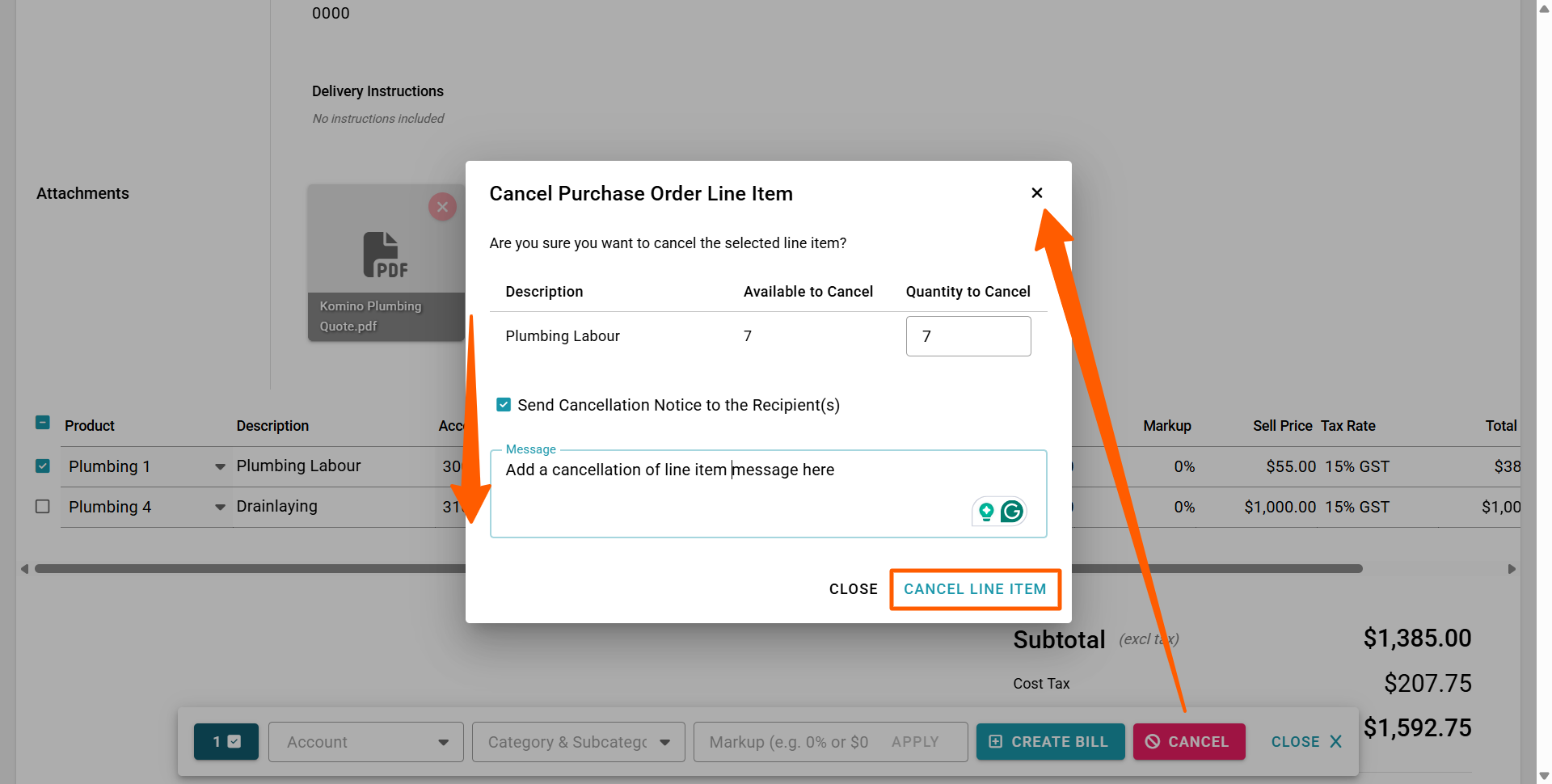
When cancelling a line from an approved purchase order, selecting the Approve and Send option opens a 'Cancel Purchase Order Line Item' pop-up, for you to confirm:
- The line's unit quantities to be cancelled/deleted.
- A 'Send Cancellation Notice to the Recipient' tick box, which will be ticked by default - untick this if you do NOT want a notification to be emailed out.
- And, if you do send an email, you have the option of adding a message via the 'Message' text box.
Line Item Cancellation Notice 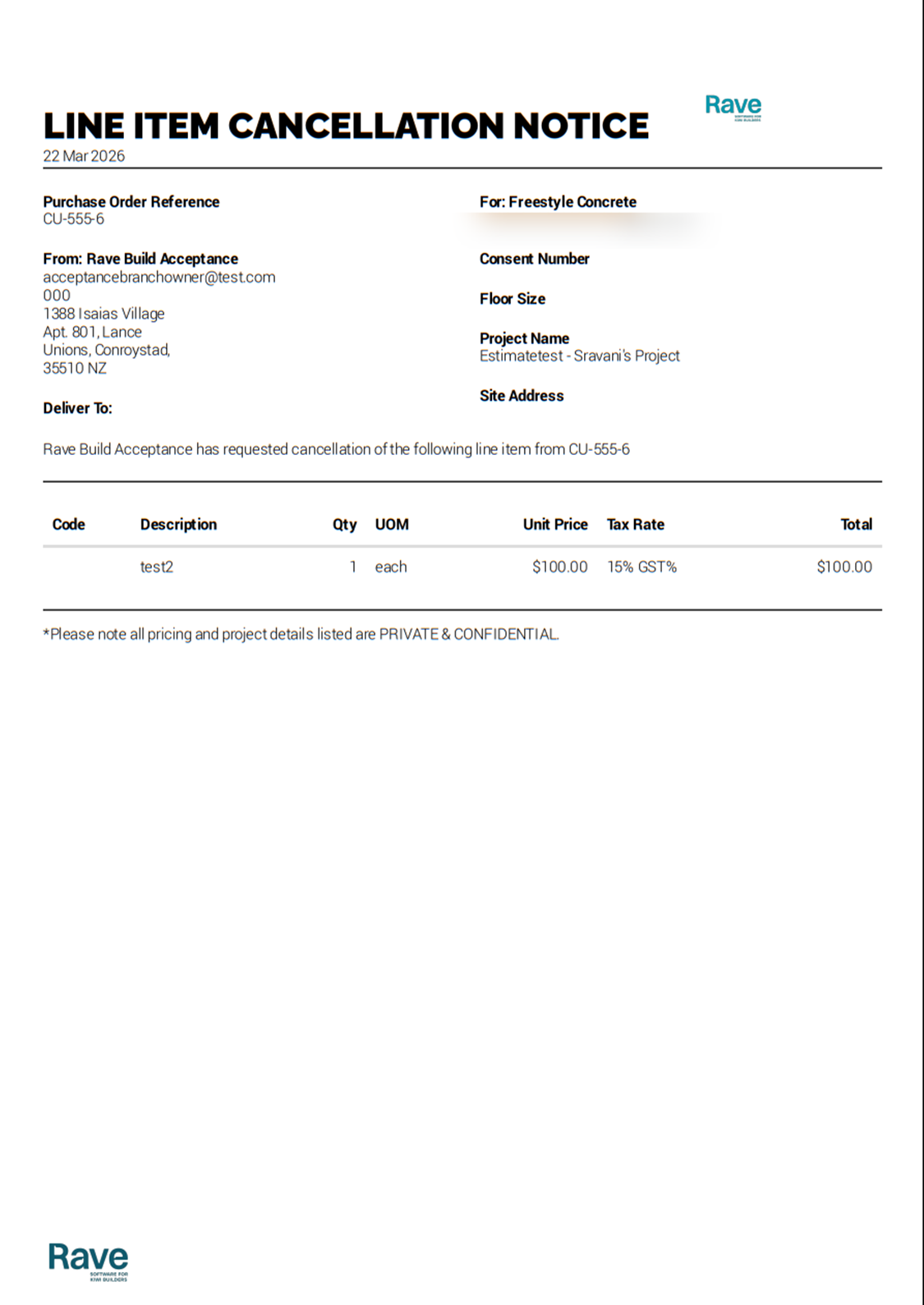
Was this article helpful?
That’s Great!
Thank you for your feedback
Sorry! We couldn't be helpful
Thank you for your feedback
Feedback sent
We appreciate your effort and will try to fix the article