There are two ways you can Cancel/Delete a Purchase Order. Both options are via the 'Purchase Order' sub-tab:
- Cancel a Purchase Order via the Purchase Order Line's 3-dot action dropdown
- Cancel an 'Opened' Purchase Order you are currently viewing
Instructions for each option are listed below.
Note: You cannot cancel/delete a PO when any bills have been attached to it.
Furthermore, if the purchase order is in an approved state, you can cancel a PO; if a purchase order is in a draft state, you can delete it. This article will focus on cancelling an approved purchase order.
1. Cancel/Delete a Purchase Order via the Purchase Order Line's 3-dot action dropdown
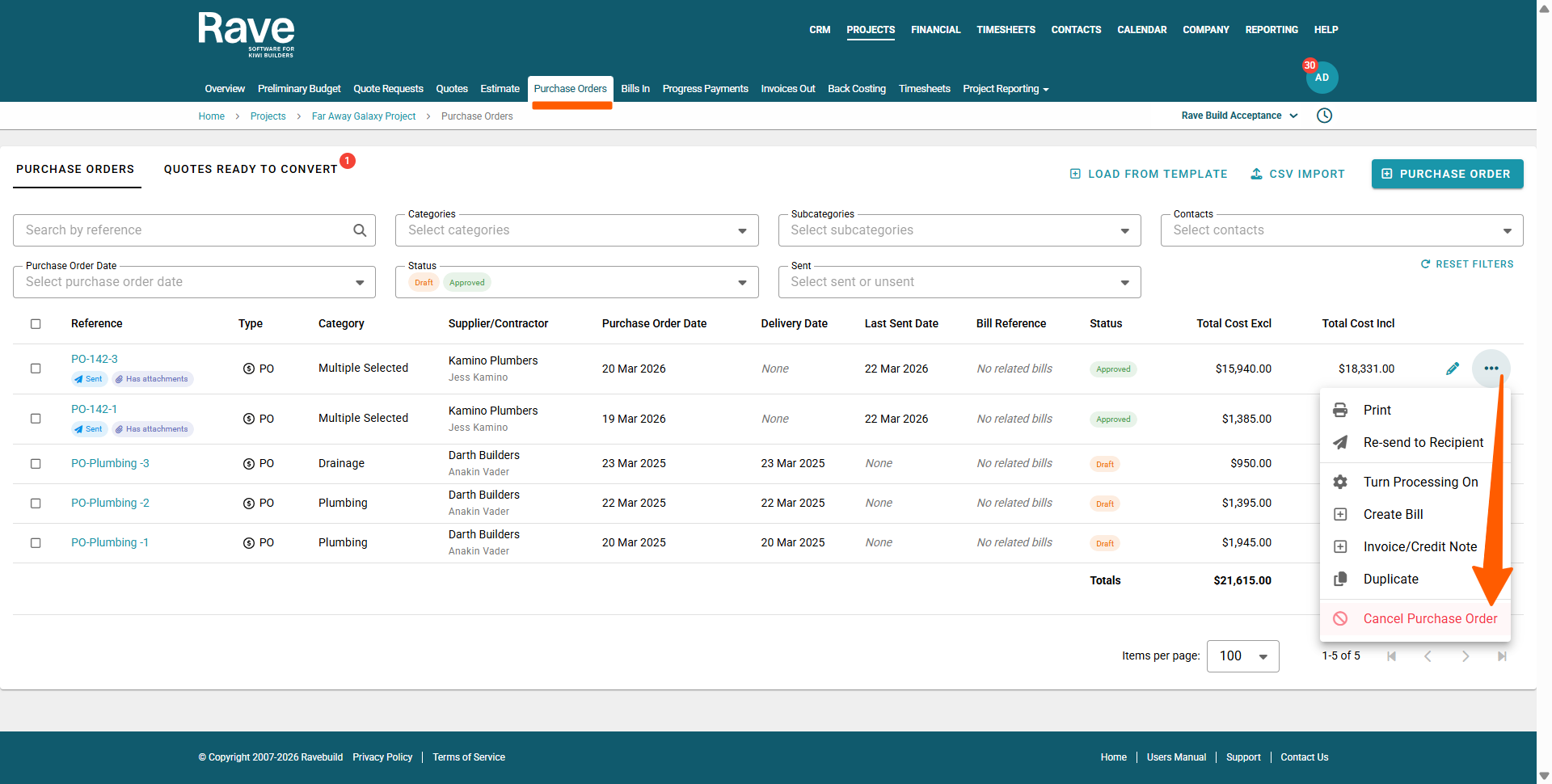
You can cancel/delete a purchase order via the 3-dot action dropdown to the right of that purchase order line:
- Go to the project's budget' ‘Purchase Orders’ sub-tab
- Then click on the 3-dot dropdown to the right of the purchase order line to be cancelled/deleted
- Select the 'Cancel' option
This will open the 'Cancel Purchase order' pop-up, where you can choose to:- 'Send Cancellation Notice to the Recipient(s)' - this will be ticked by default, though you can untick this if you do NOT want a notification to be emailed out.
- Add a message to the cancellation notice via the 'Message' text box.
- Once all of the necessary 'Cancel Purchase Order' details have been completed, click the 'Cancel Purchase Order' button to confirm.
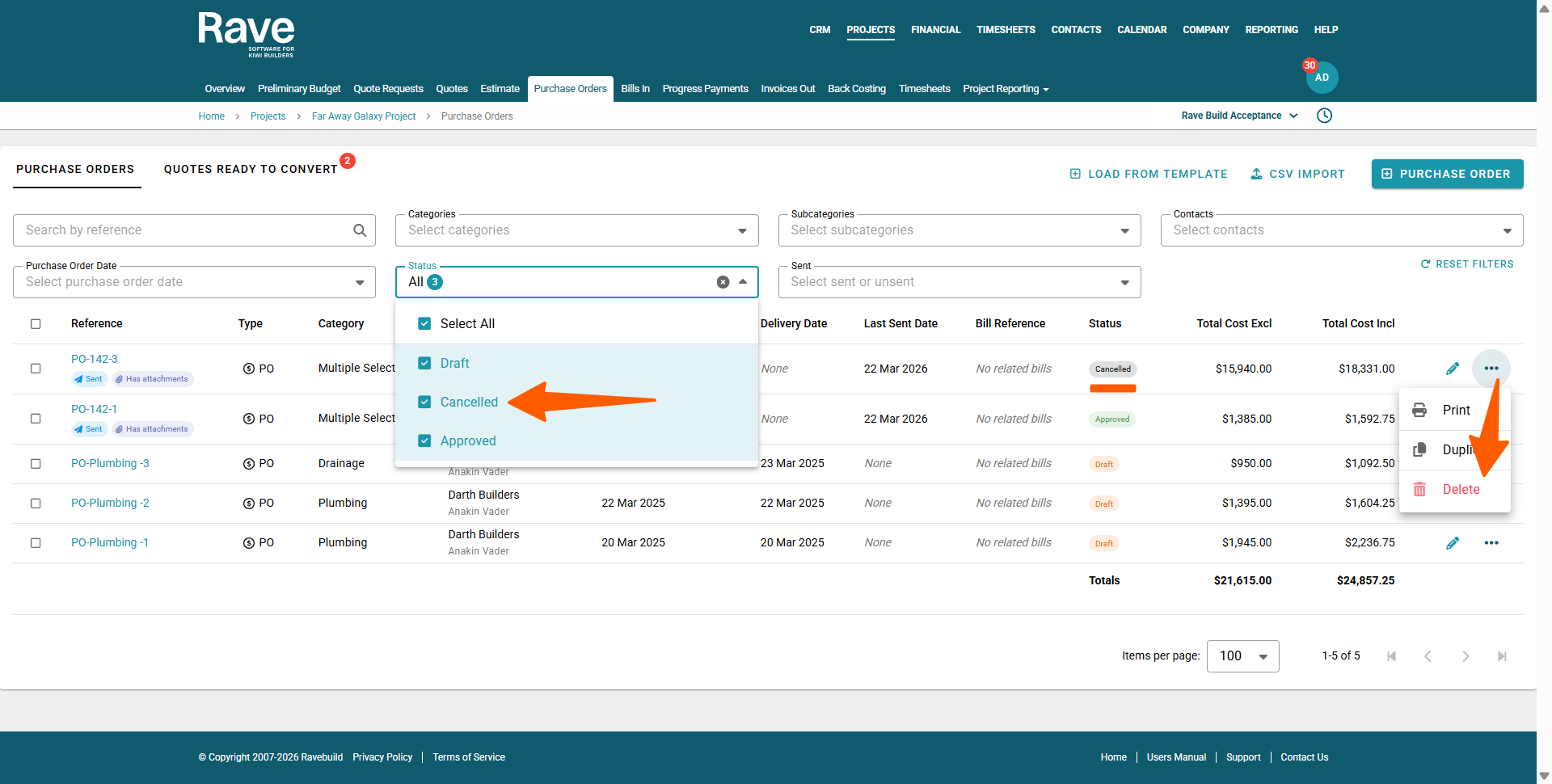
- The screen will refresh, displaying the amended 'Cancelled' status. The 3-dot action drop-down then offers you the option to 'Delete' the purchase order.
Note: Returning to the project's Purchase Order sub-tab (or refreshing the page) - you'll see the cancelled purchase order has disappeared. This is because the view defaults to 'Draft' and 'Approved' purchase orders only. To display any cancelled purchase orders, select the 'Cancelled' option from the 'Status' drop-down.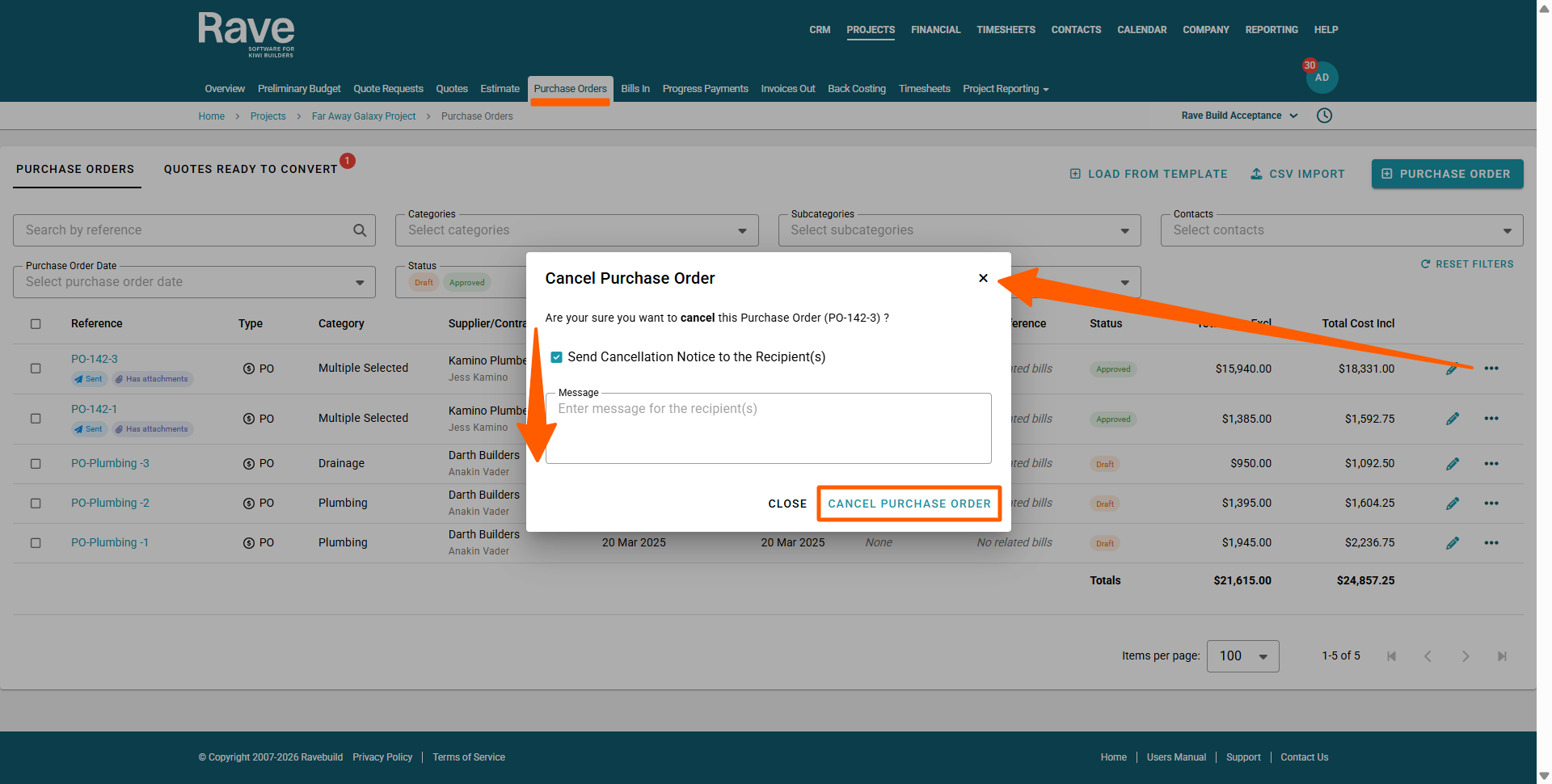
2. Cancel/Delete an 'Opened' Purchase Order
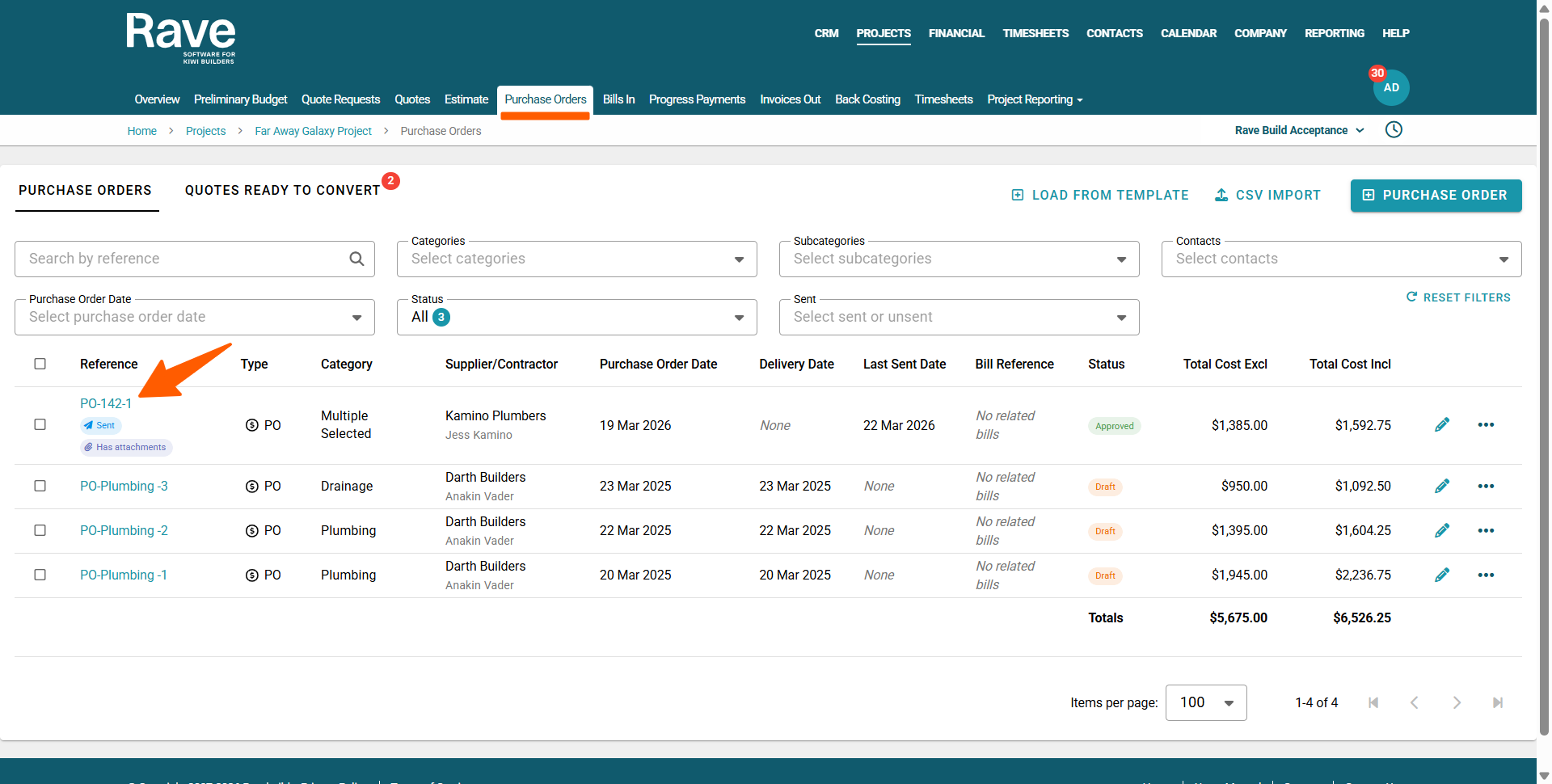
You can cancel a purchase order by opening it, using the 3-dot action dropdown to the top right of that purchase order:
- Go to the project's budget' ‘Purchase Orders’ sub-tab
- Then click on the purchase orders 'Reference' link to the left of that purchase order line
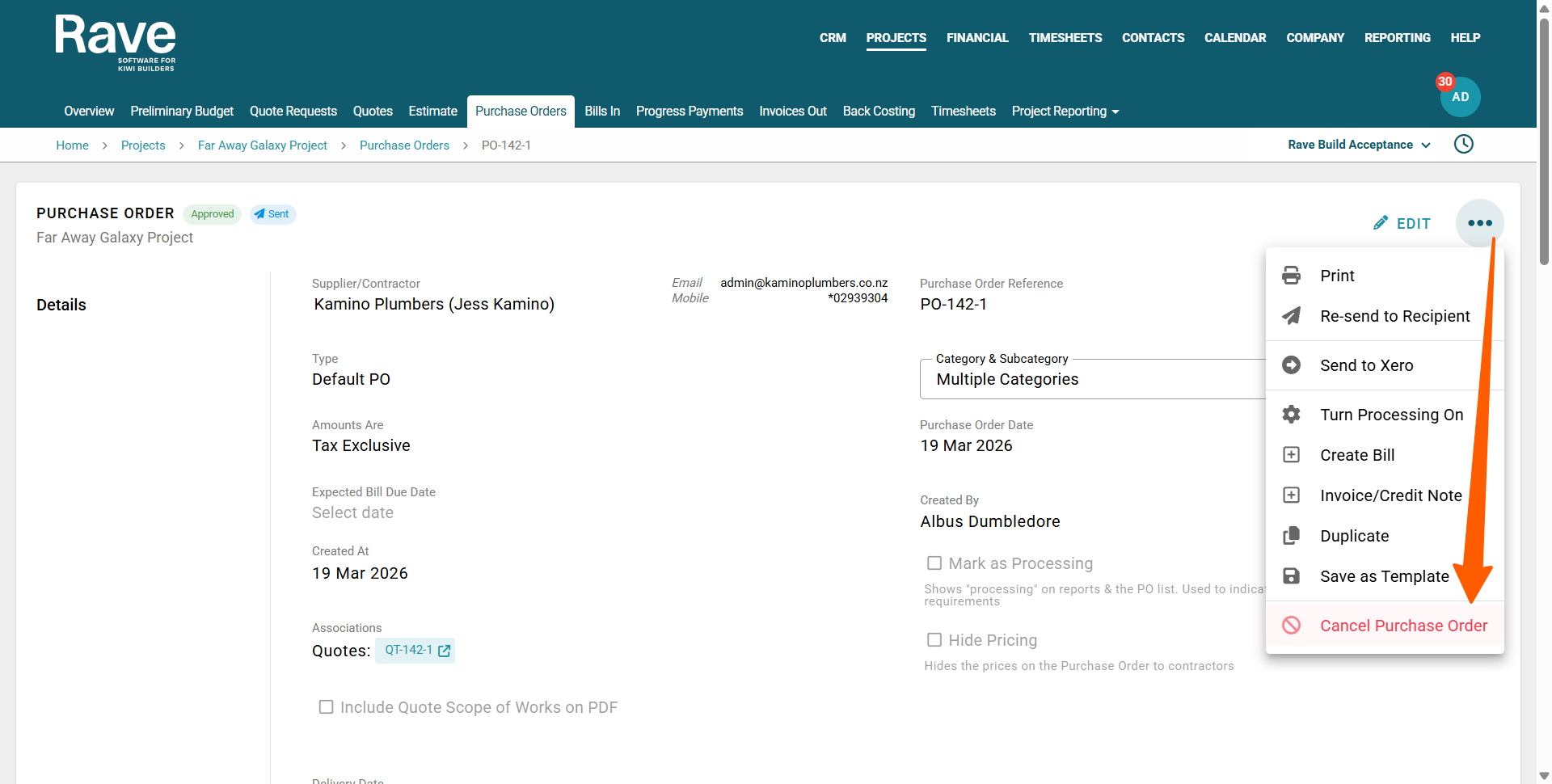
This will open up the purchase order's screen to view - Click on the 3-dot action dropdown to the top right of the purchase order page
- Select the 'Cancel Purchase Order' option
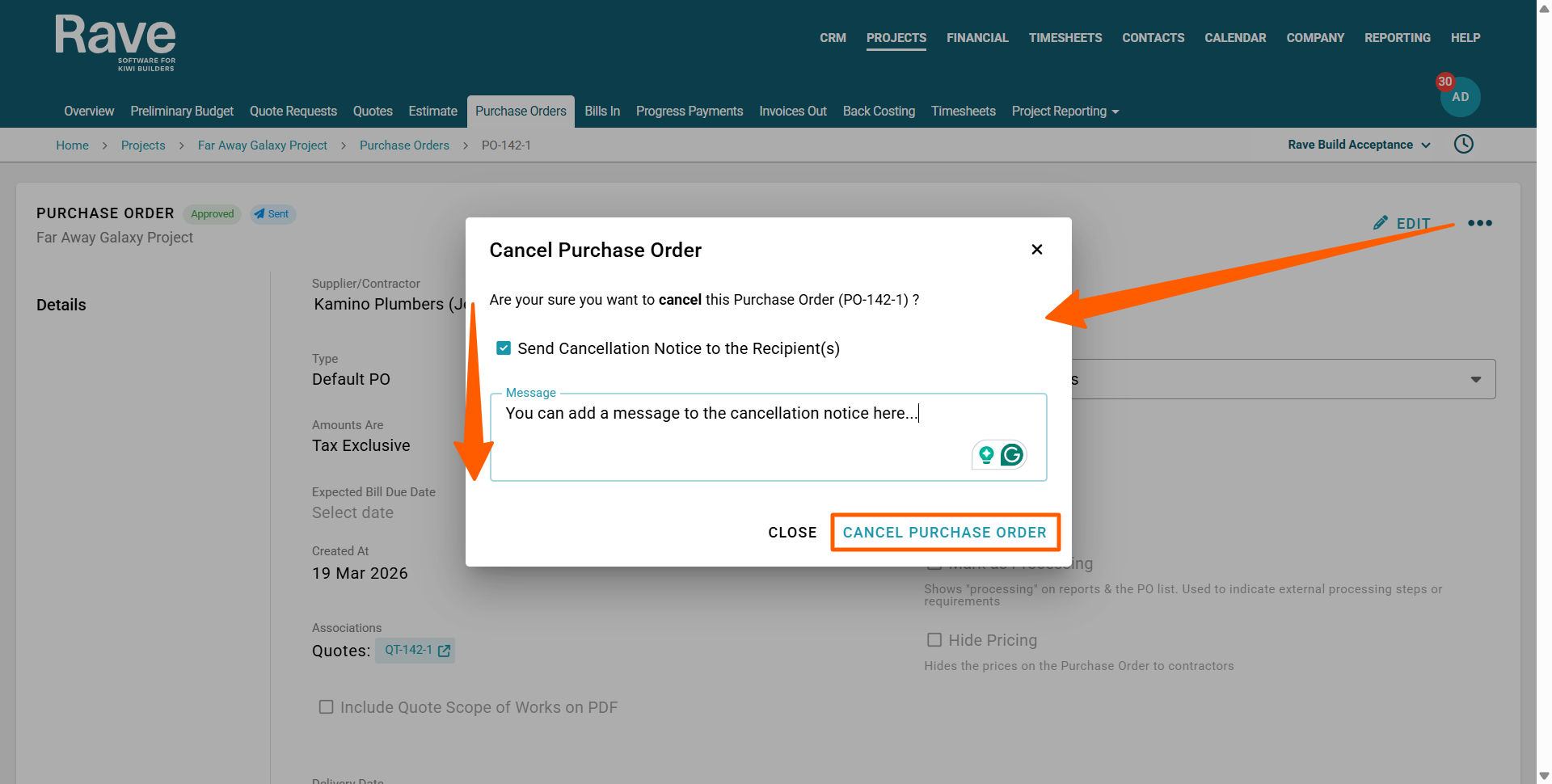
This will open the 'Cancel Purchase order' pop-up, where you can choose to:- 'Send Cancellation Notice to the Recipient(s)' - this will be ticked by default, though you can untick this if you do NOT want a notification to be emailed out.
- Add a message to the cancellation notice via the 'Message' text box.
- Once all of the necessary 'Cancel Purchase Order' details have been completed, click the 'Cancel Purchase Order' button to confirm.
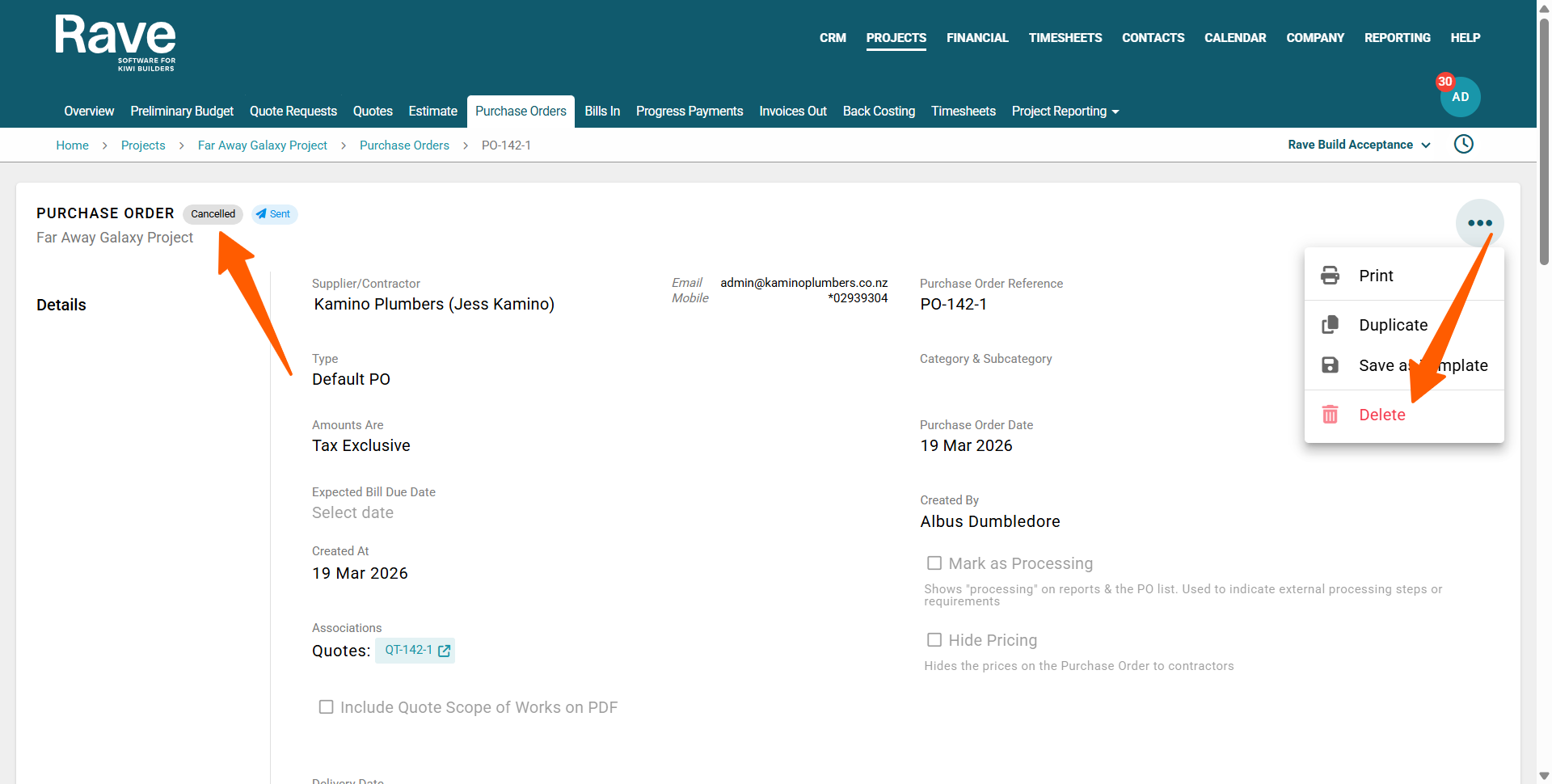
- The screen will refresh, displaying the amended 'Cancelled' status. The 3-dot action drop-down then offers you the option to 'Delete' the purchase order.
Was this article helpful?
That’s Great!
Thank you for your feedback
Sorry! We couldn't be helpful
Thank you for your feedback
Feedback sent
We appreciate your effort and will try to fix the article