Rave Build's Albums feature now includes Photo Markup and Annotation Tools, allowing you to draw, highlight, add text, and mark up photos directly within Rave.
Why Use Photo Annotations?
Photo annotations make it easier to:
Clearly identify defects or work requiring attention.
Give contractors and site teams more specific instructions.
Improve communication between project managers, contractors, and clients.
Reduce misunderstandings by visually highlighting relevant areas.
- Save time by marking up photos directly in Rave rather than using separate editing software.
Examples of How You Could Use This Feature
- Identifying Defects - Take a photo of damaged plasterboard, circle the affected area, and add a note identifying what needs repairing.
- Site Instructions - Highlight a section of framing or a wall and add instructions for your contractor or site team.
- Client Communication - Mark up a photo to show a client exactly where proposed work or changes will take place.
- Quality Assurance - Use annotations to identify items requiring attention during a site inspection, creating clearer visual records of the work.
How to Mark Up a Photo
Navigate to the relevant Project in Rave.
Open the Albums tab.
Select the album containing the photo you want to annotate.
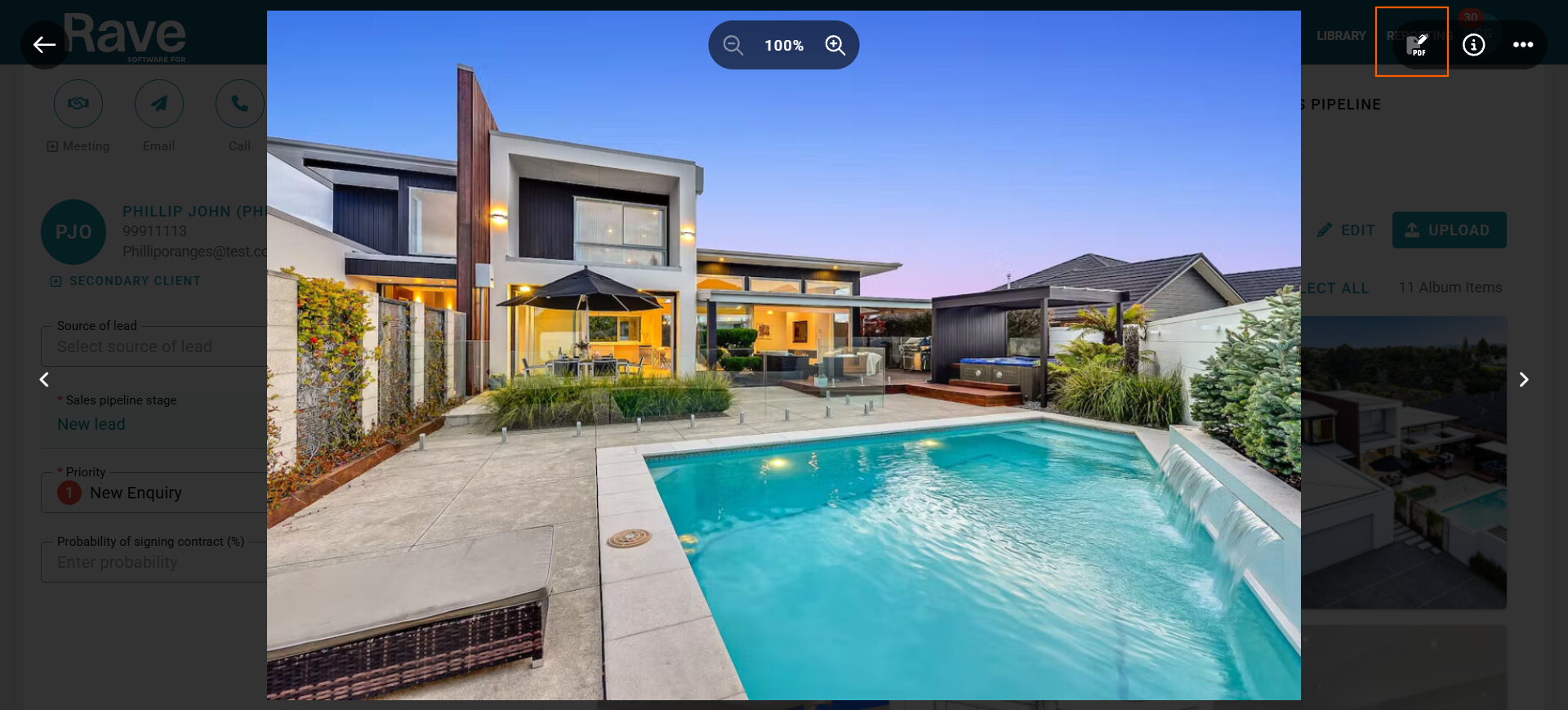
Click on the photo to open it in the image viewer.
In the top right, click the PDF pen icon
Use the markup tool to add annotations to your image.
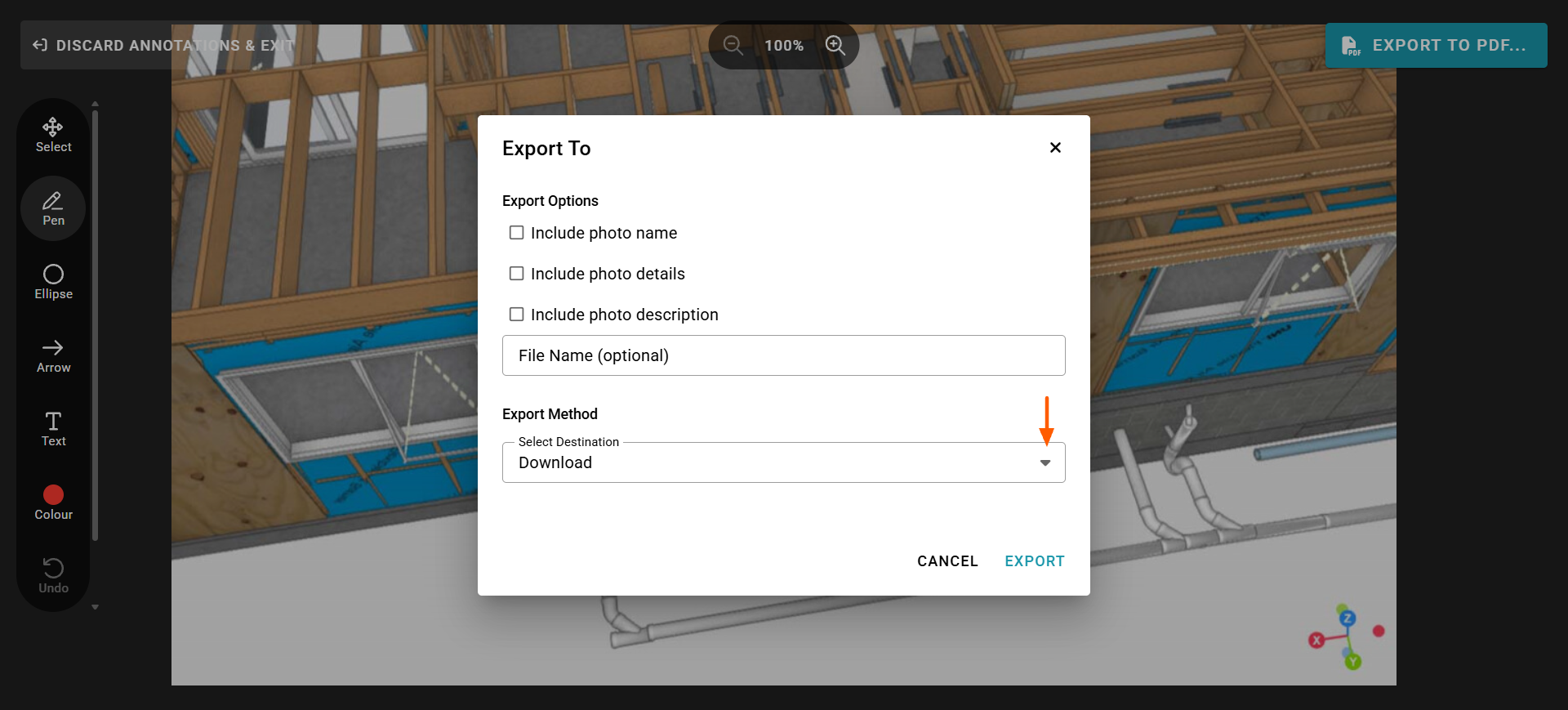
Once you've finished, use the Export option to download or share your annotated photo in an available format.
You can download as a PDF or export.
Available Markup Tools
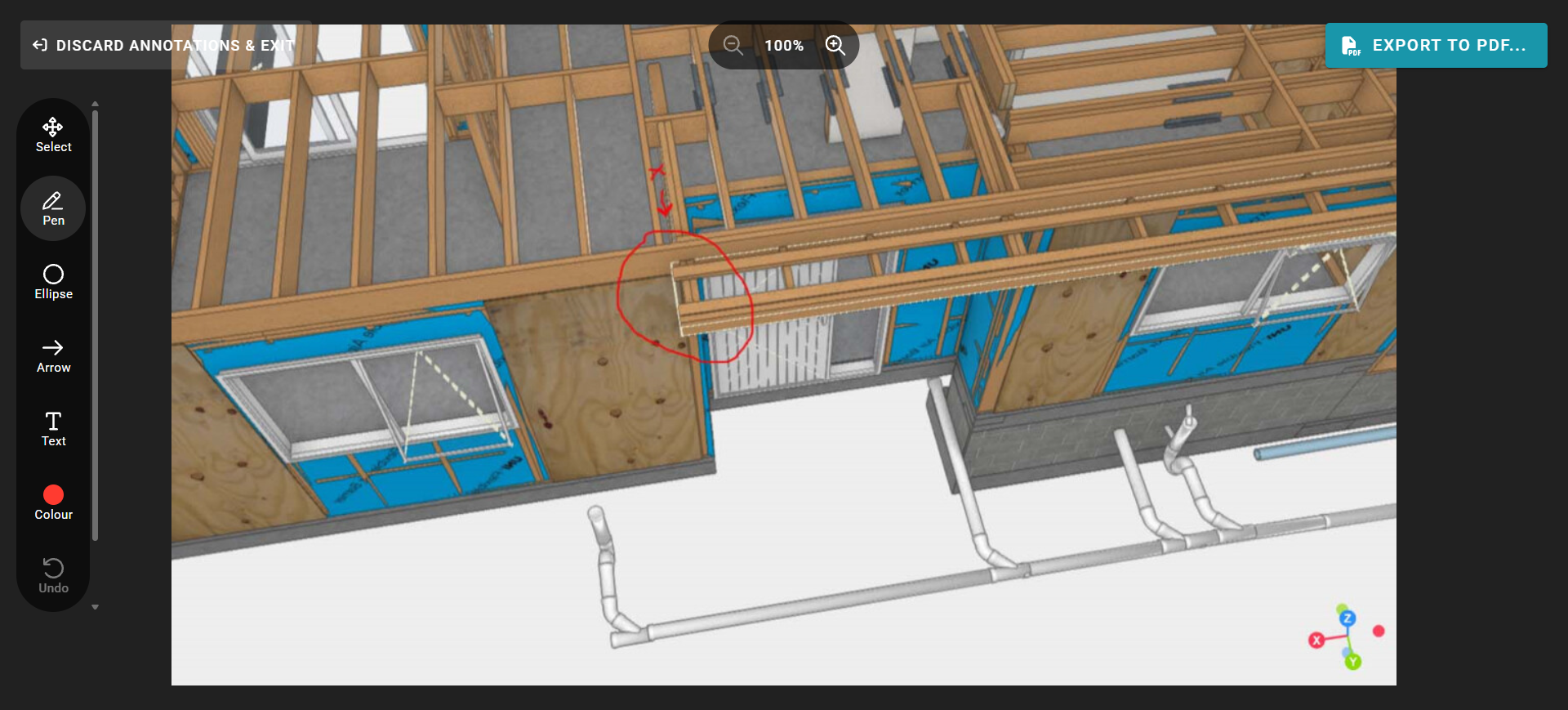
The annotation feature includes tools to help you identify and communicate important details on your photos.
Drawing: Draw directly onto your image to highlight defects, areas of concern, or particular features.
Text: Add written notes or instructions to explain what needs attention.
Shapes: Use simple shapes to highlight specific areas of a photo.
You can also begin drawing outside the image boundary, within the supported annotation area. The annotation will start from the nearest point on the image.
Exporting Your Annotated Photos
Once you have completed your annotations, use the Export option to download your markup image as a PDF or export to several other parts of Rave using the drop-down. This lets you communicate defects, instructions, or important site information without recreating the annotations in another application.
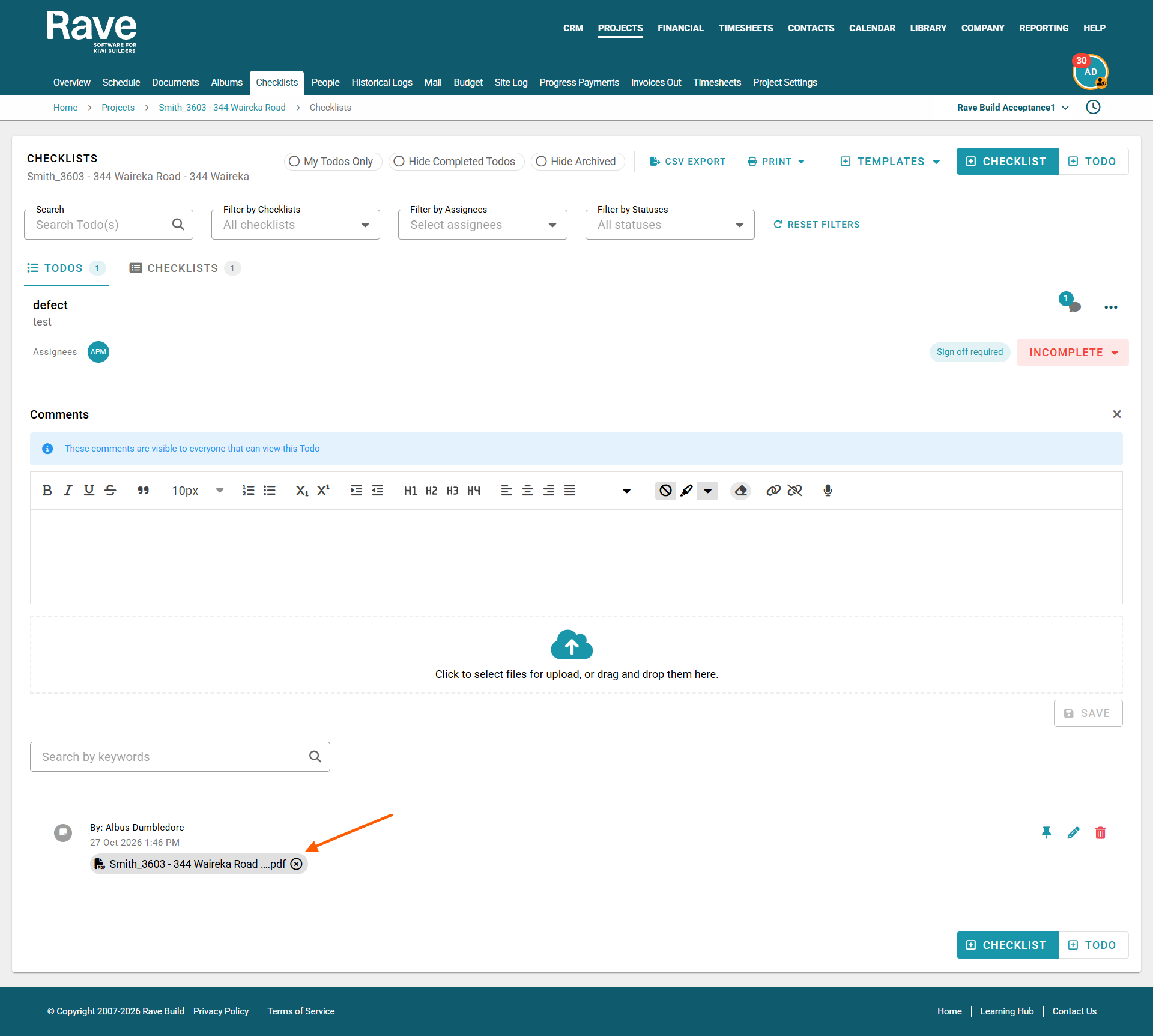
In this example, we have annotated an image on the plans and exported it to the Checklist task for the Contractor to review and remedy.
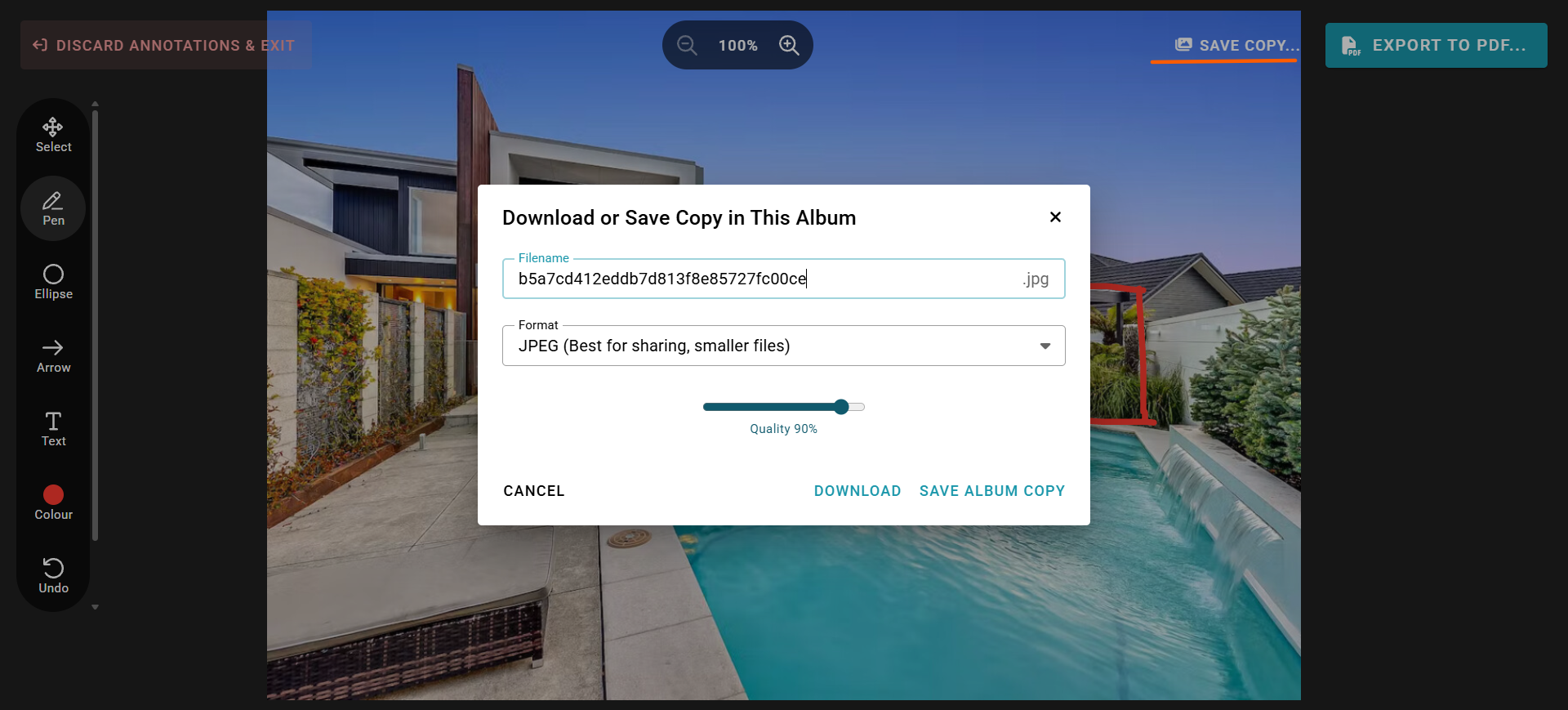
Saving a copy
You can now also save a copy of your annotated image back to albums without changing the original.
Click Save Copy.
Choose to name the fil and decide if you want JPEG or PNG format depending on sharing/storing.
We recommend JPEG
Was this article helpful?
That’s Great!
Thank you for your feedback
Sorry! We couldn't be helpful
Thank you for your feedback
Feedback sent
We appreciate your effort and will try to fix the article