You can access your Project’s financial workflows from either the Financial button or the Project button's Project list, clicking on the project’s reference number, and finally selecting the Progress Payments Subtab
Using Product Inventory in Invoiceables
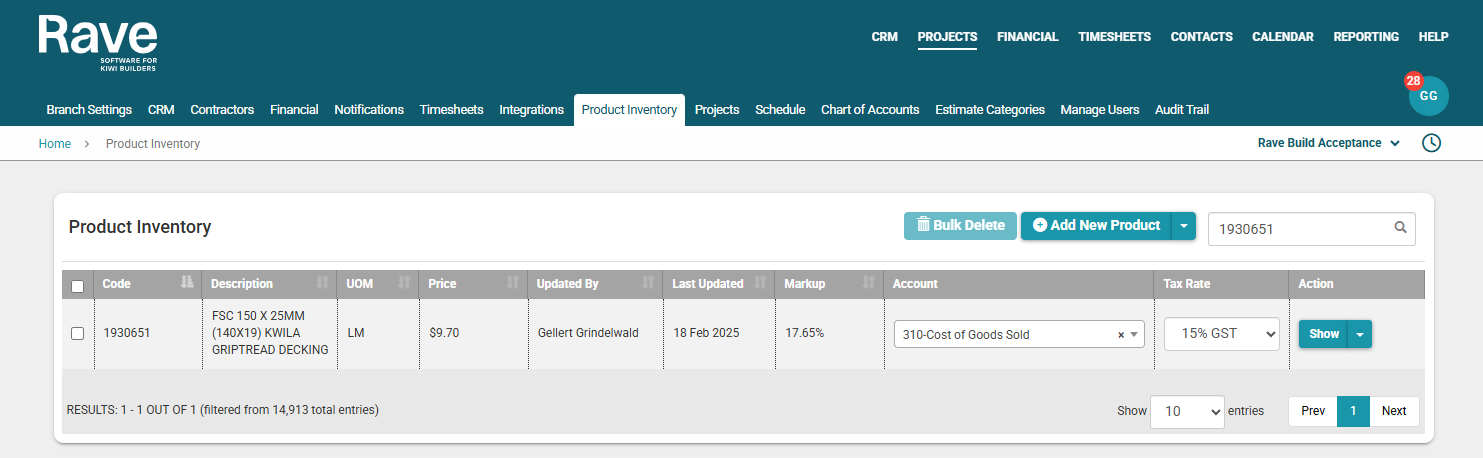
RAVE’s Product Inventory Library allows you to store commonly used items with the following details:
- Product Code
- Description
- Unit of Measurement
- Cost Price (excl. GST)
- Markup %
- Account Code
- GST or NO GST classification
Creating an Invoiceable Using Product Inventory
Enter the Product Code into the Code field
- This will automatically populate:
- Description
- Sell Price (including GST and margin)
- Enter the Quantity only
Example
- Product Inventory Cost Price: $9.70 (excl. GST and markup)
- Markup: 17.65%
- Resulting Sell Price: $11.41 (incl. margin)
Important to Note: Make sure you have GST calculating on the product inventory sell price -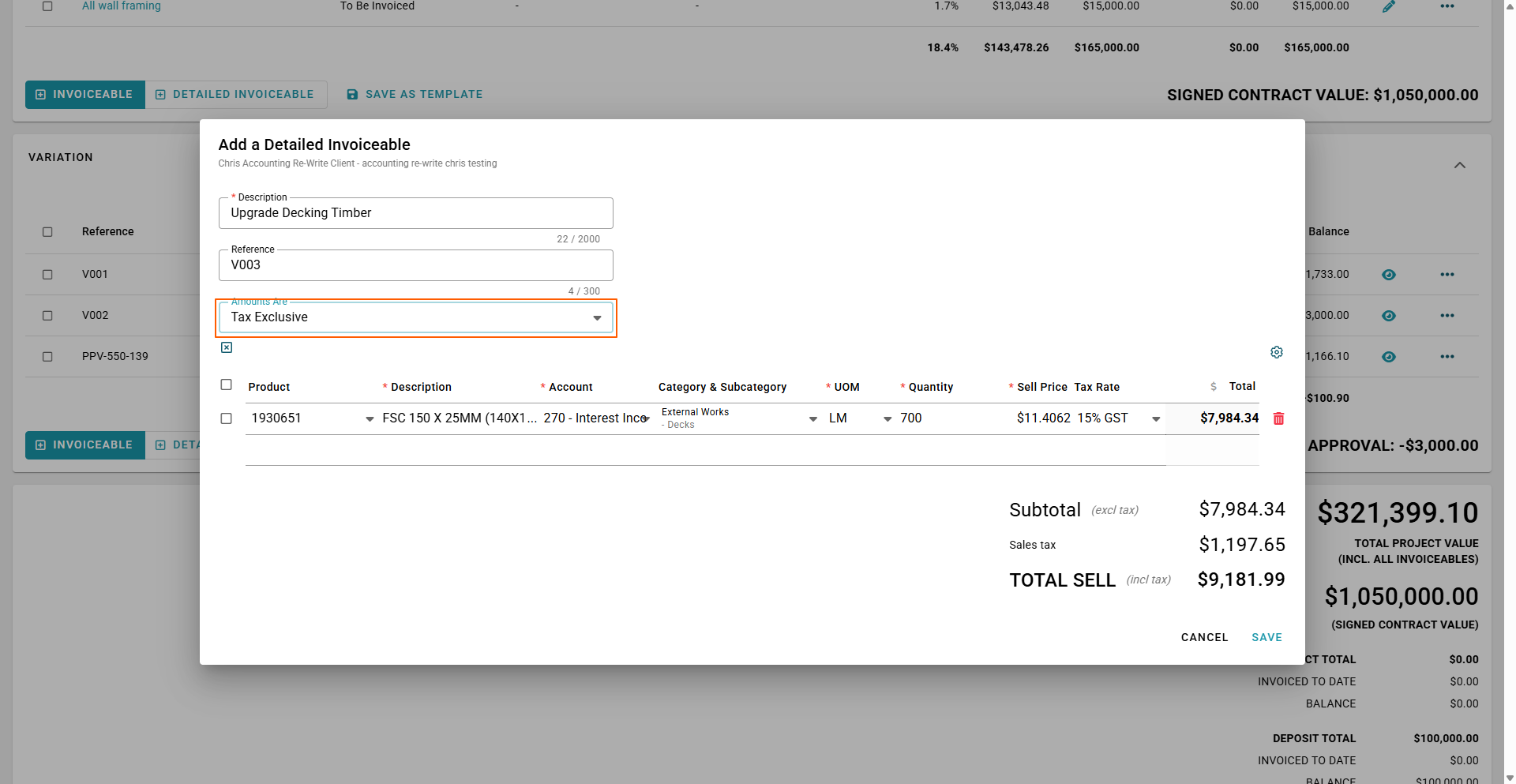
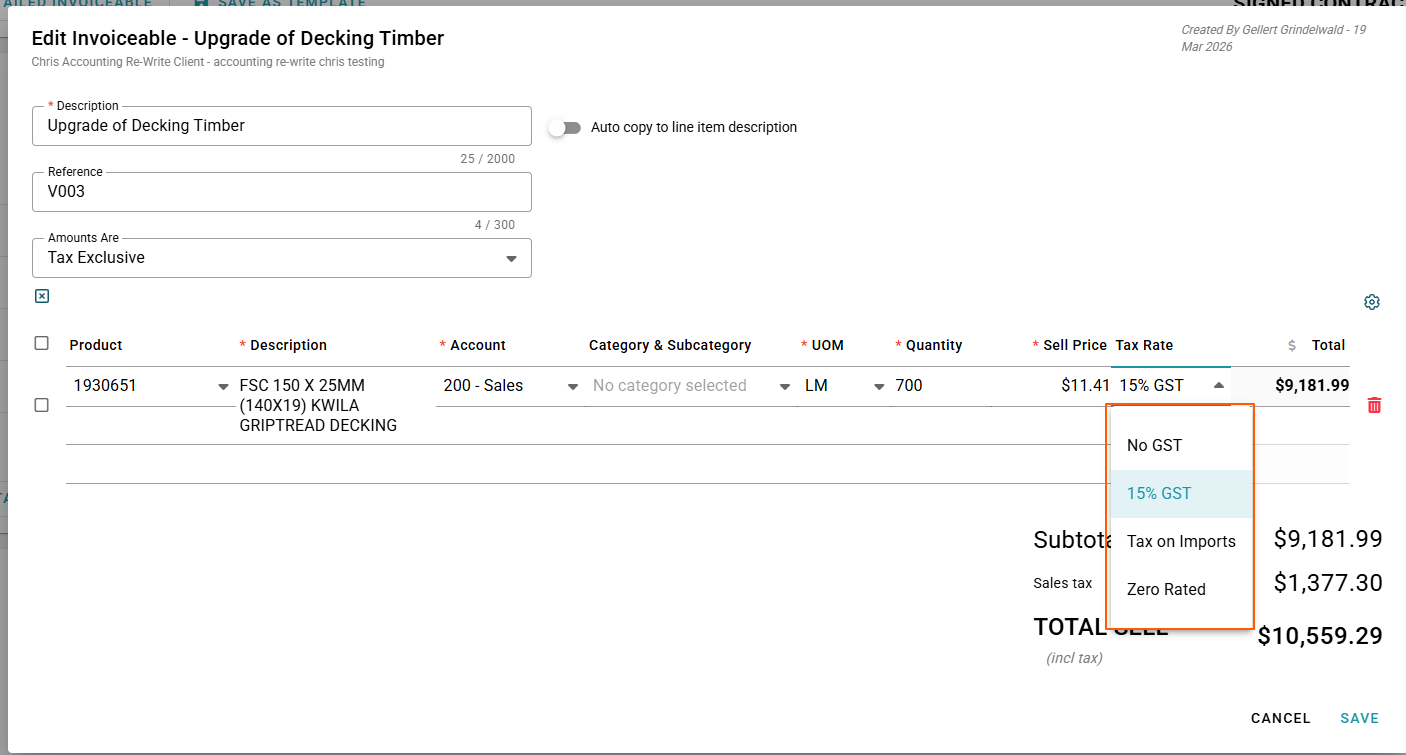
Line Item Settings
- Adjust Line Item Rounding (2, 4, or 6 decimal places) via the Cog Icon

- Select your GST preference using the Tax Rate dropdown
Selecting your GST preference can be done with your drop down now under the Tax Rate Setting
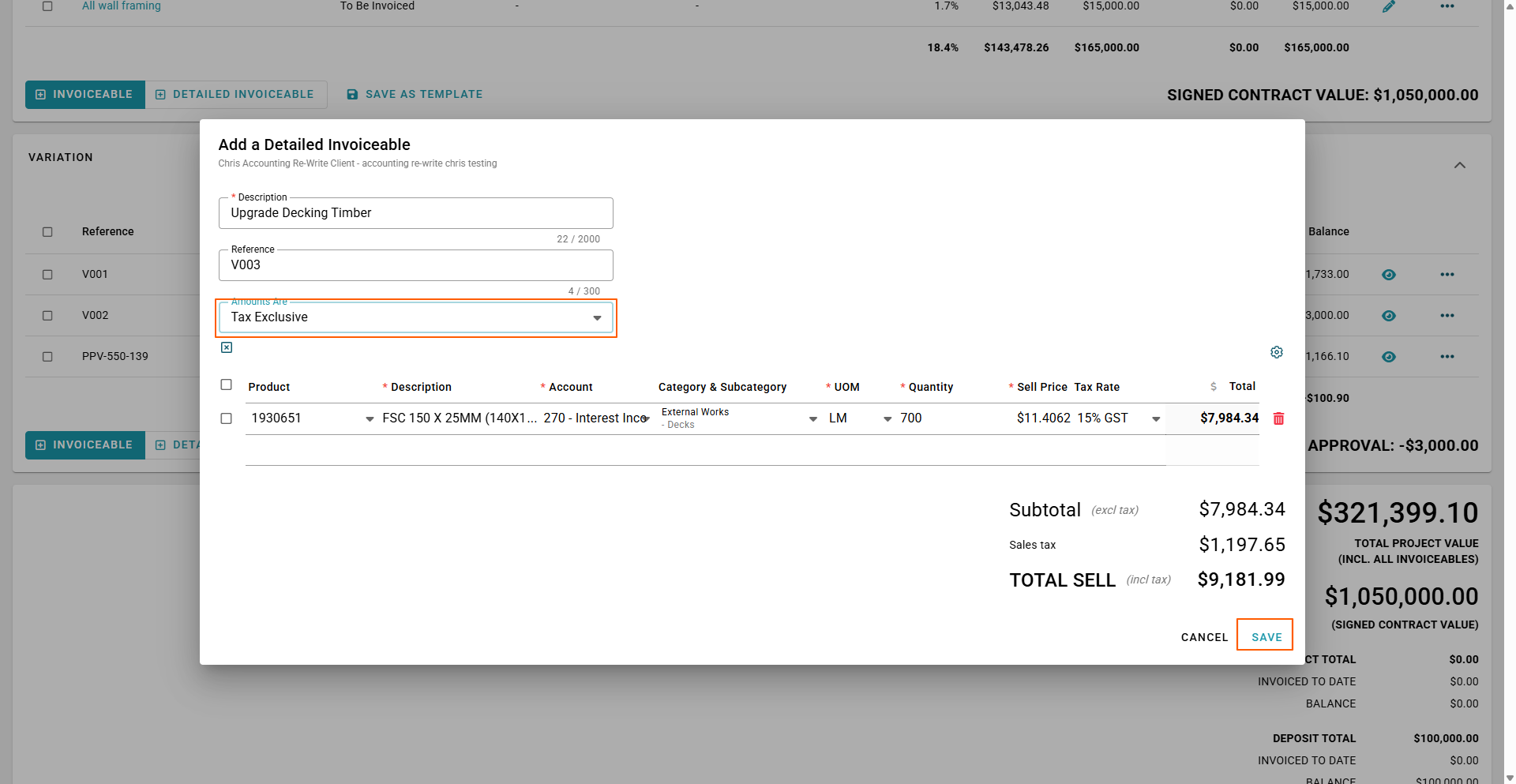
Saving Your Invoiceable
- Click Save once all line items are entered
- Your Invoiceable (Variation) is now ready for the next steps
Available Actions
You can now:
- Add a Client Comment
- Add an Internal Note
- Add an Attachment
- Request Approval
- Mark as Approved
- Decline
To Learn how to add a client comment, internal note or attachment click on the link below
How to add a note or comment to an Invoiceable
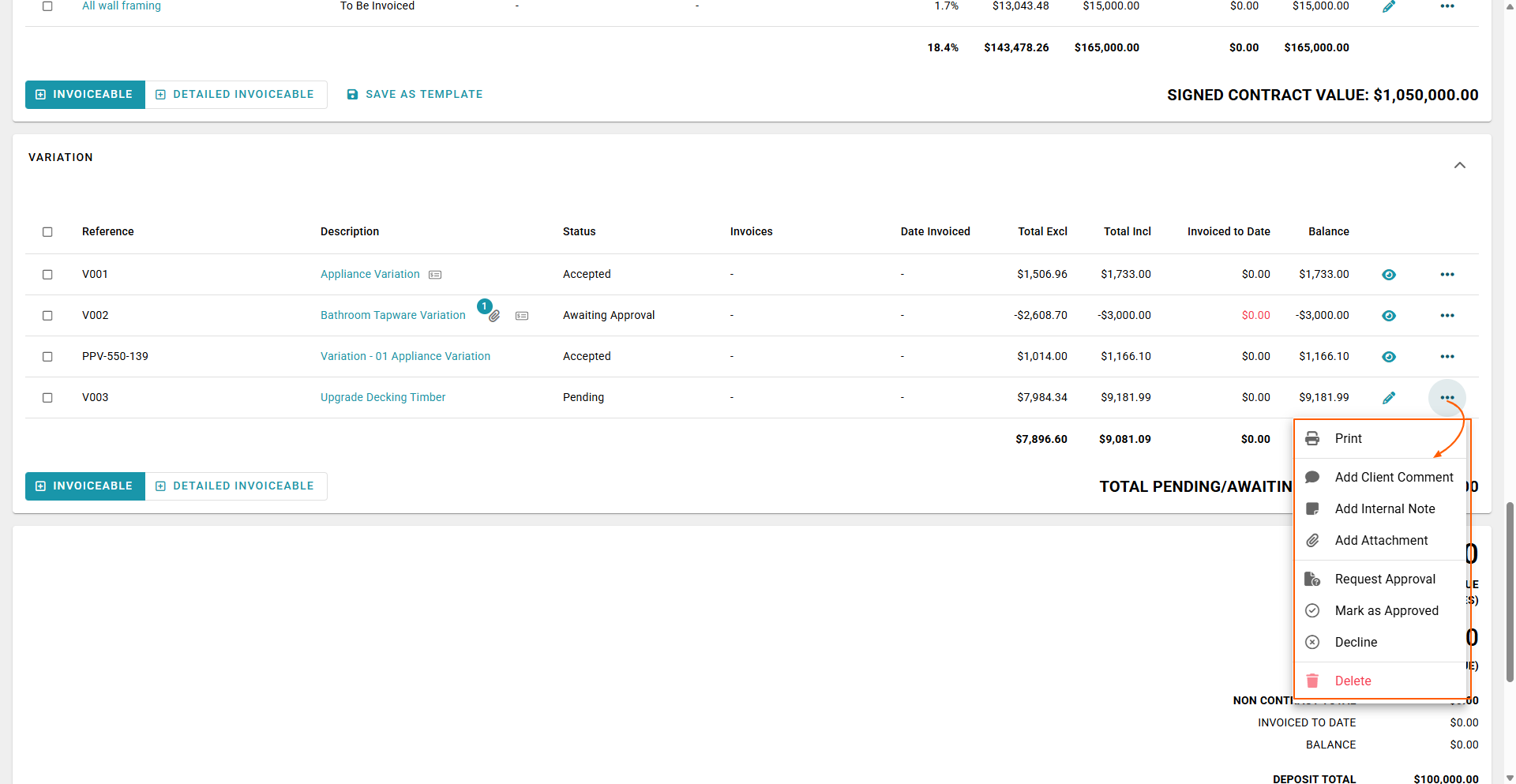
Approval & Next Steps
Once approved, you can:
- Convert the Invoiceable to a Client Invoice
- Create a Purchase Order for approval and sending
- Notify the Project Manager and Client
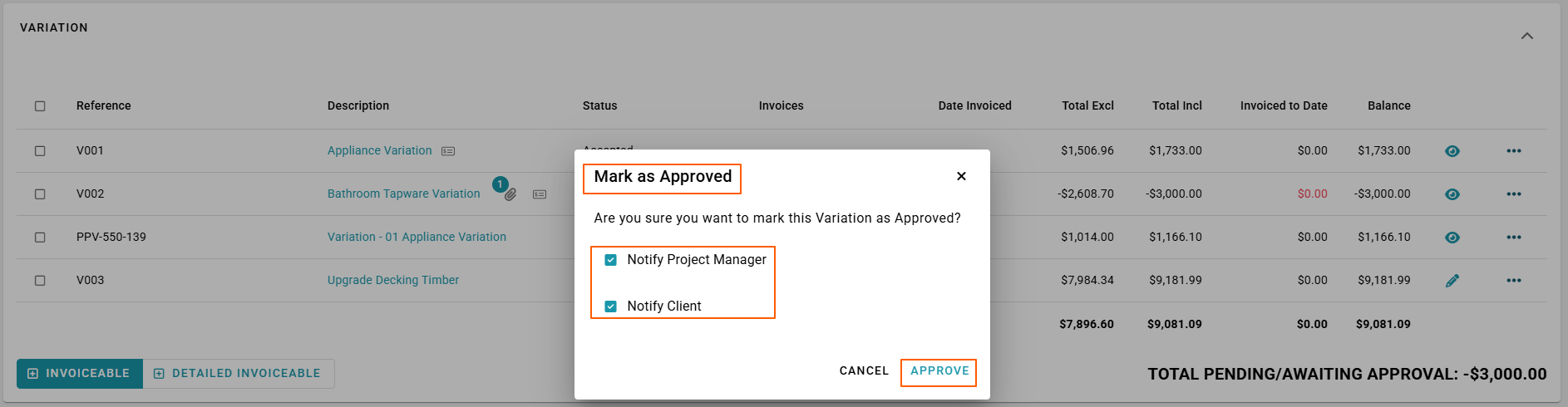
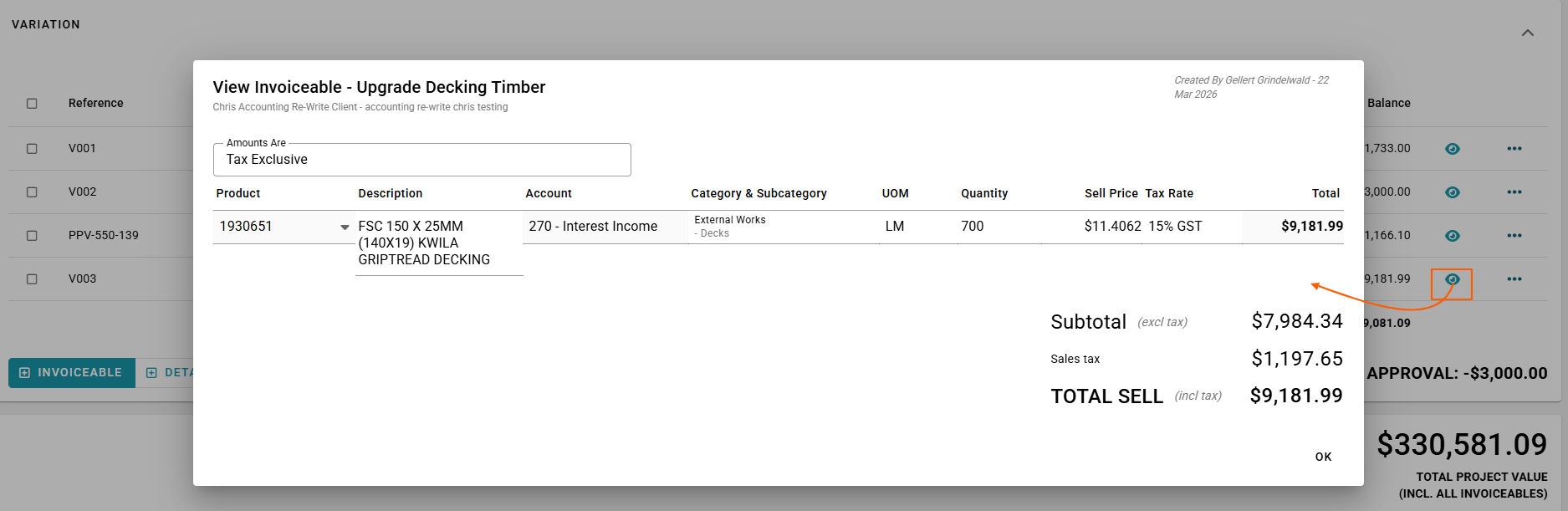
Viewing Invoiceable Details
- Use the Eyeball Icon to view Invoiceable details at any time
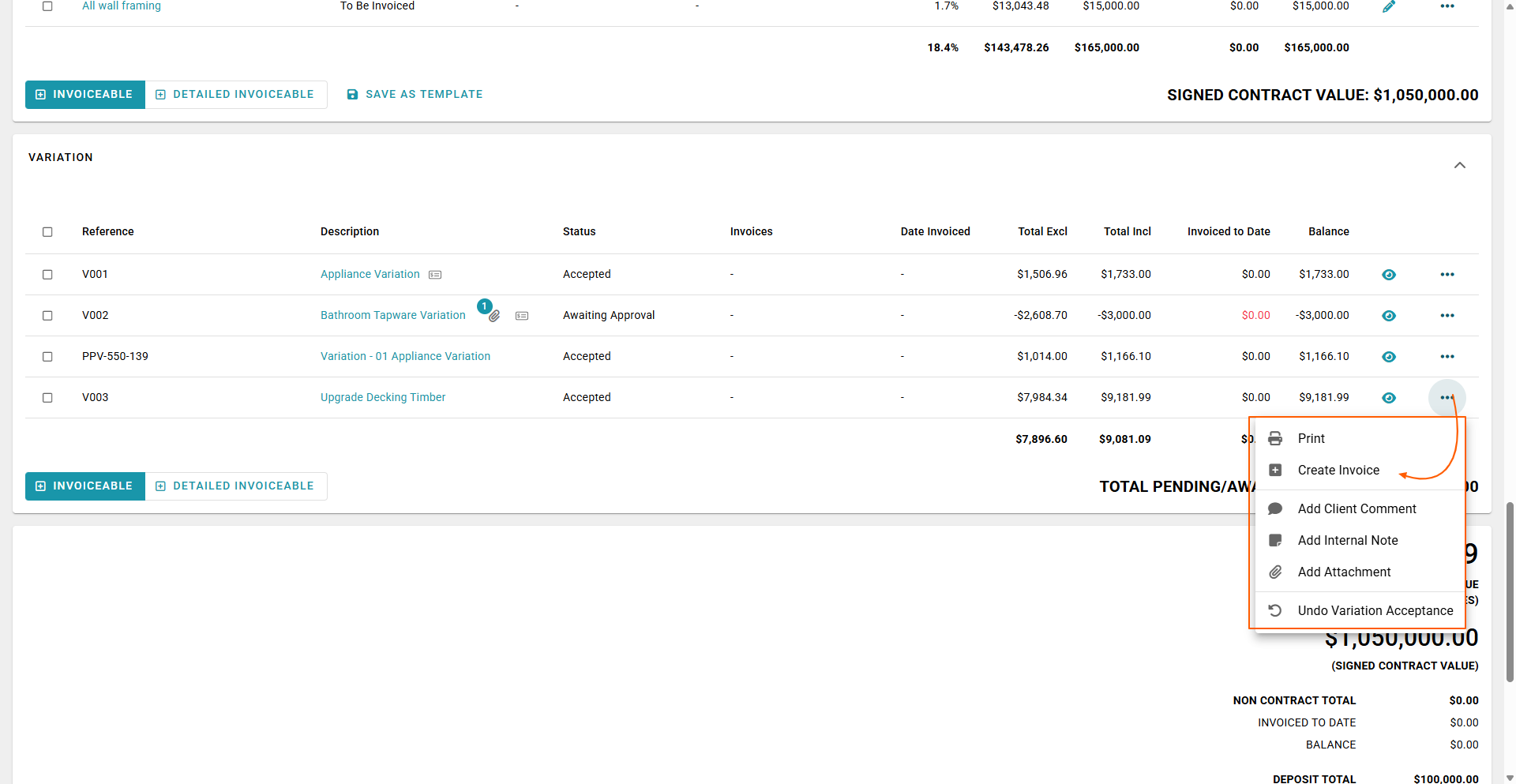
Creating an Invoice
- Click the 3-dot menu
- Select Create Invoice
From here:
- If using full RAVE Financial Modules → Invoice is sent to Xero
- If not using Xero → Create the invoice manually in your accounting system
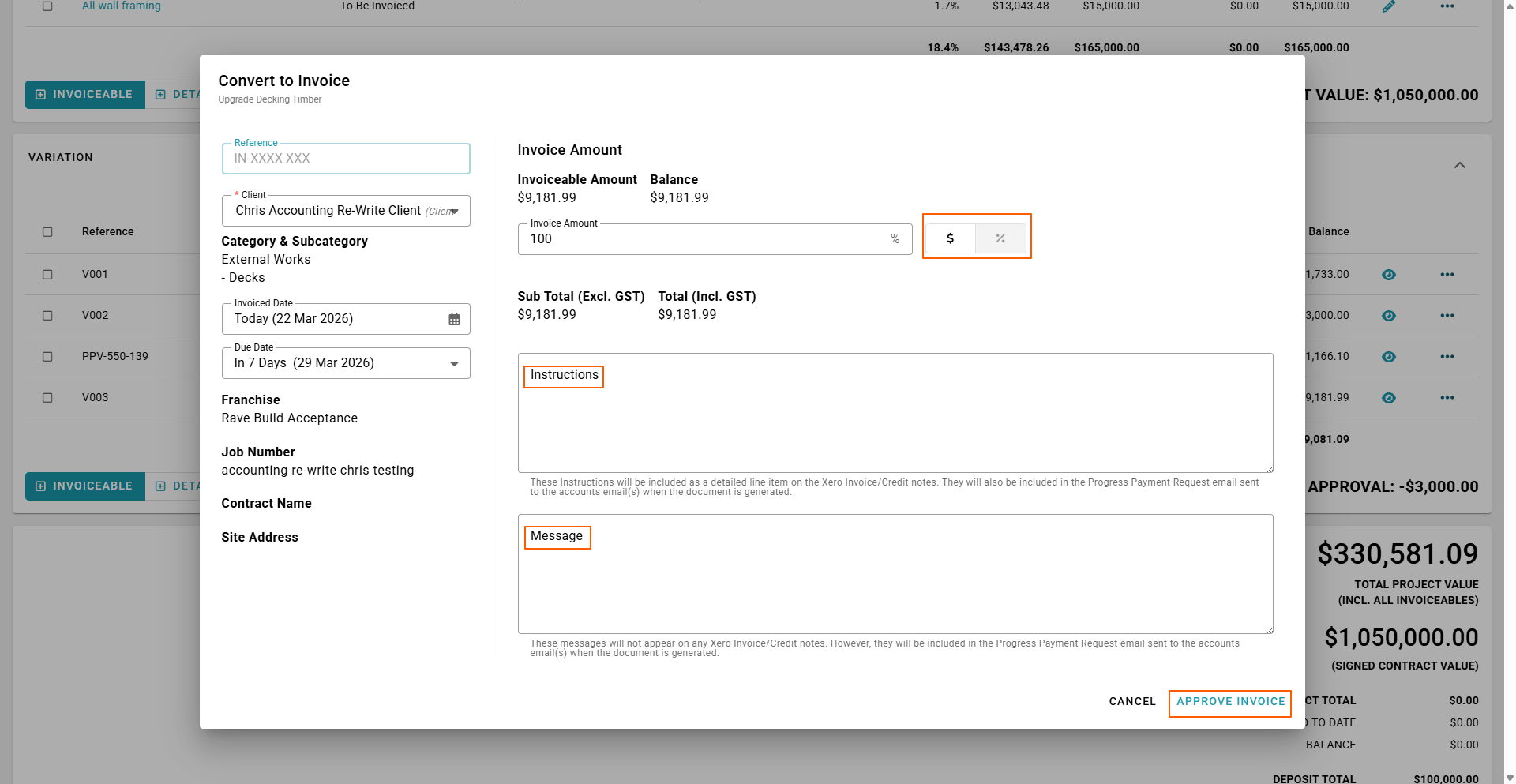
Invoice Options
- Add notes for your Accounts Team in the Message Box
- Add client-facing notes in the Instructions Box
- Choose to invoice:
- Full amount
- Partial amount (by percentage)
- Click Approve Invoice
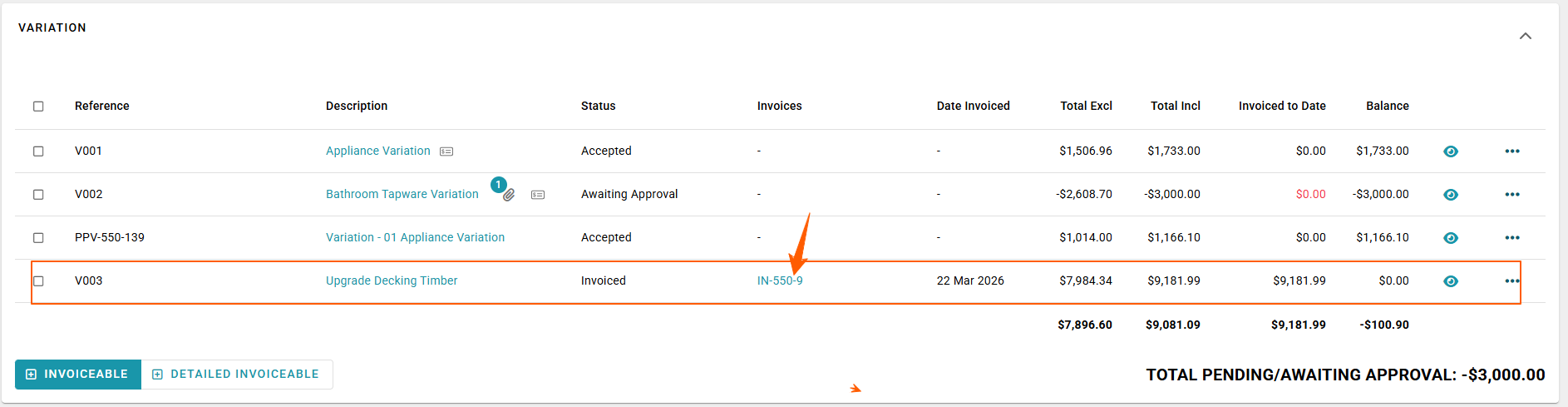
Final Outcome
- Invoice is created and sent to Xero (if connected)
- Click the Invoice Number hyperlink to view it
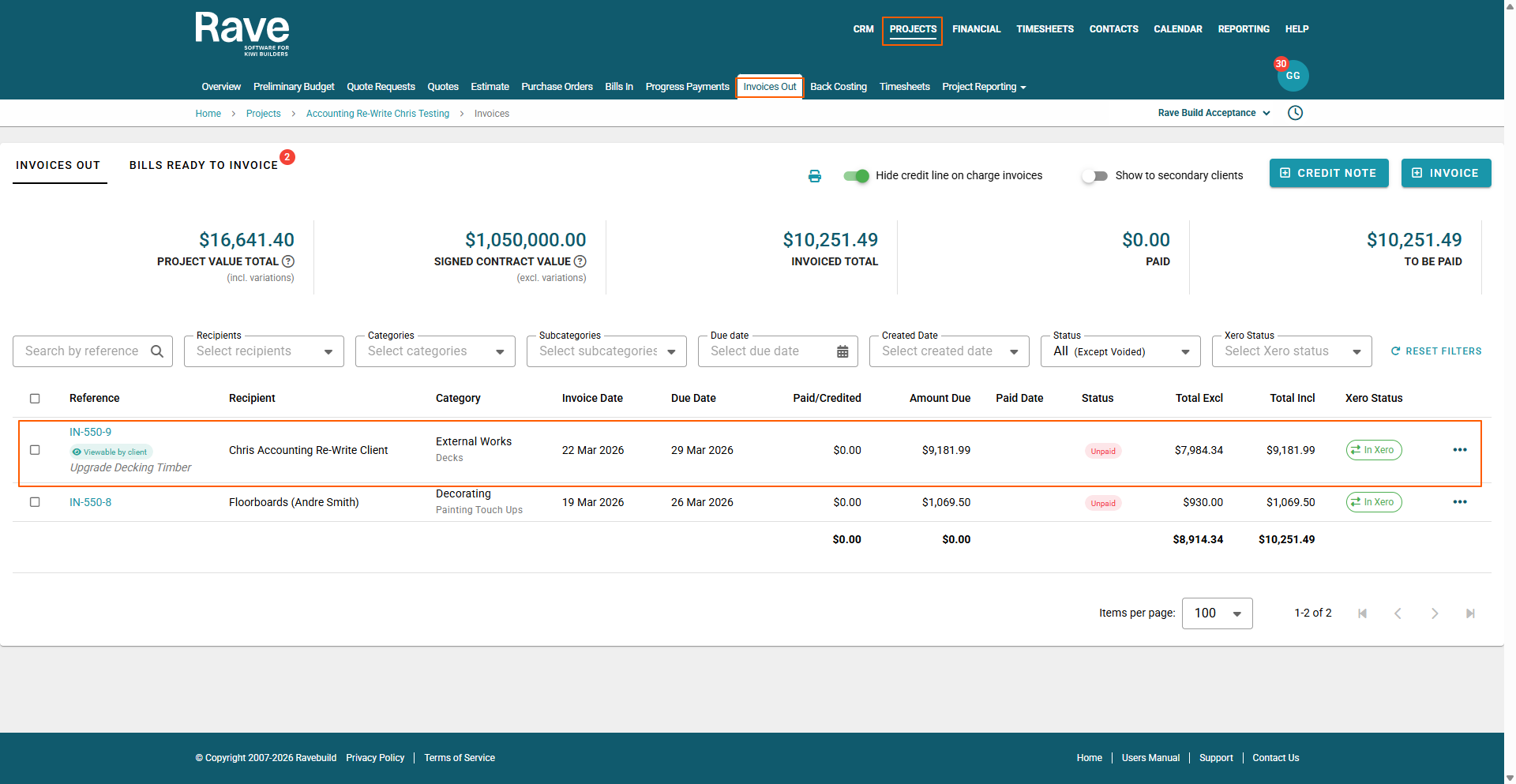
- The invoice will also appear under the Invoices Out tab
Invoices Out Tab
- Your Invoice will appear here
Was this article helpful?
That’s Great!
Thank you for your feedback
Sorry! We couldn't be helpful
Thank you for your feedback
Feedback sent
We appreciate your effort and will try to fix the article