Accessing your Project’s Budget Workflows
You can access your Project’s financial workflows from either the Financial button, or the Project button's Project list, clicking on the project’s reference number, and finally the selecting the Budget sub-tab.
This will display the project’s Financial Management Systems workflows – all laid out in an easy and logical order. You may not see all tabs as they depend on permission but the full list is below:
- Overview which takes you back to the project overview
- Creating a preliminary budget
- Sending your Quote Requests out
- Managing your quotes and tenders received in
- Building up a full client Estimate or proposal including Variations
- Purchase orders
- Receiving Bills in
- Progress Payments
- And sending client Invoices out
- Backcosting Report
- Timesheets - short cut to this projects timesheets page
- Project Reporting - A drop down for more reports

If you ever need to go back to the project's non-financial sub-tabs, you can do so by clicking on the Overview sub-tab to the very left of the screen.
Quotes Sub-Tab
The Quotes sub-tab is where all supplier pricing and raw costs are managed within Rave.
Raw costs are supplier prices excluding margin. This section allows you to:
- Create and manage supplier quotes and variations
- Edit existing pricing
- Apply line item markup for charge-up jobs
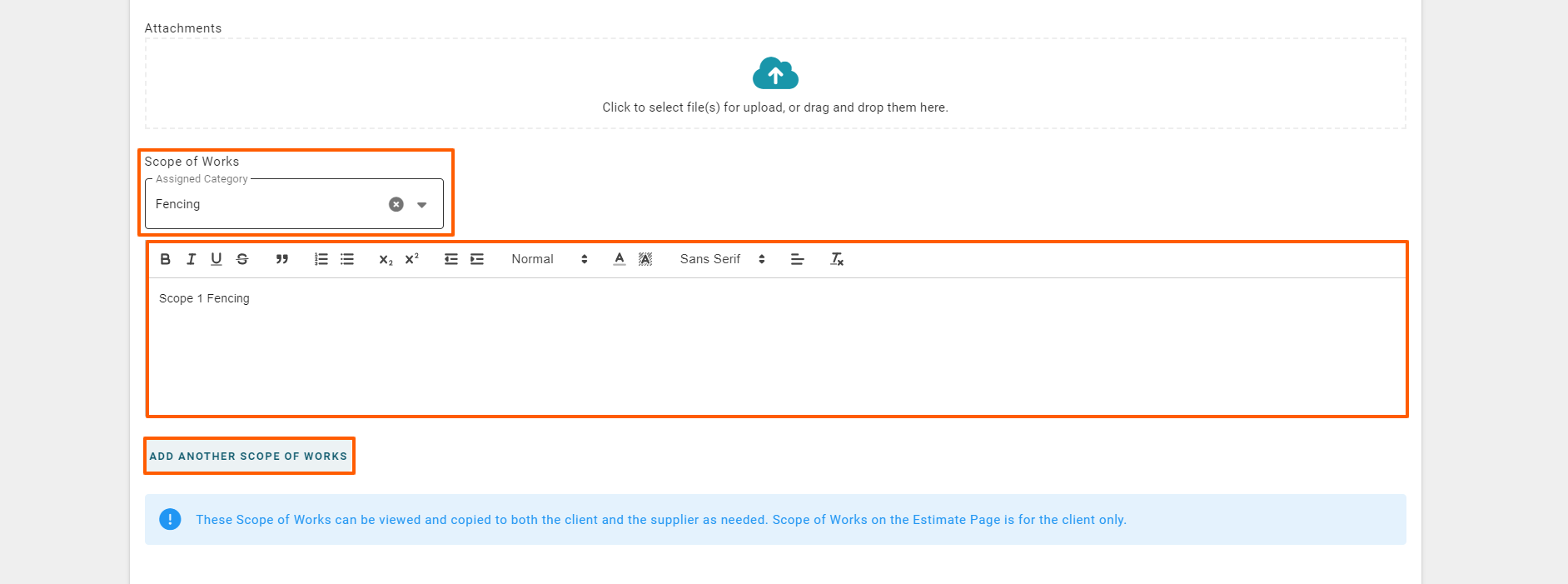
- Add detailed scopes of work/s
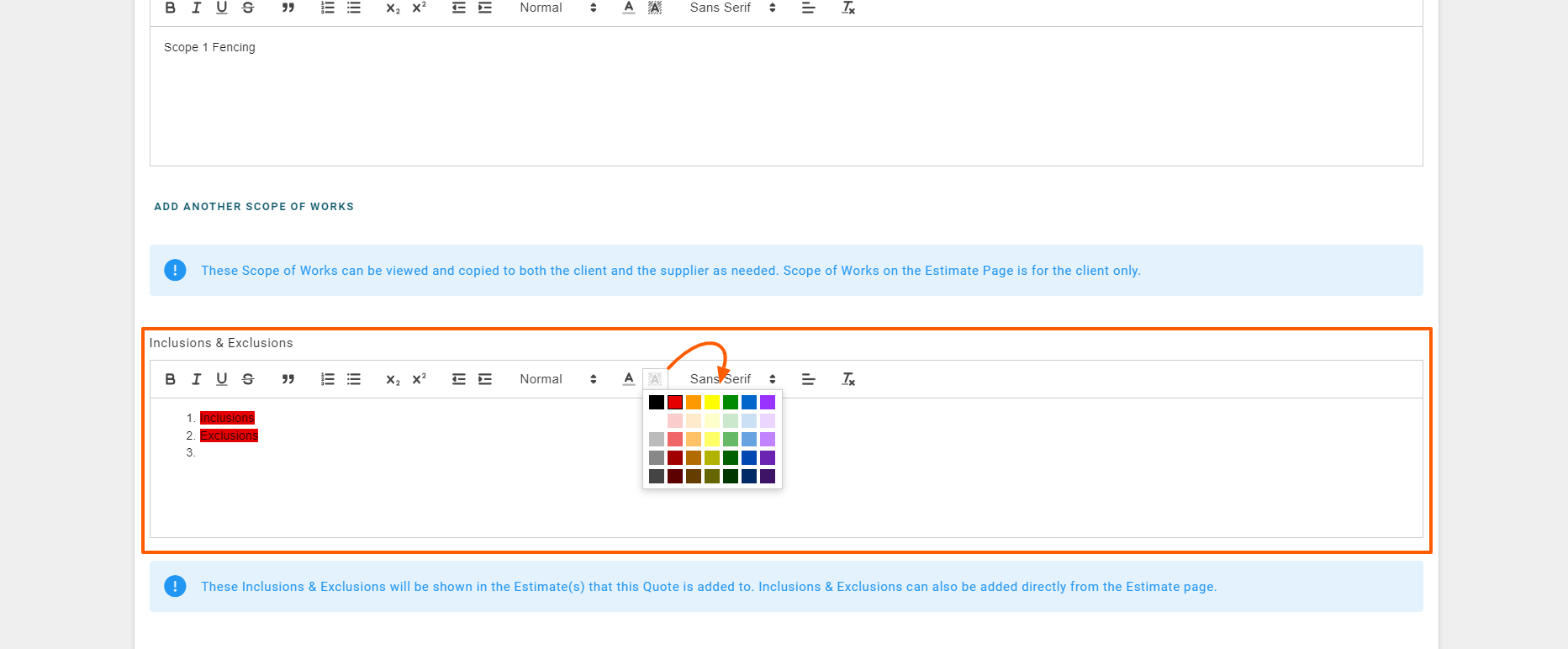
- Record inclusions and exclusions
Creating a Quote from a Supplier’s Emailed Submission
When a supplier emails their pricing back to you, follow the steps below to manually load their quote into Rave.
- Navigate to the Quote Request sub-tab.
- Locate the relevant Quote Request (QR).
- Click the three-dot action menu on the right-hand side.
- Select Copy to Quote.
RAVE will automatically:
- Create a new Quote Tender (QT) reference number
- Link it to the original QR
- Keep the same RAVE Project ID
- Add a version suffix (e.g.
-1,-2,-3, etc.)
This maintains version control across revisions.
You can now rename the QT Reference for easier visibility in back costing: Rave Suggests something like Electrical Supply - QT1234 or Electrical – QT1234
Clear naming makes future tracking and reporting significantly easier.
Step 3: Upload the Supplier Quote
- Scroll to the Attachments section.
- Click the cloud icon.
- Upload the supplier’s quote document.
Always upload the original supplier document for audit and traceability purposes
Step 4: Enter Scope Details
In the relevant fields:
- Copy and paste the Scope of Works
- Copy and paste the Inclusions
- Copy and paste the Exclusions
Capturing this information ensures pricing assumptions are clearly documented and reduces disputes later.
Step 5: Add Line Items
If an inventory list has been loaded into the project:
- Click Add a Line Item.
- Begin typing the Inventory Item Code.
- Select the correct item to auto-populate details.
You can then:
- Assign a Category
- Assign a Sub-Category
- Set the Unit of Measure
- Enter the Quantity
Step 6: Apply Pricing & Margin
For each line item, enter either:
- Sell Price, or
- Markup
RAVE will automatically calculate the corresponding field:
- If you enter a Sell Price, RAVE calculates the markup.
- If you enter a Markup, RAVE calculates the sell price.
This ensures pricing consistency and accurate charge-up calculations.
Key Reminders
- Always rename your QT for clarity.
- Always upload the supplier’s original quote.
- Always record inclusions and exclusions.
- Ensure line items are categorised correctly for accurate reporting and back costing.
This process ensures supplier pricing is clearly documented, traceable, and correctly structured within RAVE for budgeting, charge-up, and reporting purposes.
Multiple Inclusions and exclusions
All Inclusions and Exclusions are managed in the same ‘Inclusions and Exclusions’ section. You just need to list each item in the order they are to appear in your proposal document. And again, you can use the formatting buttons as required to get these details looking right, and to highlight specific points.
Saving your Quote options
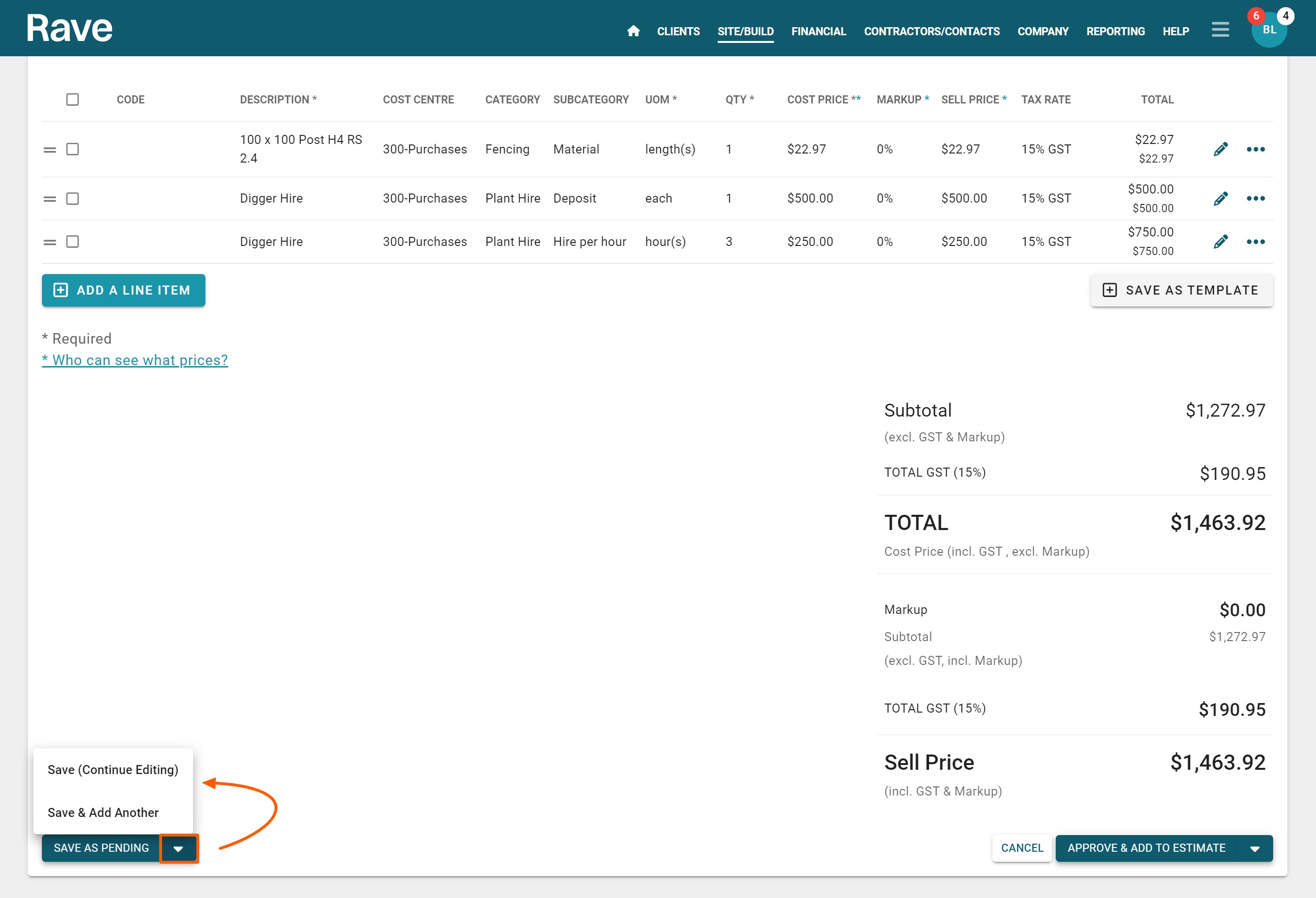
You can save this quote as pending, saving your quote as it is now, to continue editing it, or to move on to another quote - ensuring that your work is saved. You can also save it as a template.
Approving your Quotes
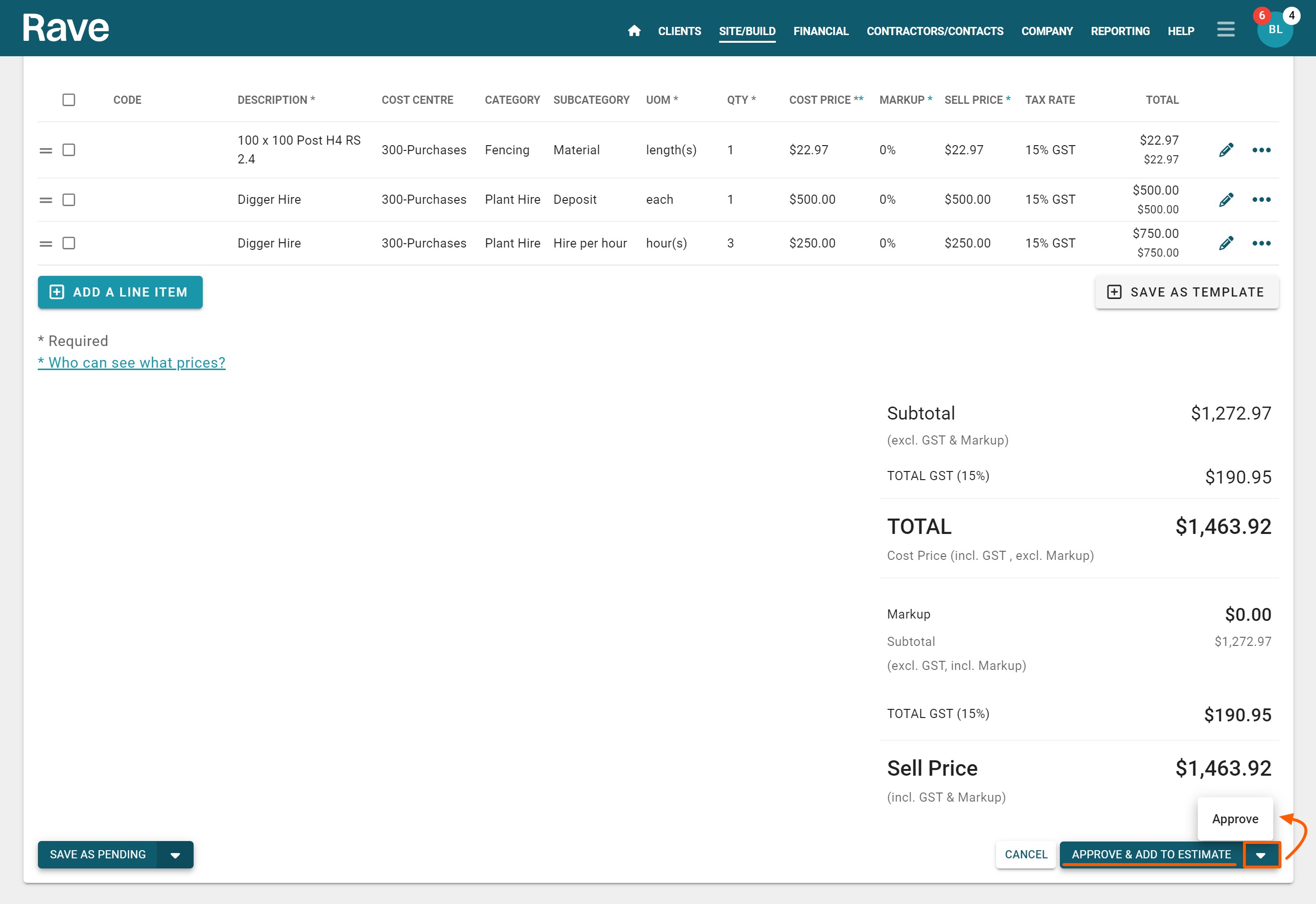
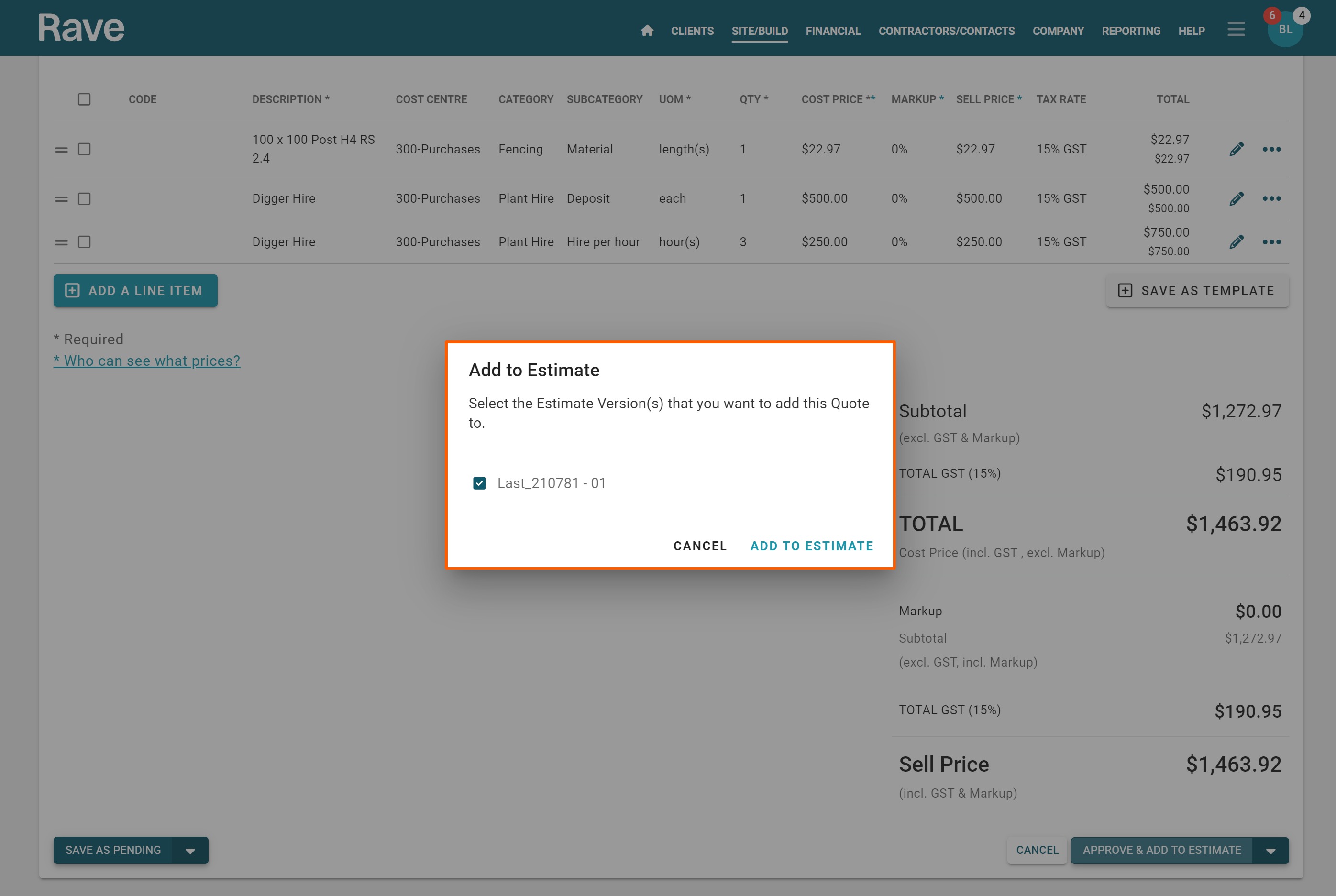
On the right-hand side, you have the option to ‘Approve & Add to Estimate’ or to just ‘Approve’.
- Clicking ‘Approve & Add to Estimate’ will add your quote to the client ‘Estimate’ page, and also to the ‘Back Costing’ sub-tab.
- While selecting ‘Approve’ will bypass adding your quote to the client ‘Estimate’ page, and add it to the ‘Back Costing’ sub-tab only.
Clicking on ‘Approve & Add to Estimate’ will automatically create a new client ‘Estimate’ version. And then, clicking ‘Add to Estimate’ will automatically take you to the estimate page. If you have more than one version you would then select which estimate to add the quote too.
Creating another estimate with the same Quotes
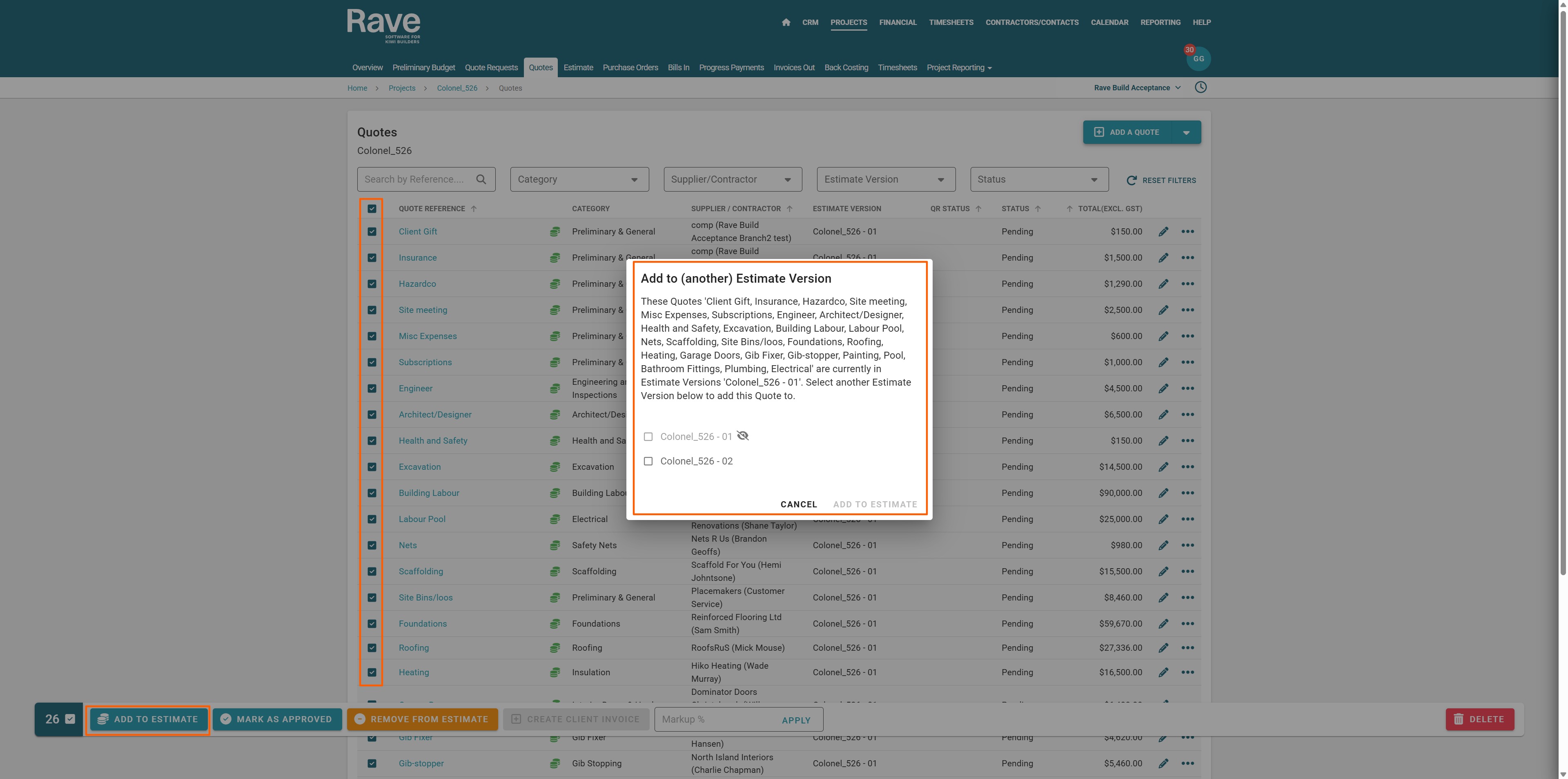
If you need create a new estimate version but want to reuse the same quotes its easy. You can single or multi select the quote as on the pop up bar select the add to estimate button. A pop up will let you know all of these quotes are already in an estimate. Select the estimate you have pre prepared and then press Add to Estimate.
A box will then pop up notifying you that you cannot have more than 1 quote in an estimate so a duplicate quote will be created and put in your new estimate Press Add to Estimate. You now have both estimate versions in draft format. You can now edit either the second version quotes/estimate or the first or both without accidently changing the wrong one.
Bulk adding your Categories, Subcategories and/or Chart of Accounts
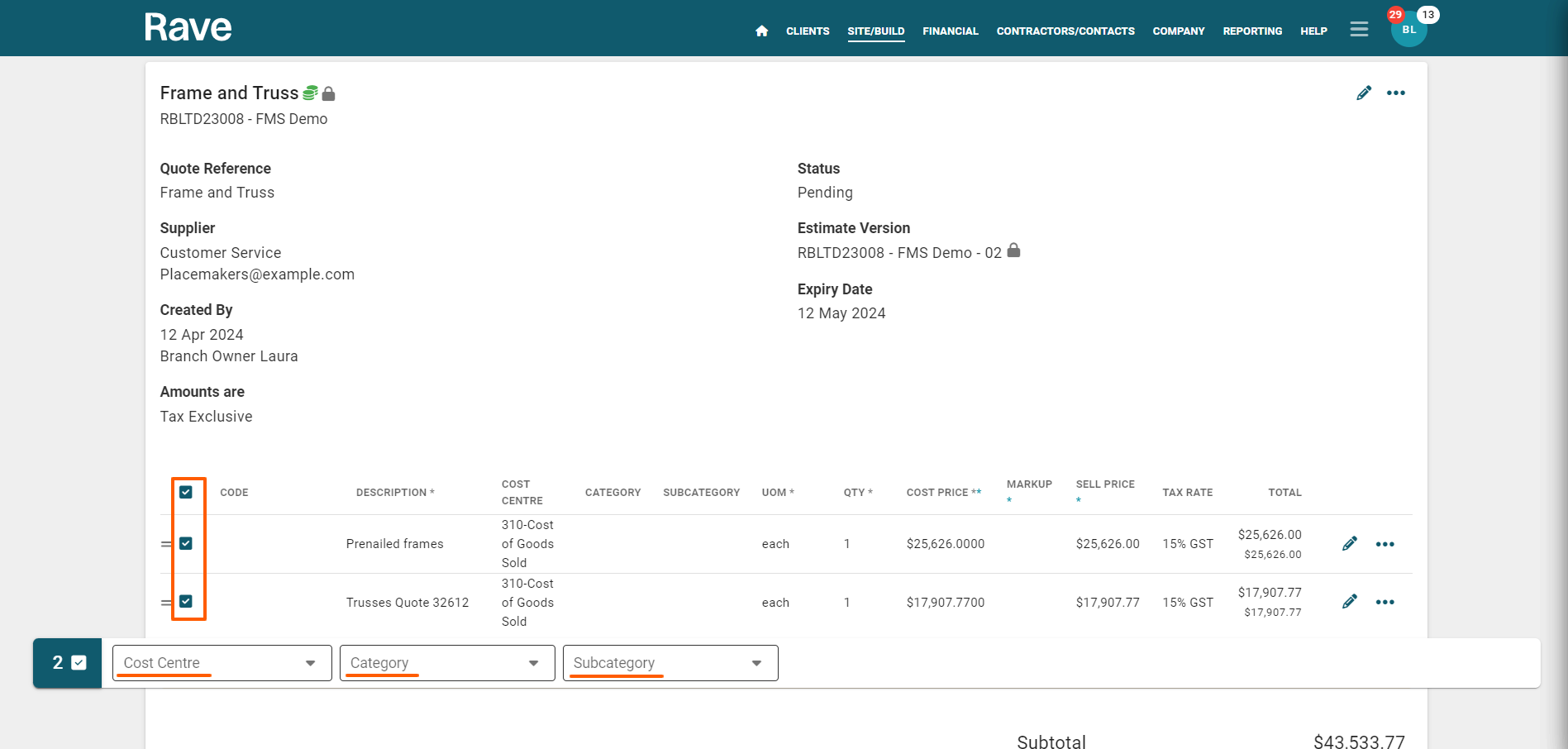
If you need to add or update your estimate categories and/or Chart of Accounts to multiple lines, you can select the tick box on the left hand side of your line items for the relevant lines and bulk add your categories/chart of account code.
Was this article helpful?
That’s Great!
Thank you for your feedback
Sorry! We couldn't be helpful
Thank you for your feedback
Feedback sent
We appreciate your effort and will try to fix the article