Accessing the Reporting Module
To begin:
Click on ‘Reporting’ at the top-right of your Rave screen.
Depending on your permission level, you will see tabs for:
Company
Branch
Salesperson
For this guide, we are focusing on the Company tab.
Navigating to PROJECT Reports
In the Reporting Module, click on the PROJECT tab (left-hand side).
You will now see a list of available PROJECT reports.
The Closed Projects report is the one you need for this guide
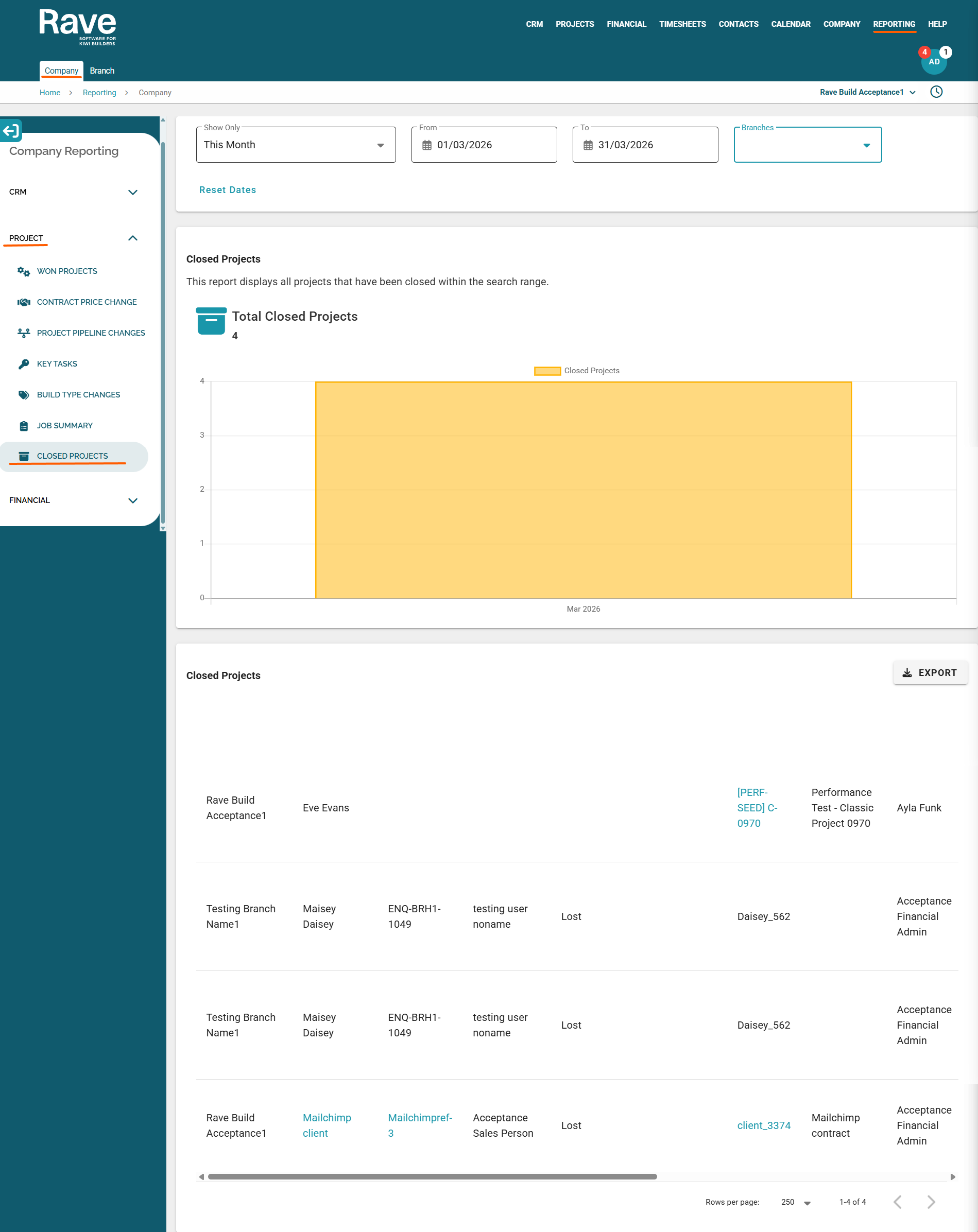
The Company Project Closed Report includes a date range filter, allowing users to search for and view closed projects within a selected timeframe. This helps identify any projects that may have been closed incorrectly during the report review.
The top of the page has date-range filters and a Branch selector to choose which Branches you wish to view; the graph shows the number of projects closed for that search.
The table below has Export to CSV and is organised by the following fields:
- Branch Name
- Client Name
- Enquiry Reference
- Sales Person
- Sales Pipeline
- Sub Sales Pipeline
- Project Reference
- Contract Name
- Project Manager
- Site Address
- Project Stage
- Project Type
- Sub Project Type
- Date Project Was Closed
- Closed By
Was this article helpful?
That’s Great!
Thank you for your feedback
Sorry! We couldn't be helpful
Thank you for your feedback
Feedback sent
We appreciate your effort and will try to fix the article