Rave's Project Custom Templates tab is where you can create and manage your Project Custom Export Templates and Message/Mail templates.

Template Permissions
To manage permissions for templates you will need to have access to manage users. You will need to choose from the below options.
Branch Mail Templates - This enables the user to create and manage mail templates all branch users can use in both CRM and Projects
Others Mail Templates - This enables the user to edit/manage templates their team create for themselves in both CRM and Project Mail
Project Export Template - This enables the user to create/manage custom export templates in the branch.
Export is where you can create and manage your project's custom export templates.
You can search for an existing template by keyword name or create a new template by clicking the '+ Custom Export Template' button located at the top right of your screen. The action icons to the right allow you to do the following with your templates:
- The pencil edit icon - allows you to edit your template i.e. change the template name, and the fields that will populate your export file
- The red Trashcan icon - allows you to delete your template
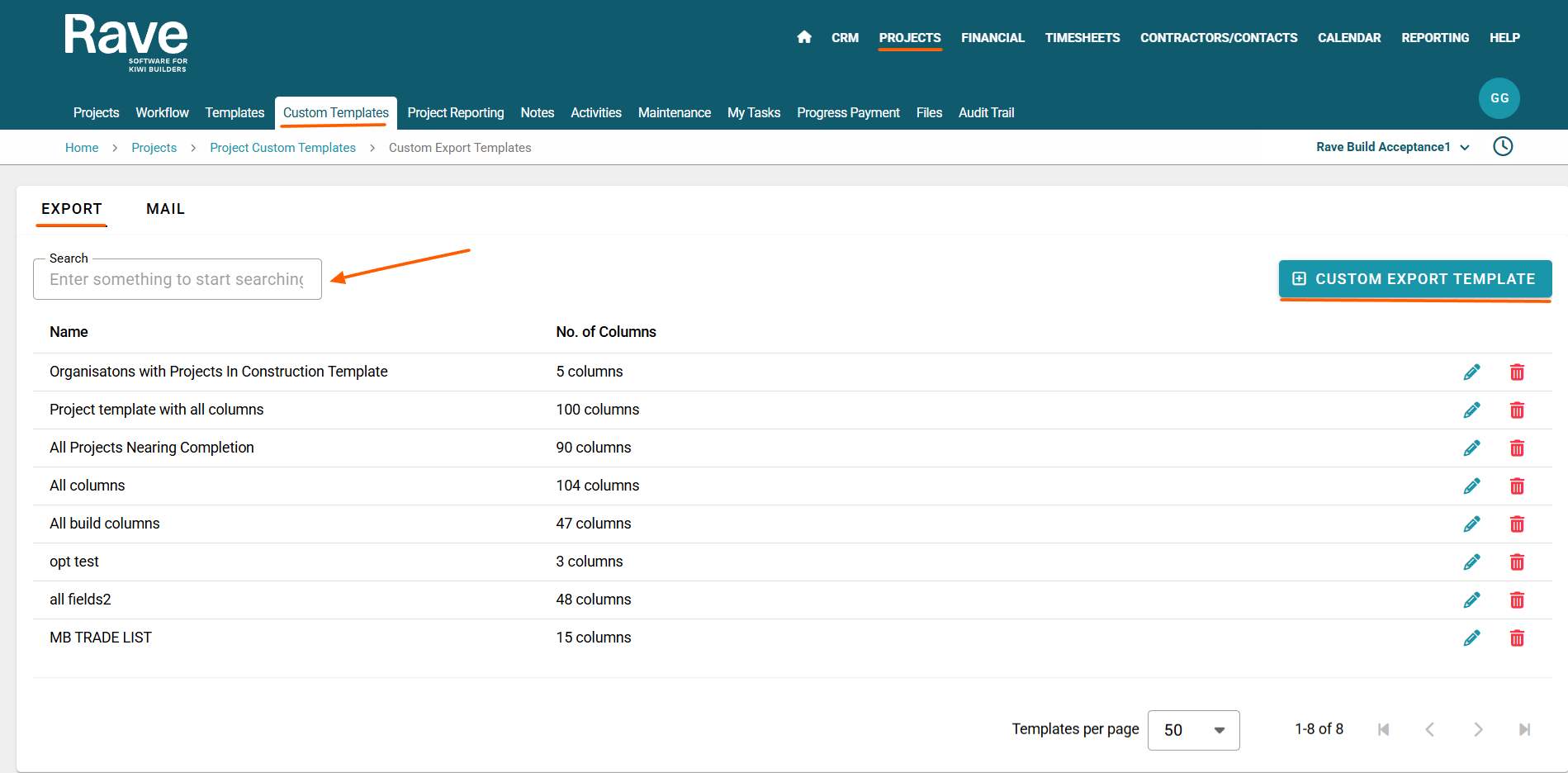
How to Create a New Projects - Custom Export Templates
To create a new custom export template, click on the '+ Custom Export Template' button - this will open the Project Custom Export Template pop-up. Then type in a name for this template, e.g. All Projects Nearing Completion. Then select Create - this will open the Custom Export Template Screen.
You can now start selecting which fields you would like to include in your custom export. All fields on the project details screen are selectable, and you can order the export columns as needed.
Note: You can use the 'Select All' icon to add all the choices to your export and then unselect the ones you don't need before selecting 'Add'.
Once you have added any selections, you can still edit the template name, delete or edit each line via the 'Delete' and 'Edit' buttons, and delete all selections using the discard button. You can use the '=' icon to the left of any line to click and drag / reorder your choices. To add a new option click the + CSV column icon.
Once you have made your selections, click on the 'Back to List' button to the top right, and you will see your template ready and available for you to use via the Projects list page.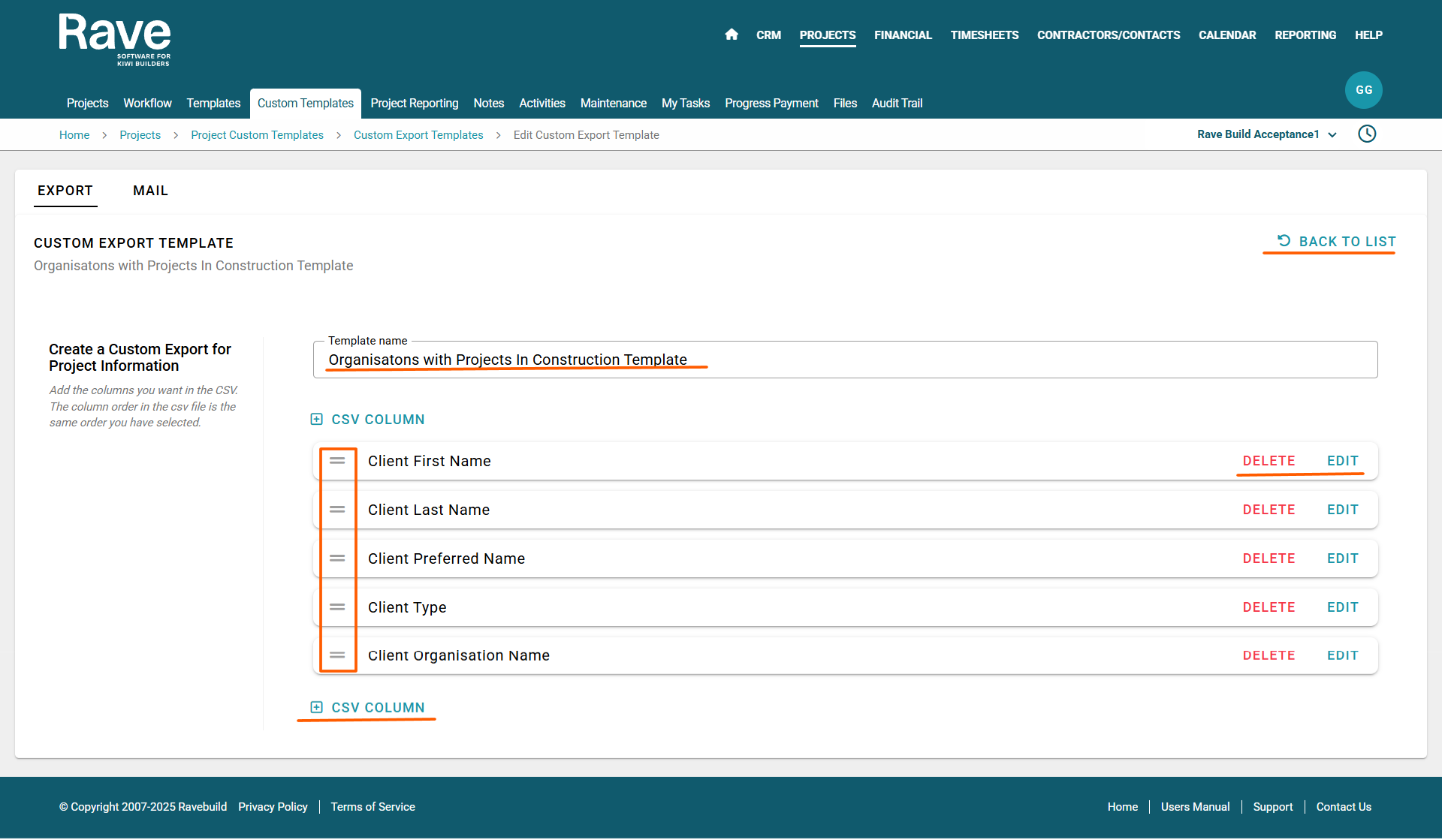
For a step-by-step guide on using your Project's Custom Export Templates, check out our help article here.
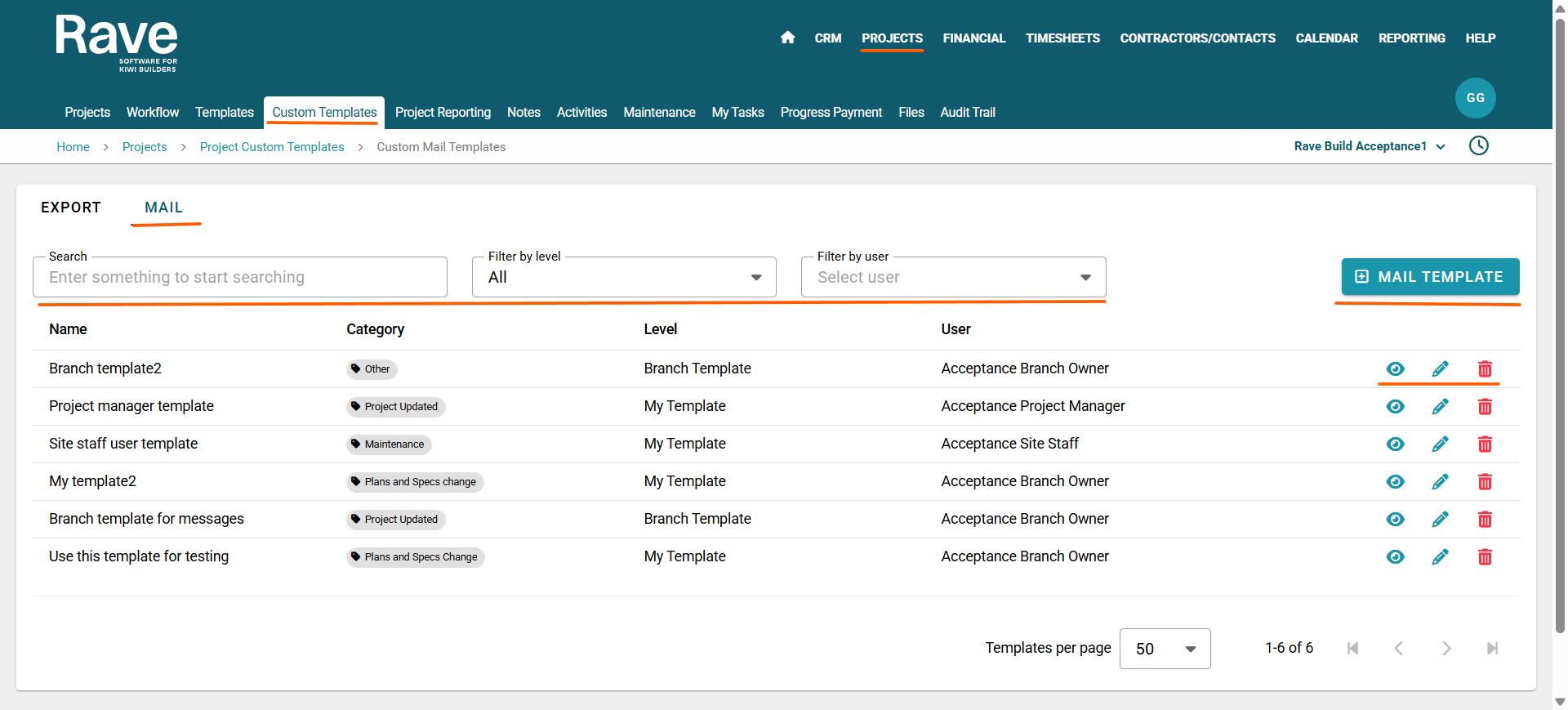
The Mail templates screen displays all your mail/message templates.
You can create a new mail template by clicking '+ Mail Template' button located at the top right of your screen.
You can search by the name of a template in the search box or a key word from the name.
While the action icons to the right allow you to do the following actions with your templates:
- The eyeball icon - allows you to preview the template i.e. how the mail looks when the client receives it
- The pencil edit icon - allows you to edit your template i.e. change the template name, type, mail subject line, and body of the mail with formatting options
- And finally, the Red Trashcan icon - allows you to delete your mail template
How to Create a Mail/Message Template
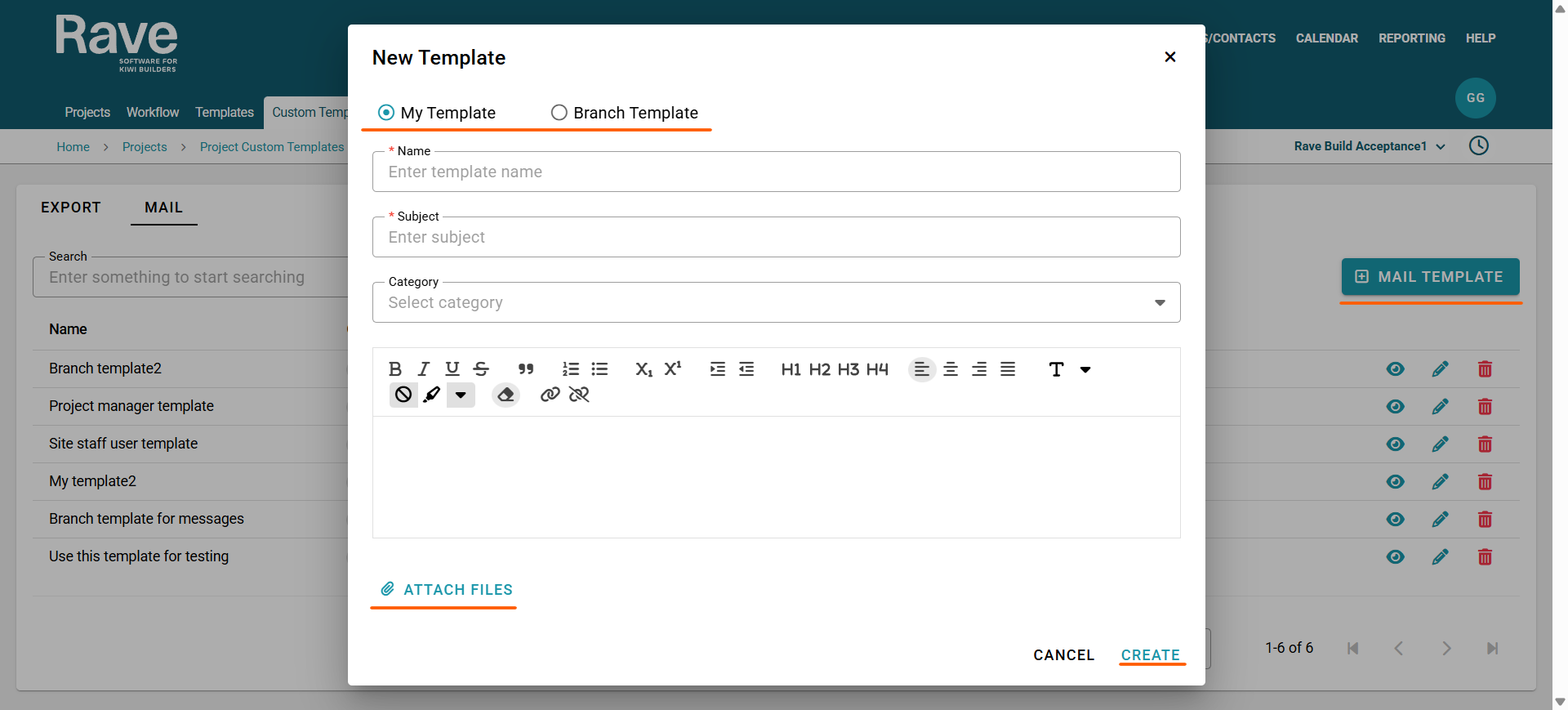
To create a new mail template, click the + Mail Template button in the top-right corner of your screen.
If you have permission to manage both branch and personal templates, you can choose whether the template is shared with all users or saved as your own.
Users with permission to create personal templates only will see the My Template option.
Enter a name for your template (e.g., Sales Update or Catch-Up Email).
Set the subject line.
Select a category to file the template under, or leave this blank if not needed.
Type the body content of your template. You can add attachments and use formatting tools such as highlighting, bullet points, and indentation.
When you’re finished, click Create, and your new template will be saved and appear in the main menu.
Was this article helpful?
That’s Great!
Thank you for your feedback
Sorry! We couldn't be helpful
Thank you for your feedback
Feedback sent
We appreciate your effort and will try to fix the article