Managing Estimate Categories in Rave
To add, edit, archive, or delete Estimate Categories or subcategories, open your profile dropdown and select Branch Settings, then choose Estimate Categories.
If you don’t see the Branch Settings option, you don’t have permission to access it and will need to contact your branch owner.
If you have permission to manage users, you can enable the Manage Estimate Categories permission for yourself or others under the Branch Settings section.
Access to Categories and Subcategories is permission-based:
No Access – Cannot view or make changes
View Only – Can view categories and subcategories but not make changes
Full Access (Add/Edit/Delete) – Can create, update, and delete categories and subcategories


Adding an Estimate Category or Subcategory:
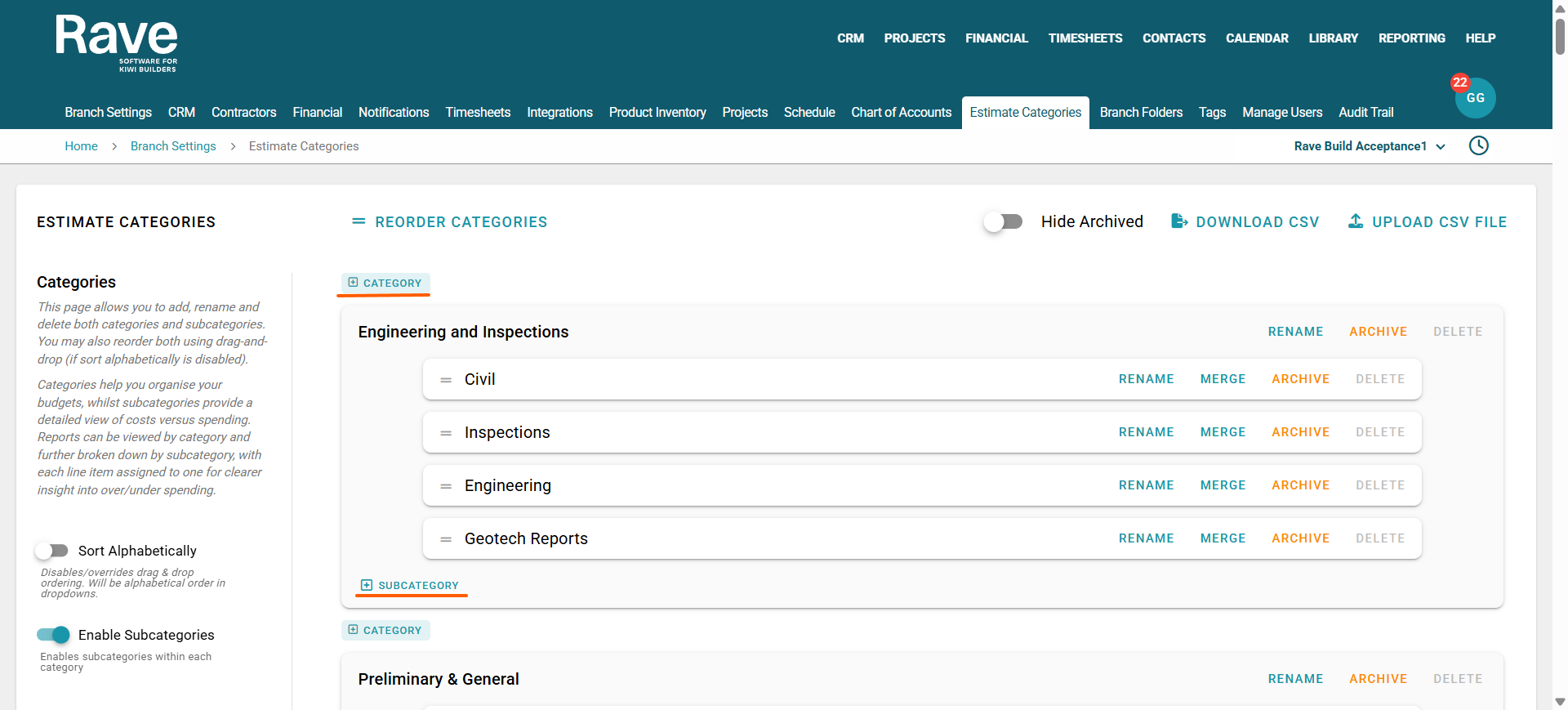
Click the + Category button anywhere on the page to enter the name of your new category, then select Add Category to save.
Your new category will appear in the list.
To add a subcategory, click Add Subcategory on the Category you wish this Subcategory to live.
You can have as many Category and Subcategories as you need.
Note: The more you have the longer reporting will take to load and the more room there is for errors when selecting.
Editing an Estimate Category or Subcategory:
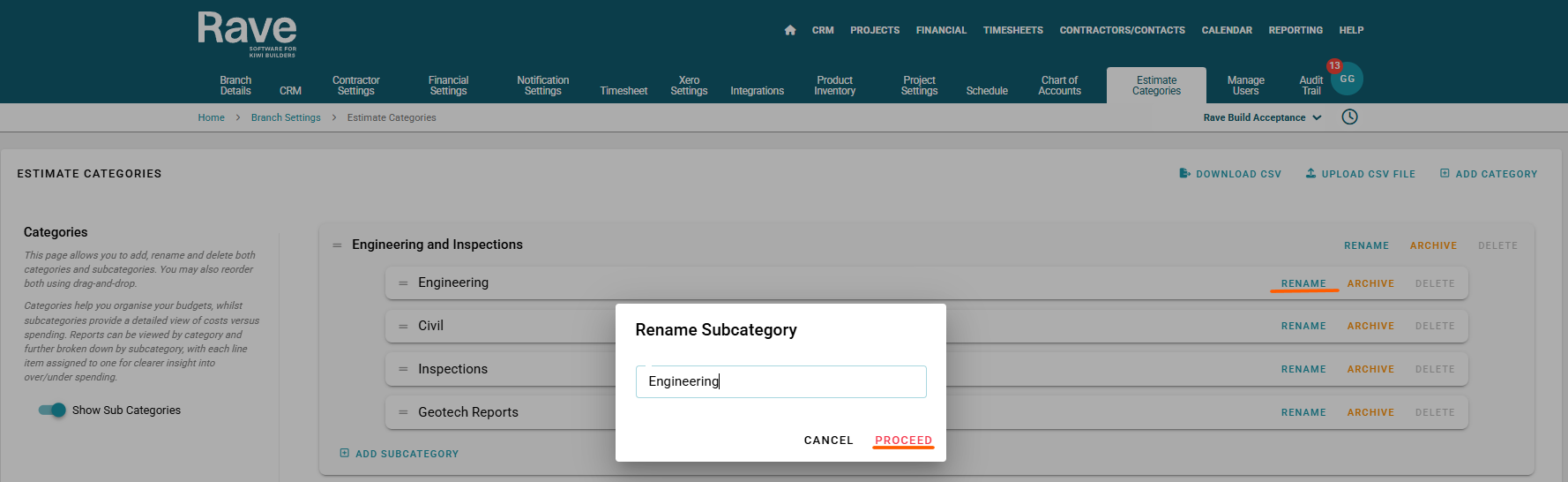
To edit a category or subcategory, click the Rename button. This will allow you to update the name of the category or subcategory. Once you’re finished, click Proceed to save your changes.
Archiving an Estimate Category or Subcategory:
If you no longer want to use an estimate category, you can archive it using the Archive button. All historical data will remain assigned to that category or subcategory, but it will no longer be available for selection on new documents.
If you need to reassign a category or subcategory to something else, you can do this at the document level.
The best report to view where categories and subcategories are used across the entire business is the Branch Transaction Report. See the article here.

Deleting an Estimate Category or Subcategory:
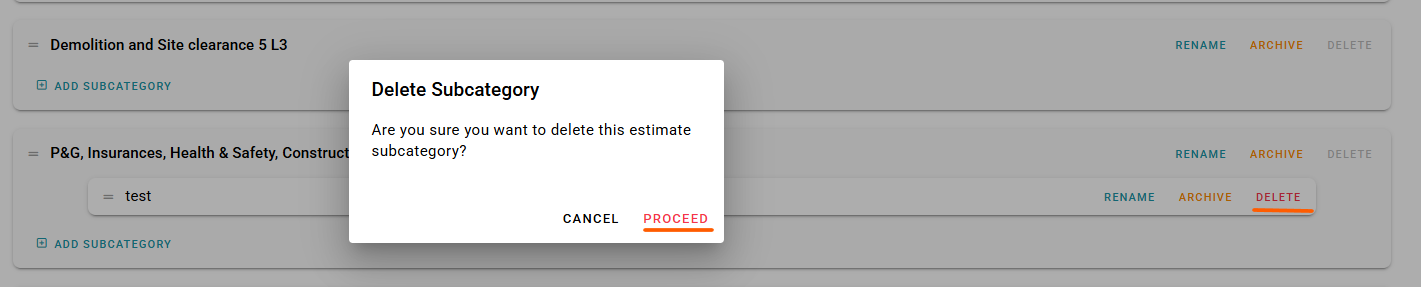
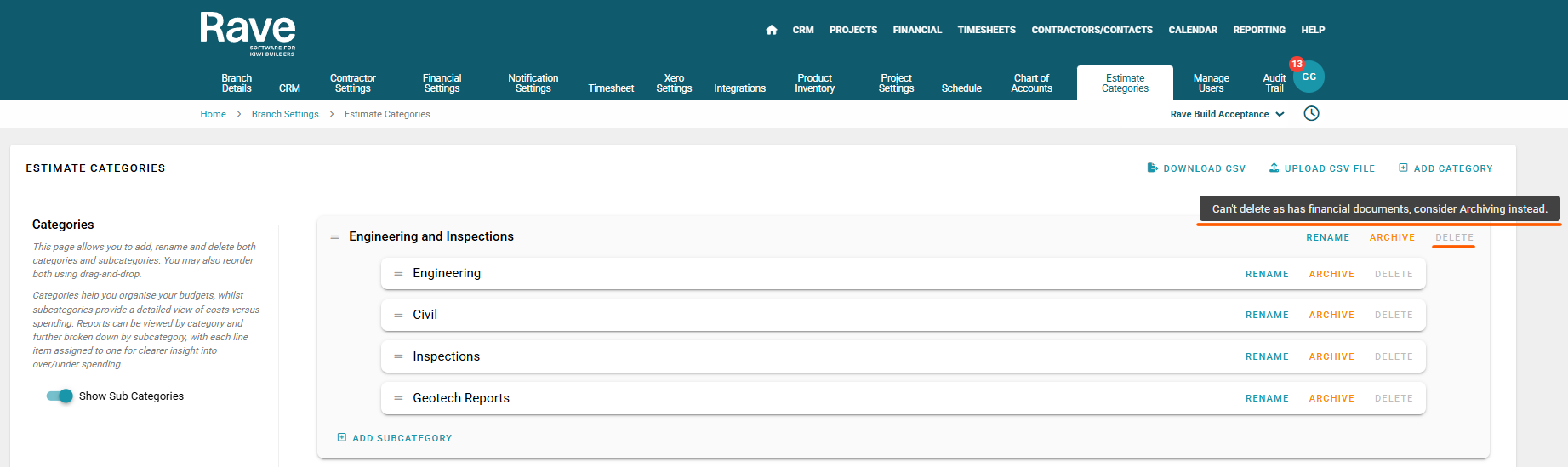
If you no longer want to use an estimate category, you can delete it by selecting the red Delete button. If the delete button is grey out it means you cannot delete the category as it has financial records against it.
You can choose to archive (see above) or reassign a category or subcategory to something else then delete it once its not in use. You need to reassign at the document level to free up to then be able to delete it.
The best report to view where categories and subcategories are used across the entire business is the Branch Transaction Report. See the article here.
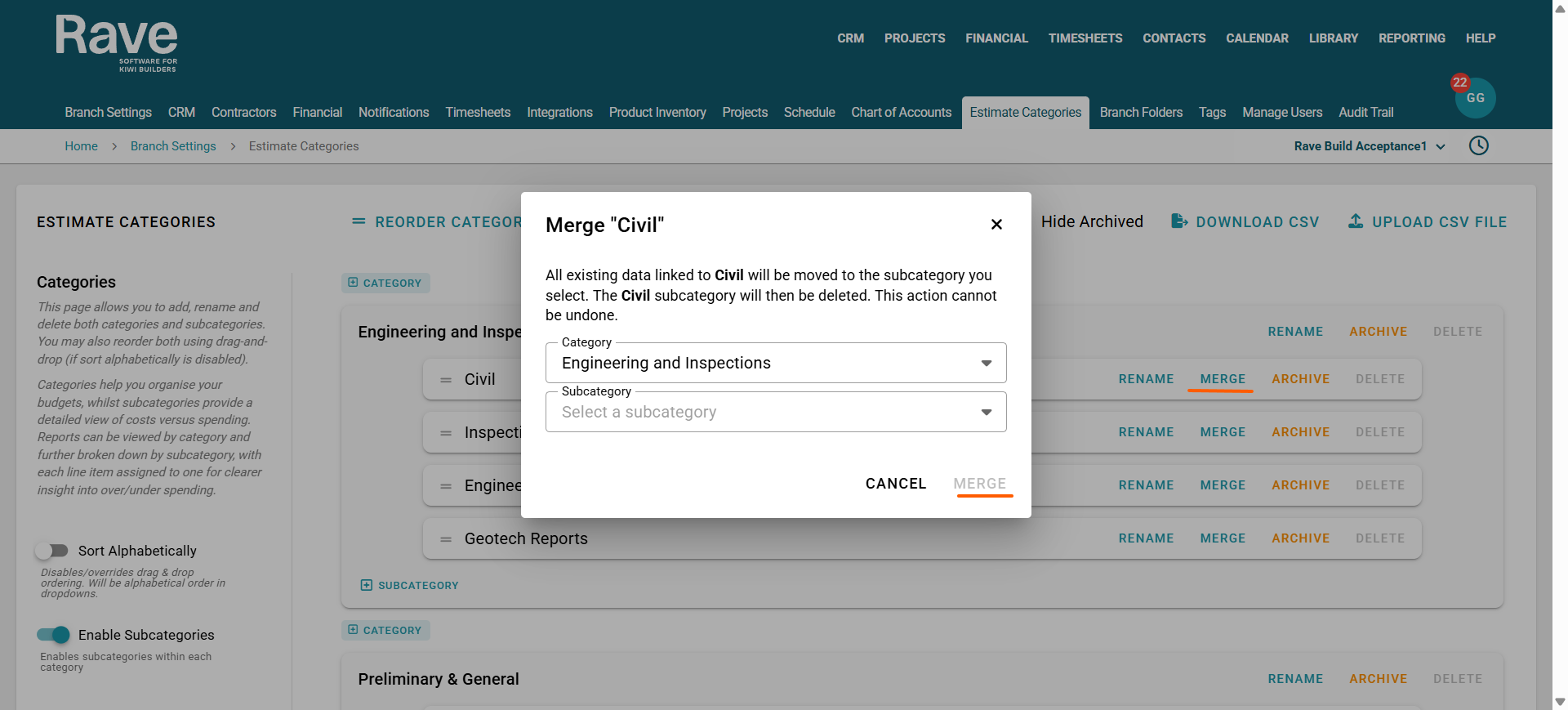
Merging and Estimate Category or Subcategory
If you no longer want to have an estimate Category and you want to transfer all of the historical data to a new one you can use the Merge Function. You'll need to pick a new Category and/or Subcategory and then select merge. Once the merge is complete there is no undoing this action.
The audit trail will pick up the merge so you can see a history.
Downloading and Uploading via a CSV
Users have the ability to upload or download their Category and Subcategories via CSV.

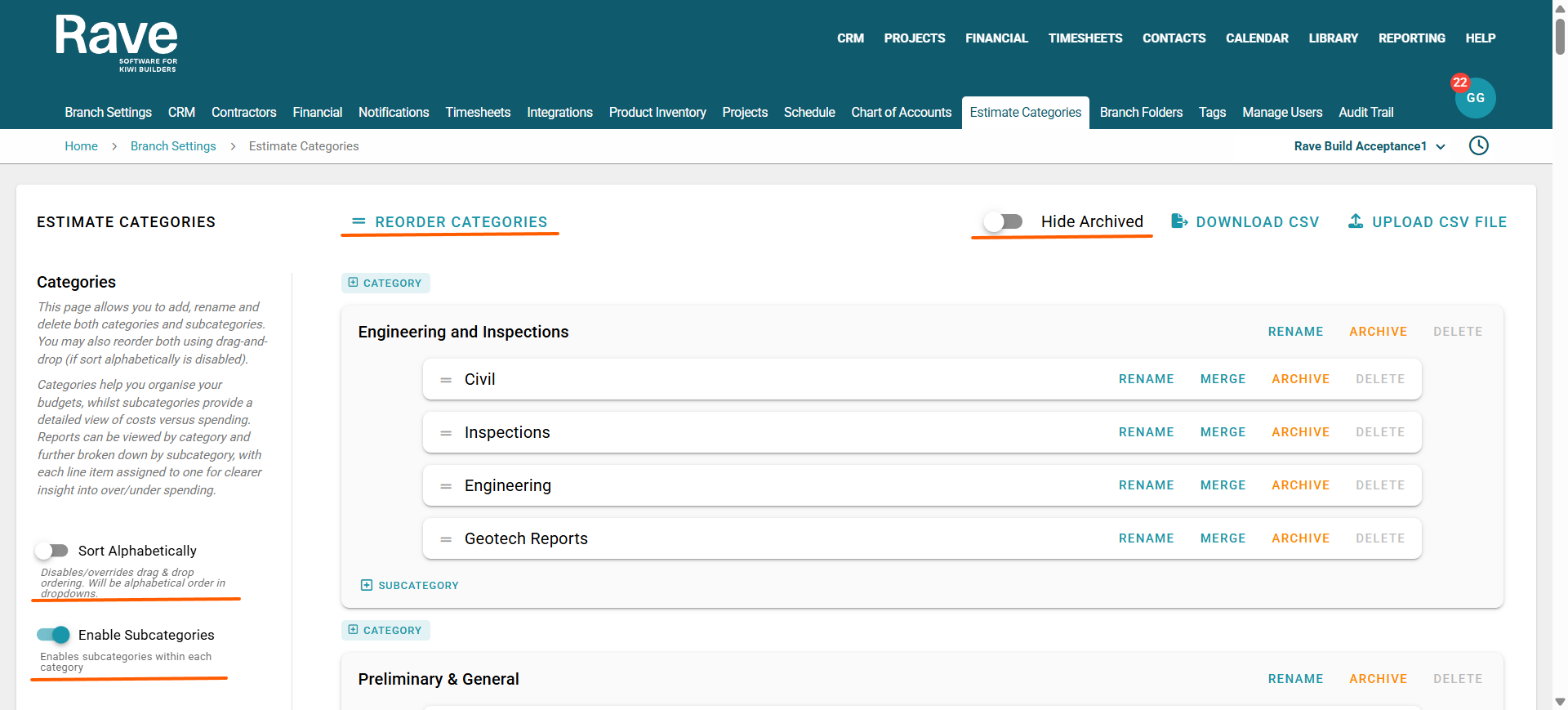
To keep the page tidy, you can toggle Hide Archived on or off.
You also have the ability to reorder categories either by alphabetical order on the left-hand side using Sort Alphabetical or via the Reorder Categories toggle to the top left. Reordering has been made much faster because the subcategories will collapse, allowing you to drag and drop more quickly.
Note: The order of the categories and subcategories here is how they display on the estimate page and in reporting. Any options not in use on a specific project will not display on the estimate or in reporting.
Don’t need Subcategories? No problem.
You can continue to use Rave at a Category-only level by disabling Subcategories to the top left of the screen, and sliding off the show subcategories tab.
Uploading Your Estimate Categories
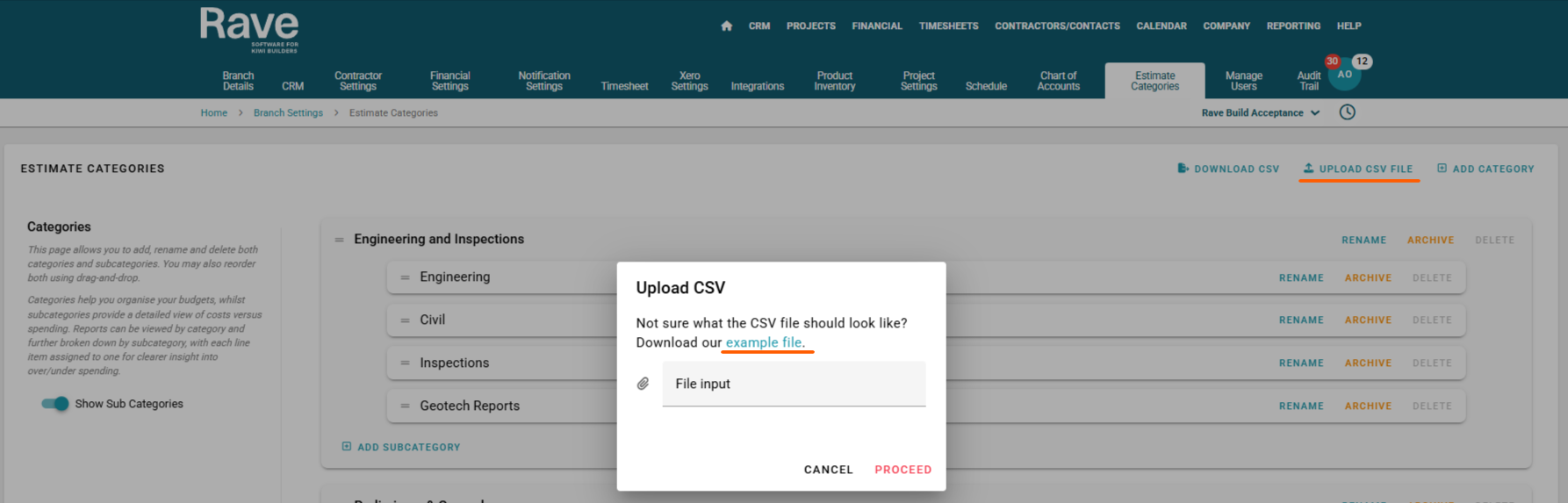
When uploading your Estimate Categories into Rave you must use the example file to get the correct format. The sample file is found by selecting the upload csv file button:
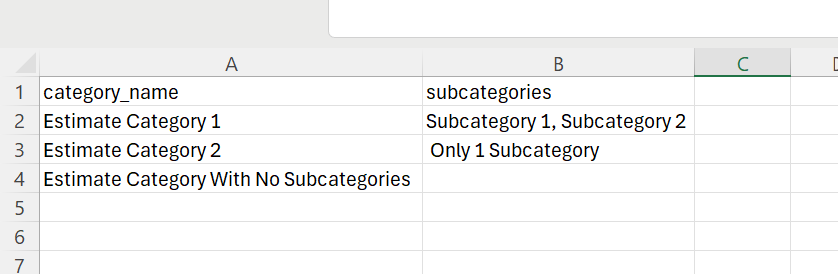
Column A: Enter your Category name
Column B: Enter your Subcategory (if applicable)
Subcategory Format
If a Category has multiple Subcategories, enter them on the same row in Column B, separated by commas.
Example:Column A: Foundations
Column B: Excavation, Concrete Pour, Boxing, Steel Reinforcement
You can also upload:
A single Subcategory per Category
A Category with no Subcategory (leave Column B blank)
This flexible format allows you to set up your cost structure based on the level of detail you need.
Downloading your Category or Subcategories via CSV
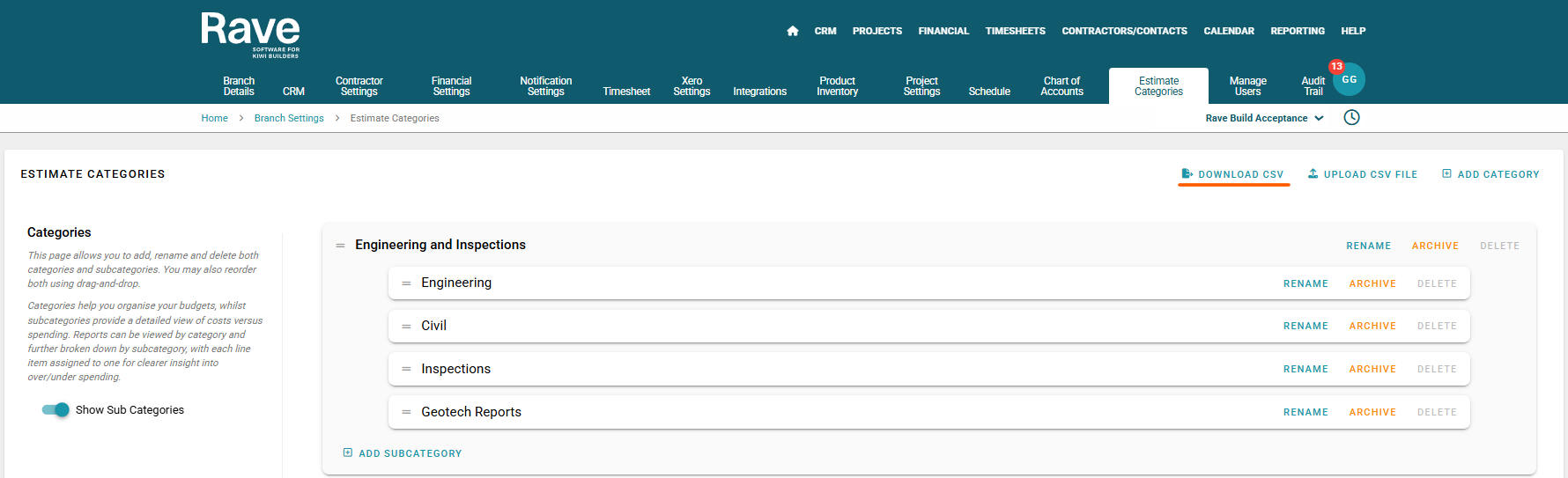
You can also download Categories and Subcategories via the download CSV option. This will export all your existing data in the same format the import is in.
Was this article helpful?
That’s Great!
Thank you for your feedback
Sorry! We couldn't be helpful
Thank you for your feedback
Feedback sent
We appreciate your effort and will try to fix the article